
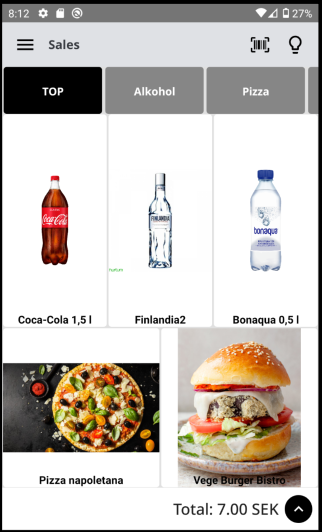
To open the Mobile POS application menu, press the menu button in the upper left-hand corner of the screen.
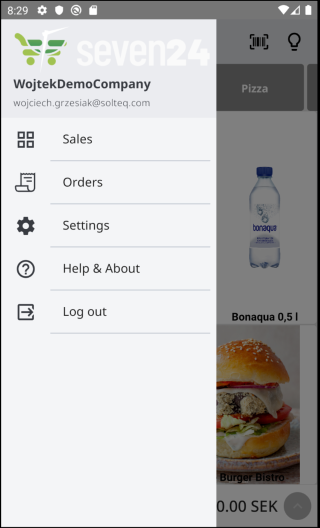
There are five different actions you can select from the menu, described below.
Sales
Selecting Sales will display the main layout view for Sales.
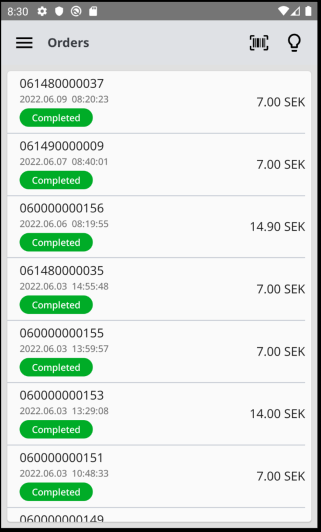
Orders
Selecting Orders will display the Orders view, which contains a list of all the orders created from the store the workstation belongs to.
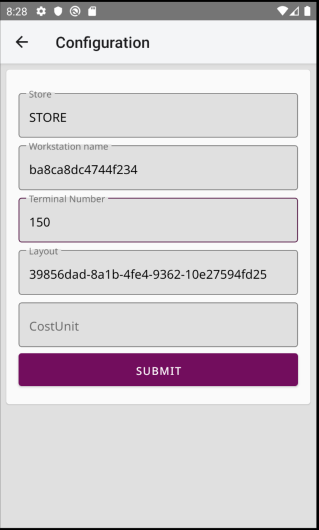
Settings
Selecting Settings will display the Configuration view, which displays the settings of the Mobile POS application
Help & About
Selecting Help & About will display the Help & About view which contains the Mobile POS application details.
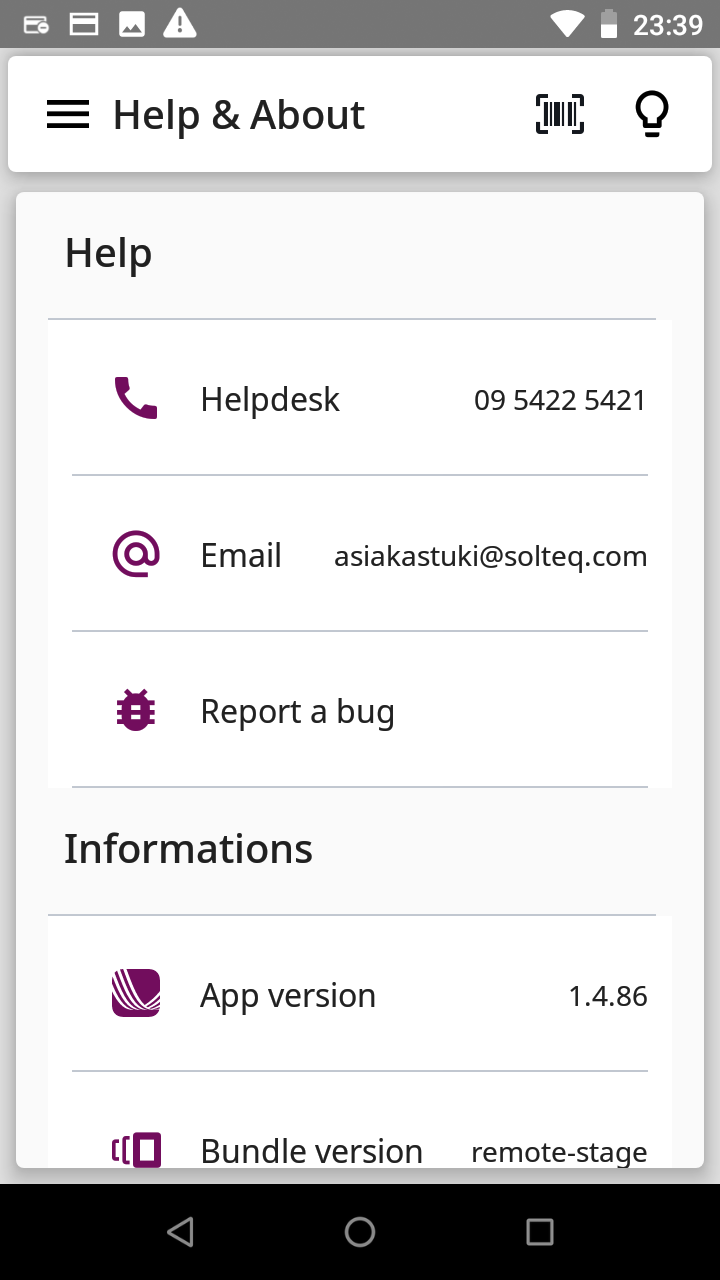
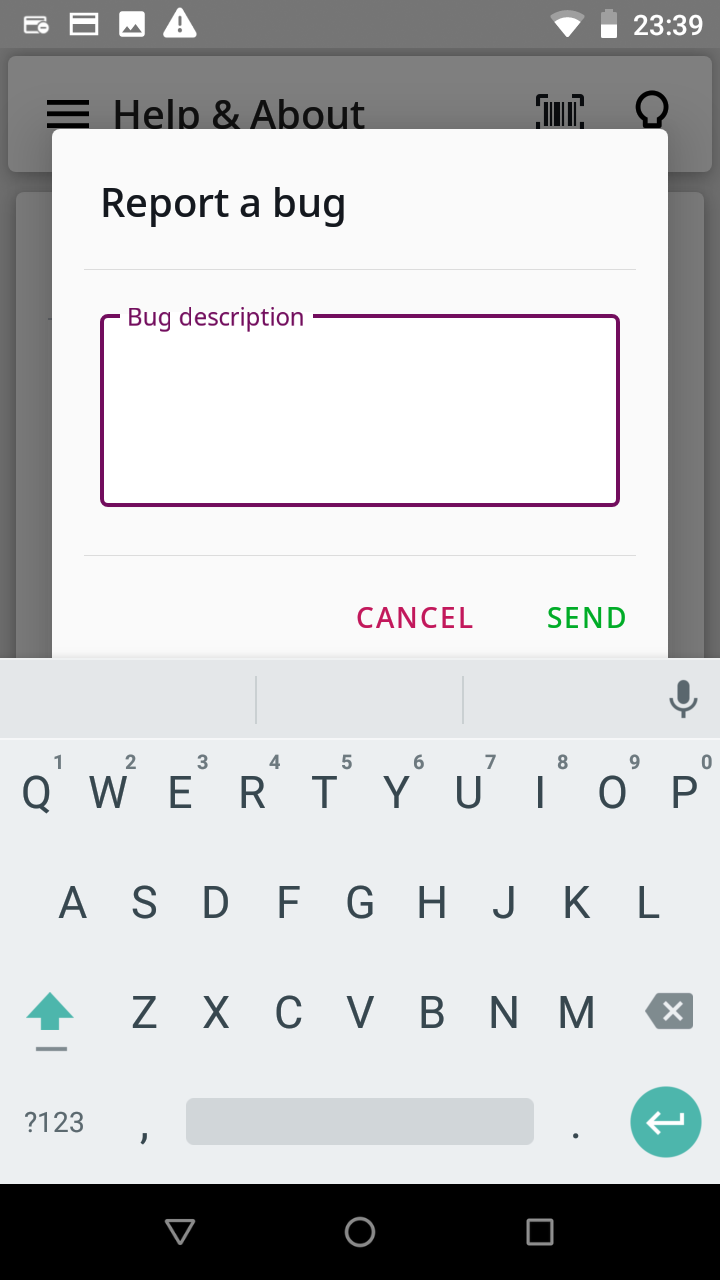
You can report errors found in the application by selecting Report a bug. Enter then the description of the bug, and press Send.
Log Out
Selecting Log Out will log you out from the application. After logging out you will be redirected to the Authentication page.