
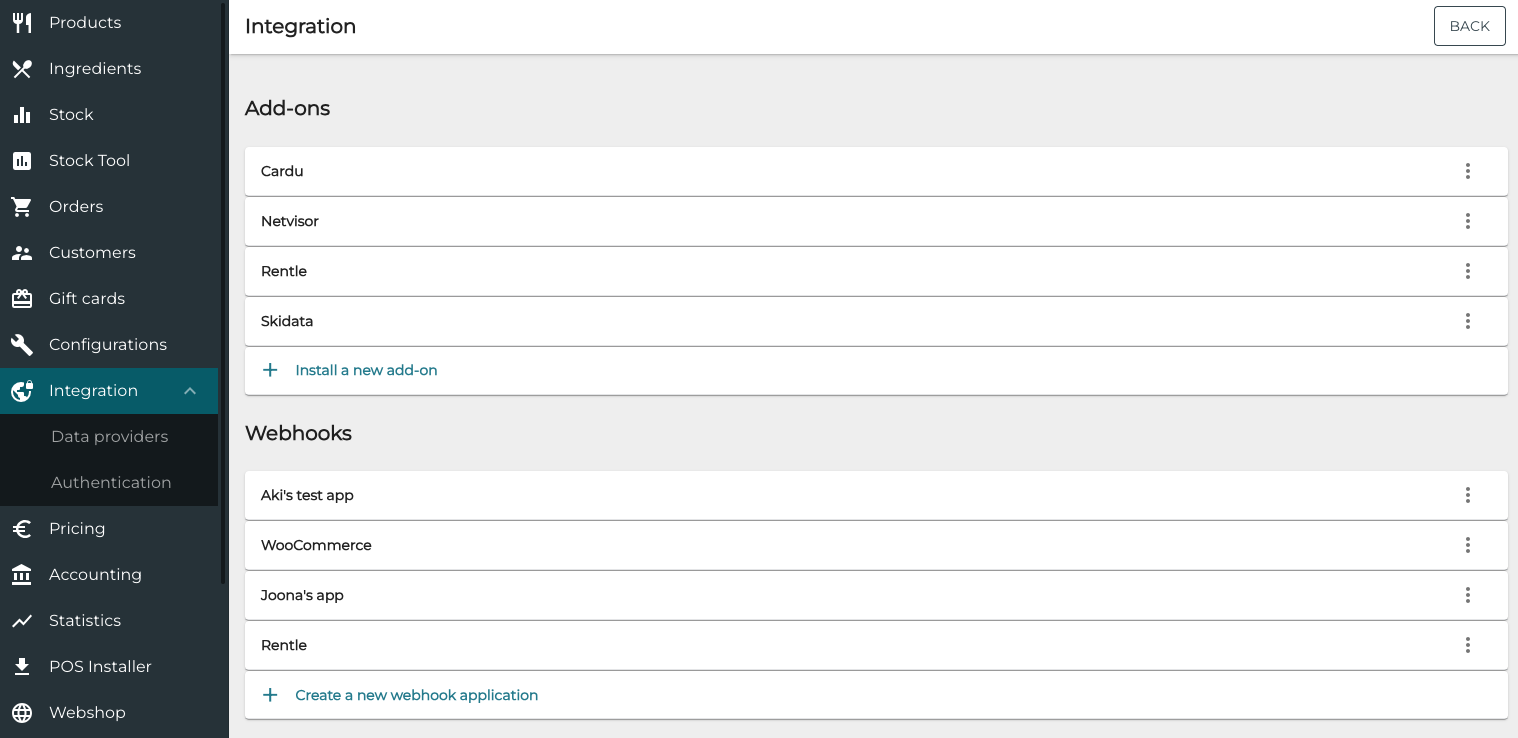
You can connect custom applications via webhook in the Integration view of the Back Office. Click Integration in the Back Office menu to access the view.
Solteq Commerce Cloud supports subscriptions for the following events:
-
ExternalOrderWasApproved
-
ExternalOrderWasRejected
-
KitchenPackageWasCompleted
-
OrderKitchenReady
-
OrderWasCompleted
-
OrderWasPaid
-
PaymentWasDeleted
-
PaymentWasReady
-
In the Integration view, click +Create a new webhook application. Add New view is displayed.
-
Enter the Application name and (optional) Description, as well as (optional) Alert e-mail addresses.
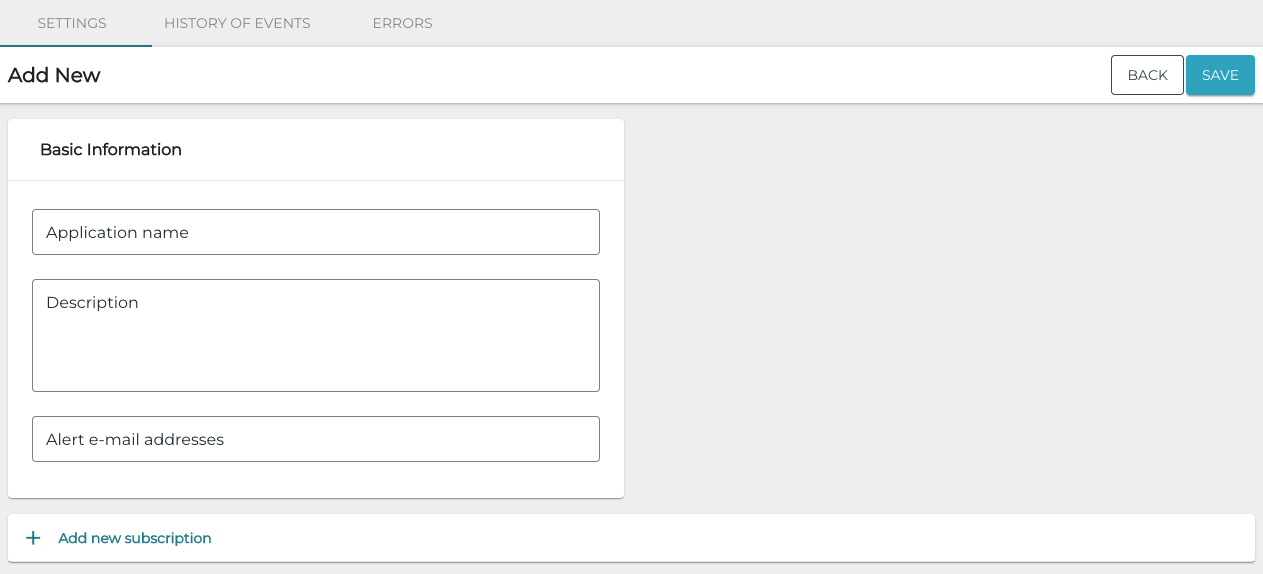
New webhook application details -
Click +Add new subcription to add a subscription, and enter details:
-
Select Event type from the drop-down menu
-
Click Documentation to view the API documentation for the event type
-
Click Download test file to download a test file.
-
-
Enter Webhook URL.
-
Click Ping to test.
-
-
Click the eye icon to view the Webhook secret.
-
Click the Active switch to ON/OFF position to activate/deactivate the subscription.
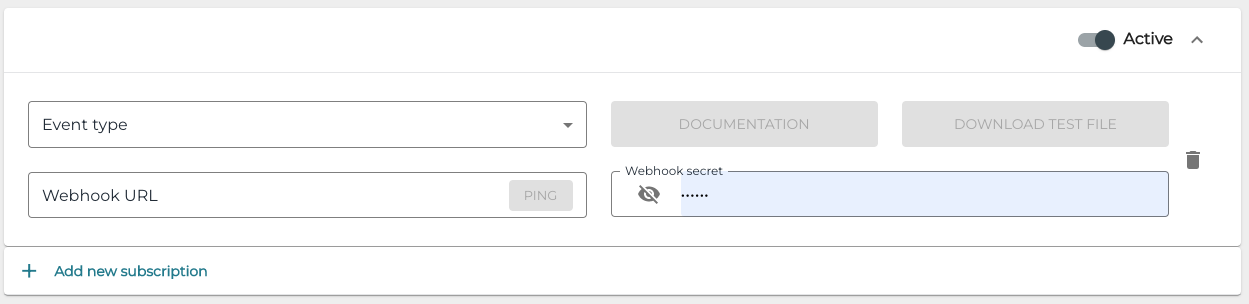
New subscription details
-
-
Add other subscriptions, as needed.
-
To save your changes, click Save.