
See Kiosk Layout for instructions on how to create layouts for self-service Kiosks.
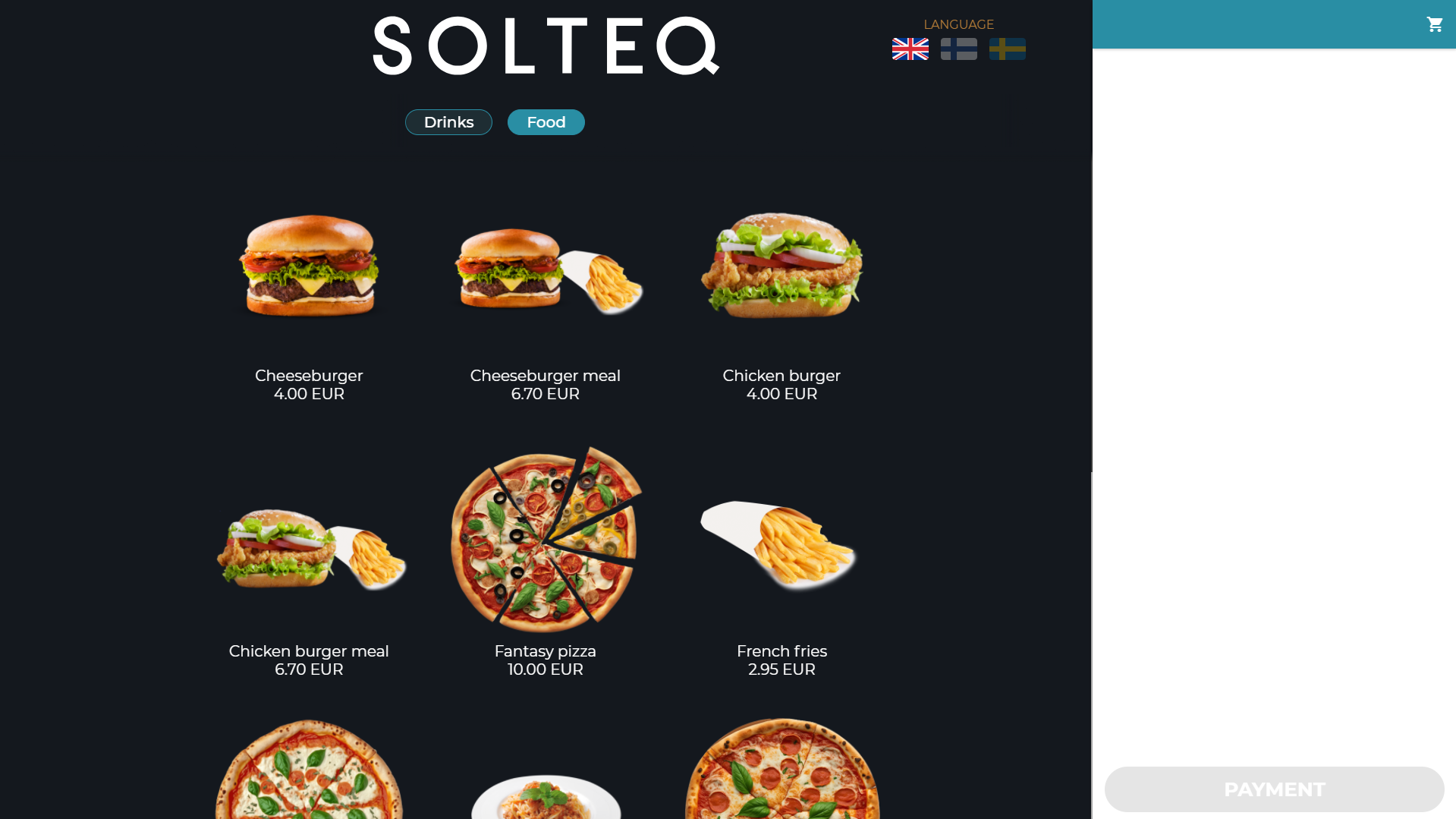
When the customer presses the Welcome Screen, the product menu is displayed. Products are divided to different tabs defined in the Kiosk Product Menu (or divided based on their categories, if a separate custom Kiosk Layout is not in use).g if
Customer can also switch between languages, if translations have been defined. You can define translations for
-
products in the individual product settings, and
-
product category names, custom product sizes, custom product options, custom product ingredient options, payment methods, pawns, and discounts in Translations.
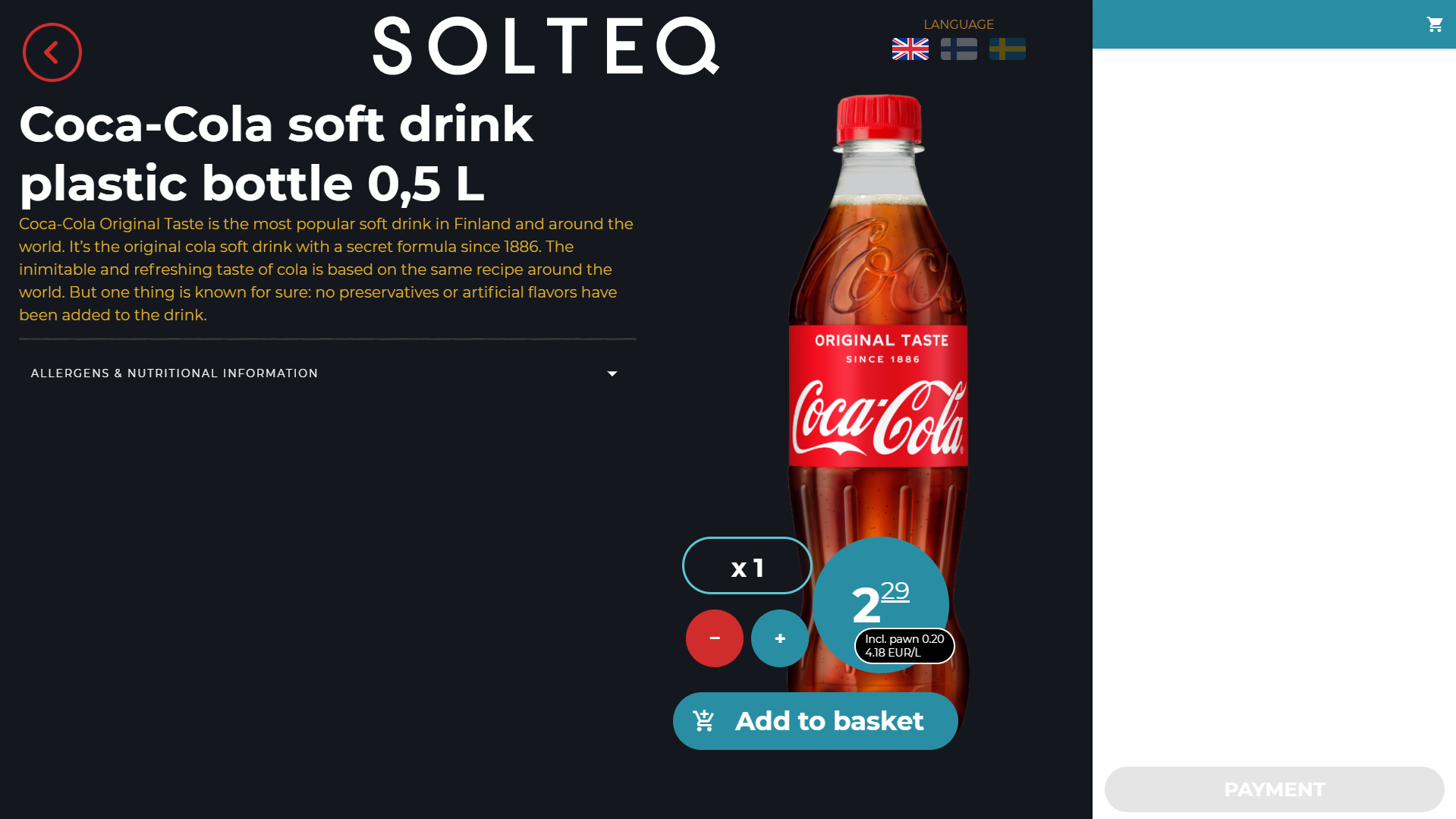
When the customer presses a product tile, the product details are displayed. The customer can then add the product to the Basket.
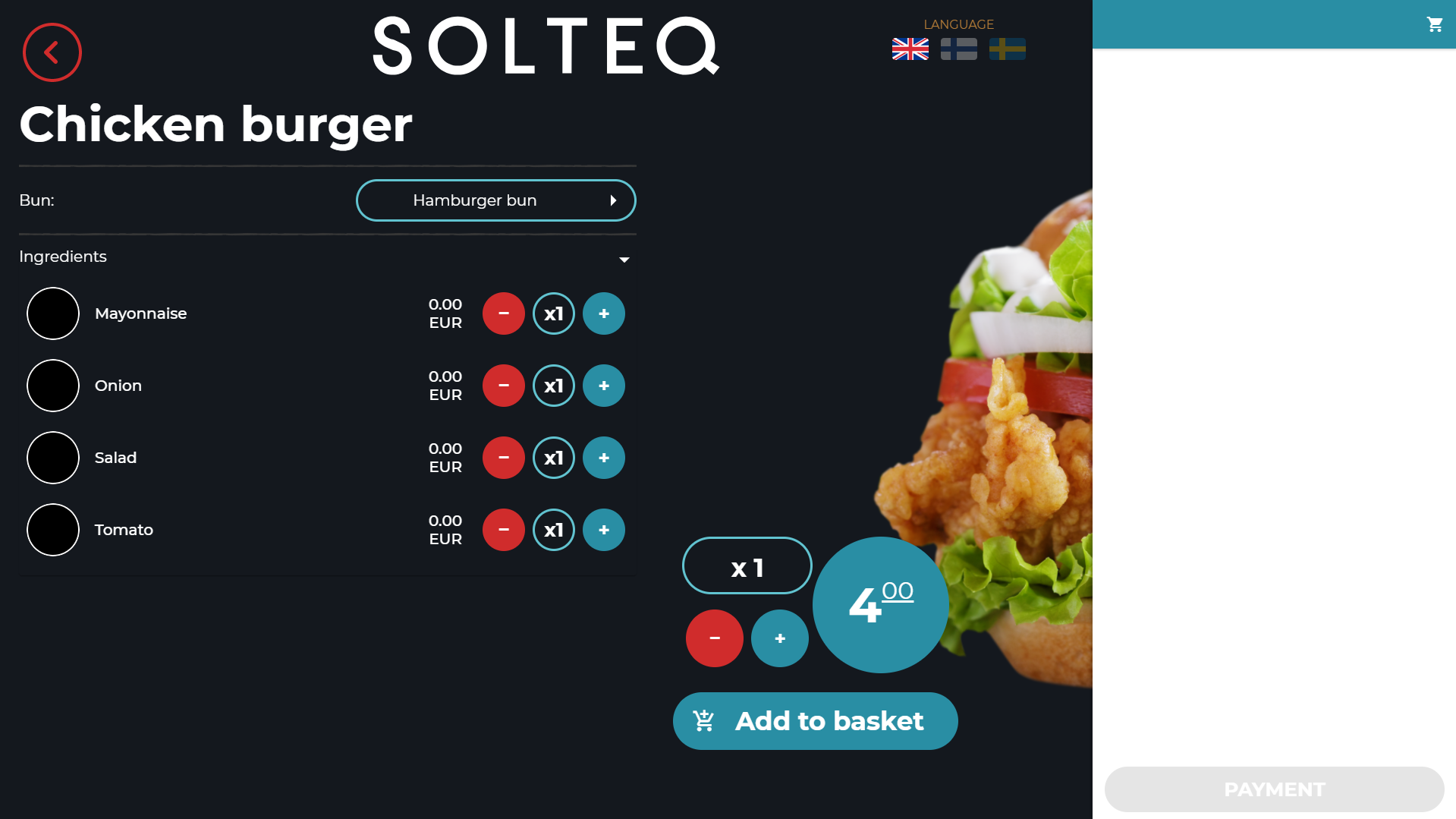
For custom products, the customer can select from different sizes, ingredient options, product options, ingredients, products, and extra ingredients that have been defined for a custom product in the Back Office.
Products added to the Basket are displayed on the right-hand side of the screen; the customer can also delete products from the Basket, if needed.
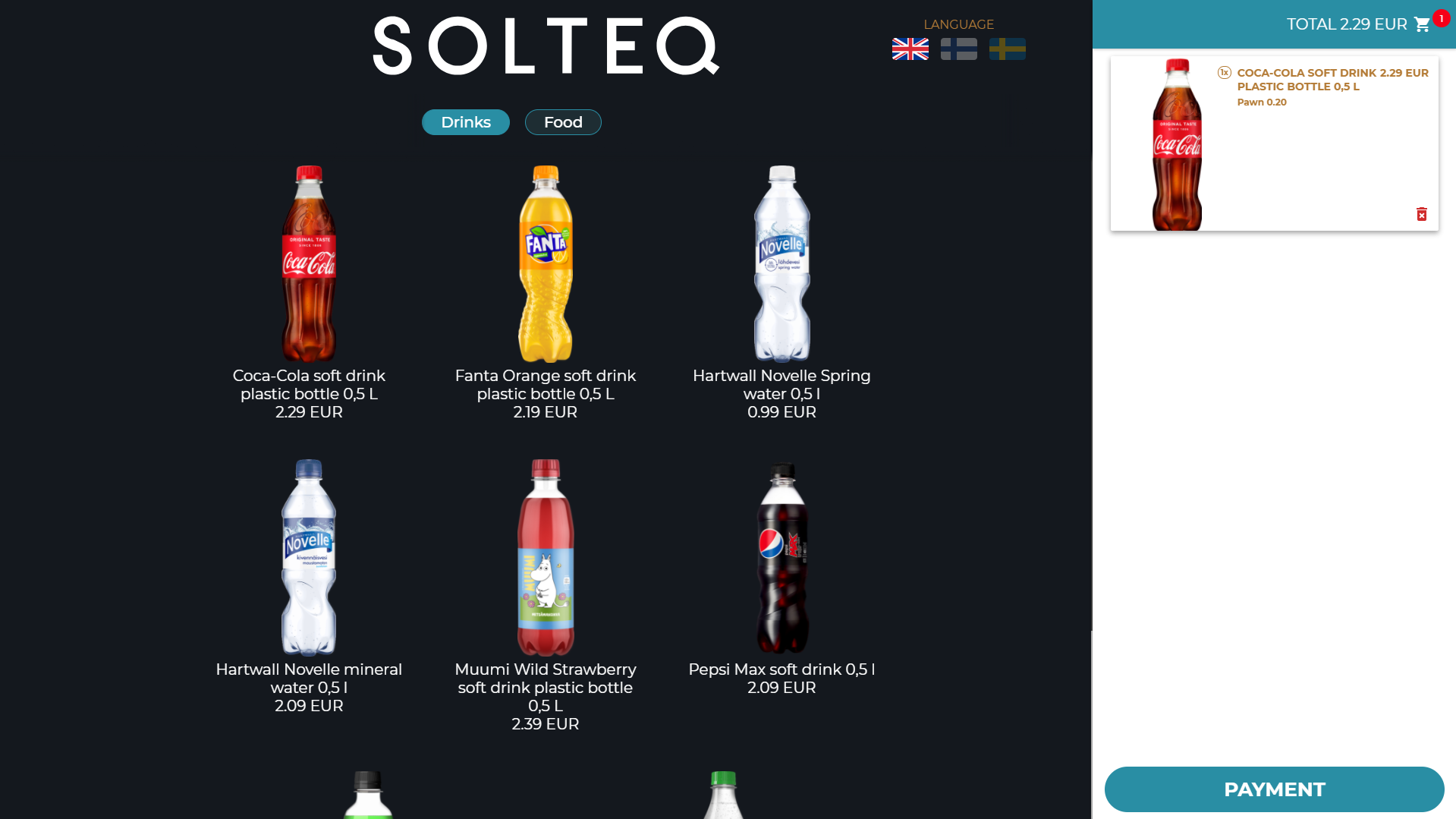
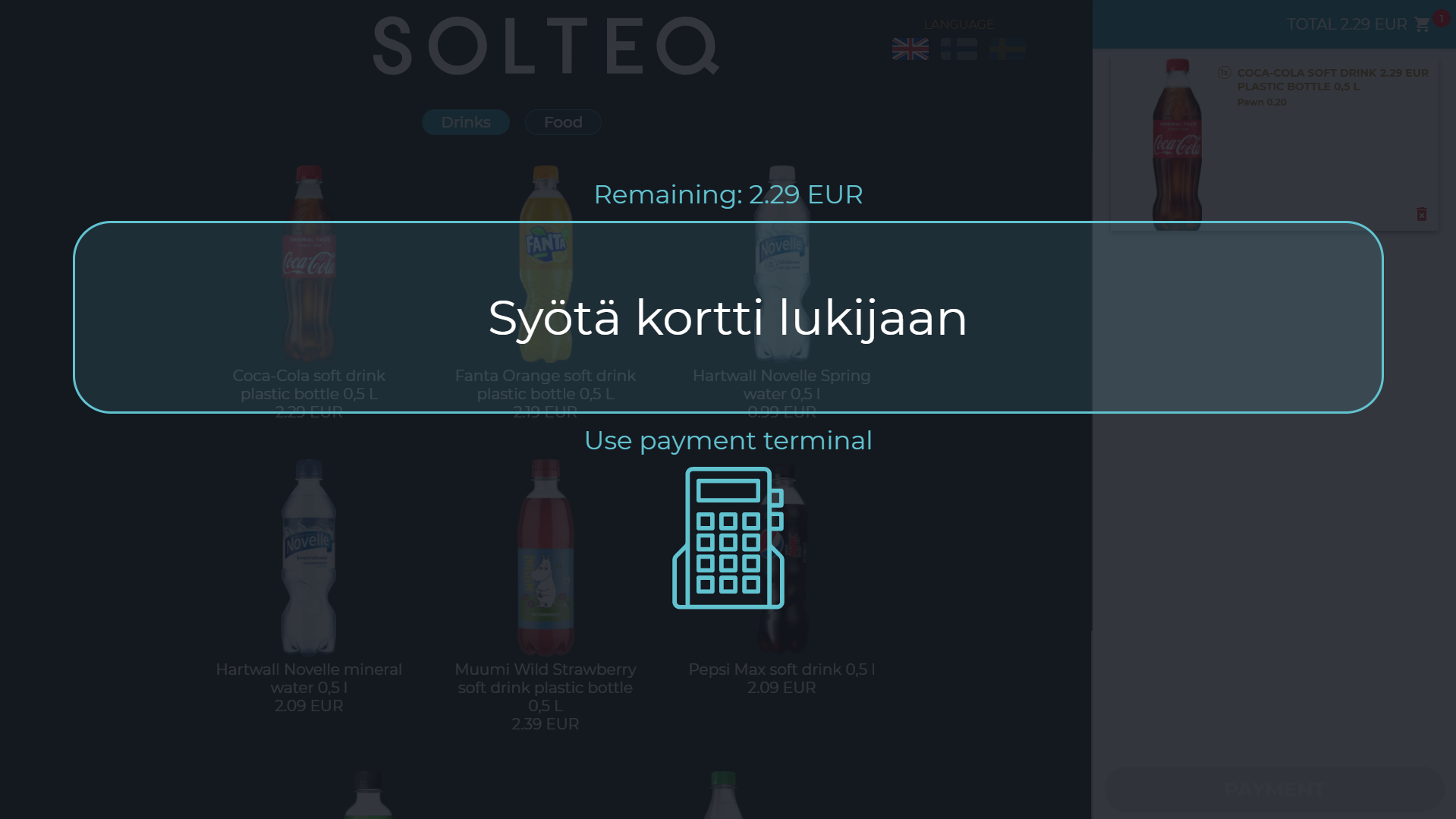
When the customer presses the button in the lower right-hand corner of the screen (button text can be defined in the Order button text settings), card payment is activated.
When the payment has been completed, the Order Ready message (defined in the Kiosk Service settings) is displayed.
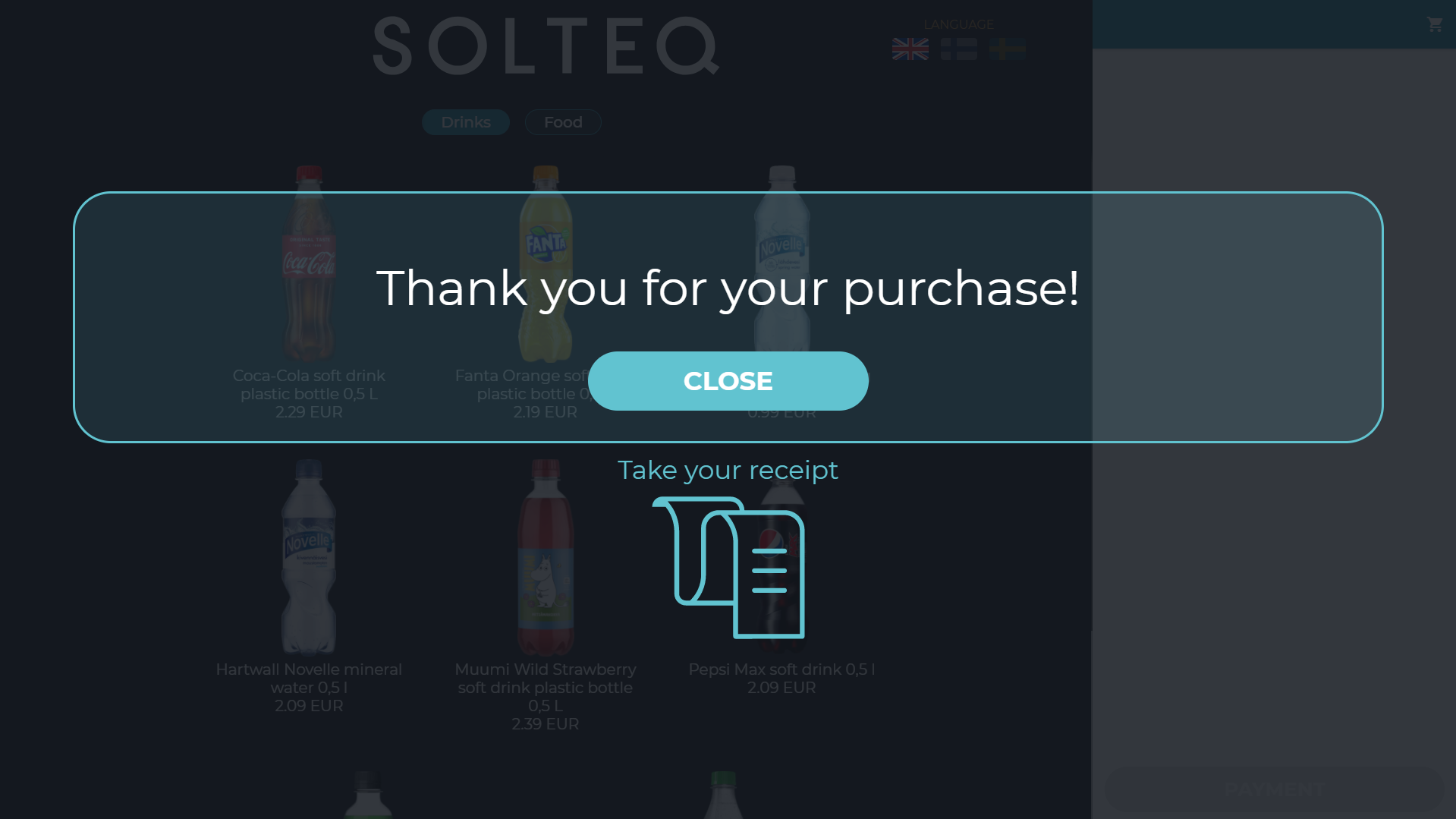
The Welcome Screen is then displayed again, and the next customer can start adding products to the Basket.