You can create and modify custom self-service Kiosk layout views in the Kiosk tab of the Designer view in the Back Office.
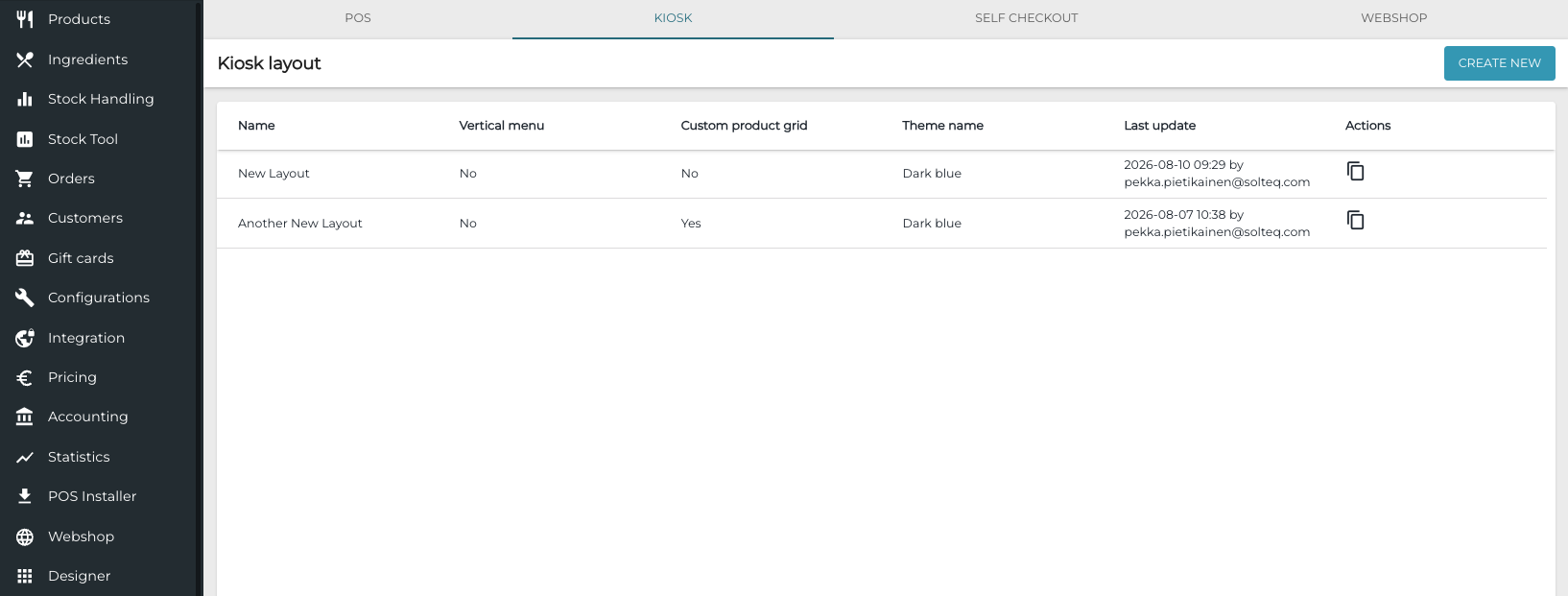
The view contains the following details of Kiosk layouts:
-
Name: Name of the layout, defined in its details.
-
Vertical menu: Indicates whether this layout uses vertical menu.
-
Custom product grid: Indicates whether this layout uses custom product grid.
-
Theme name: Name of the theme used with this layout.
-
Last update: Timestamp of the last update, and the user who updated the layout.
-
Actions: Click the Clone tool in this column to create a copy of an existing layout.
To create a new Kiosk layout, click Create New (or use to Clone tool); to modify an existing one, click the row of the layout.
The following layout details are displayed.
Some of the features in the Kiosk tab are marked as Coming Soon and will be available in a later Solteq Commerce Cloud release.
Basic Data
|
Field/setting |
Description |
|---|---|
|
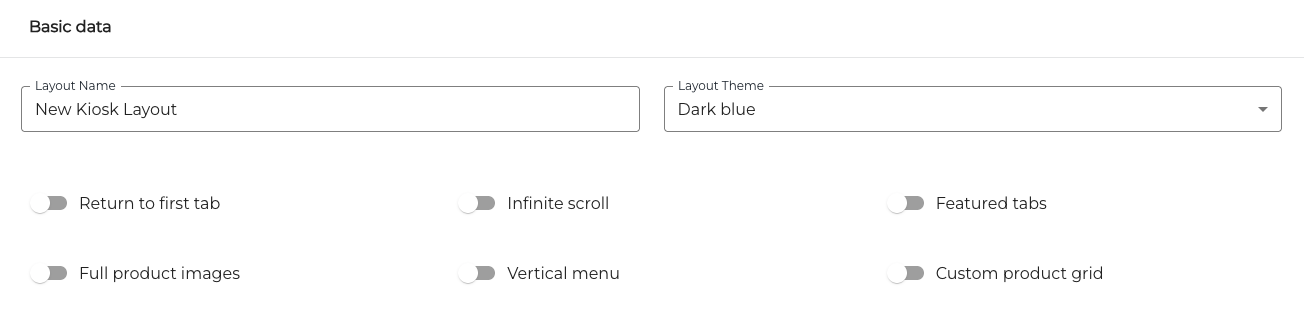
Return to First Tab |
Select whether the first tab in the kiosk layout will be displayed when the order is completed. |
|
Layout Name |
Enter a name for the layout. |
|
Layout Theme |
Select a colour theme for the layout. |
|
Infinite scroll |
Select whether Infinite Scrolling is used to present products in the Kiosk screen. |
|
Featured tabs |
Select whether Featured Tabs are used to present products in the Kiosk screen. |
|
Full Product Images |
Select whether Full Product Images are used to present products in the Kiosk screen. |
|
Vertical Menu |
Select whether a Vertical Menu is used to present products in the Kiosk screen. |
|
Custom Product Grid |
Select whether a Custom Product Grid is used to present products in the Kiosk screen. |
Menu
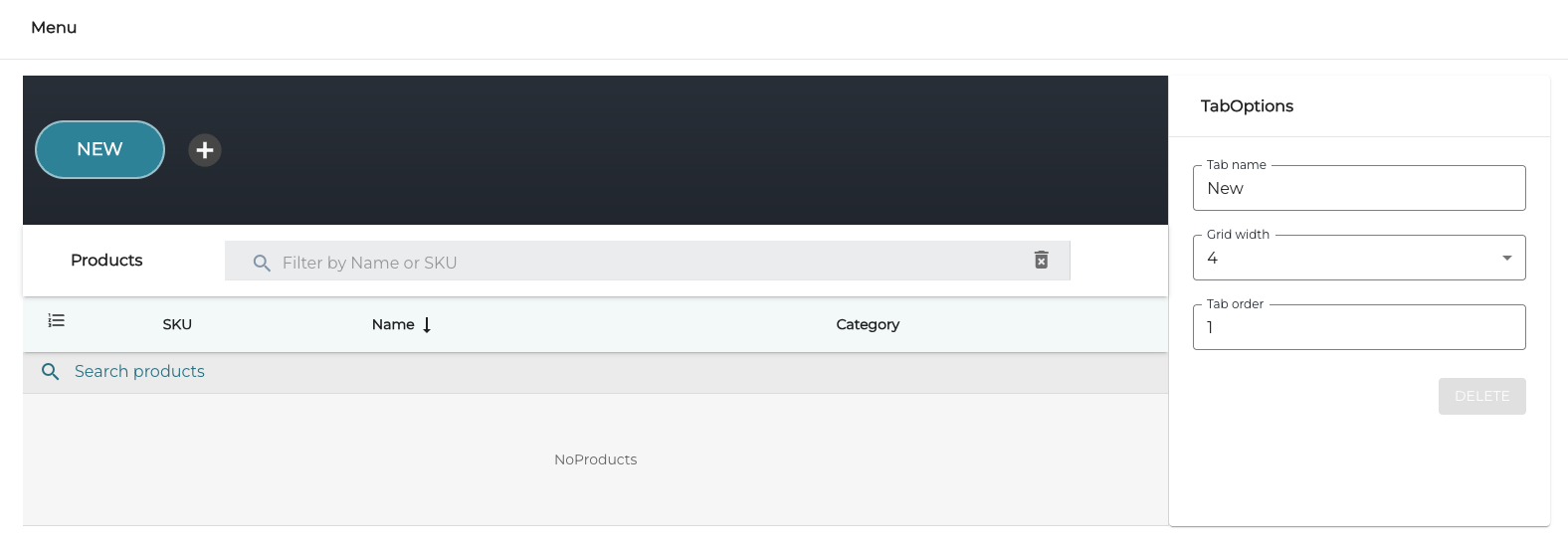
You can create tabs and select products to the menu in this section; a draft preview of the products menu is displayed.
For instructions on how to create a products menu, see Creating a Custom Kiosk Product Menu.
Theme Options
Use these settings to define the colour scheme used in the Kiosk screens.
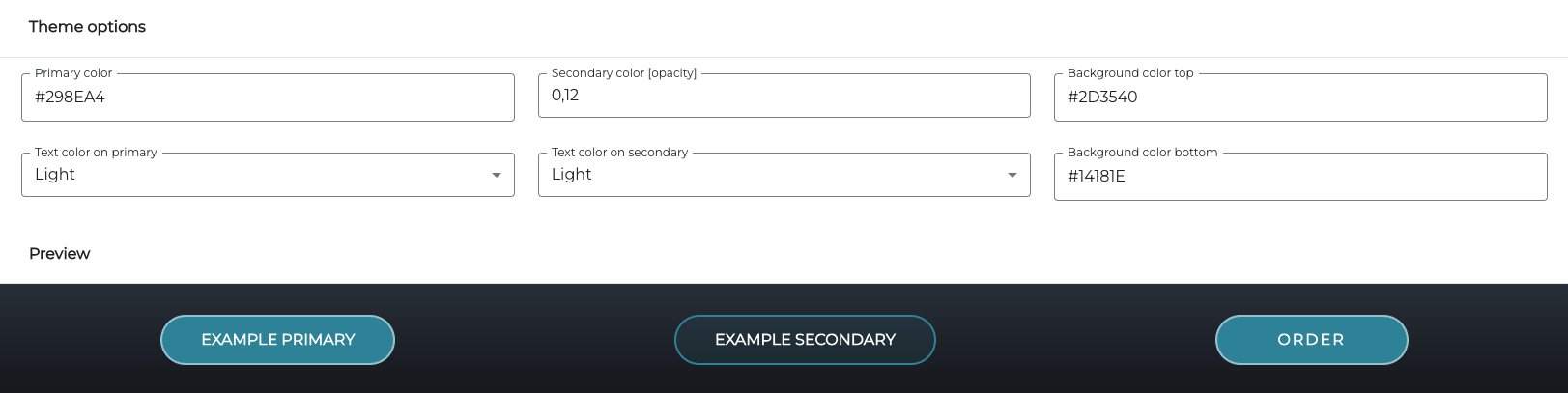
You can enter the colours in hex code, or use the colour picker to select the color or enter them in RGB code.
|
Field/setting |
Description |
|---|---|
|
Primary color |
Primary color used in the theme. |
|
Secondary color (opacity) |
The opacity of the secondary color (decimal number between 0.01 and 0.5). |
|
Background color top |
Background color used in the top of the Kiosk screen. |
|
Text color on primary |
Text color used with the primary color. |
|
Text color on secondary |
Text color used with the secondary color. |
|
Background color bottom |
Background color used in the bottom of the Kiosk screen. |
Visual Assets
You can add images to be used in the Kiosk screens by dragging-and-dropping them directly to the Welcome screen, Closed Screen and/or Logo fields.
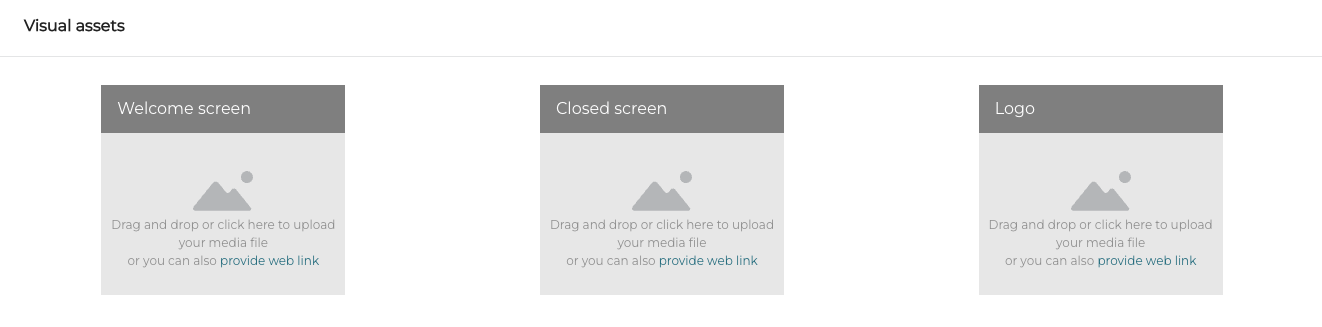
You can also click one of the fields and then either browse and select the image, or enter the web address of the image.
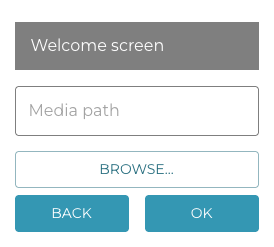
Supported file formats:
-
Welcome/Closed:
-
Images files: PNG/JPG/WebP
-
Video files: MP4 (H.264)/WebM.
-
-
Logo:
-
Image files: PNG/JPG/WebP only.
-
The maximum size for the files is 2 MB.
Taking a Custom Kiosk Layout into Use
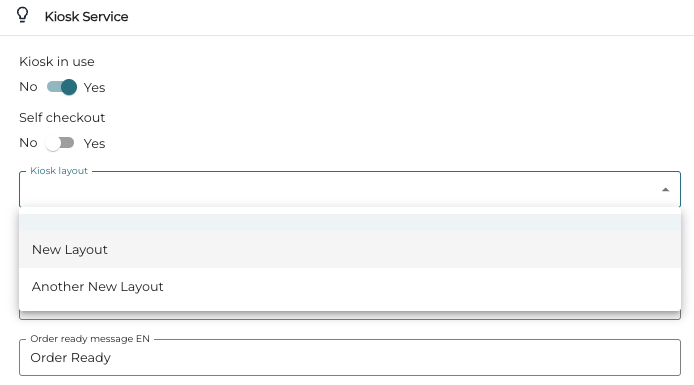
To take a custom Kiosk layout to use in a workstation, you need to select the layout in Kiosk Layout menu in Kiosk Service settings of the workstation.
As a default the menu does not contain any menu items; when no custom layouts have been created, the legacy configuration (where the layout is based on the selected product assortment) is used instead.
You can also cancel the custom layout selection and revert to the legacy configuration by emptying the field.
Save your changes and Refresh the settings in POS after you have made changes to the Kiosk layout settings.