
You can define services that are available in a particular drop-off location (Store) in the Services view.
When Services has been enabled in Company Configurations, Services is displayed in the Back Office menu; click it to display the Services view.
In order to access the Services view, you need to belong to a user group with Services: Read/Modify permissions.
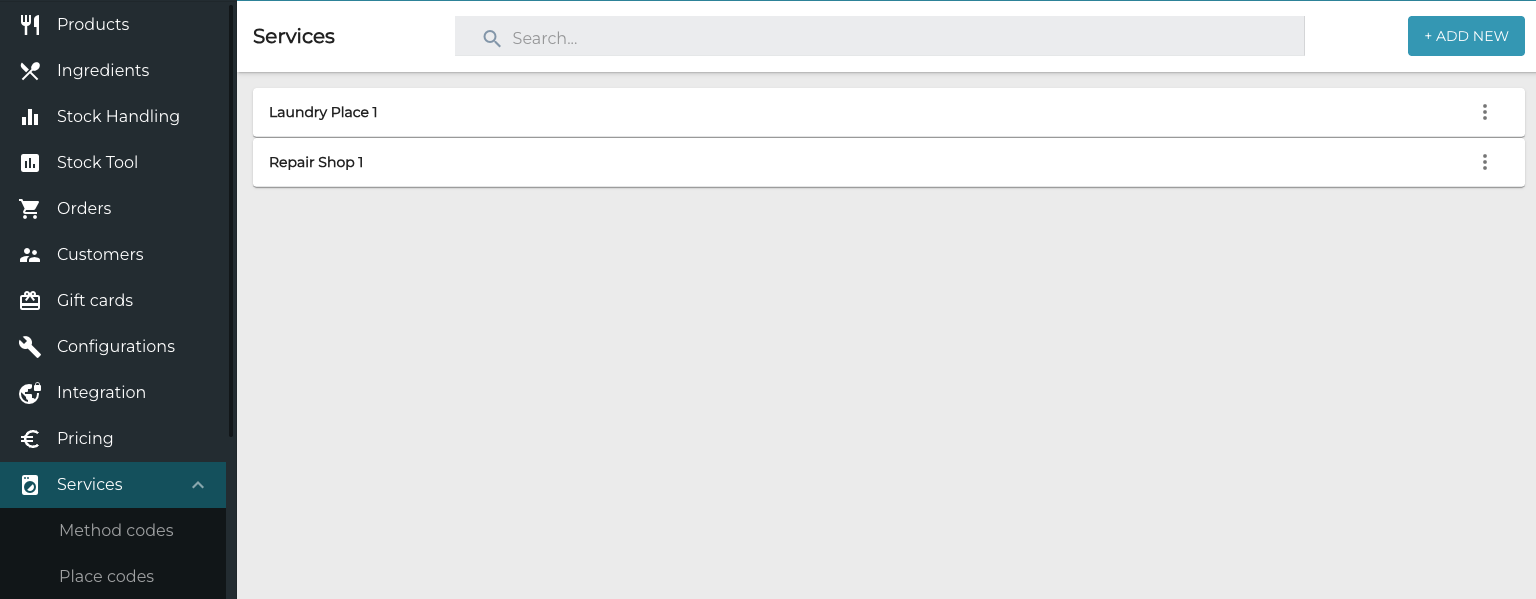
Before you can define the services available per location, you must first
-
Create Method Codes for services.
-
Create Place Codes for individual service facilities.
-
Create the applicable products, and define Services settings for them.
Define the Available Services per Drop-Off Location
-
In the Services view, click +Add New.
-
Select the Store from the drop-down menu.
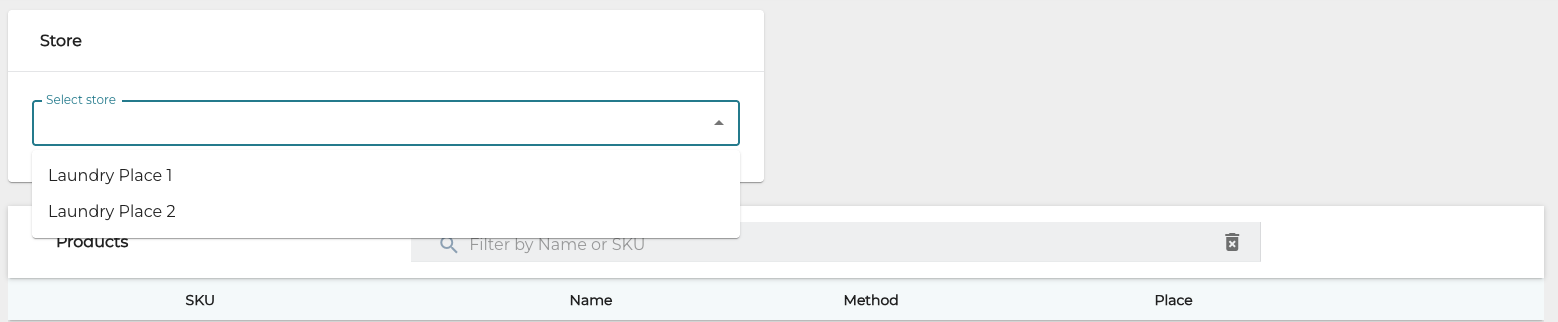
Store selection -
(optional) If you want to change certain products' default Method Codes and/or Place Codes for the purposes of this particular location, search and select these products.
-
You can search for Single products, product Categories, or All products.
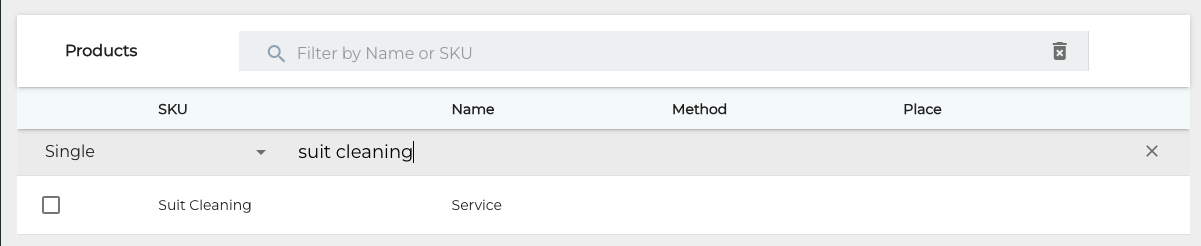
Product search -
Click the product checkbox to add it to the location. The following product info is displayed, and you can select another option than the default one.
-
Method
-
Place
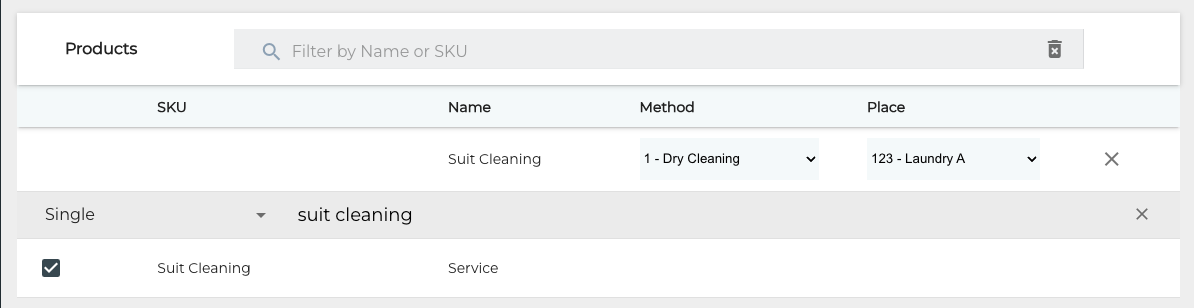
Product selected
-
-
-
(optional) If you want to define different delivery times for pre-defined Place Codes in this particular location, search and select a place code (or several codes)
-
Start entering the place code in the Search… field.

Place code found -
Select the place code(s).
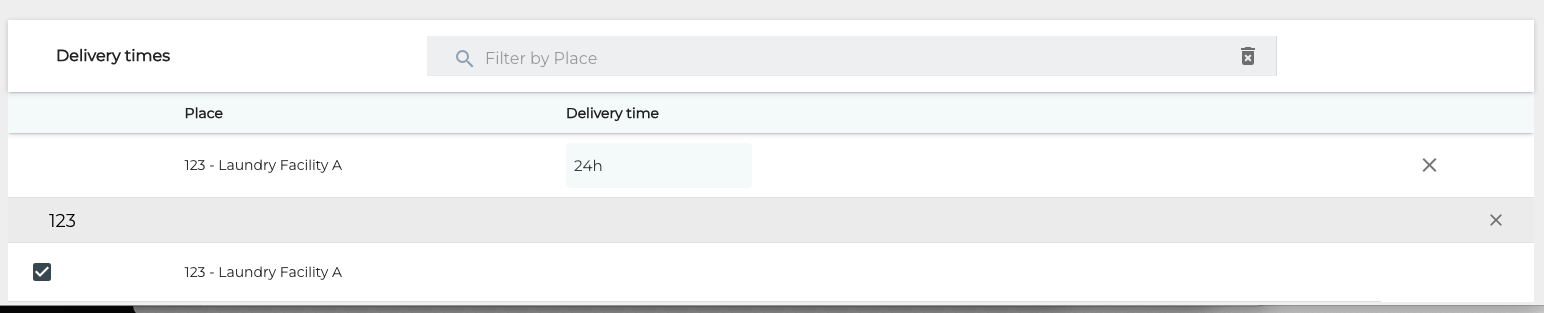
Place code selected -
You can change the default delivery time by clicking the Delivery Time field, entering a new delivery time (either Days and time or Hours), and saving your changes by clicking ✓.
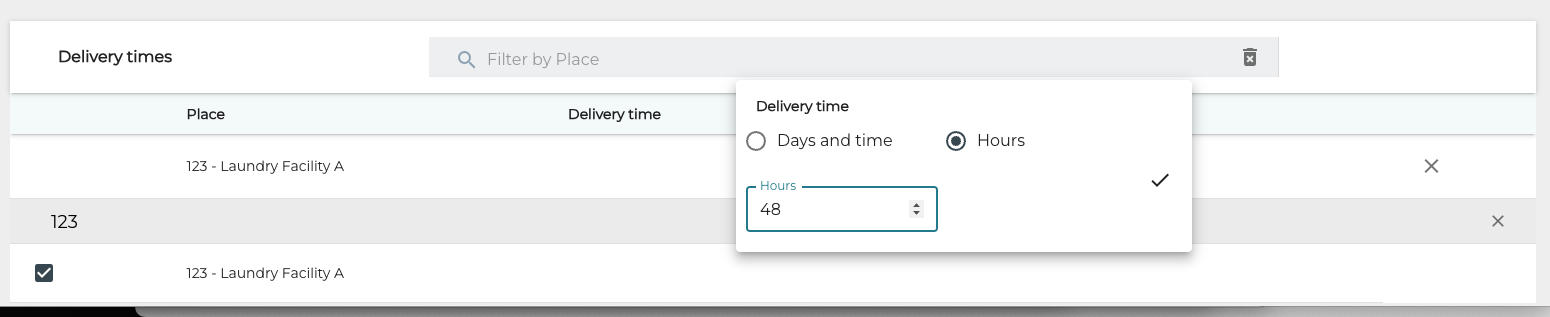
-
-
When you are ready, click Save to save your changes. The Services view now displays the location whose settings you created.
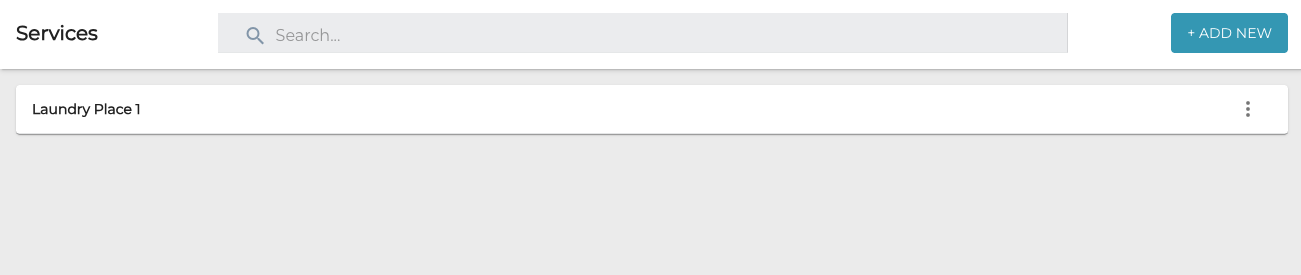
Updated Services view