
In the Storage Fee view of the Back Office you can create a company-level storage fee for drop-off items which are not collected in due time.
To access the view, click Services in the Back Office menu, and select Storage Fee.
To access the view you need to belong to a user group with Services: Read/Modify permissions, and Show method and place codes enabled.
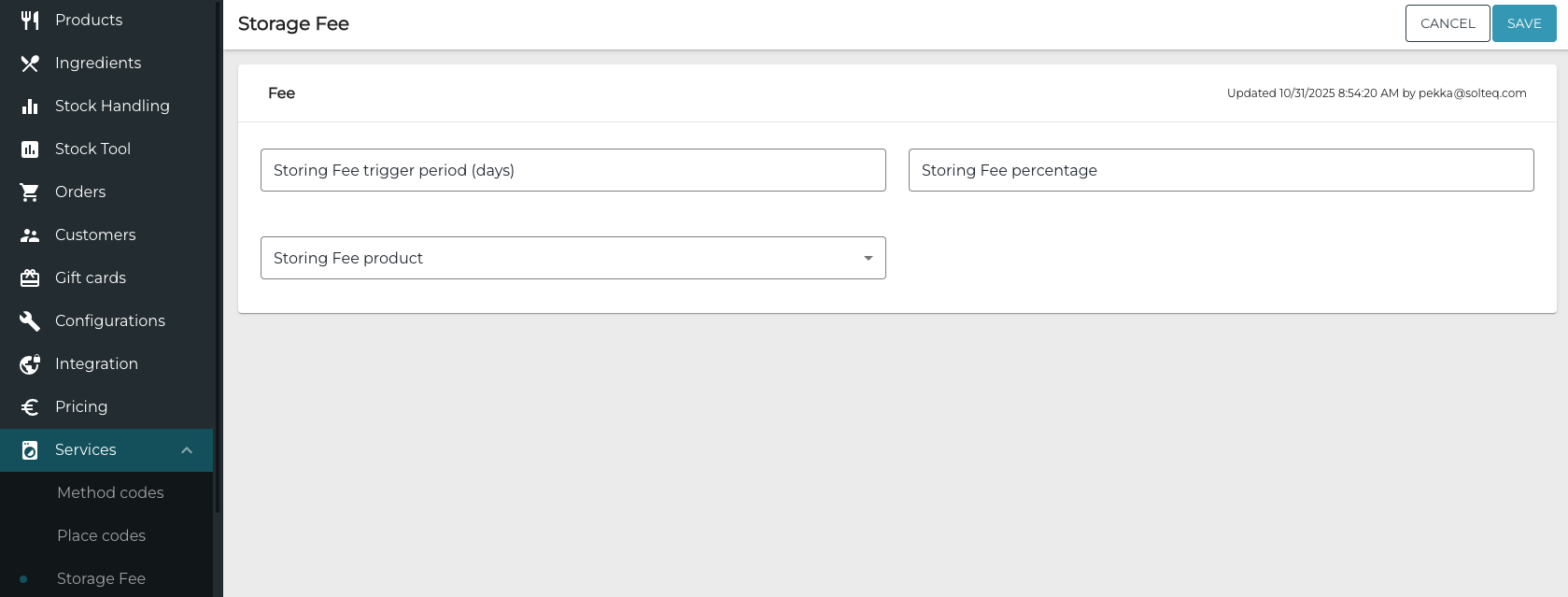
In the Storage Fee view you can define the following settings for the storage fee:
-
Storing Fee Trigger Period (Days)
-
The amount of time it will take after the delivery time defined in Place Codes has expired for a drop-off item, after which the storage fee will be applied.
-
If the order contains multiple rows, the row which exceeds the storing fee triggering period last is the deciding one.
-
For example: If the order contains three rows and only two of them have exceeded the triggering period when the order is picked up by the customer, the storing fee will not be charged from the customer.
-
-
Storing Fee Percentage
-
The storing fee is calculated as a percentage from the total price of the order rows which have exceeded the storing fee trigger period when the order is collected by the customer; the fee will be then added to the total price of the order.
-
-
Storing Fee Product
-
Create a separate Service Product which is then is added to the order if some or all the rows in the order exceed the storing fee trigger period.
-
-
Create a Storing Fee
-
Create a new Service Product for storing fees.
-
Next, go to the Storage Fee view and enter the following information:
-
Storing Fee Trigger Period (Days)
-
Storing Fee Percentage
-
Select the Storing Fee Product you created.
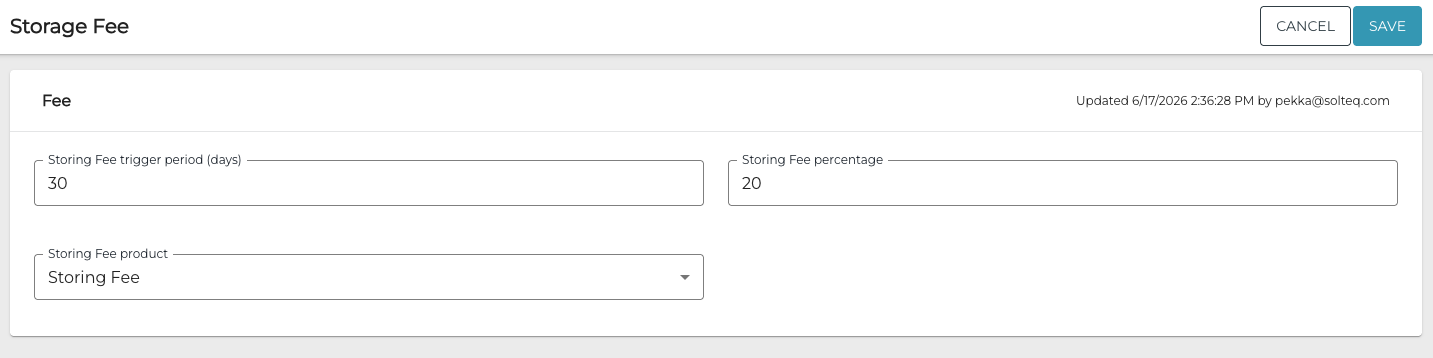
Storage Fee settings (example)
-
-
Click Save to save your changes.