You can create and modify custom Self-Checkout layout views in the Self-Checkout tab of the Designer view in the Back Office.
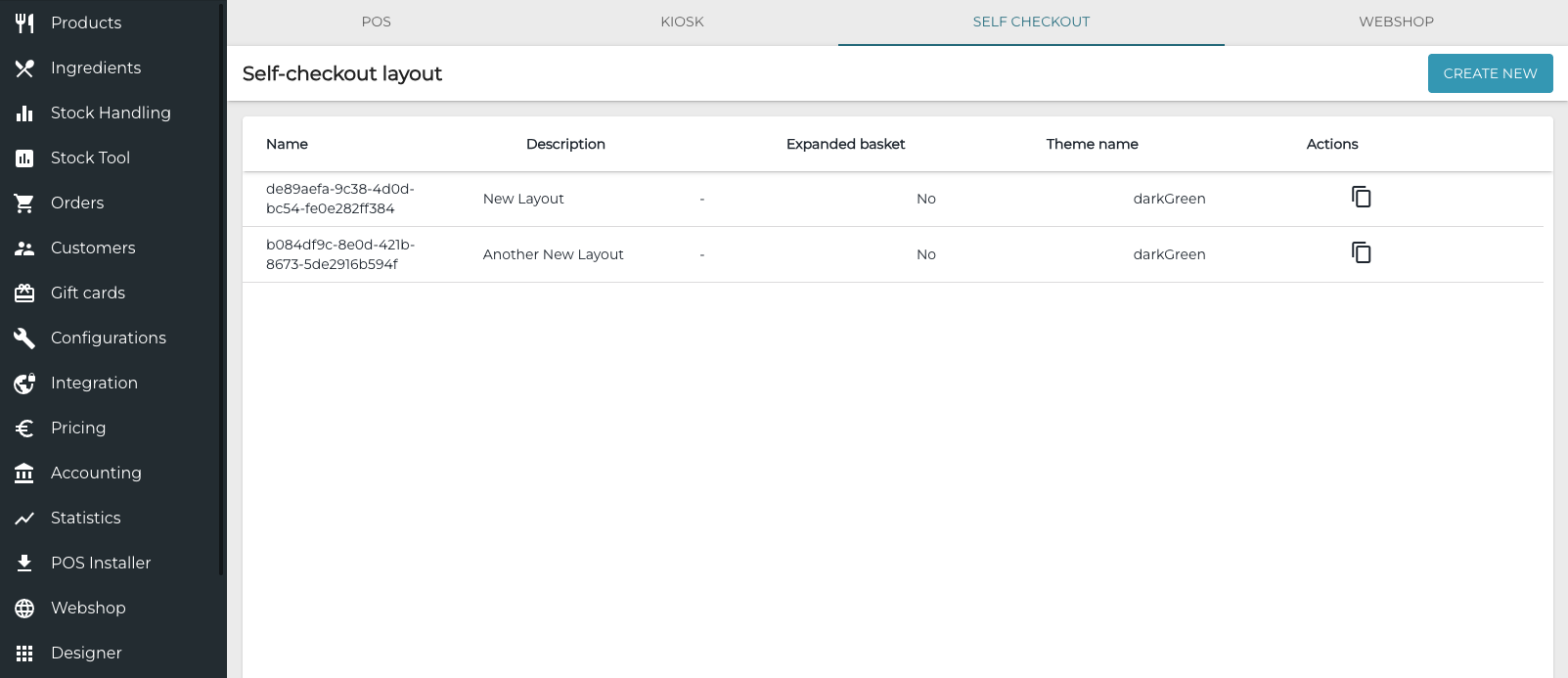
The view contains the following details of Self-Checkout layouts:
-
Name: Name of the layout generated by the system.
-
Description: Name of the layout, defined in its details.
-
Theme name: Name of the theme used with this layout.
-
Actions: Click the Clone tool in this column to create a copy of an existing layout.
To create a new Self-Checkout layout, click Create New (or use to Clone tool); to modify an existing one, click the row of the layout.
The following layout details are displayed.
Basic Data

|
Field/setting |
Description |
|---|---|
|
Layout Name |
Enter a name for the layout. |
|
Layout Theme |
Select a colour theme for the layout. |
Custom Text
|
Field/setting |
Description |
|---|---|
|
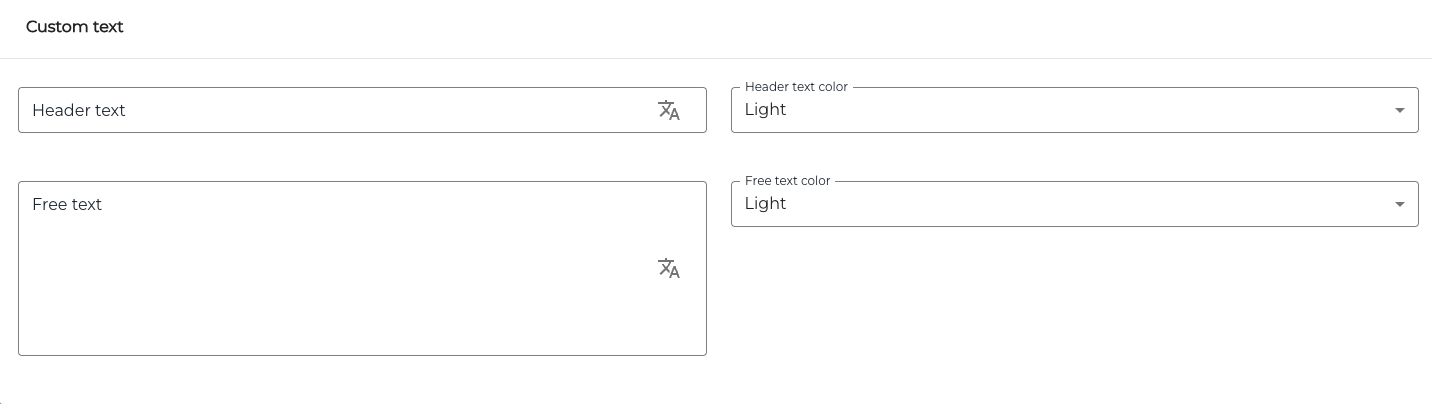
Header text |
Enter a header text visible on the self-checkout screen. Maximum length is 24 characters. |
|
Header text color |
Select Light or Dark. |
|
Free text |
Enter a free text visible on the self-checkout screen. Maximum length is 30 characters/line. You can add up to five lines. |
|
Free text color |
Select Light or Dark. |
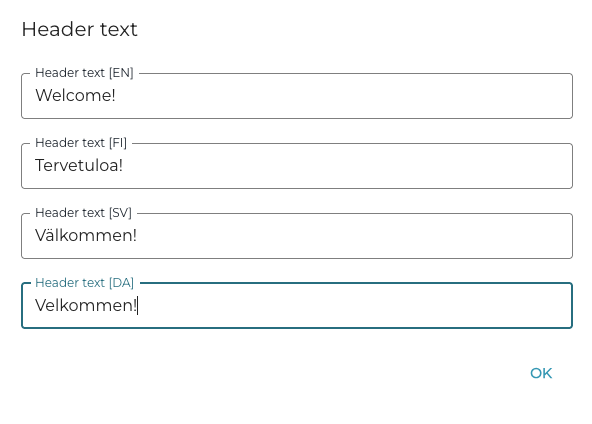
You can add translations to the texts by clicking on the Translations icon.

English, Finnish, Swedish and Danish language translations are supported.
Theme Options
Use these settings to define the colour scheme used in the Self-Checkout screen.
A draft preview of the checkout screen (including any Custom Texts you have defined) is displayed below the settings.
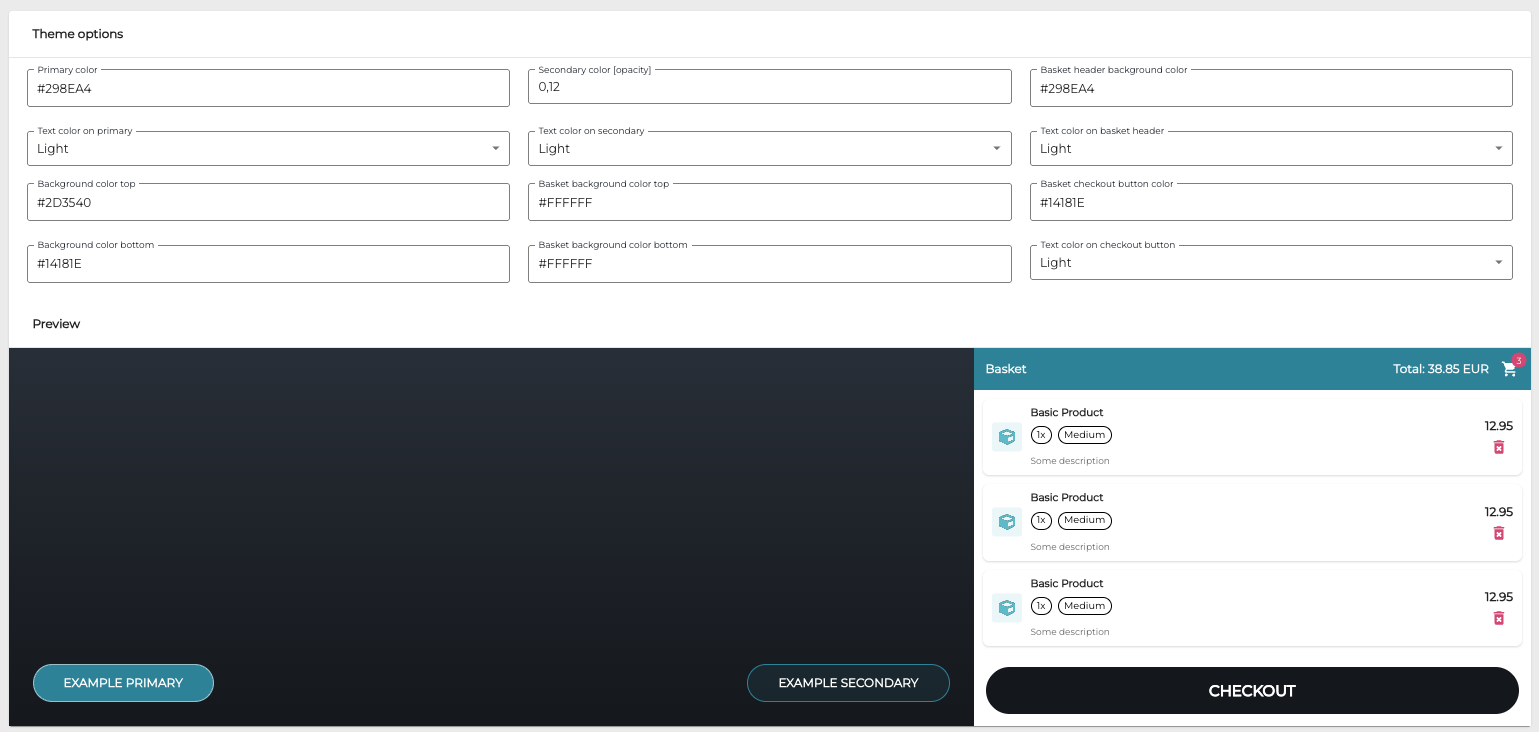
You can enter the colours in hex code, or use the colour picker to select the color or enter them in RGB code.
|
Field/setting |
Description |
|---|---|
|
Primary color |
Primary color used in the theme. |
|
Text color on primary |
Text color used with the primary color: Light or Dark |
|
Background color top |
Background color used in the top of the self-checkout screen. |
|
Background color bottom |
Background color used in the bottom of the self-checkout screen. |
|
Secondary color (opacity) |
The opacity of the secondary color (decimal number between 0.01 and 0.5). |
|
Text color on secondary |
Text color used with the secondary color. |
|
Basket background color top |
Background color used in the top of the Basket. |
|
Basket background color bottom |
Background color used in the bottom of the Basket. |
|
Basket header background color |
Background color used in the Basket header. |
|
Text color on basket header |
Text color used in the Basket header: Light or Dark |
|
Basket checkout button color |
Color of the checkout button in the Basket. |
|
Text color on checkout button |
Text color used in the checkout button: Light or Dark |
Visual Assets
You can add image/video files to be used in the self-checkout screens by dragging-and-dropping them directly to the Welcome screen, Closed Screen, Logo and/or Background fields.
Supported file formats:
-
Welcome/Closed:
-
Images files: PNG/JPG/WebP
-
Video files: MP4 (H.264)/WebM.
-
-
Logo:
-
Image files: PNG/JPG/WebP only.
-
The maximum size for the files is 2 MB.
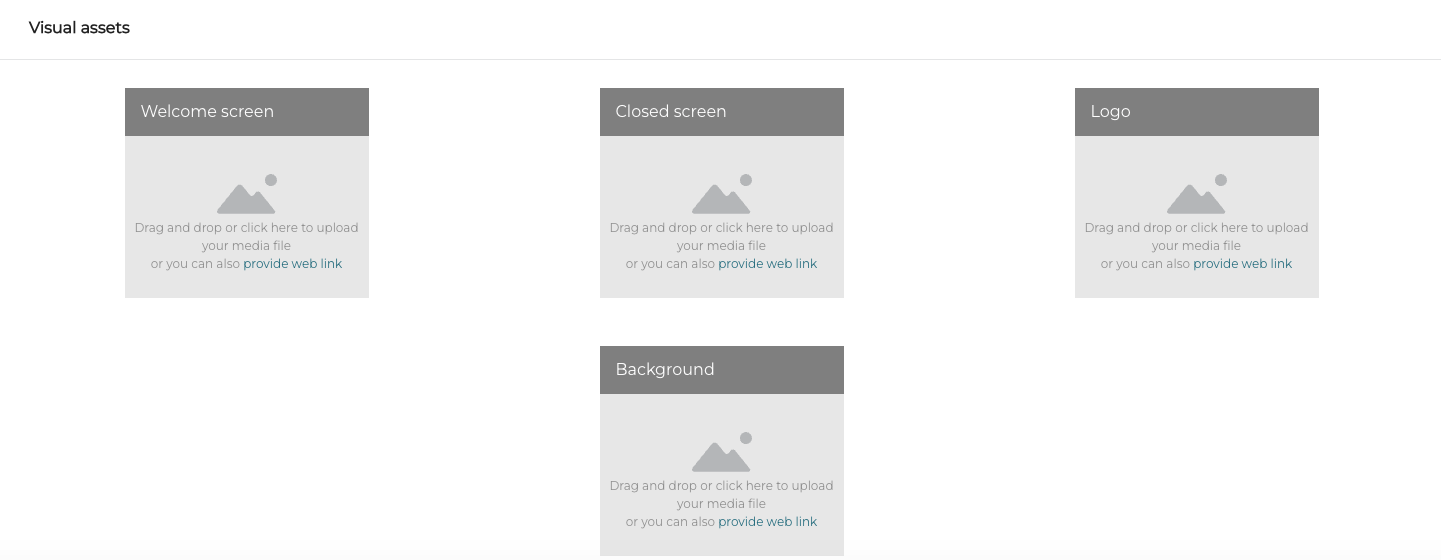
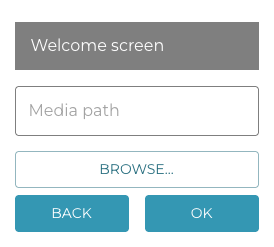
You can also click one of the fields and then either browse and select the image, or enter the web address of the image.
Taking a Custom Self-Checkout Layout into Use
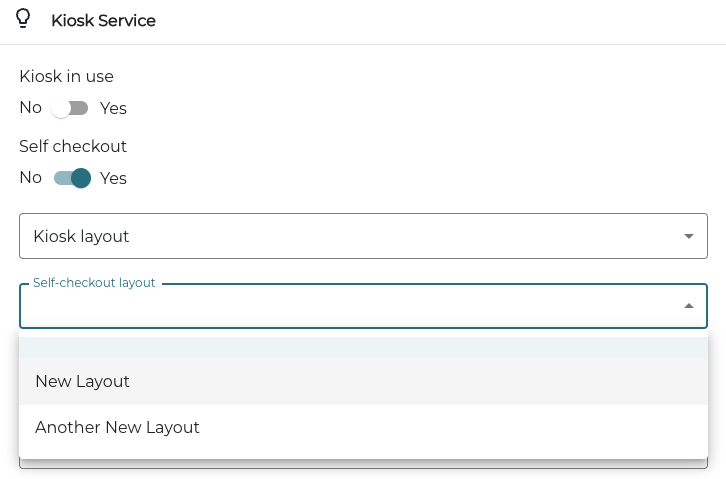
To take a custom Self-Checkout layout to use in a workstation, you need to select the layout in Self-checkout layout menu in Kiosk Service settings of the workstation.
If you have not defined any Visual Assets in the Self-Checkout Layout settings, the Closed screen media and Welcome screen media defined in the Kiosk service settings will be used in the screens.
Save your changes and Refresh the settings in the POS after you have made changes to the Self-checkout layout settings.