
You can create, view and manage different Webshop themes in the Back Office. To access the Webshop Designer view, click Designer in the Back Office menu and then select the Web Shop tab.
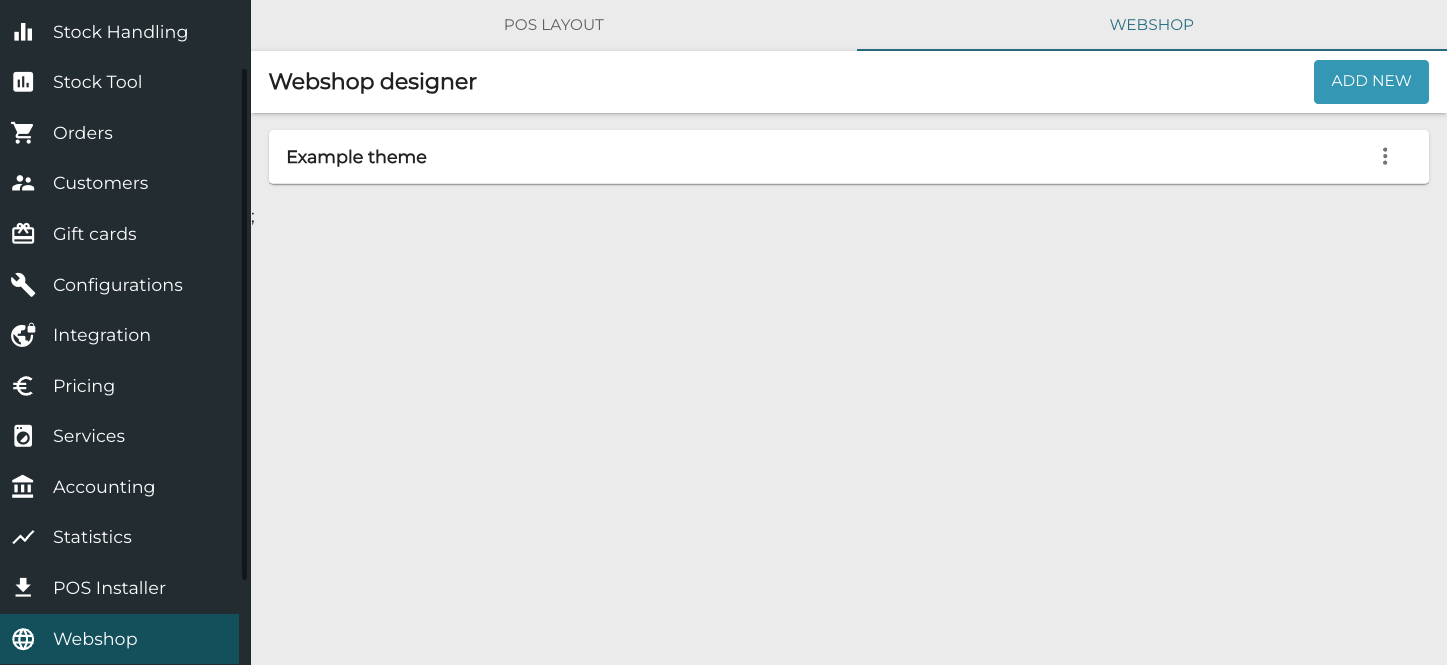
In the Webshop designer view you can edit the existing themes, clone them, or create new themes from the scratch.
When creating a theme you can define primary and secondary colors for it; secondary color is a version of the primary color whose opacity you can define.
Create a New Webshop Theme
-
Click Add new in the Webshop designer view. A new webshop theme view is displayed.
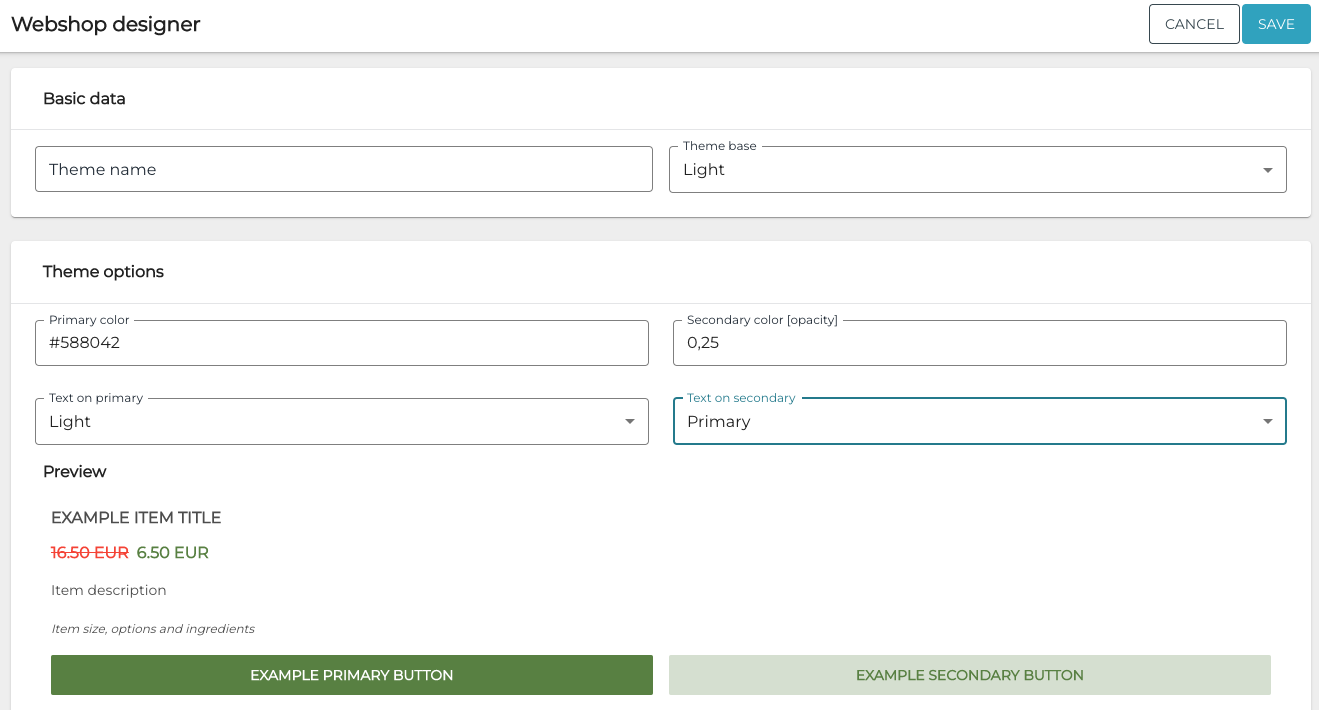
New Web shop theme -
Enter Basic data for the theme:
-
Theme name
-
Theme base: Select Dark or Light.
-
-
Enter the Theme options:
-
Primary color (click the field to open the color palette)
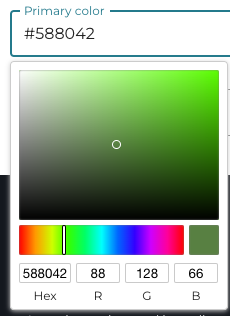
Primary color palette -
Text on primary: Select Dark or Light.
-
Secondary color (opacity): Enter the opacity percentage.
-
Text on secondary: Select Dark or Light.
-
-
Click Save to save your changes and create the new theme.