
You can use assortments in Solteq Commerce Cloud to define individual products or product categories which are available in self-service channels (Webshop and/or self-service Kiosks).

Create an Assortment
-
Click Products in the Back Office menu, and select Assortment.
-
Click Create in the Assortment view.
-
Enter basic information for the assortment:
-
Name
-
Assortment (optional)
-
-
Select the products for the assortment:
-
Select Single product or Category.
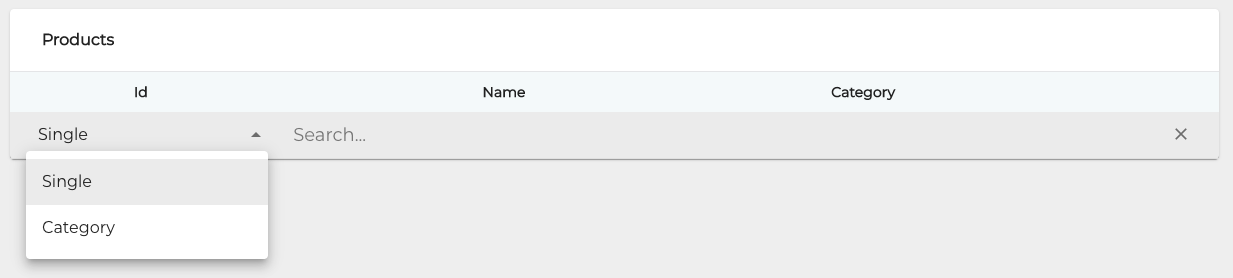
Selecting a single product or category -
Enter a search term into the Search... field.

Search term entered into the Search… field -
Select the product or product category by clicking on the checkbox.
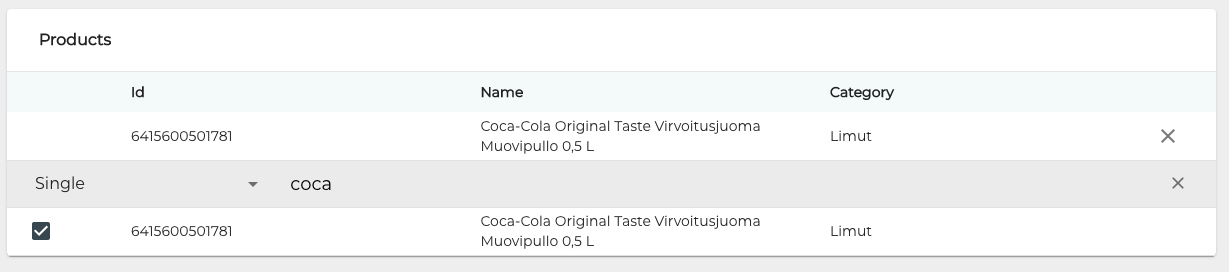
Selecting a product to the assortment -
You can also click x on the row of the product/product category to remove it from the list.
-
-
-
When you have selected all the products and/or product categories for the assortment, save your changes by clicking Save. The new assortment is now displayed in the Assortment view.
To display the products or the assortment in the Kiosks/Webshop, you also need to select the assortment in
-
Store Configurations of the Store where the Kiosks are located
-
Webshop Details of the Webshop where you want the assortment to be available.
Save your changes to the settings when you have selected the assortment for the Kiosks/Webshop.