
To view the details of a webshop, click its row in the Webshop view.
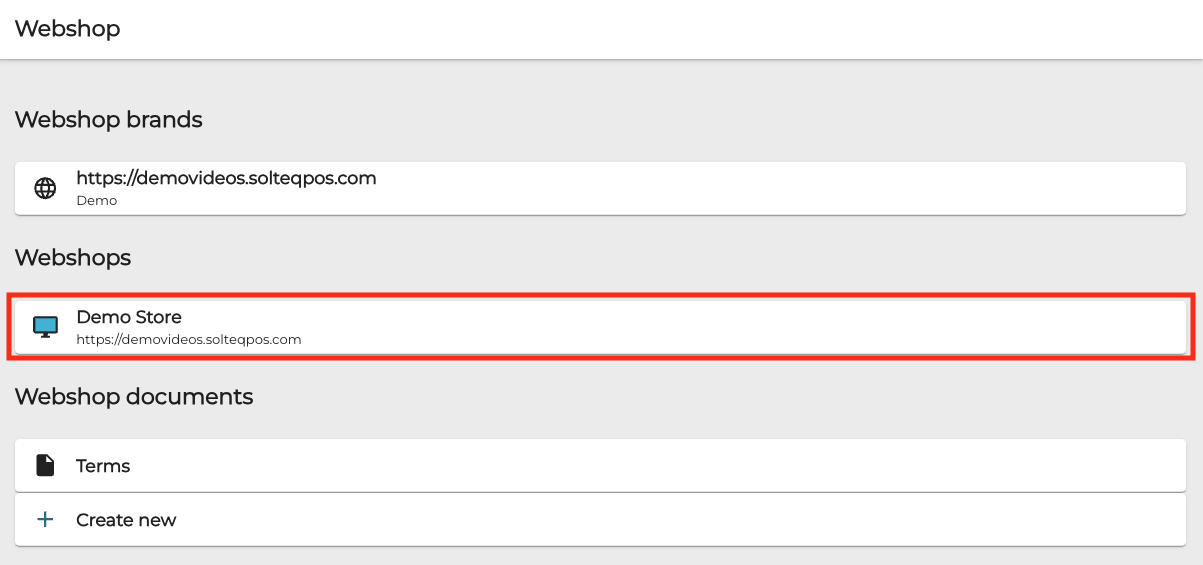
The following webshop details are displayed.
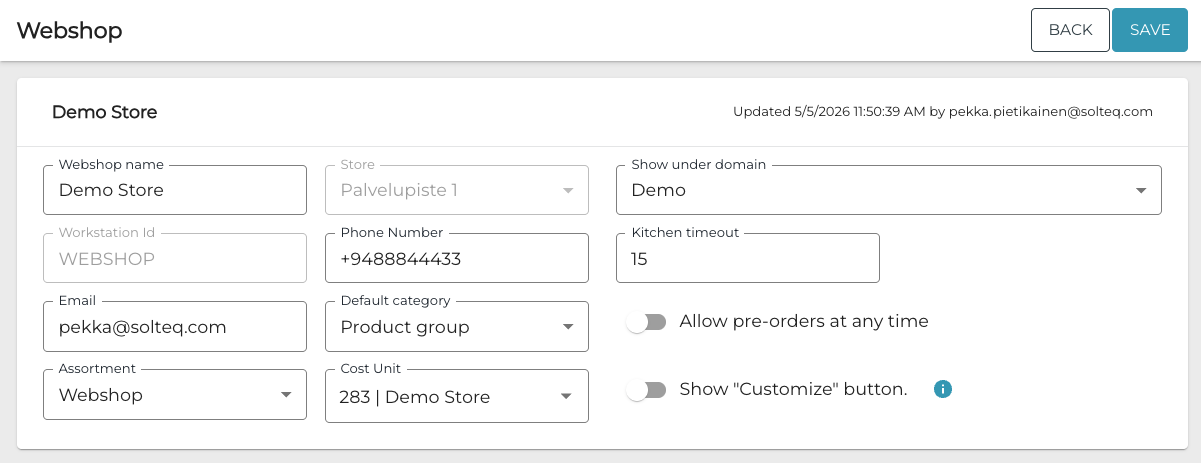
The view contains the following fields/settings:
|
Field/setting |
Description |
|---|---|
|
Webshop name |
Enter the name for the webshop. |
|
Store |
Select the Store for the web shop; the Kitchen defined for the Store will be used with this webshop. |
|
Show under domain |
Select the Webshop Brand (Web Shop Short Name) used for this webshop. |
|
Workstation Id |
Contains the default value WEBSHOP, generated by the system. |
|
Phone number |
Enter the contact phone number which will be displayed in the webshop footer. |
|
Kitchen timeout |
Define the amount time (in minutes) that an incoming order from the webshop can wait before being approved in the Kitchen App. If during this period the order is not approved and order preparation started in the Kitchen, the order will be cancelled. In this case the user gets a notification about the cancellation in the webshop and a separate cancellation e-mail message. |
|
|
Enter the e-mail address which will be displayed in the webshop footer. |
|
Default category |
Select the product category type whose products will be displayed on the first tab of the webshop. |
|
Assortment |
Select the assortment which is available in the webshop. No products will be available in the webshop if you do not set an assortment. |
|
Cost unit |
Select a cost unit for the webshop, which can be used for Accounting purposes. All sales from the web shop will be recorded to the selected cost unit. Selecting a cost unit for the webshop is not mandatory; if you do not select any cost unit, the cost unit defined for the Store will be used. |
|
Allow pre-orders at any time |
Select whether preorders can be made in the webshop outside of Store opening hours. |
|
Show “Customize” button. |
Select whether the Customize button is visible in the product list in the webshop. The button is hidden in Webshop by default; the product customization page is then displayed when the user adds a custom product to the Basket. |