
You can export, edit and import ingredients to the Back Office by using Excel files.
-
In the Ingredients view, click the Download templates (A.) icon to download an empty template file, or the Export ingredients (B.) icon to download the current list of ingredients in the Back Office.
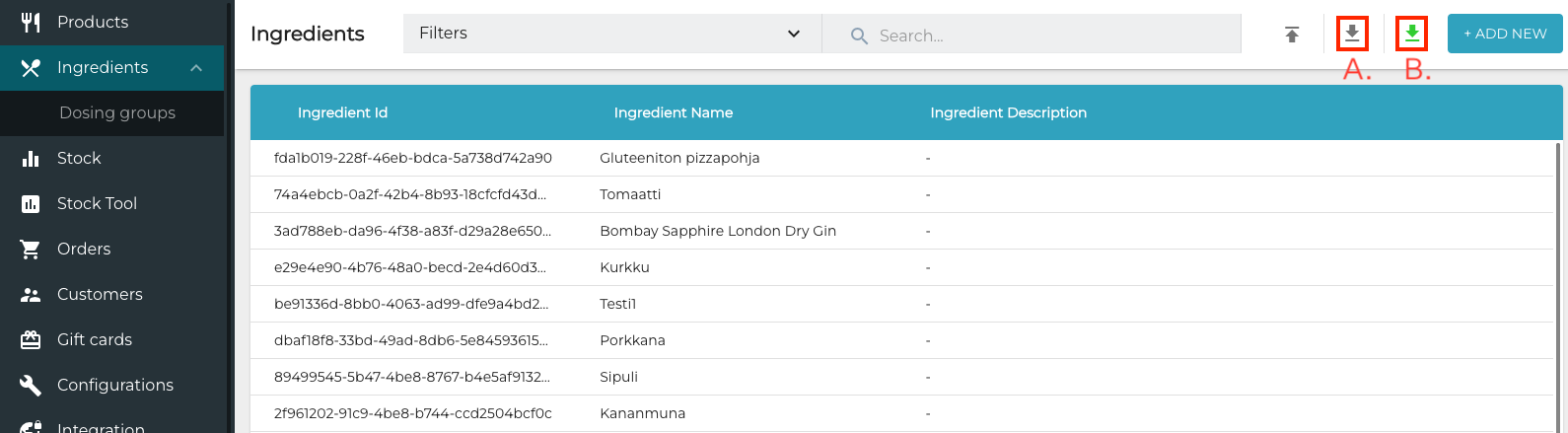
Download templates (A.) and Export ingredients (B.) icons -
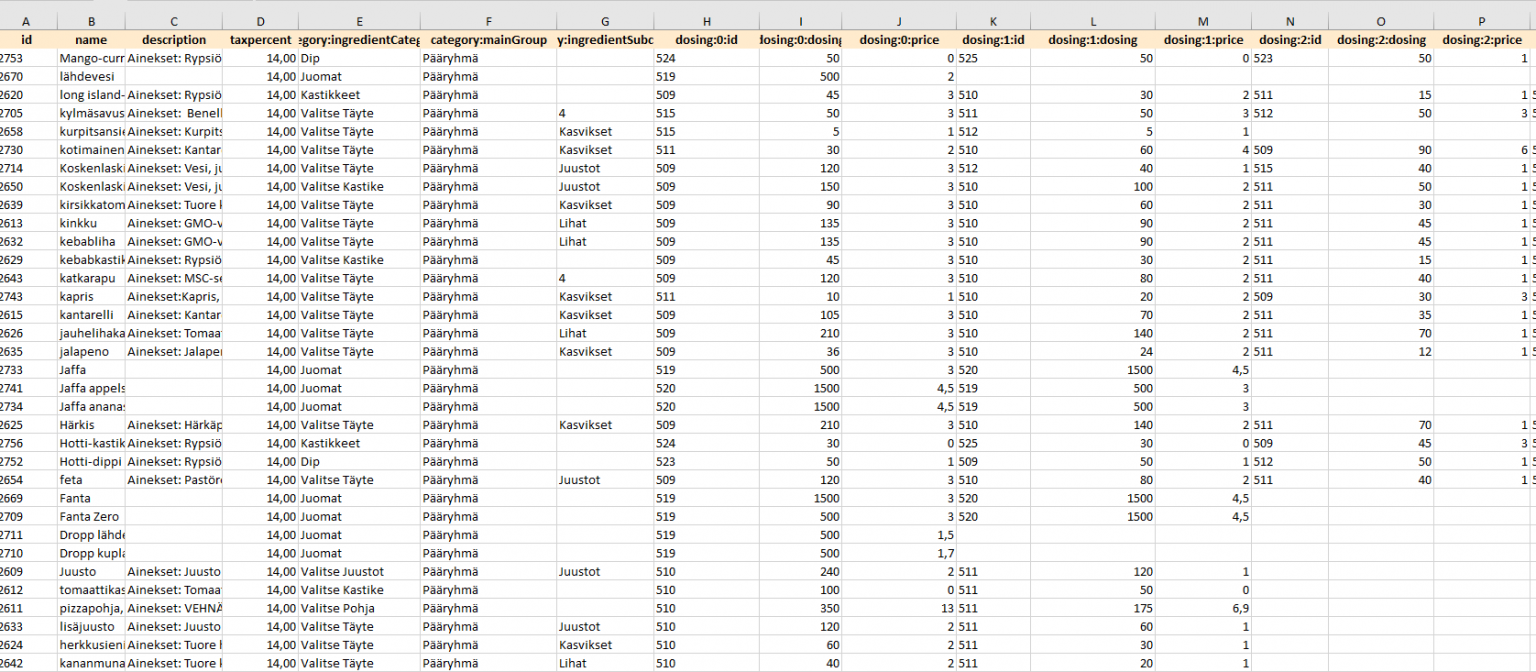
Open the file you downloaded (example file) and enter the ingredient information.
-
Save your changes to the Excel file and click the Import from file icon.
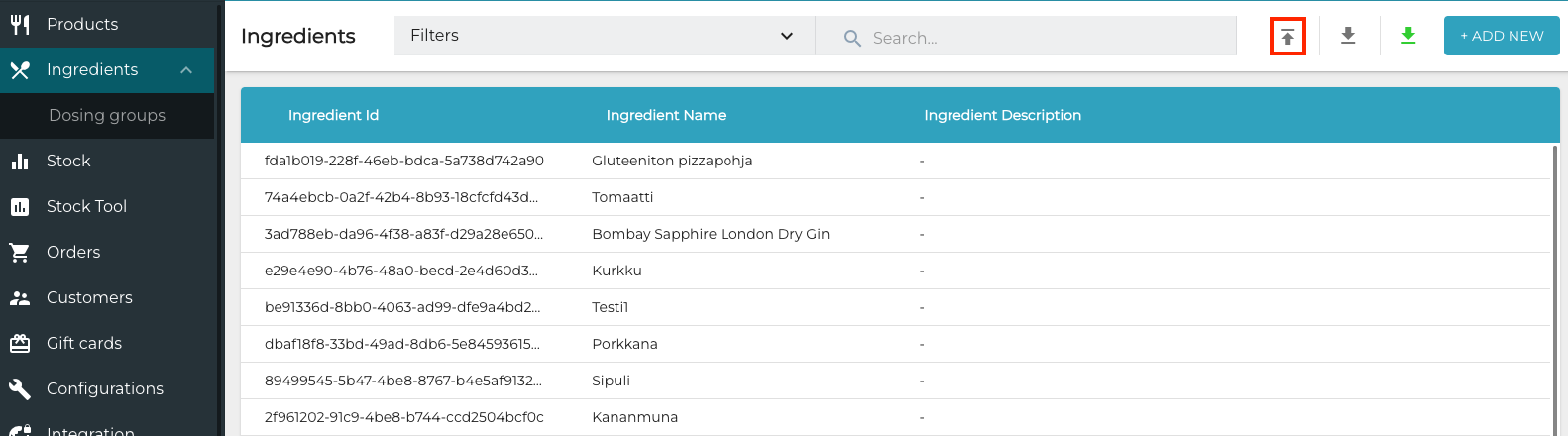
Import from file icon -
Select the Excel file you saved and click Open.
-
The message File import processing queued, check your email for import results.is displayed.
-
You will receive a message in your e-mail when the processing is done. If importing the file was unsuccessful, the e-mail also contains information about the reason.