
All codes must be scanned in the correct order.
After full configuration, the scanner will:
-
Automatically recognize shown barcodes without trigger pressed (Sense mode).
-
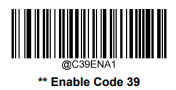
Read only Code 39 barcodes.
-
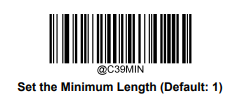
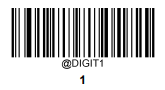
Read only 11 characters long data.
-
Reset scanner to factory default settings and set it to COM.
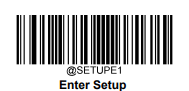
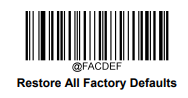
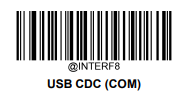
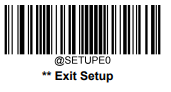
-
Enter setup for prefix/suffix, characters and symbology.
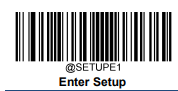
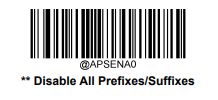
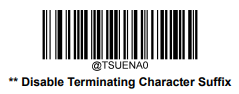
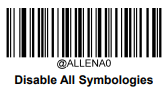
-
Set minimum and maximum lengths of readable code.
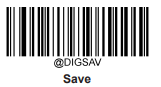
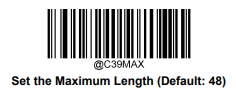
-
Enter setup for Sense mode.
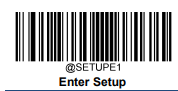
-
Note: after scanning the Sense mode code (in the next step 5), the scanner will automatically recognize barcodes without pressing trigger. To avoid misreadings, hide other barcodes while reading the rest of the codes.
-
-
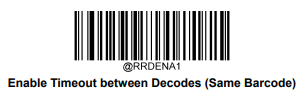
Set ScanMode to Sense and re-read same barcode timeout.
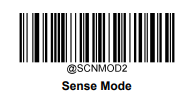
-
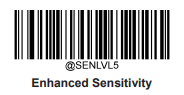
Set sensitivity.
-
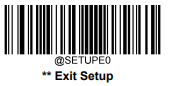
Exit setup.
Testing After Configuration
Method 1
To be able to test with scanner, FastContractMeals App needs to have at least one active "Contract" to activate scanner in application.
Scan a barcode that has 11 characters long data. Application should result in:
-
Customer not found with a card that does not exist in Commerce Cloud-
-
Not eligible for meal with a card that exists but with a contract which not valid.
-
OK with a card that exists and has at least one valid contract.
Method 2
The actual scanned output can only be seen directly from COM port the scanner is configured in.
-
Close FastContractMeals app as it reserves the port
-
Check valid COM port from Windows / Device manager
-
Use PuTTY or similar terminal emulator to open COM port connection (9600 8N1)
-
Scan barcode and check the result from the emulator screen. There should not be any heading or trailing characters or Enter as line change. With PuTTY, incorrect line change can be recognized by cursor moving to beginning after each scan.
-
Close PuTTY before restarting the FastContractMeals app.