
Users with Modify Users permissions (based on their user group membership) can manage other users' information in the Back Office.
Click Users in the Back Office menu to view and modify user information. The Users view contains a list of users who have been invited to Commerce Cloud, their roles, and access levels.
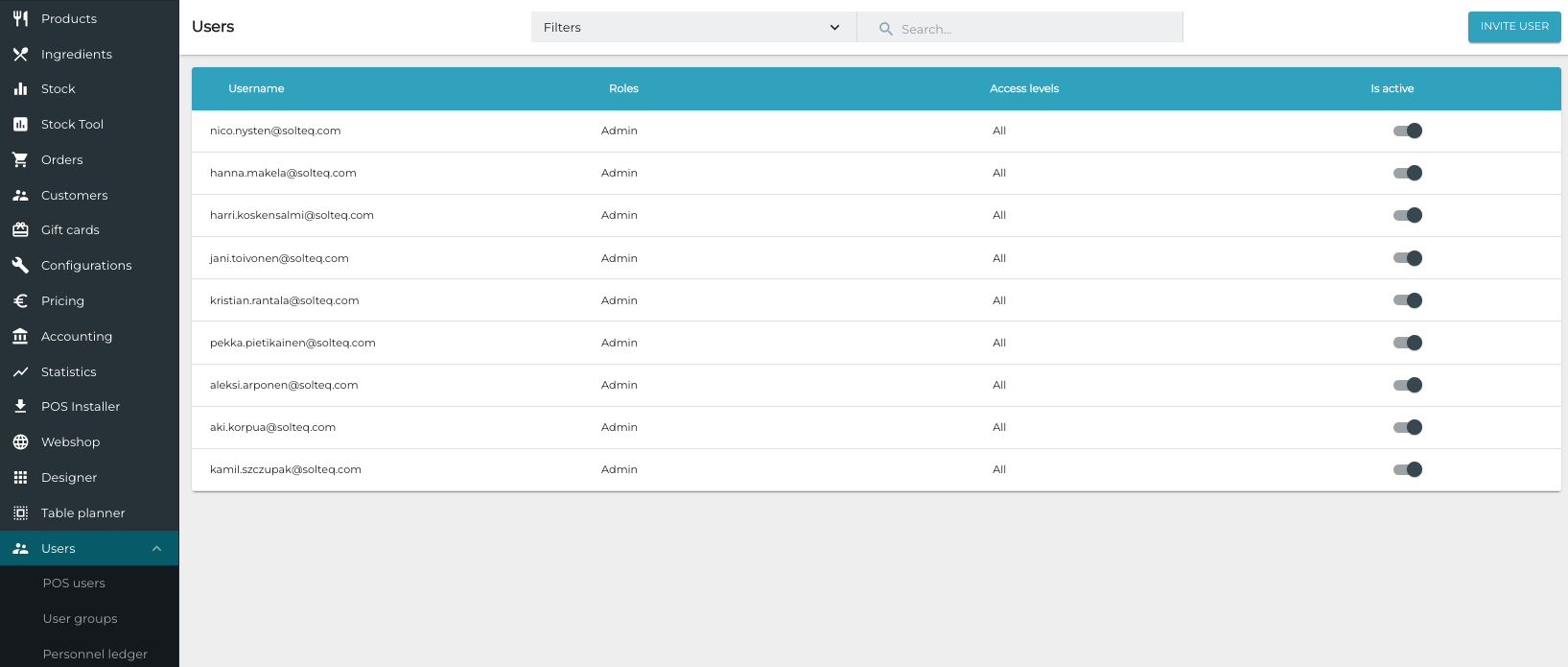
You can deactivate/activate user accounts by setting the Is active switch to ON or OFF position. A deacticated user cannot access any Solteq Commerce Cloud service with his/her credentials.
It is possible to search for users from the list, using such search criteria as name, role, active status, or access level
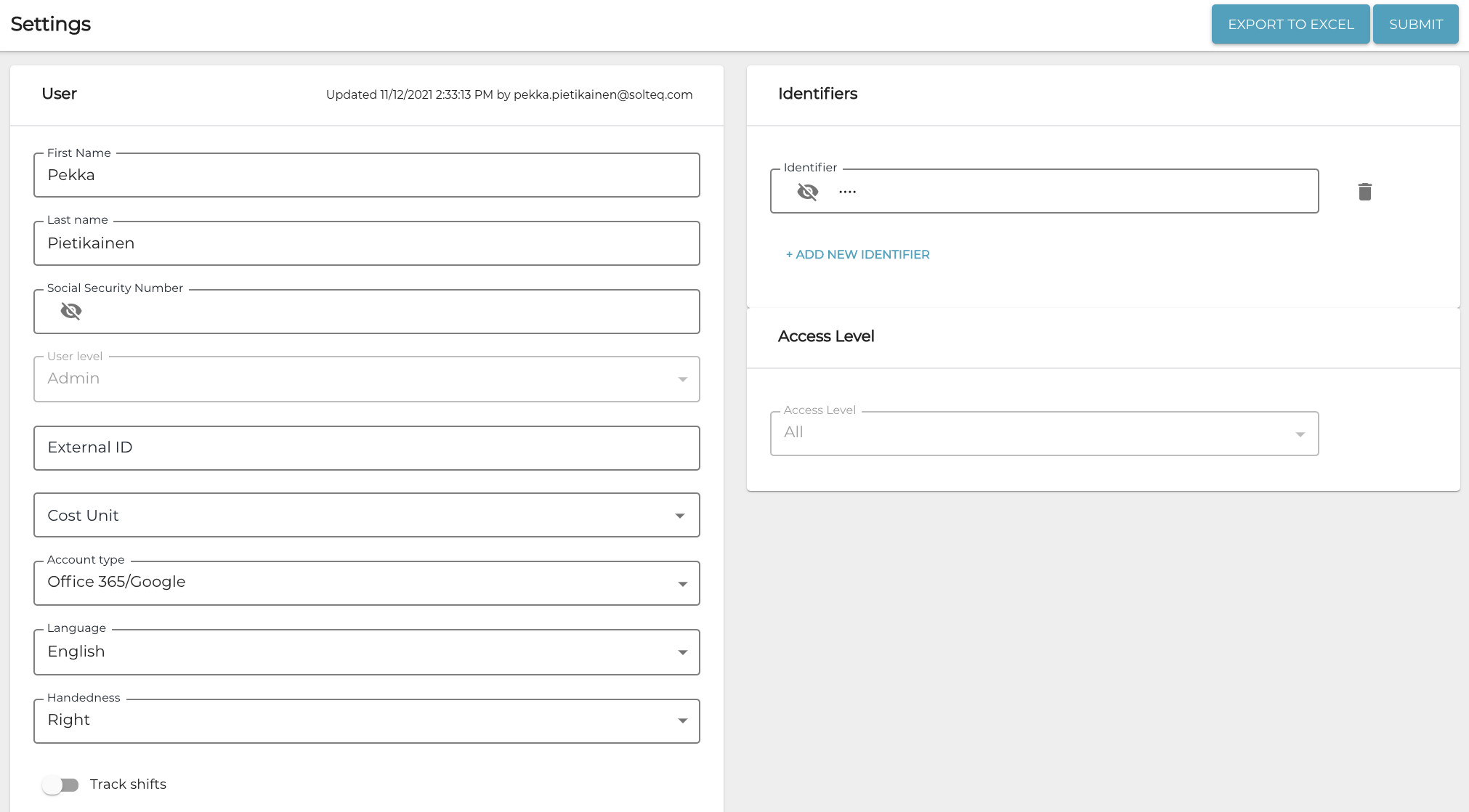
The following information can be modified in the User view:
-
First name
-
Last name
-
User Level
-
User group the user belongs to.
-
-
External ID
-
User’s ID in an external system; used with integrations.
-
-
Cost Unit
-
A user can belong to several cost units at once. If Personnel Ledger is in use, the user must then select a cost unit when he/she starts a shift in the POS.
-
-
Account type
-
Username & Password: User will login to the system using his/her e-mail address and password
-
Google/Office365: User will login to the system by using either G Suite or Office 365 service.
-
-
Language
-
Language used in Back Office and POS user interfaces
-
-
Handedness
-
Selecting Right/Left determines the placement of Basket and tiles in POS
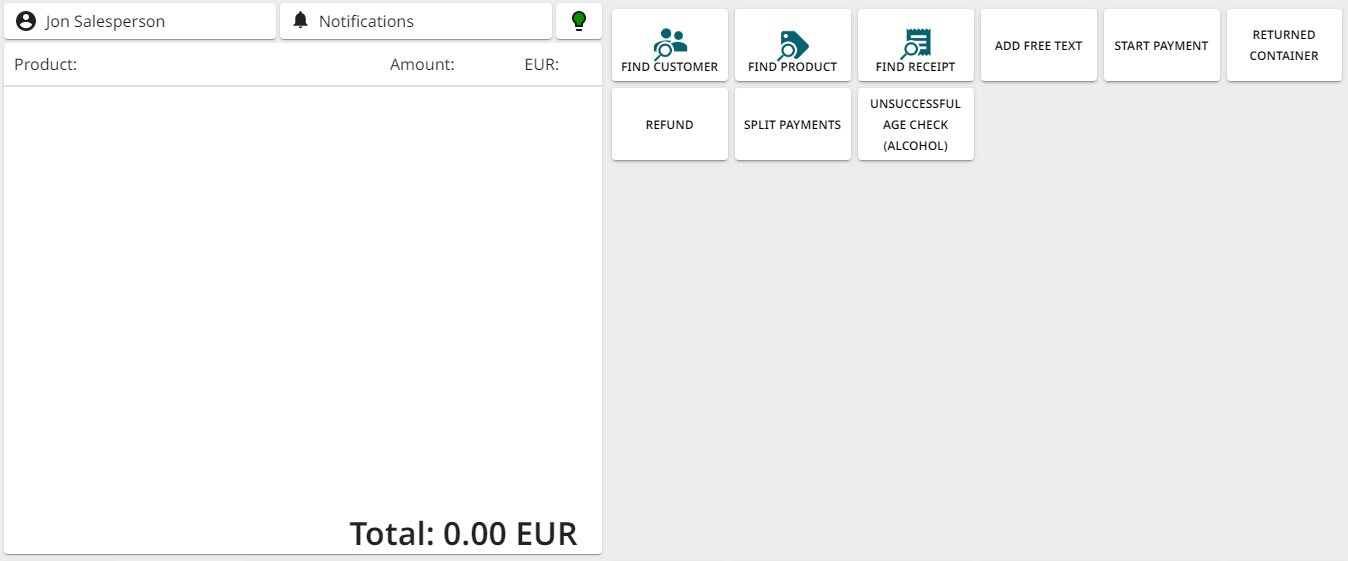
Basket and tile placement when Right has been selected for Handedness 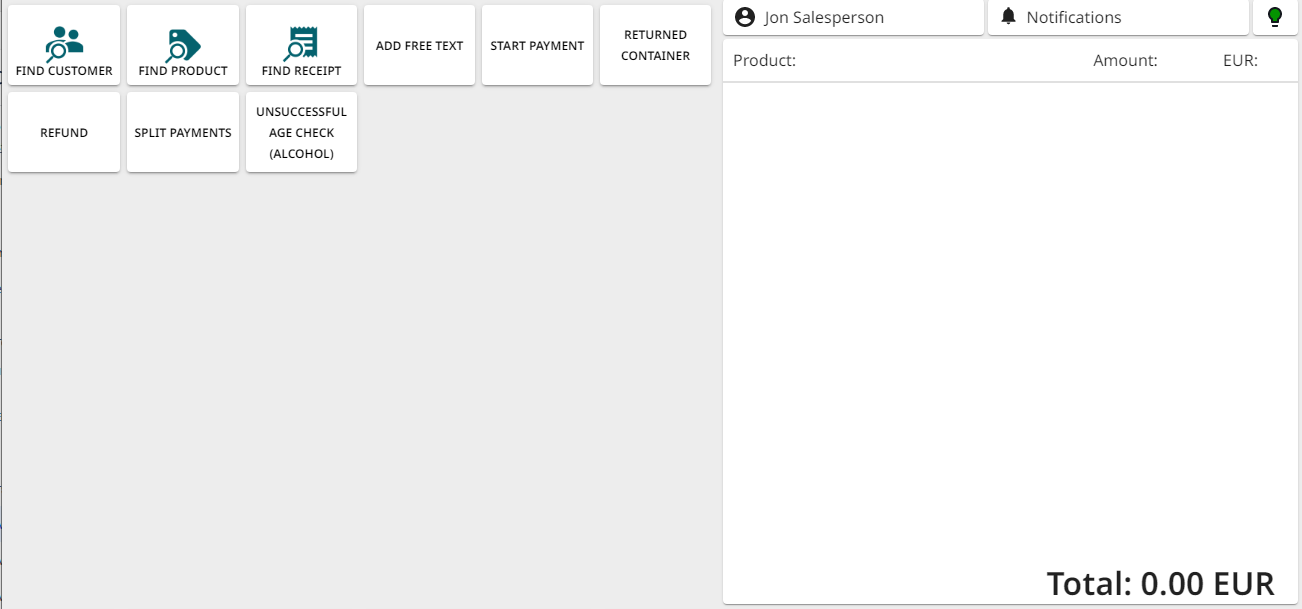
Basket and tile placement when Left has been selected for Handedness
-
-
Track shifts
-
Use this switch to define whether the user needs to use the Start/End Shift functionality in the POS.
-
-
Identifier(s)
-
Code or card ID used for logging in to the workstation.
-
-
Access level
-
Defines the store/location whose information the user can access in the Back Office.
-
Note that this setting does not limit users logging in to any workstations.
-
-