
You can increase/decrease the prices of all products in a price list or several price lists at once, if needed.
Performing this operation requires that you belong to an user group with Bulk Price Change permission.
Any custom product prices will not be updated when using this feature; custom products will be listed as Skipped products in the bulk change e-mail notification (see step 7 below).
-
In the Regular Prices view, click the Select price lists to edit all their prices icon in the toolbar.
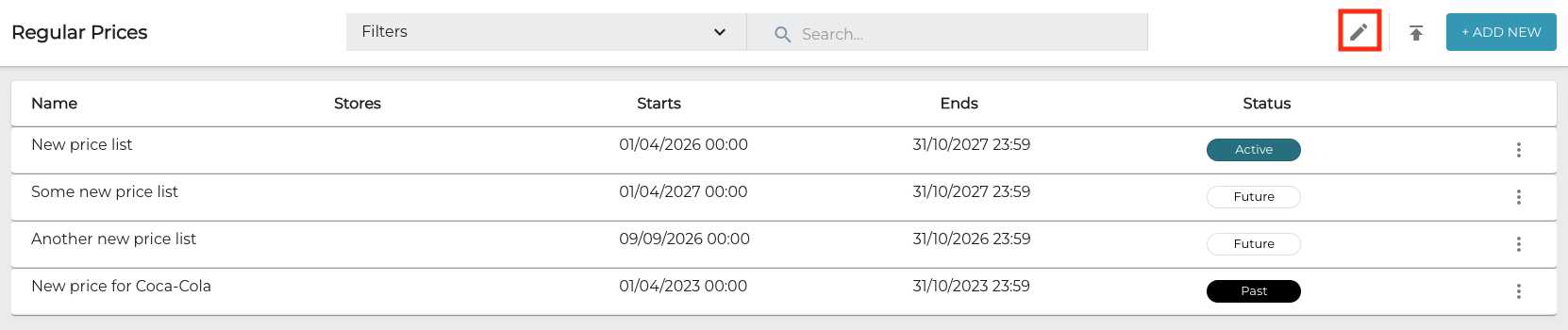
Select price lists to edit all their prices icon in the toolbar -
Use the checkboxes to select the price lists whose prices you want to edit.
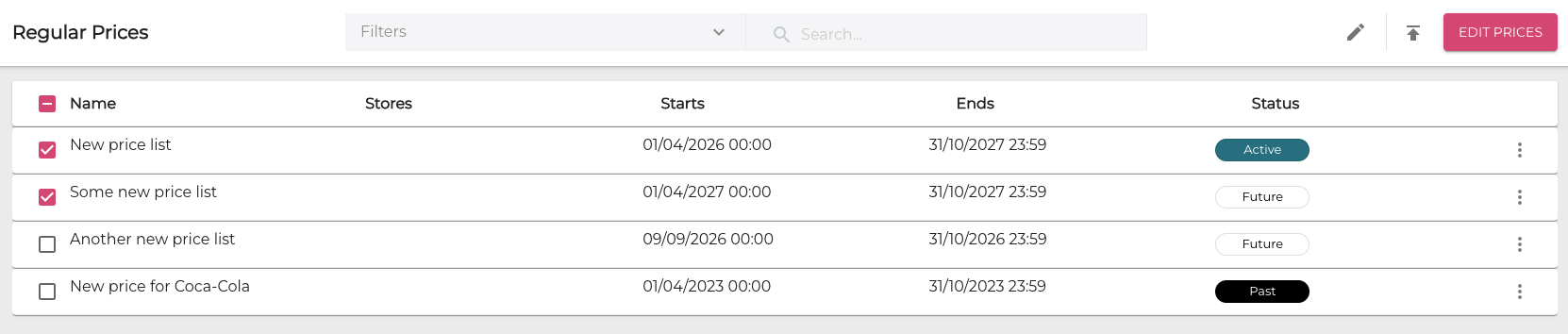
Selecting the price lists -
Click Edit Prices.
-
In the Edit prices – change all prices on selected lists window, enter the price decrease or increase in percentages.
-
To enter a price increase in percentage, use the format 110 (for example, for 10 percent increase).
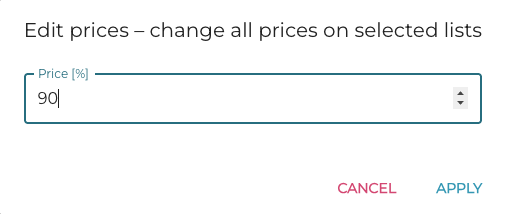
Entering the new price percentage
-
-
Click Apply to proceed (or Cancel to cancel the price change).
-
The notification below is displayed. Click Apply to proceed (or Cancel to cancel the price change).
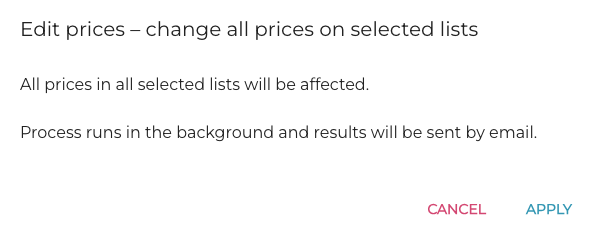
Notification about the price change -
When the price change has been applied to all the selected price lists, you will receive an e-mail notification about this. The notification contains information about updated and skipped products; if any errors were encountered during the price change process, the e-mail will also include information about them.
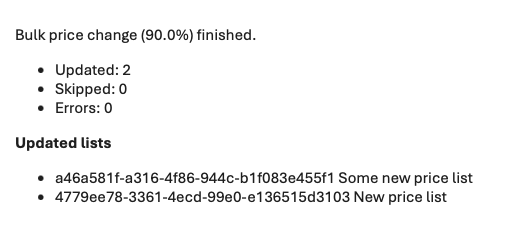
Example of the bulk price change e-mail notification