
You can change both the printable price and printable discounted price for one shelf label which contains one product.
-
Go to product details and click the Add to active print set icon in the toolbar.
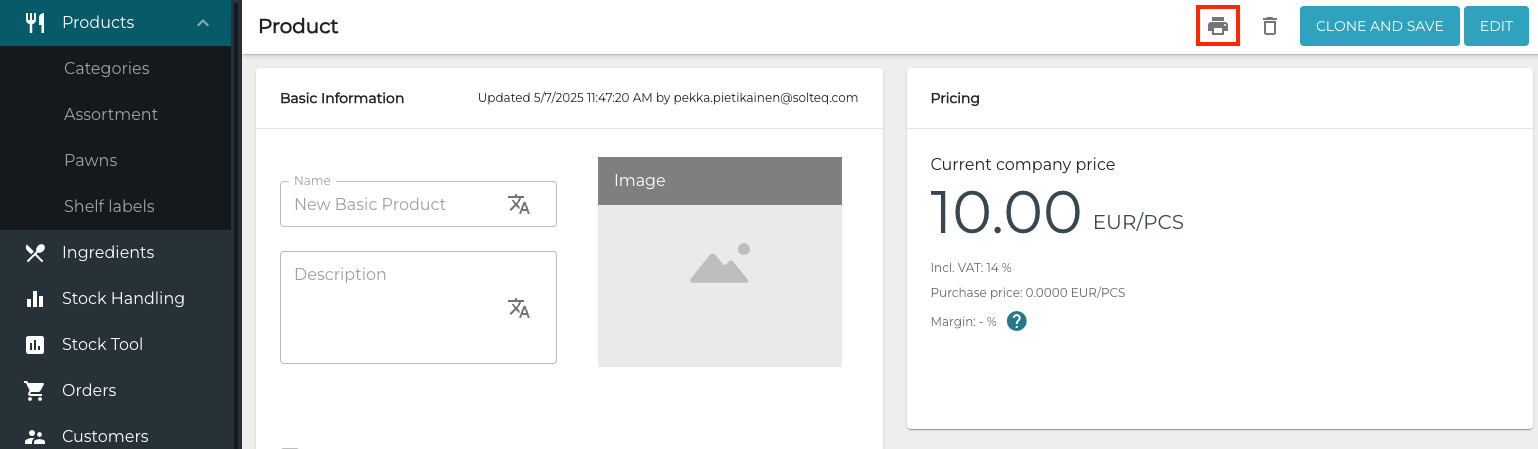
Add to active print set icon -
Next, click Shelf Labels in the Back Office menu.
-
Click the row of the shelf label set you just created.
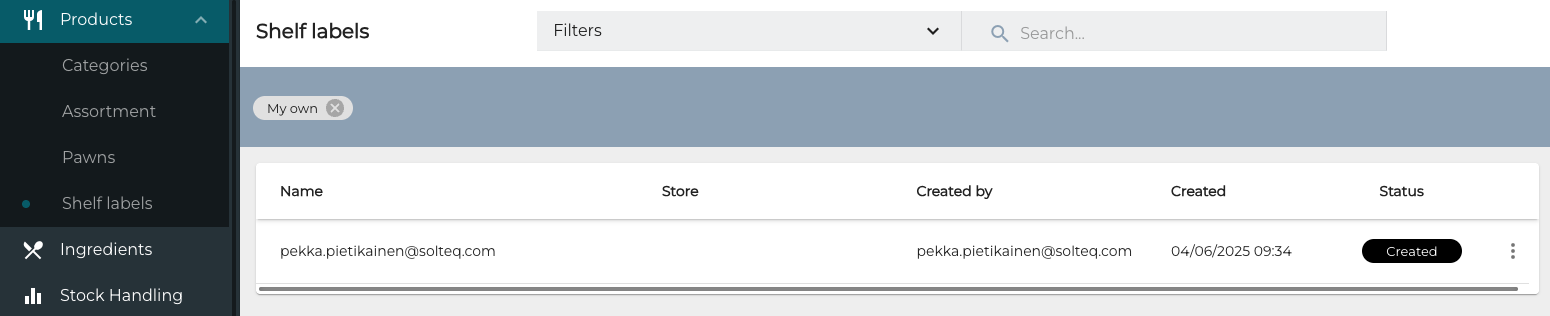
New shelf label set -
Collected shelf labels view is displayed. Now you can change both Printable price and Printable discounted price for the product.

Changing the Printable price and Printable discounted price -
Click Print.
-
Select the Shelf label print out template.
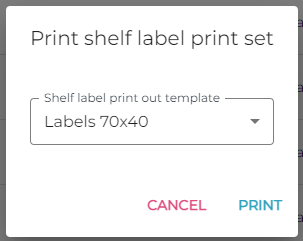
Selecting the shelf label print out template -
Click Print.
-
A PDF file with the shelf labels will be generated and downloaded to your computer (based on your browser configurations).