
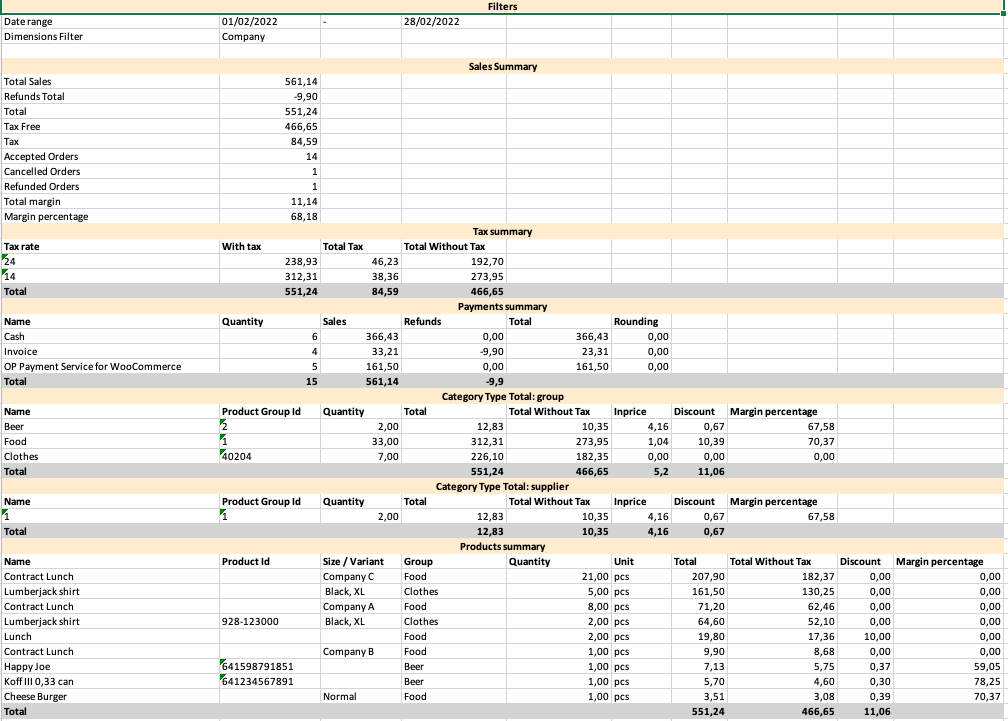
You can generate a monthly report and export it in Excel format from the Back Office. The image below shows an example of the report.
Generate a Monthly Report
-
Click Statistics in the Back Office menu
-
Add Business Date filter
-
Select Full Months and the month you want to generate the report for.
-
Click Apply Filters.
-
Click Export to Excel.
-
Open the Excel file to view the report.
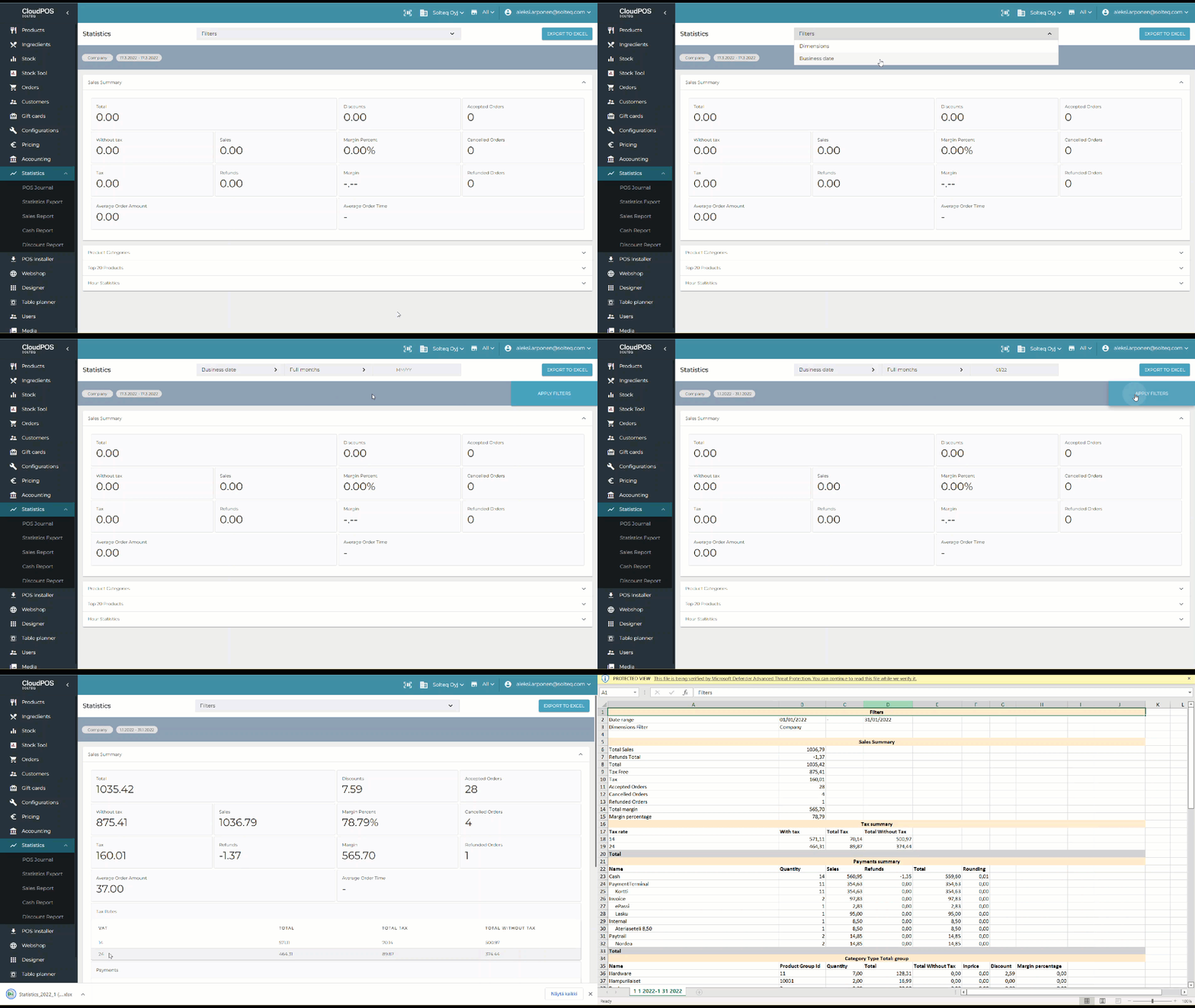
Generating a monthly report