
When you click an order in the Orders view, the details of the order are displayed.
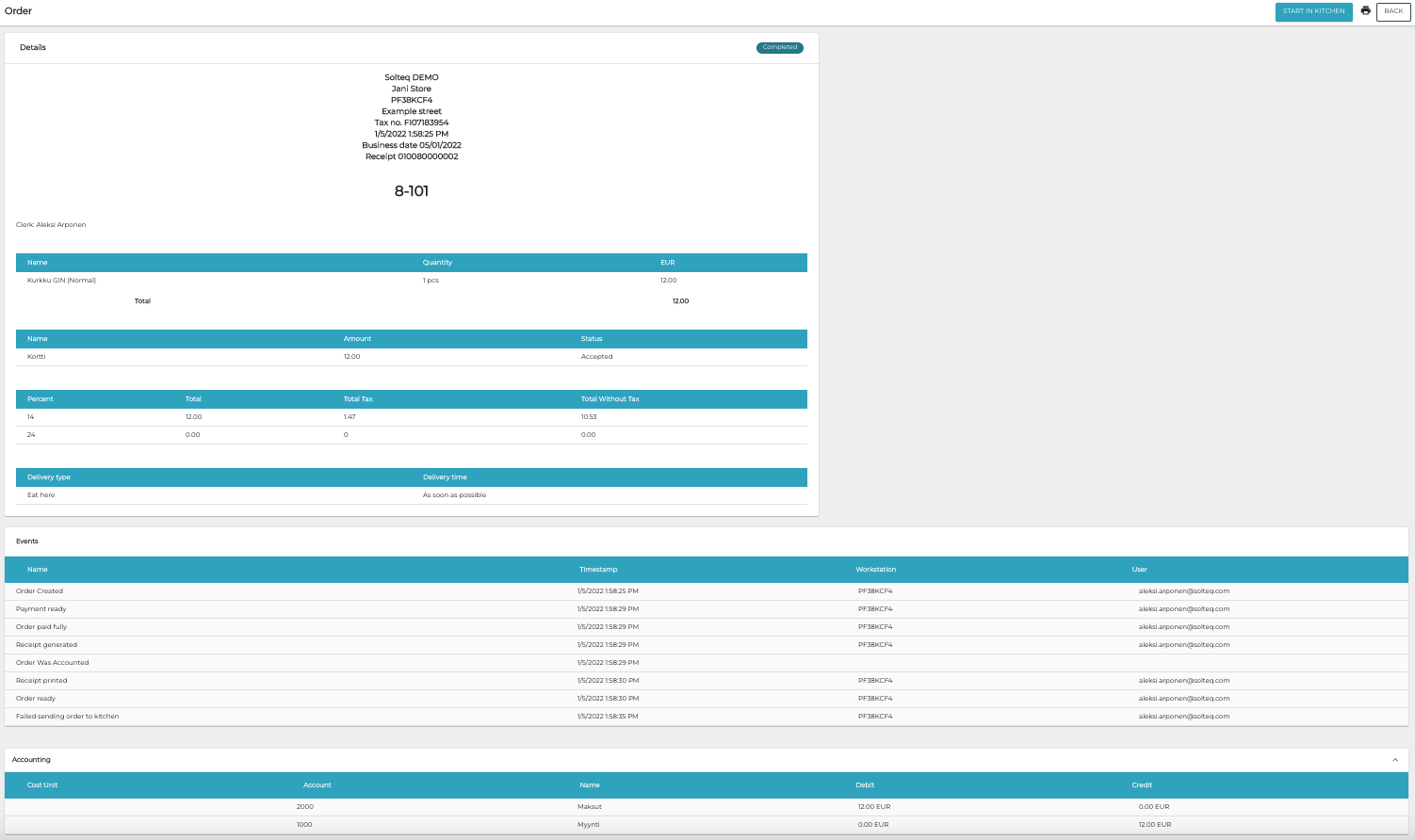
The following information about the order is displayed:
-
Name of the Store where the order was created
-
Workstation where the order was created
-
Address of the store
-
Tax no. (the Company Organization Number (=VAT identification number) in Company Configurations.
-
Order timestamp
-
Business date of the order
-
Order number
-
Products in the order (click the product row for additional details)
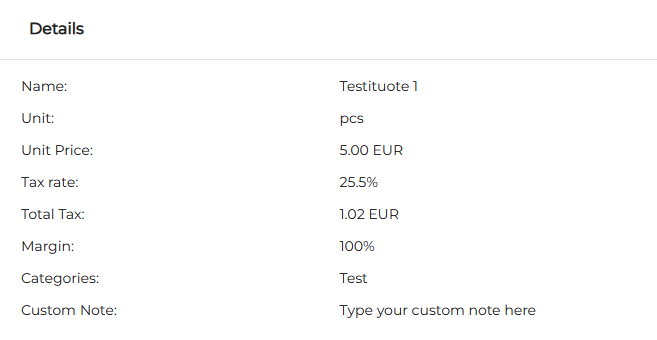
Order product details -
Payment method(s) (click the payment row for additional details)
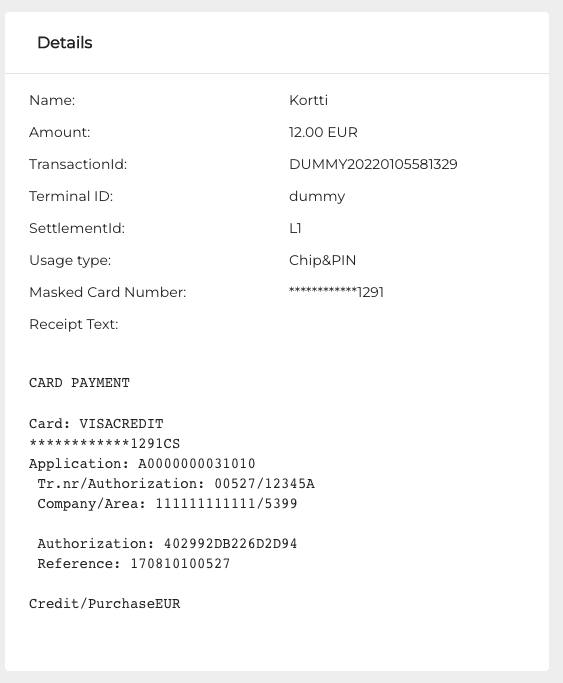
Payment details -
Tax information
-
Delivery type (click the delivery row for additional details)
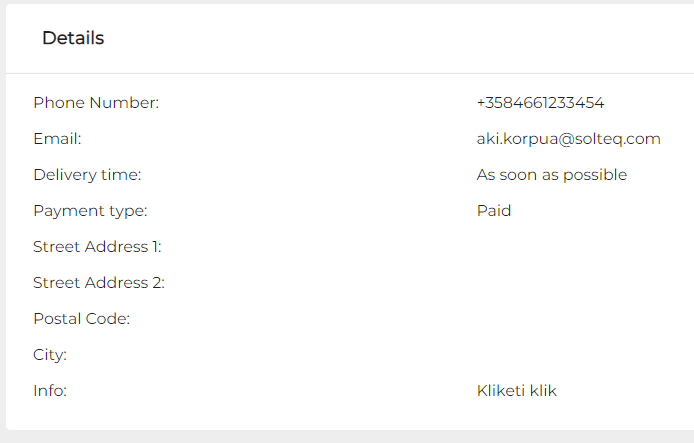
Delivery details
-
Accounting information of the order
Order-Related Actions
The toolbar in the order details view contains buttons and icons which can be used for performing order-related actions.
|
Button or icon |
Order status when visible |
Description |
|---|---|---|
|
Parked |
Cancels the order. |
|
Awaiting for approval |
Approve or Reject webshop order Mainly this will be done from Kitchen tablet, but this is fallback method to handle kitchen status from backoffice if kitchen tablet is broken. |
|
In Kitchen |
Starts processing the order in Kitchen. Print recipe on kitchen printer. Mainly this will be done from Kitchen tablet, but this is fallback method to handle kitchen status from backoffice if kitchen tablet is broken. |
|
In Kitchen |
Sets order ready on Kitchen for pickup or delivery. Mainly this will be done from Kitchen tablet, but this is fallback method to handle kitchen status from backoffice if kitchen tablet is broken. |

|
Any |
Return to the Orders view, with the previously selected filters in effect. |

|
Order is paid and receipt created (regardless of status) |
Sends receipt copy via e-mail. As a default the e-mail address in the customer information (if customer was selected) is used. You can also enter a new e-mail address. |

|
Order is paid and receipt created (regardless of status) |
Prints receipt copy. |