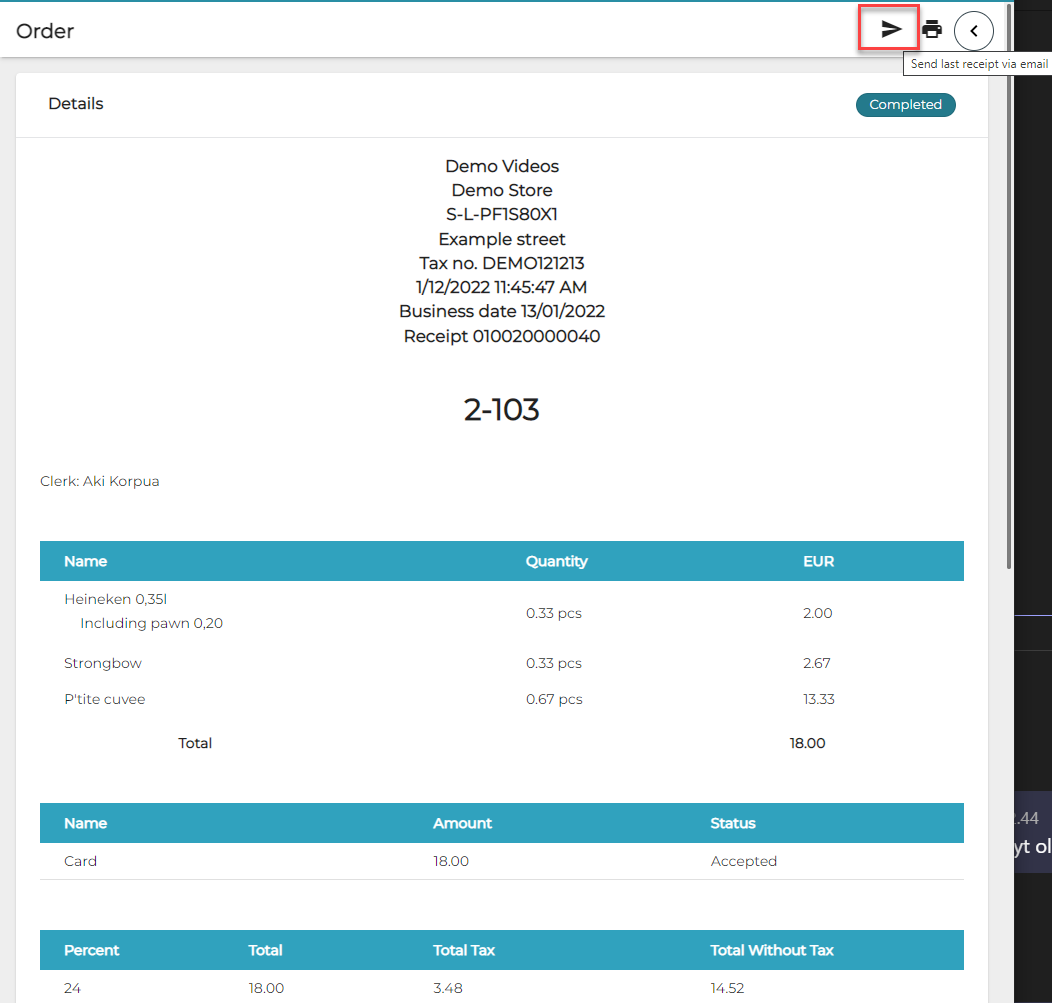
In the POS it is possible to send the customer’s last receipt to an e-mail address. Receipts can also be sent from the Back Office. Receipts from external sources such as Web Shop will be automatically sent to the customer’s e-mai address, if the address has been provided.
Using the following settings is recommended in order to print out only the receipts that need to be printed.
-
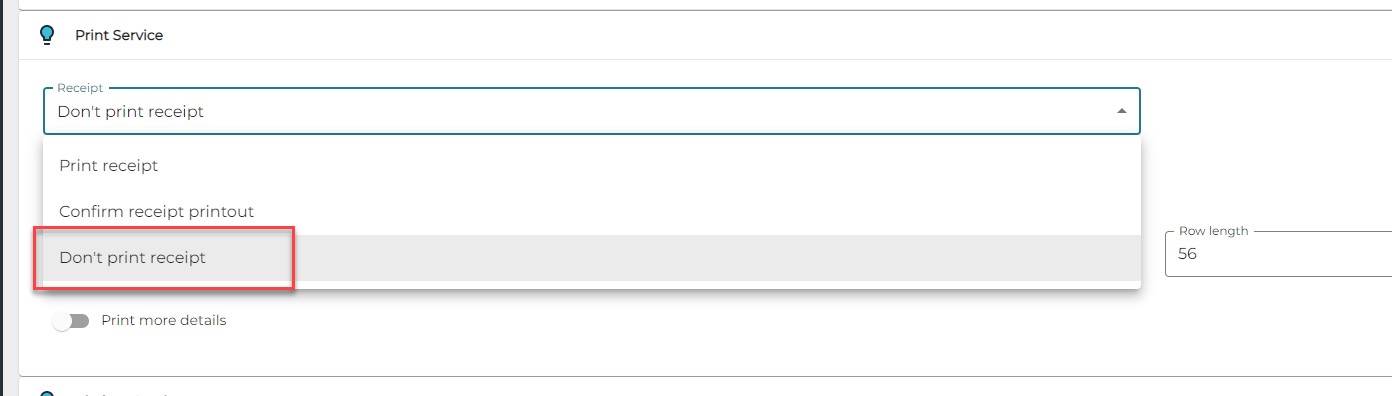
In the Print Service configurations of the workstation, the Don’t print receipt setting should be set to ON.
-
-
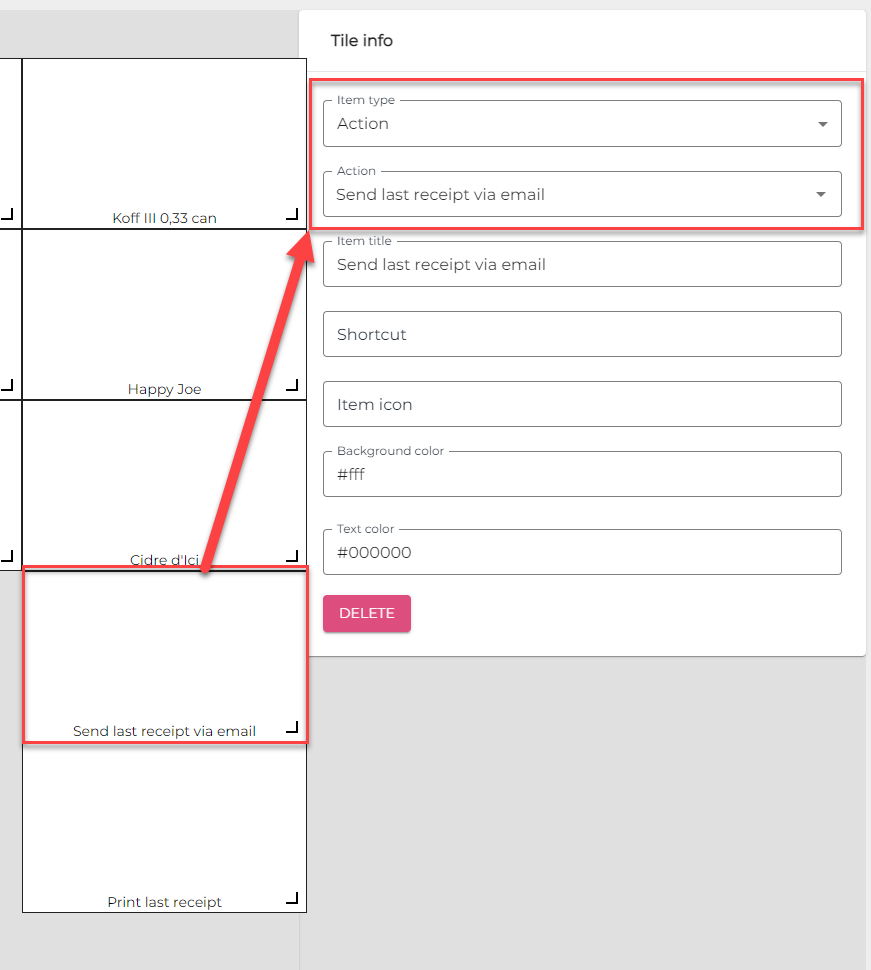
Add the following function tiles to the POS layout:
-
Print last receipt
-
Send last receipt via email
-
If the receipt contains customer data, the Customer Email field will be filled automatically; the contents of the field can also be modified, if needed. When you have checked that the address is correct, you can send the receipt via e-mail.
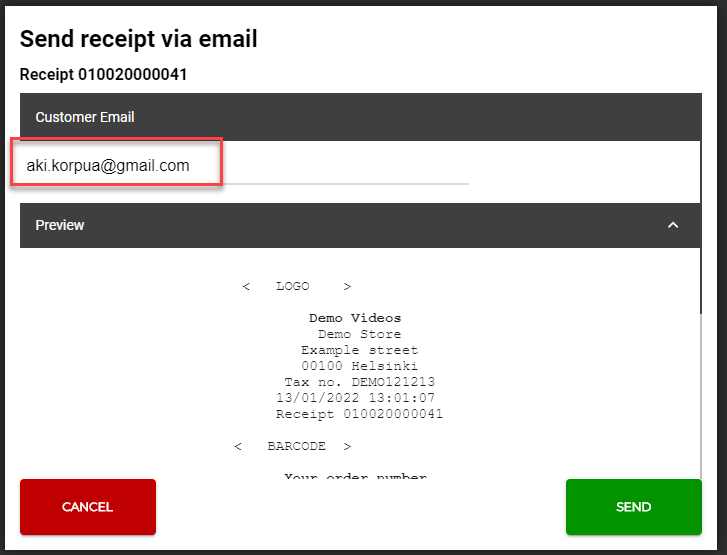
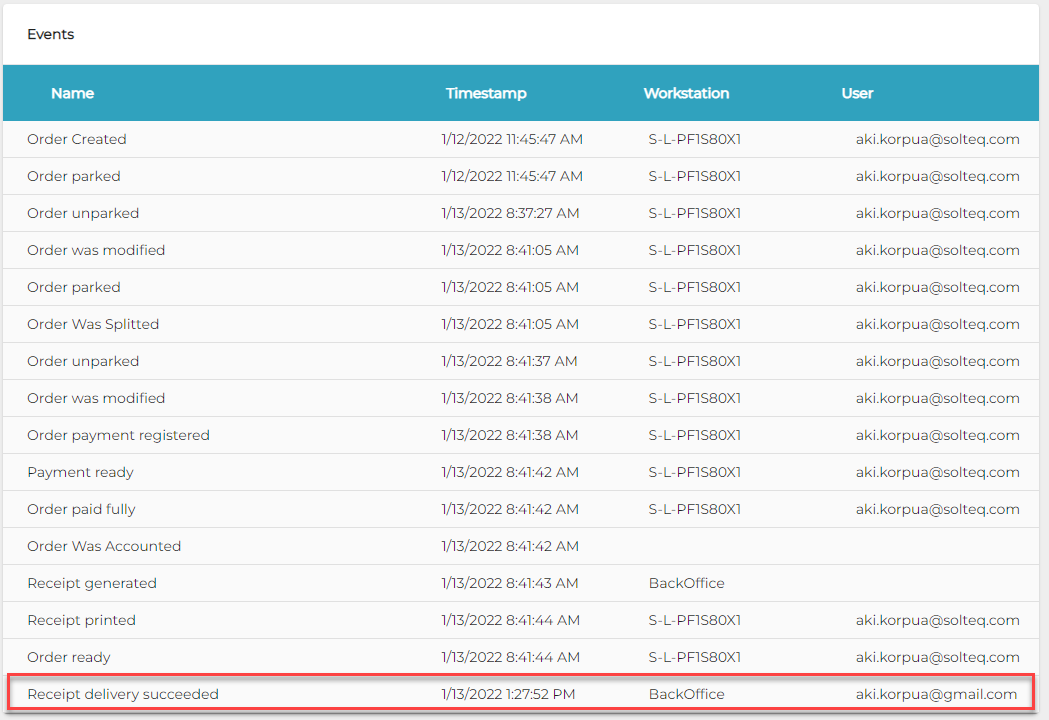
When the receipt has been sent, the Events information of the order will contain information about the sending:
-
Receipt delivery succeeded
-
Receipt delivery unsuccessful
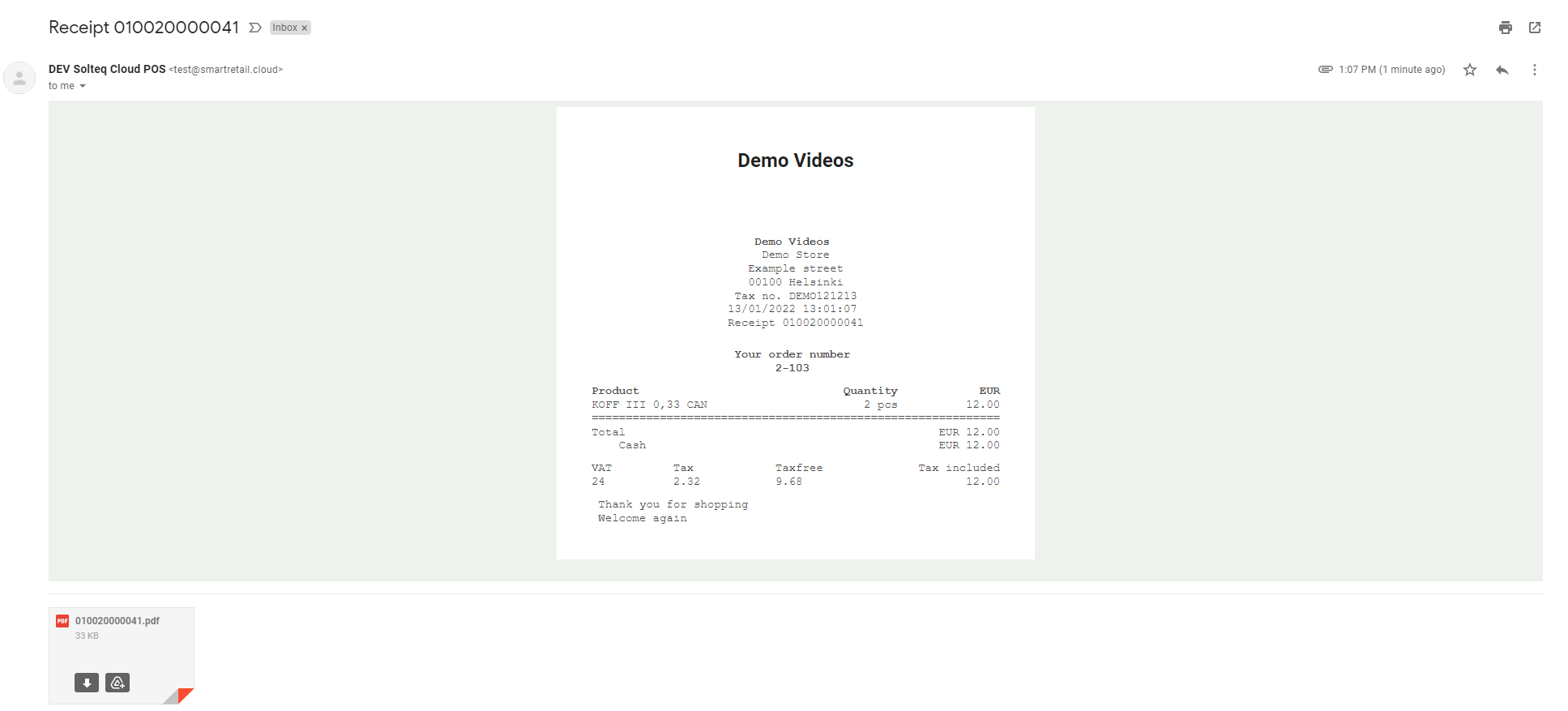
Below is an example of an e-mailed receipt.
You can send a receipt from the Back Office by clicking on the receipt in the Orders view, and then clicking the Send receipt via e-mail icon in the upper right-hand corner.