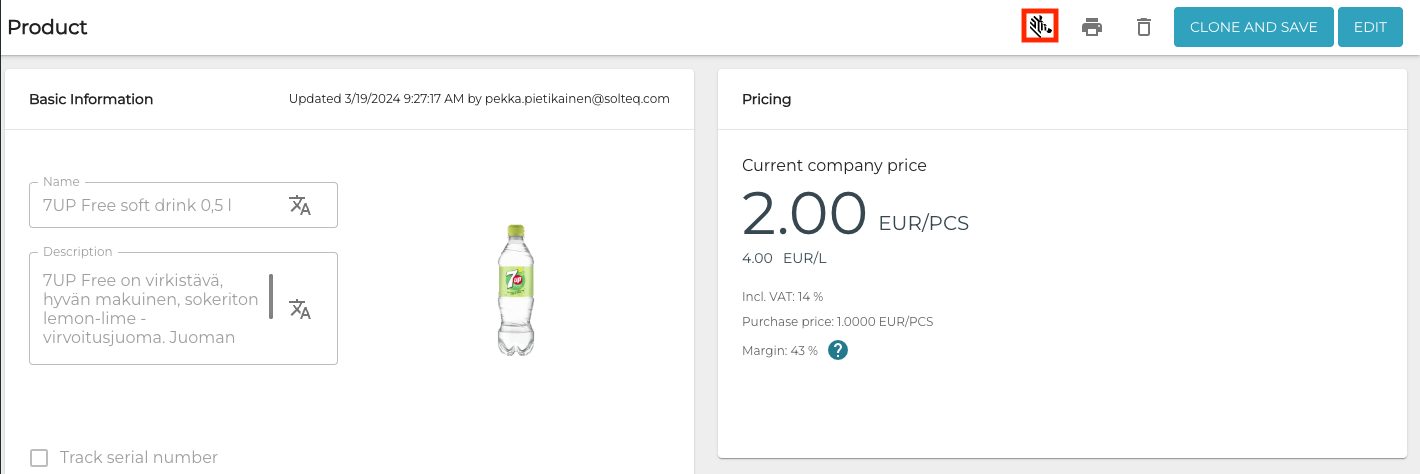
When Zebra printing has been enabled in the Back Office, the product details will display a new icon for Zebra printing.
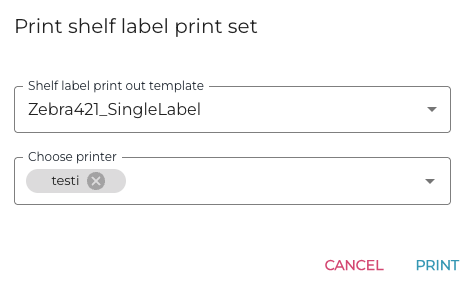
Printing when the User Has a Store Selected
When you click the Zebra printing icon and at least one printer with Direct Print has been enabled, but no default templates have been selected in the Store Configurations, the Print shelf label print set window is displayed; select the template used for printing and click Print.
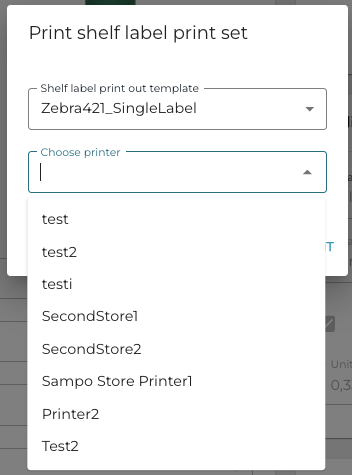
Printing when No Store Has Been selected
When no store has been selected in the Solteq Commerce Cloud toolbar, clicking the Zebra printing icon will display the Print shelf label print set window is displayed; select the printer from the drop-down menu which contains all the printers from the company’s Stores.
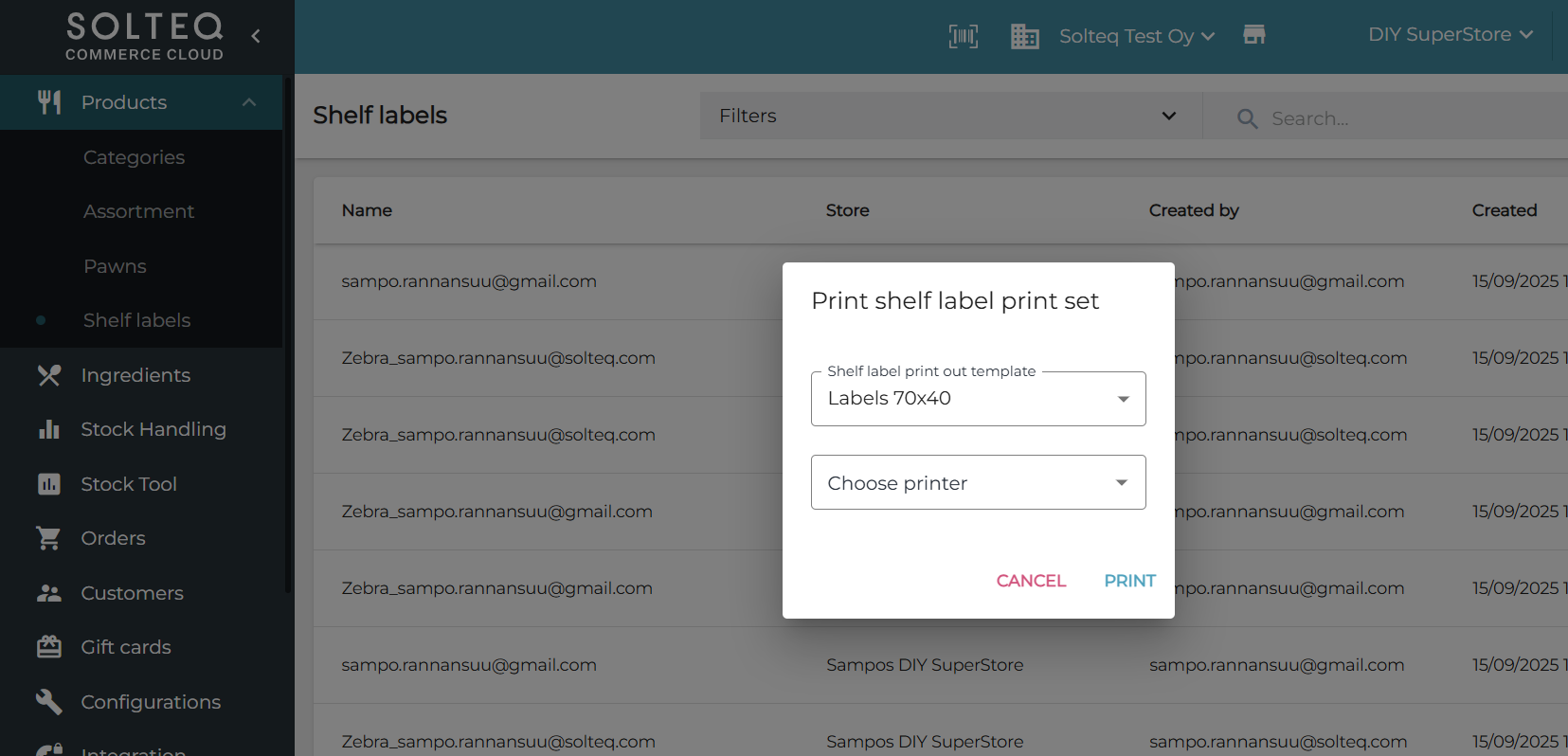
Using the Shelf Label Collection Function
You can also use the shelf label collection function in the Back Office to collect and print shelf labels with a Zebra printer. In this case you need to select both the template and the printer in the Print shelf label print set window; the available options depend on whether the user has access to only one or some of the Stores, or all of the company-wide printing options.