
When you add a new Stock to Solteq Commerce Cloud, you can also allocate it to a Store; note that the Store in question cannot have an existing Stock allocated to it.
If you do not allocate a Store for a Stock, the Stock can be used as a Central Stock, for example.
If needed, you can change the name of the Stock and its Store allocation later.
-
In the Stock Handling view, click +Add new.
-
Enter the Stock Name.
-
(optional) Use the Stock Allocation drop-down menu to select the Store for the Stock.
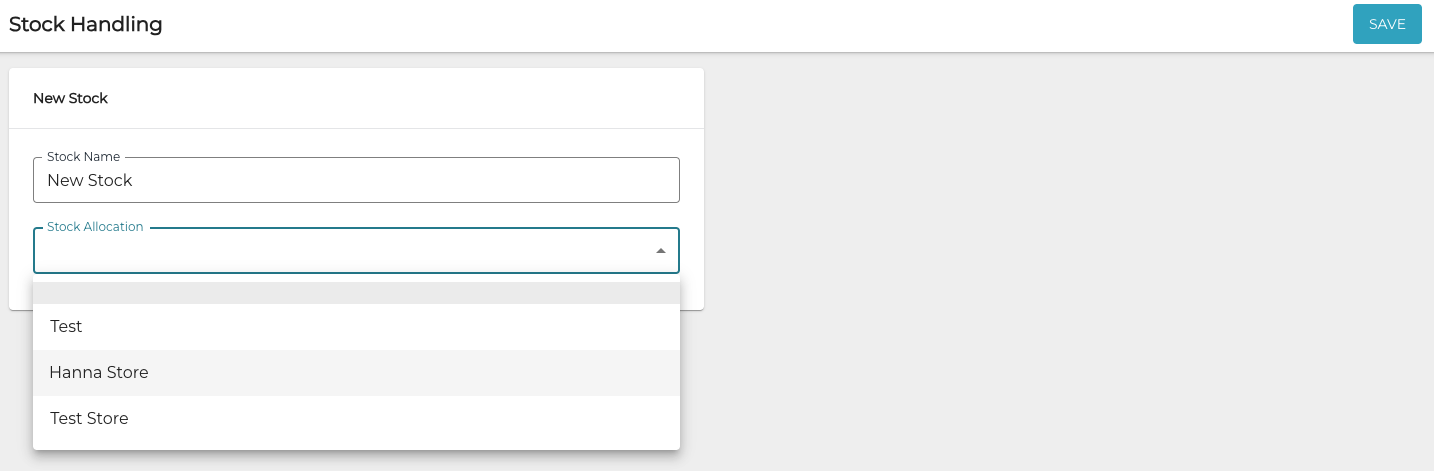
Selecting a Store for the new Stock -
Click Save to create the new Stock.