
You can create new discounts in the Discounts view of the Back Office.
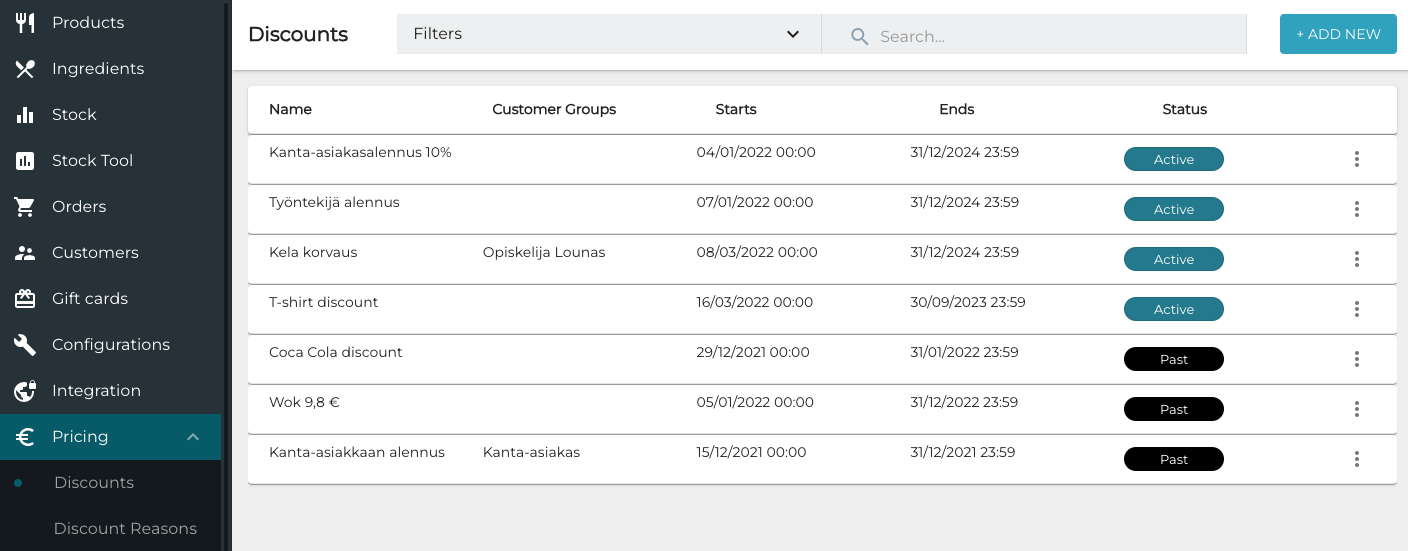
Discounts can be percentage or fixed price discounts.
A percentage type discount can be created and used for all products; in this case do not select any products to be discounted.
On the other hand, a fixed price discount cannot be created for all products; you need to select the products/product categories when creating the discount.
Using a reason code when creating new discounts is strongly recommended, because only discounts with reason codes will be listed in the Discount Report view. Note that you need to create a reason code first to be able to select it from the drop-down menu in step 5.
-
Click Pricing and select Discounts in the Back Office menu.
-
Click +Add new.
-
Enter the Name and (optional) Description for the discount.
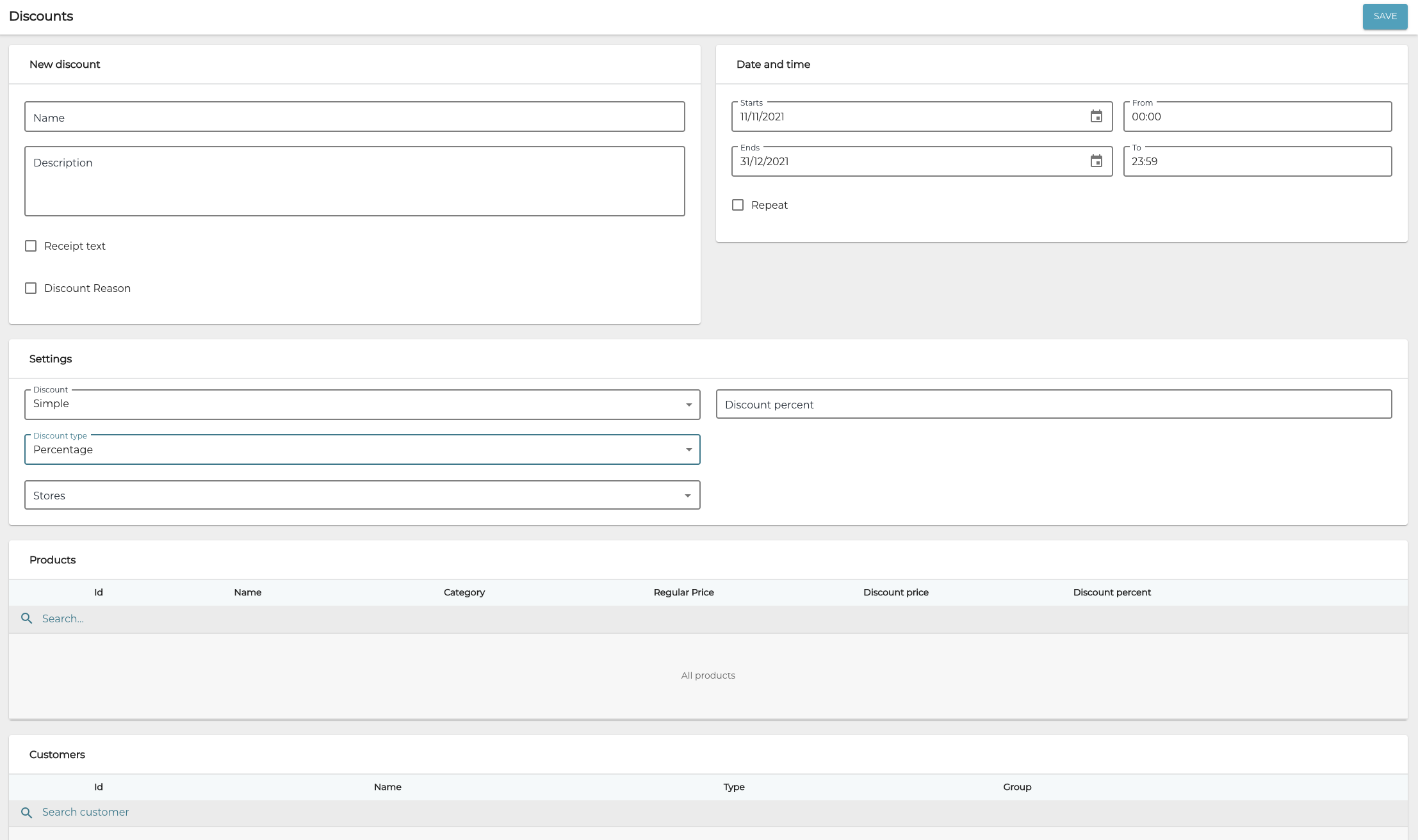
New discount details -
(optional) If you want a specific text to be printed out when the discount is used, click the Receipt text checkbox and enter the text into the Receipt text field which is displayed.
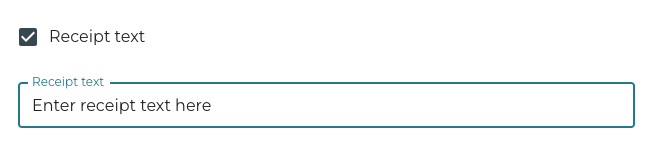
Receipt text -
(optional) If you want a specific reason code to be automatically used when the discount is applied at POS, click the Discount Reason checkbox, and select the reason code from the drop-down menu.
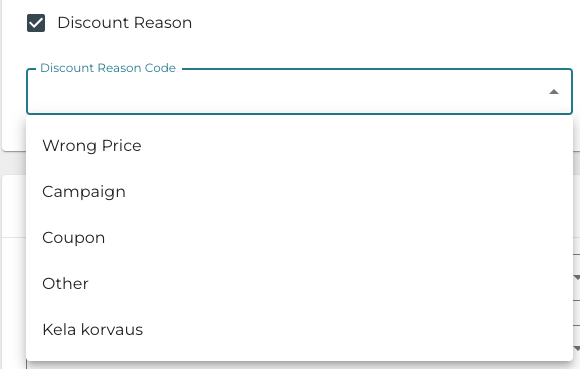
Discount reasons -
Define the Settings for the discount:
-
Discount
-
Simple
-
The discount is calculated normally from the regular prices of all selected products.
-
The Discount Type can be Percentage or Fixed Price.
-
Note that a Fixed Price discount cannot be applied to custom products, because the price of the custom product can be dependent on the selected size and ingredients (for example).
-
-
-
Buy X get Y
-
Define products X and Y.
-
The price for product Y can be discounted (percentage or fixed price discount) or 0 (in which case product Y is free when product X is purchased).
-
-
Advanced Buy X get Y
-
Define products X and Y.
-
Define how many X products or what value of product X the customer must buy in order to get the discount.
-
Define how many Y products can be discounted when the discount is activated.
-
The price for product Y can be
-
discounted (percentage or fixed price discount), or
-
0 (in which case product Y is free when product X is purchased).
-
-
As an option, you can select the Give discount from the cheapest product checkbox to define that the discount will be given on the cheapest product.
-
-
Get the cheapest one
-
The price of the cheapest product is 0.
-
Define the minimum quantity of products.
-
-
Bundle price
-
Define the Price for bundle and Bundle size.
-
-
Advanced bundle price
-
Define the Price for bundle, minimum quantity of X and/or Y products in the bundle, and the number of discounts allowed for one order.
-
-
Basket total
-
Define the Minimum amount.
-
-
-
Discount type
-
Percentage or Fixed price
-
Stores
-
Use the drop-down menu to select the store(s) where the discount is in effect.
-
-
-
-
(optional) In the Products section you can define that the discount only applies to certain products or product groups.
-
Use the drop-down menu to select a Single product or a Category.
-
Enter the search term for a product/product category in the Search... field. Search results are displayed.
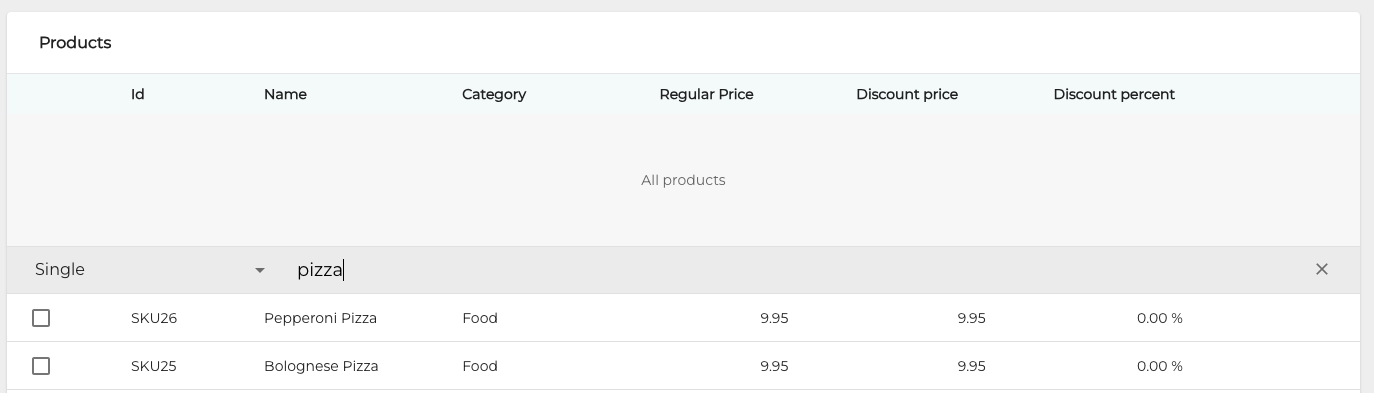
Searching for products for the discount
-
If there are different size options available for the product, select the size(s) or All sizes.
-
Select the product(s) or product category/categories by clicking on the checkbox(es).
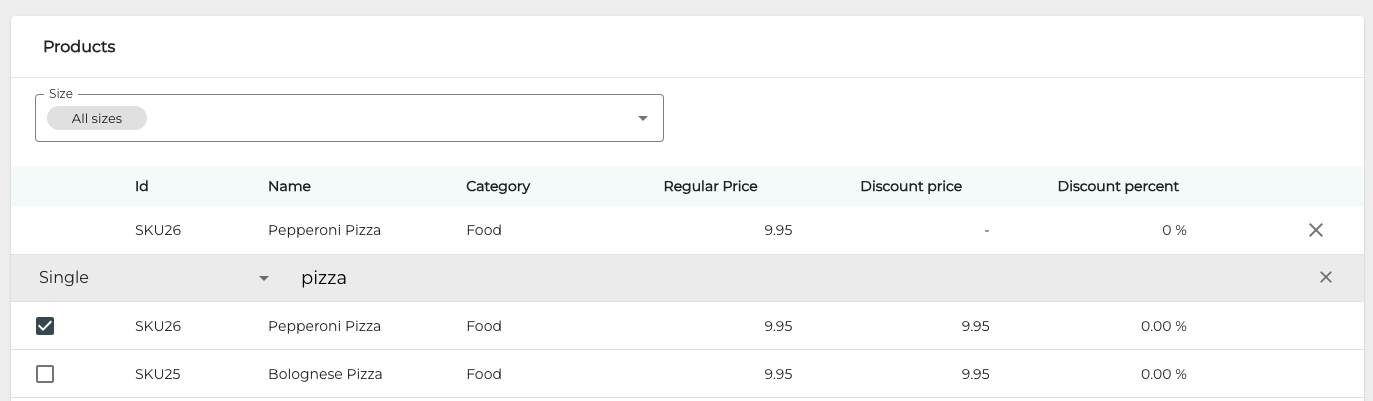
Selecting products for the discount
You can also delete a product/product category by clicking x.
-
-
(optional) In the Customers section you can select the customers or customer groups who are eligible for the discount.
-
Click Search Customer and select either Single customer or Group.
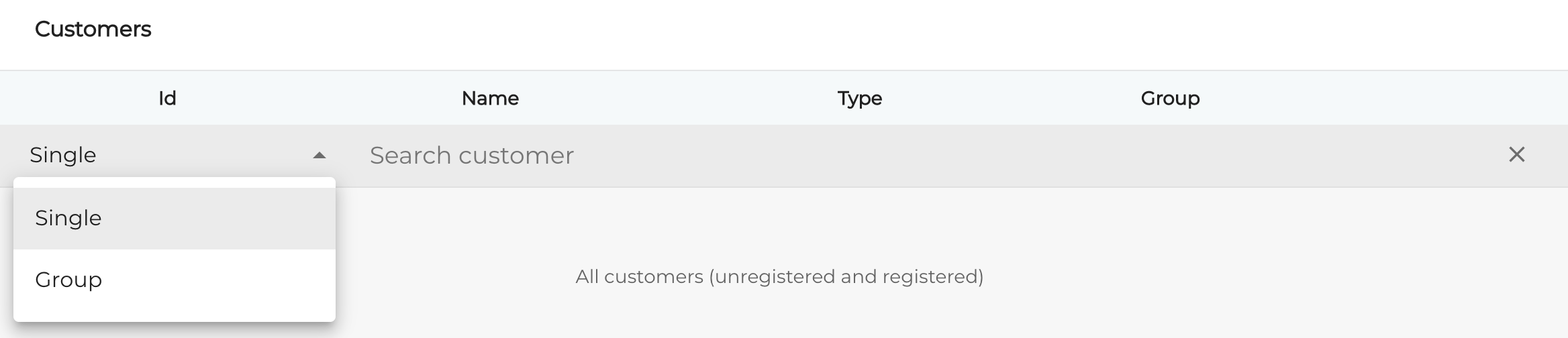
Selecting a Single customer or a Group of customers -
Start entering the name of the customer/customer group. Search results will be displayed.
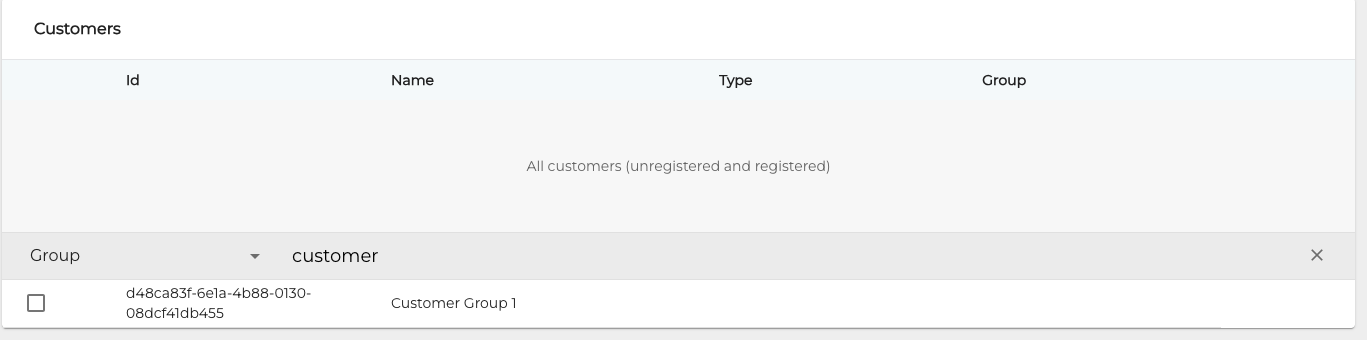
Customer group search -
Select the customer(s) or customer group(s) by clicking on the checkbox(es).

Customer group selected for the discount
You can also delete a customer/customer group by clicking x.
-
-
Click Save to create the new discount. The discount is now listed in the Discounts view.

Discount listed in the Discounts view