
When a discount or a price increase is applied on POS (either Basket row -specifically or by deducting from the Basket total price), the salesperson must enter a reason code for the discount.
Only reason codes whose type is Discount or Both types can be selected for reason codes when creating a new discount.
You can create new reason codes, as well as modify or delete existing ones in the Reason Codes view of the Back Office. You can also define one reason code to be the default reason code which is displayed as the first option in the POS when a discount or price change is applied manually.
One reason code - Price Change - is a default code which has been created in the system. It is not a discount code per se; instead, it can be used to change the price on POS in cases where the product price is incorrect. The Price Change reason code can not be deleted, and it is not visible in the Back Office Discount Reasons.
Create a New Reason Code
-
Click Pricing and select Reason Codes from in the Back Office menu. The Reason Codes view is displayed.
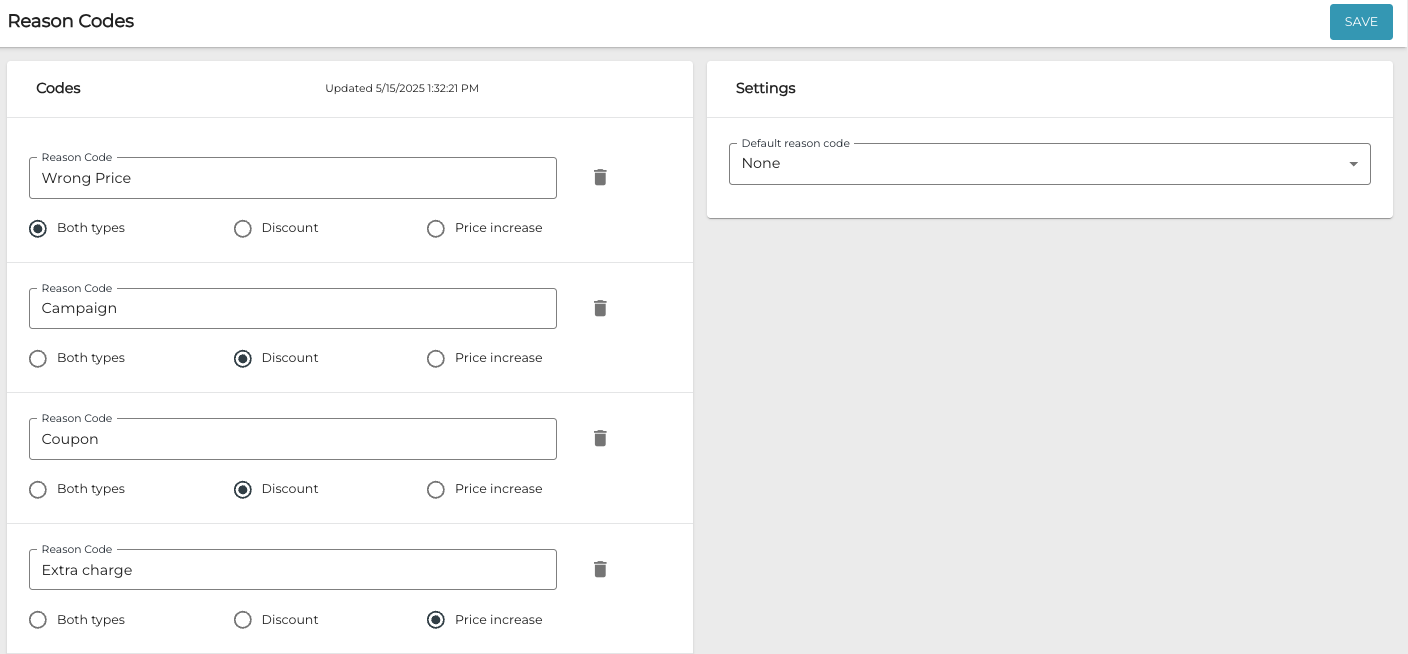
Reason Codes view -
Click +Add new.
-
Enter the new reason code name in the Reason Code field.
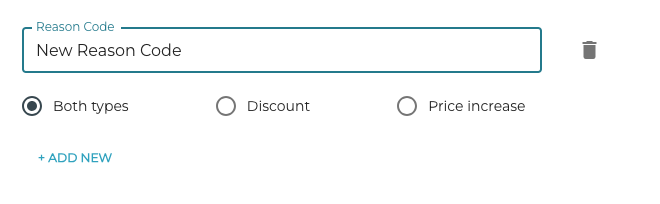
New reason code -
Select whether the reason code type is Discount, Price increase, or Both types.
-
Click Save to create the new reason code.
Define a Default Reason Code
-
Click Pricing and select Reason Codes from in the Back Office menu. The Reason Codes view is displayed.
-
Select the default reason code from the Default reason code drop-down menu.
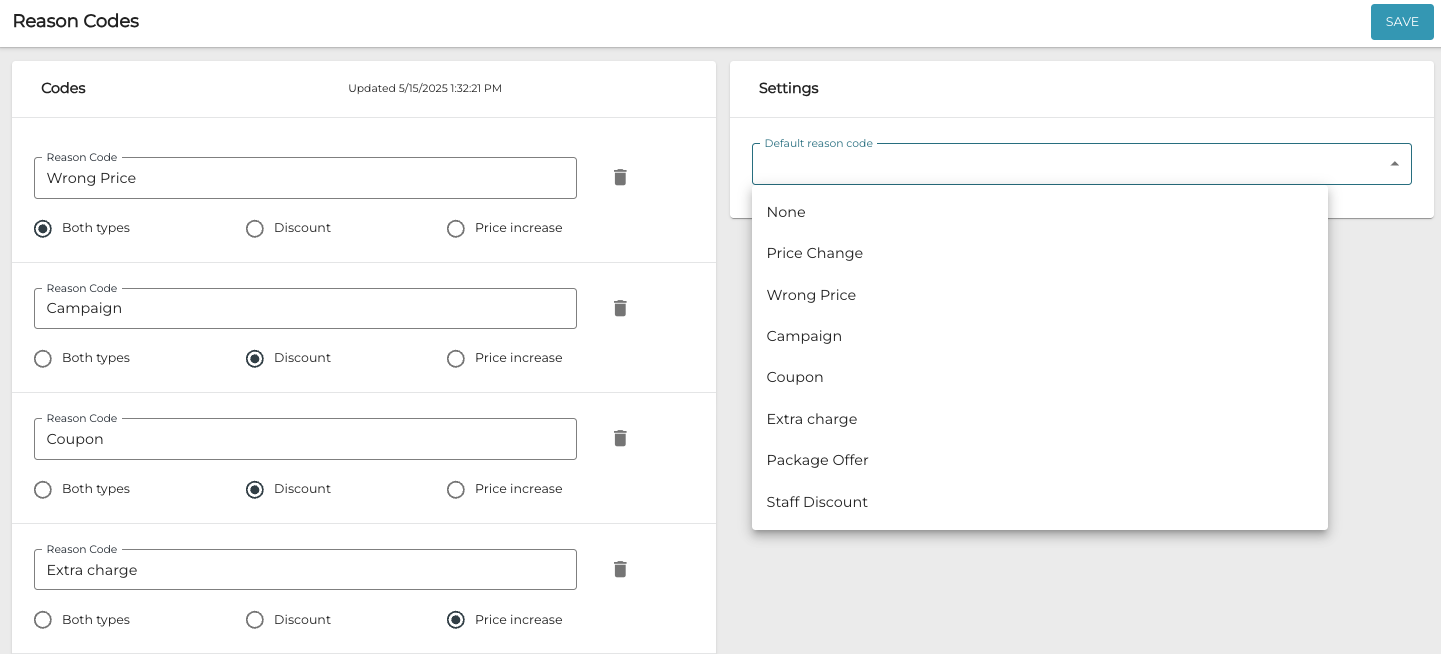
Selecting the default reason code -
Click Save to save your settings.