
-
In the Gift cards view, click +Add New. The Create or import gift cards window is displayed.
-
Click Create. The Create gift cards window is displayed.
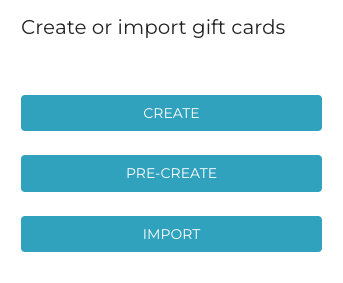
Create or import gift cards window
-
Enter the information for the gift card(s):
-
Select the gift card template used for the gift card
-
Quantity: You can create several similar gift cards at once, if needed.
-
Value: Value of the gift card.
-
Valid from (select date)
-
Valid to (select date)
-
Customer link: Hard link to a customer under Customers.
-
If this setting is used, the gift card can be used only when the linked customer has been added to the basket.
-
When the customer is added to basket, all active linked gift cards for the customer are displayed.
-
-
Customer reference: A free text field which can be used for filtering out a batch of gift cards created, printed and shipped for a certain customer, for example.
-
One typical use case is company buying drink vouchers for its employees for an event. These are often separately invoiced.
-
-
Create Excel from created.
-
Check this checkbox if you want to generate a list of gift cards in Excel format (example of the generated Excel file). By using this option, a list of newly created gift card IDs can be sent to card manufacturer to be printed on hard plastic gift cards or on other media.
-
Use this option only if gift cards are not sent via e-mail.
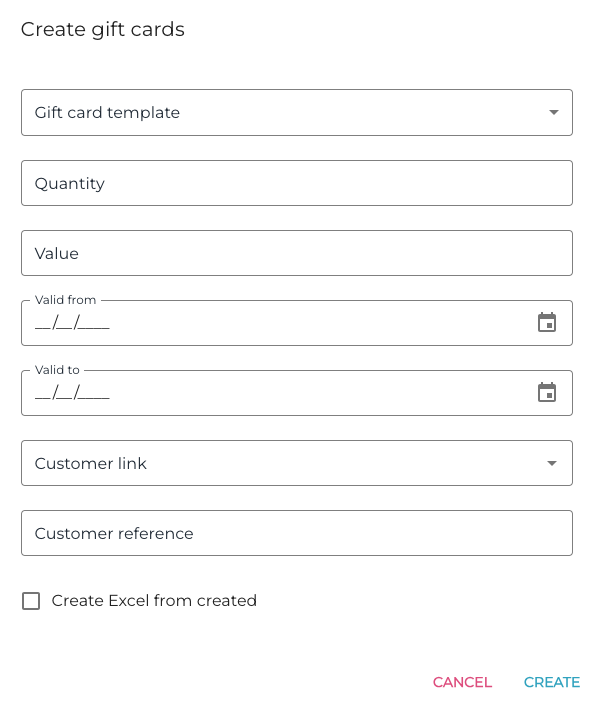
Gift card creation options
-
-
-
Click Create to create the new gift card(s).