
You can create gift cards by importing gift card data in Excel format into the Back Office.
Before exporting gift card data in Excel format you need to create a template which will be applied to the imported gift cards; see Gift Card Templates for instructions.
Note that you cannot use a randomized number sequence for gift card IDs when creating gift cards via Excel import; instead, you need to define the numbering sequence to be used in the template settings.
The following example template contains the fields used for gift card Excel imports.

|
Field |
Type |
Mandatory/Optional |
Description |
|---|---|---|---|
|
Gift card number |
string |
M |
ID of the gift card to be created. This field cannot be left empty; enter the gift cards IDs using the numbering scheme defined in the gift card template settings (including the prefix). |
|
Type |
enum |
M |
Value for value gift cards, or Product for product gift cards. |
|
Template name |
string |
M |
Name of the gift card template which will be used. Note: this field is case-sensitive. |
|
Created Date Time |
string |
O |
Gift card creation date; can be left empty. |
|
Value |
decimal |
M for Value type gift cards |
Value of the created gift card. Can be left empty for Product type gift cards. |
|
Open balance |
decimal |
M for Value type gift cards |
Value left in the created gift card. Can be left empty for Product type gift cards. |
|
Usages |
string |
M for Product type gift cards. |
Number of usages for the gift card. Can be left empty for Value type gift cards. |
|
Usages left |
string |
M for Product type gift cards. |
Number of usages left for the gift card. Can be left empty for Value type gift cards. |
|
Customer reference |
string |
O |
A free text field which can be used for filtering out a batch of gift cards created, printed and shipped for a certain customer, for example. |
|
Customer link |
string |
O |
Customer link: Hard link to a customer under Customers.
|
|
Valid from |
string |
M |
Start of the validity period of the gift card in format dd.mm.yyyy hh:mm:ss. |
|
Valid To |
string |
M |
End of the validity period of the gift card in format dd.mm.yyyy hh:mm:ss. |
|
Pre-created |
boolean |
M |
TRUE or FALSE If the value is TRUE, the gift card needs to be charged in POS and cannot be used immediately. |
|
Status |
enum |
M |
Active, Expired, Revoked or Used are possible values; use Active when creating new gift cards. |
|
Revoke date time |
string |
O |
Date and time when the gift card was revoked in format dd.mm.yyyy hh:mm:ss. Can be left empty. |
|
Revoke reason |
string |
O |
Revoke reason for the gift card. Can be left empty. |
|
Workstation |
string |
O |
Can be left empty. |
Import Gift Cards In Excel Format
-
In the Gift Cards view of the Back Office, click +Add New.
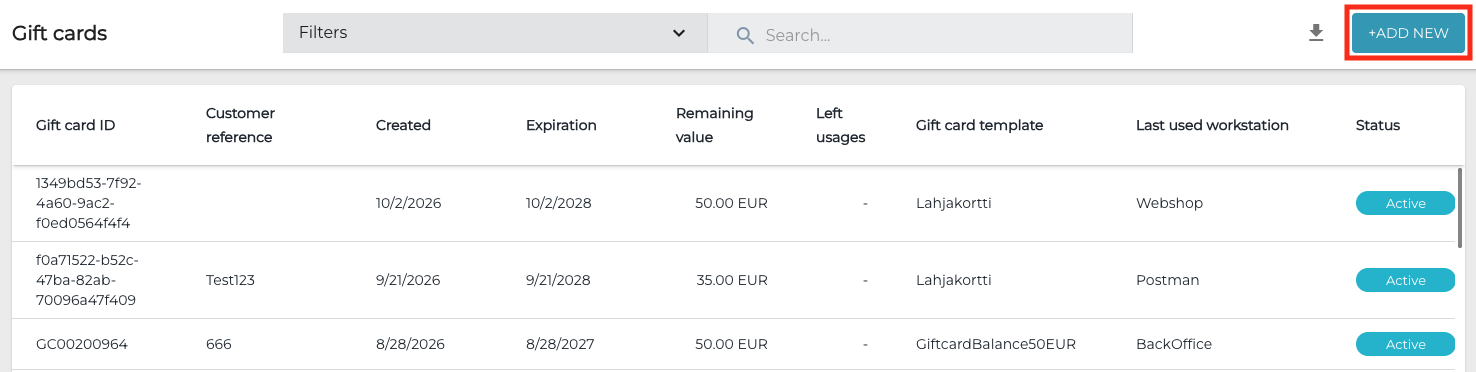
+Add New button in the Gift Cards view -
In the Create or import gift cards window, click Import.
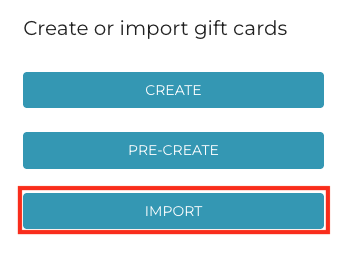
-
Select the Excel file containing the gift card data you want to import and click Open.
-
A pop-up notification will be displayed in the Back Office to indicate whether the import has been successful or not. You will also receive a message in your e-mail when the processing is done. If importing the file was unsuccessful, the e-mail also contains the reason(s) for this.
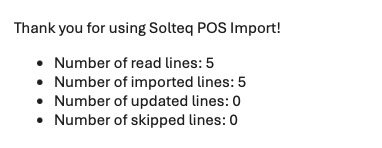
Example of the import result e-mail message -
If the import was successful, the newly created gift cards should now be listed in the Gift cards view of the Back Office when you refresh the view.