
To use this feature, an inventory needs to first created and started in Stock in the Back Office.
Note that this feature will add the product to the selected inventory; multiple users can do the same inventory in the Store at the same time. For example, if two users scan and add the same product to Stock from different areas of Store, the quantities will be combined, as in 1 + 2 = 3.
-
Select the Inventory tab and select the Stock whose inventory you want to modify. Pending inventories in the Stock are displayed.
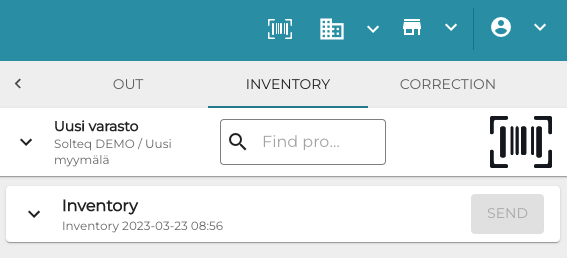
Inventory tab in Stock Tool -
Click the barcode icon and scan the barcode of the product, or enter its name or SKU in the Find Product by Name or SKU field.
-
The product name is displayed. Enter the Quantity of the product you wish to add to inventory.
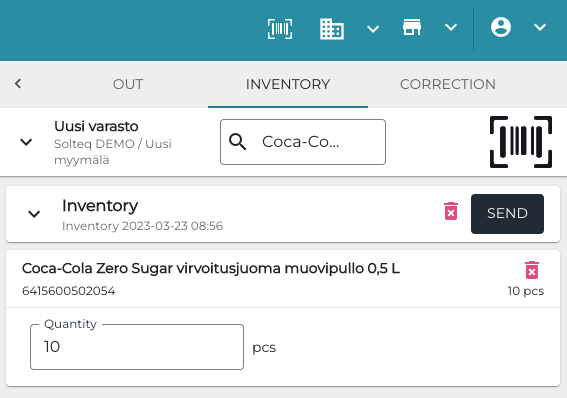
Entering product quantity to inventory -
Click Send to send the product quantity to the inventory.