The following instructions detail how you can use product data Excel files provided by suppliers to
-
Add new variant products to Solteq Commerce Cloud with the Creating Variant Products with Excel Import feature, and
-
Create purchase orders based on the information from the supplier.
Phase 1: Create and Import Basic Product Details
-
Download the product information templates by clicking the Download Templates icon in the Products view. Open the VariantProductsTemplate.xlsx file you downloaded.

Download Templates icon in the Products view toolbar -
Copy and paste the following information from the supplier’s Excel file into the Variant Products Excel file.
-
Product codes into the modelNumber column.
-
EAN codes into the sku column.
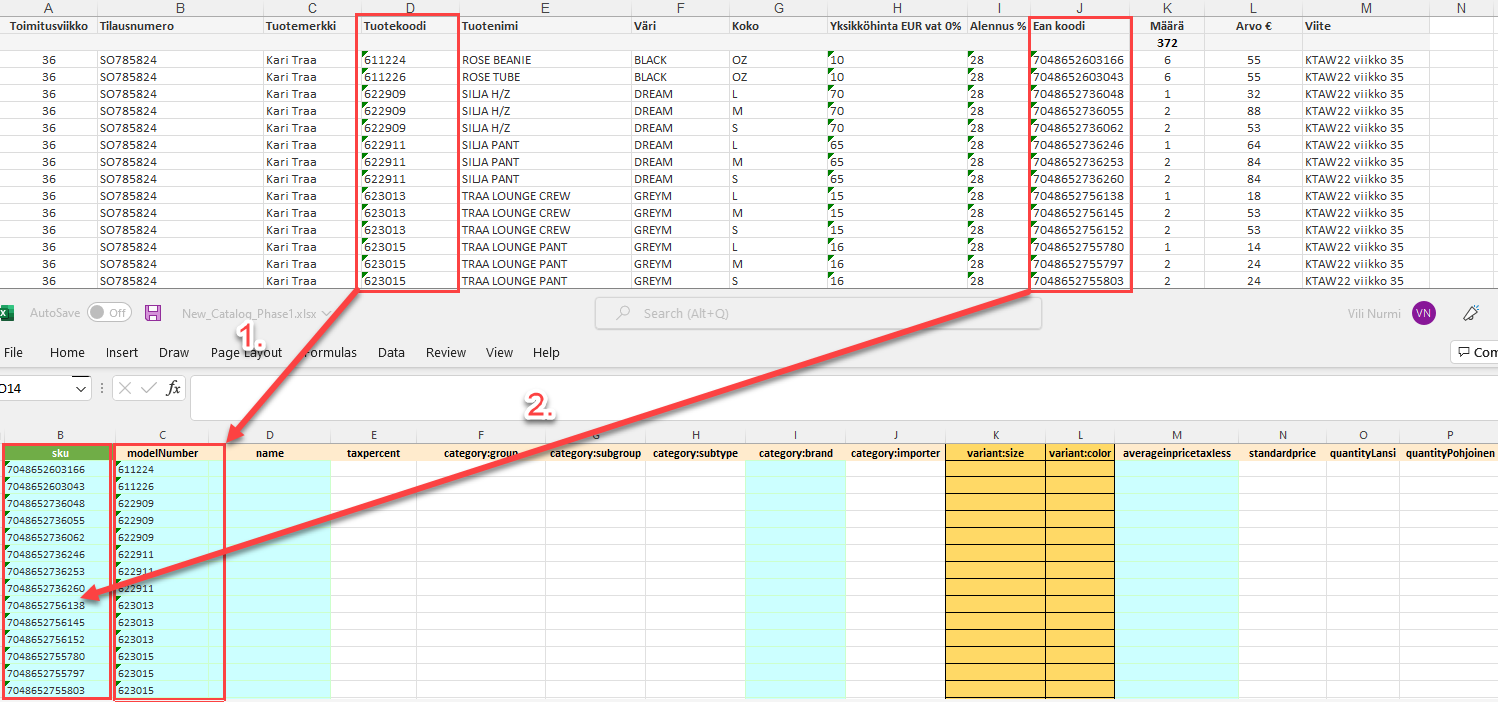
-
-
Next, copy and paste the following information from the supplier’s Excel file into the Variant Products Excel file:
-
Brands into the category:brand column
-
Product names into the name column
-
Colours into the variant:color column
-
Sizes into the variant:size column
-
Product prices in € (taxless) into the averageinpricetaxless column
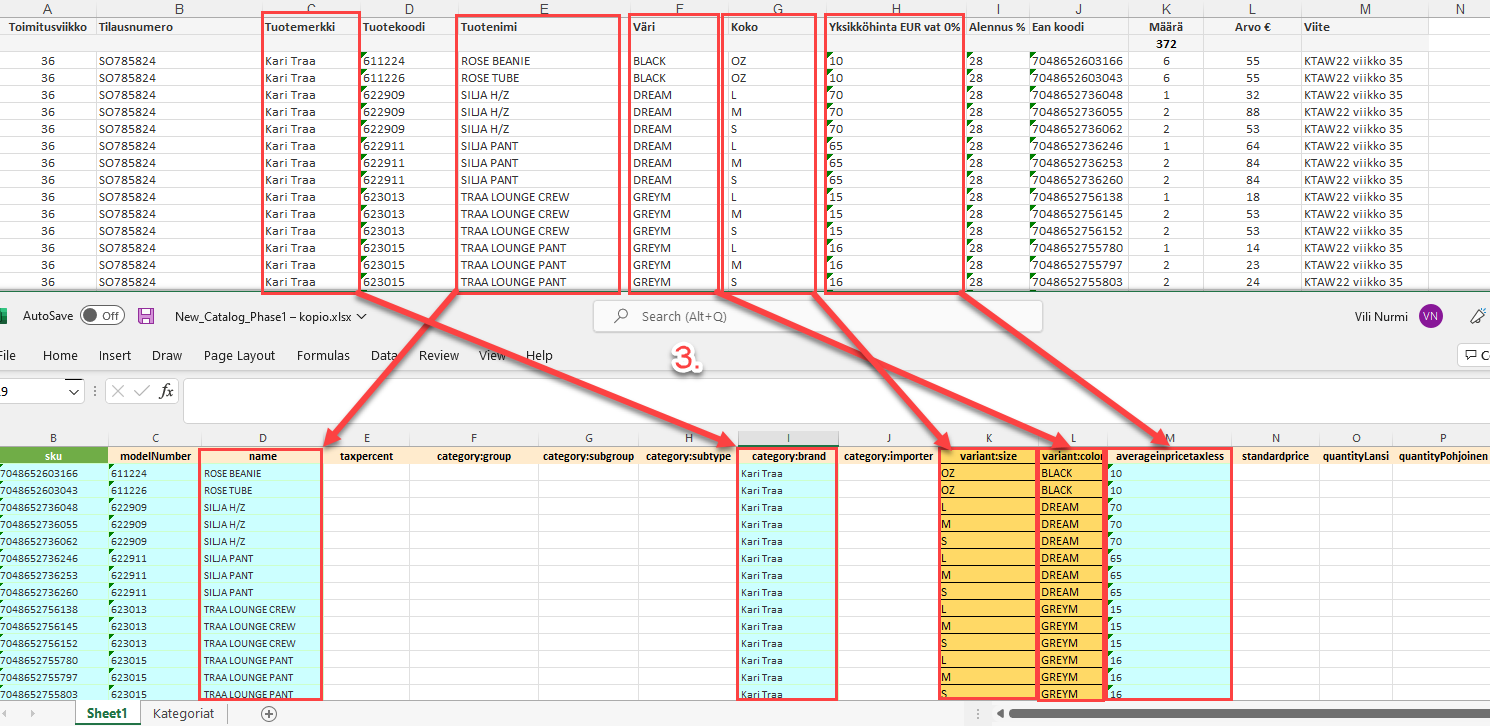
-
-
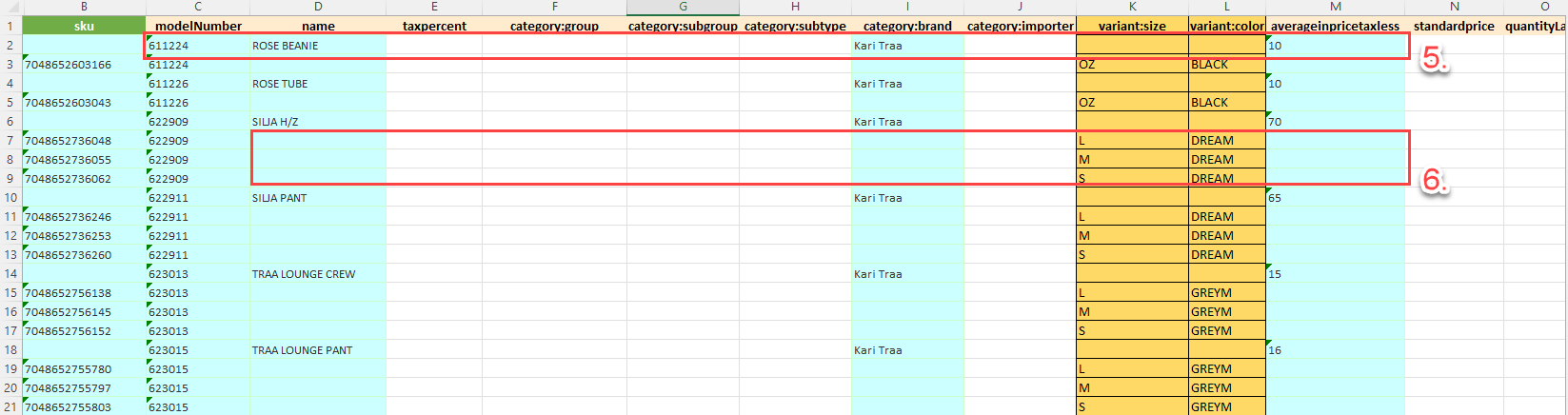
Add one empty row (right-click and select Insert → Entire row ) on top of every model number row.
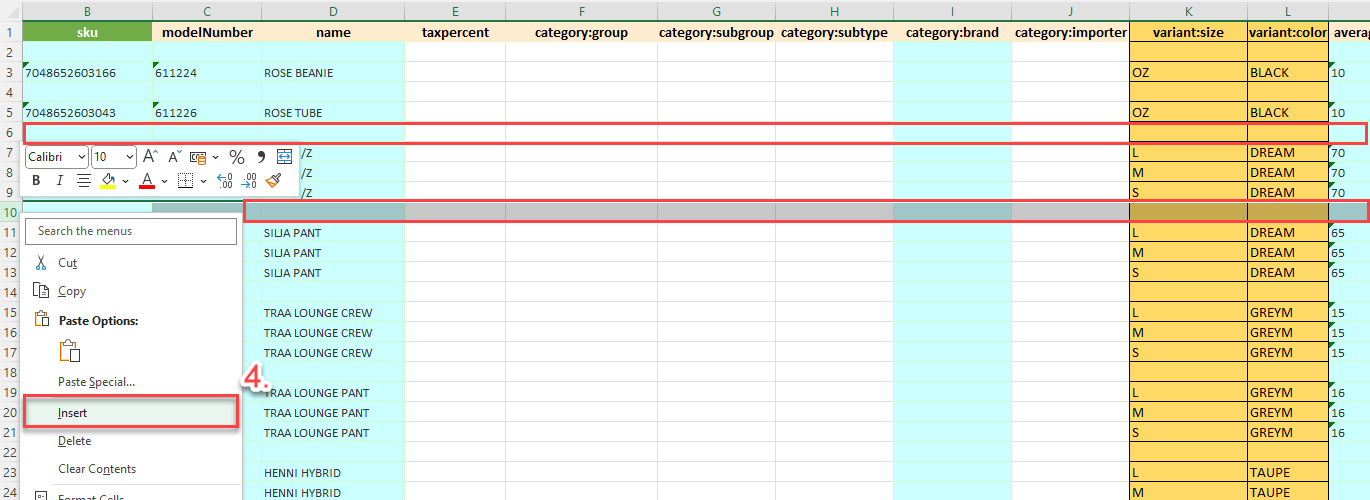
-
Copy the modelNumber, name, category:brand, averageinpricetaxless from the first variant and paste them to the empty row.
-
Delete name, category:brand and averageinpricetaxless from the variants.
-
Add the required information into category:group, category:subgroup, category:subtype and category:brand columns.
-
Enter the tax percentage of the product into the taxpercent column.
-
(optional) You can enter the price with tax included (if known) into the standardprice column.

-
The example above has a simple formula which adds 38% sales margin after taxes:
-
In the N2 cell, for example:
"=(M2*(1+24/100)*1.38)"
-
-
-
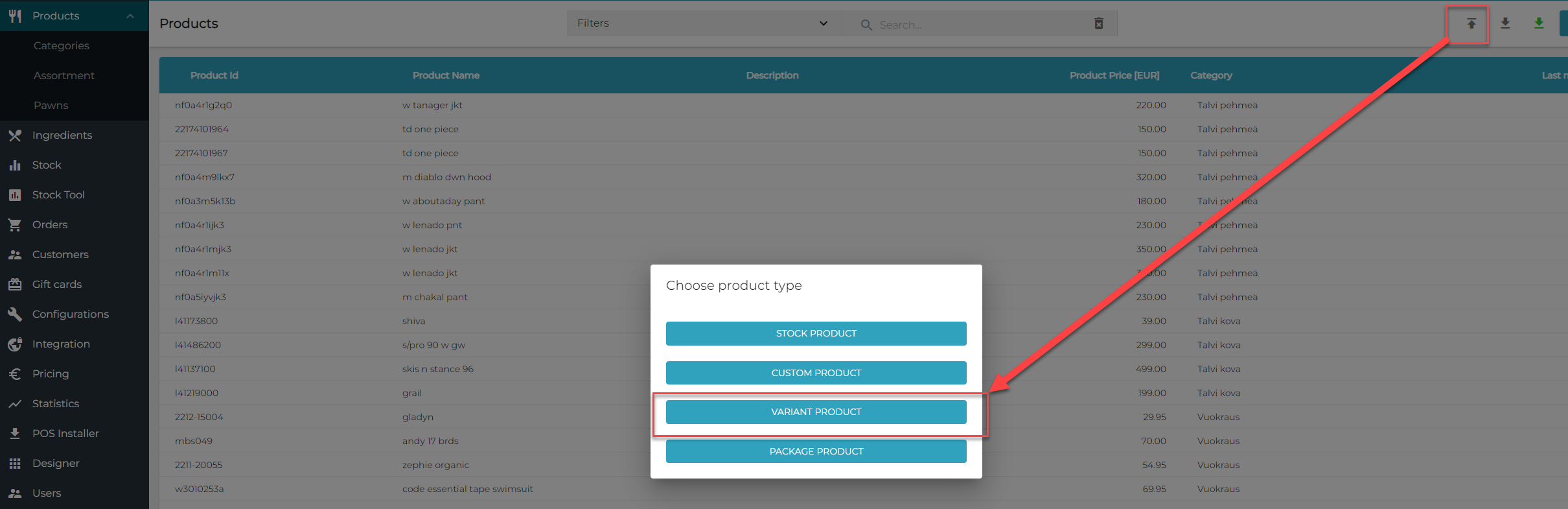
Save your changes to the Excel file and click the Import from file icon from Back Office toolbar.

Import from File icon in the Products view toolbar -
Select Variant Product in the Choose product type window.
-
Select the file you saved and click Open.
-
The notification File import processing queued, check your email for import results.is displayed in the Back Office.
-
You will receive a message in your e-mail when the processing is done. If importing the file was unsuccessful, the e-mail also contains information about the reason for the failure.
Phase 2: Create a New Purchase Order Using the Supplier Information
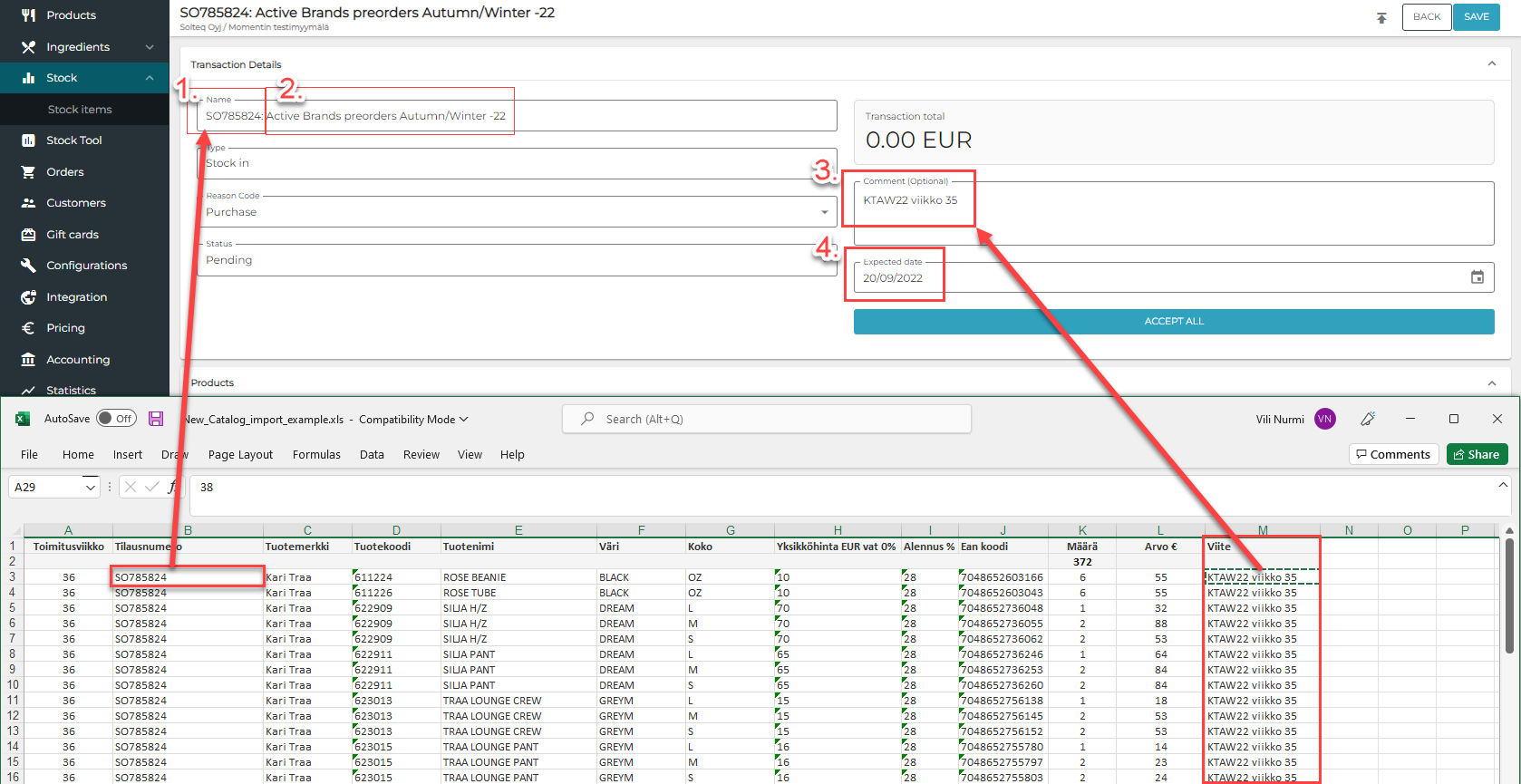
Create a new purchase order; copy-paste or enter the following information from the supplier’s Excel into the purchase order:
-
Insert the order number in the beginning of the purchase order’s Name.
-
Add some distinctive (human-readable) reference to the Name.
-
Add the reference from the Excel into Comment (optional) field.
-
Enter the Expected date.
-
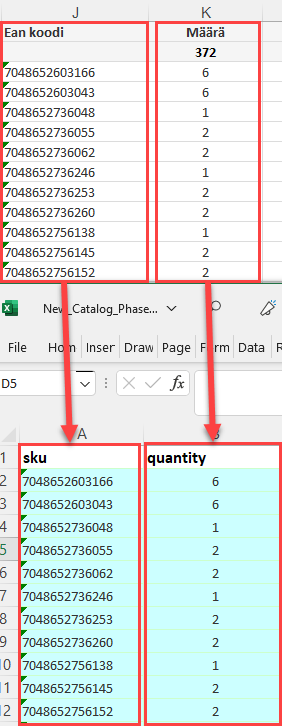
Copy-paste the following information from the supplier’s Excel file into the purchase order Excel file:
-
EAN Codes into the SKU column.
-
Quantities into quantity column.
-
-
Import the Purchase Order Excel file:
-
Click the Import from file icon.

Import from File icon -
Select the file you want to import and click Open.
-
Now the rows from the Excel file have been added to the Pending purchase order.
-
Click Save to save your changes.
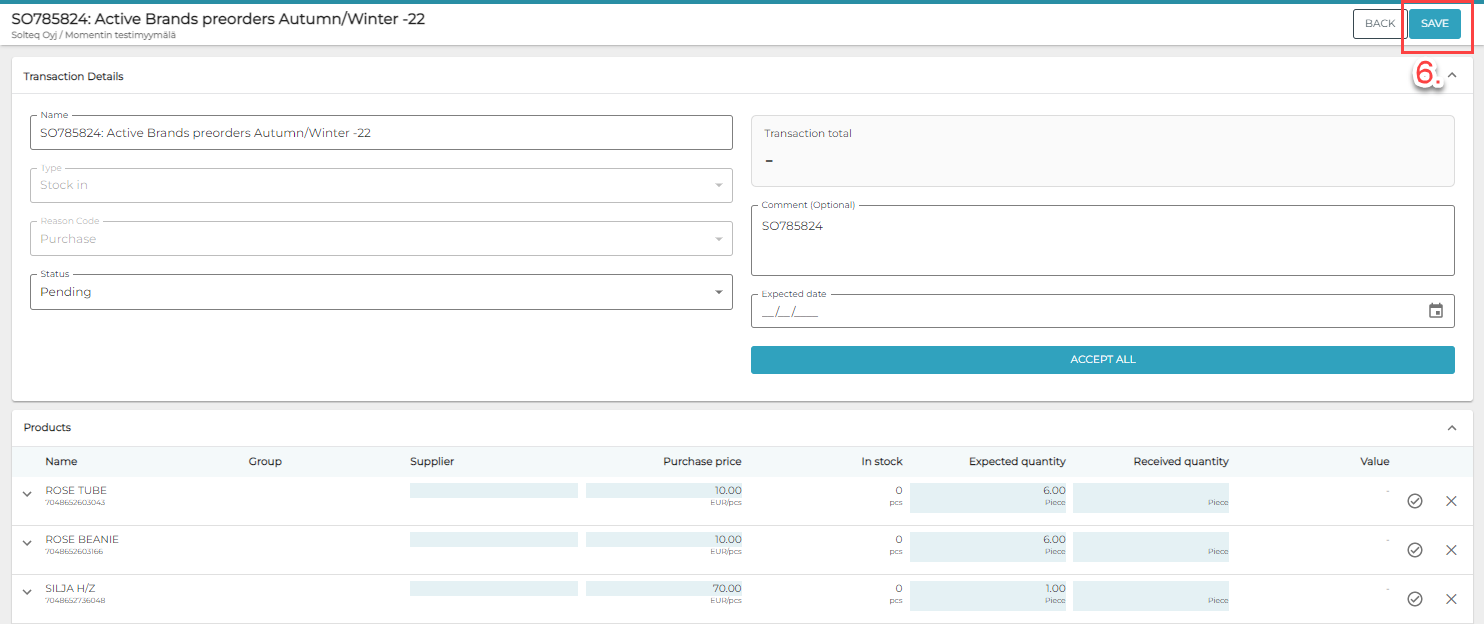
-
-
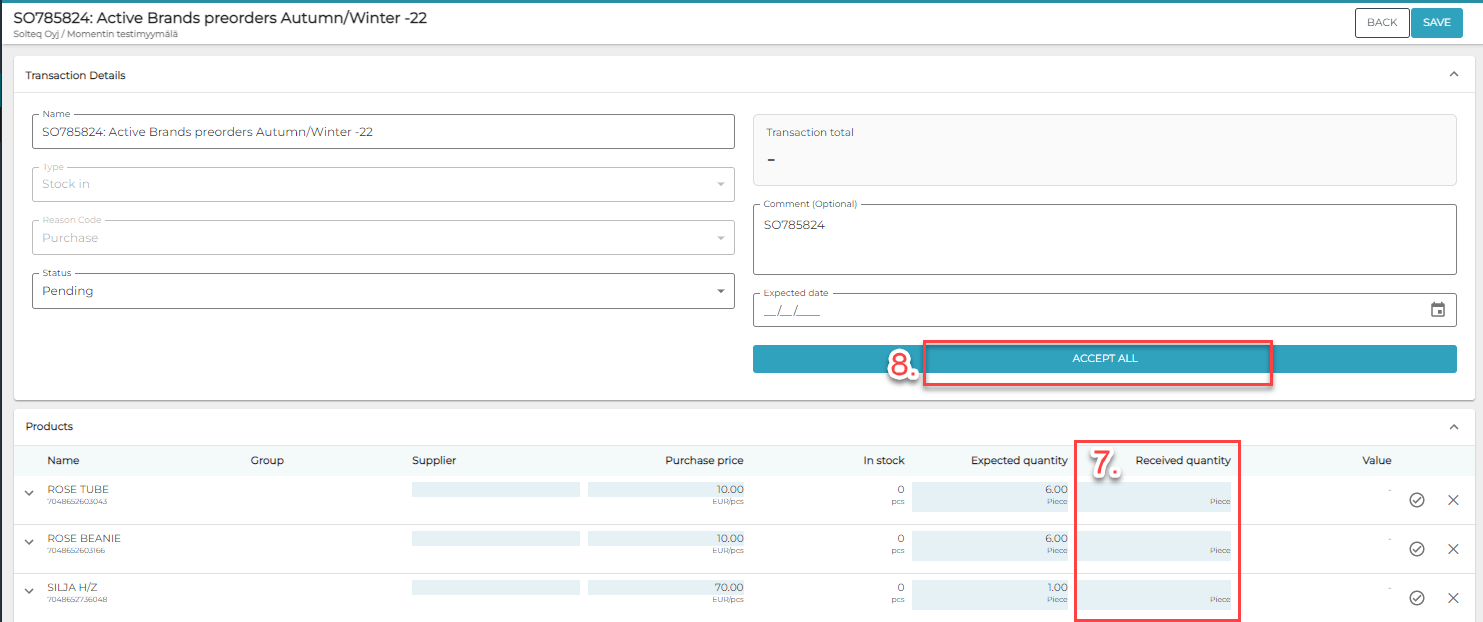
When the order arrives to the Stock, you can check and enter the quantities individually for each row, (7.) or Accept All (8.).