
Deleting products cannot be reversed, so use this option with caution.
Before deleting product data you can create a backup copy of the product data by exporting it in Excel format from the Back Office.
A product cannot be deleted straight away, if it
-
belongs to a custom product - that is, it is included in the Product Option or Products settings of any custom product, and/or
-
has been used to define a Product Limit in a gift card template.
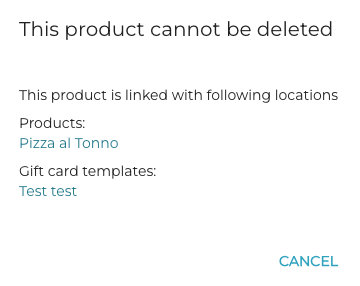
In these cases, an error notification This product cannot be deleted will be displayed. The notification will also include the locations where the product must be removed first, so that it can be then deleted.
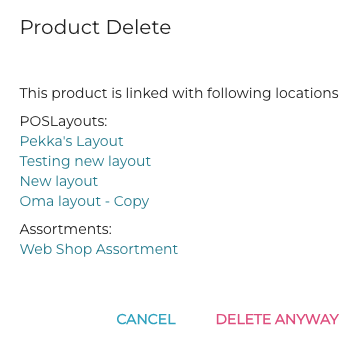
If a product has a Product tile defined for it in the POS layout, or it belongs to an Assortment, a notification is displayed before you can delete it.
Click either Cancel or Delete Anyway to proceed.
Delete a Product
-
Click the product on the Products list.
-
In the Product Details view, click the Delete icon in the upper right-hand corner.
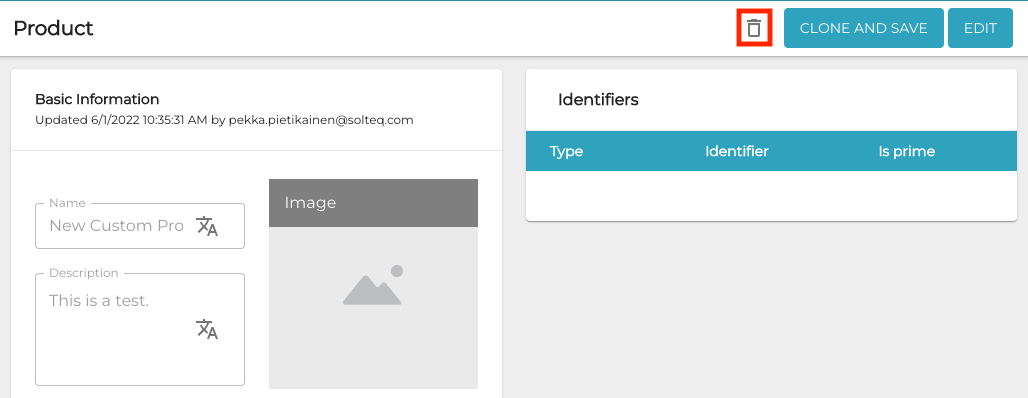
Delete icon in product information -
A confirmation window is displayed. Click Delete to confirm the deletion.
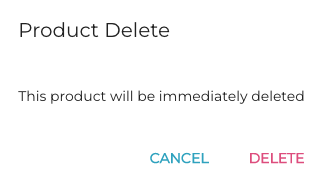
Product Delete window