
When making mass edits to product information, select first the products by filtering the product list. Products can be filtered based on name or category, for instance.
Saving the original Excel files used for importing products to the system is recommended.
-
In the Products view, use the filters to select the products you want to edit.
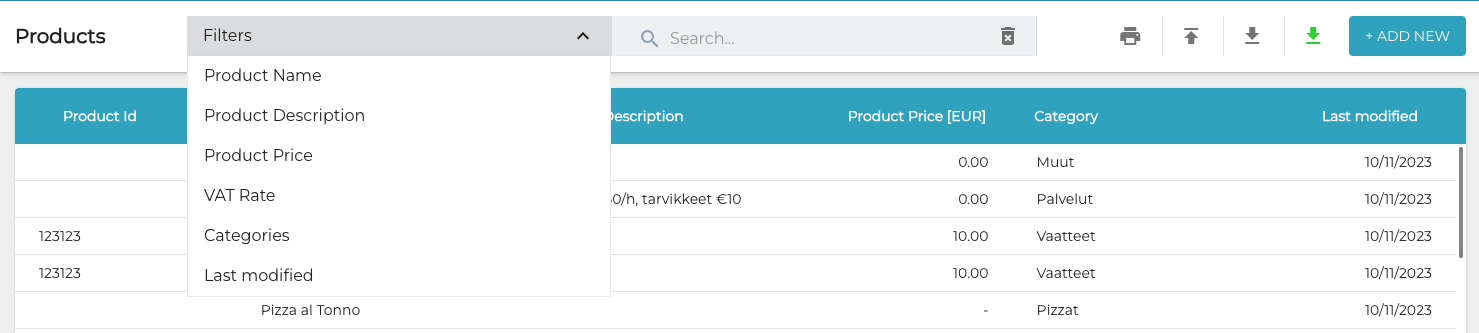
Selecting the product list filters -
When you have selected the filter(s) you want to use, click Apply filters. The product list is updated according to your selections.
-
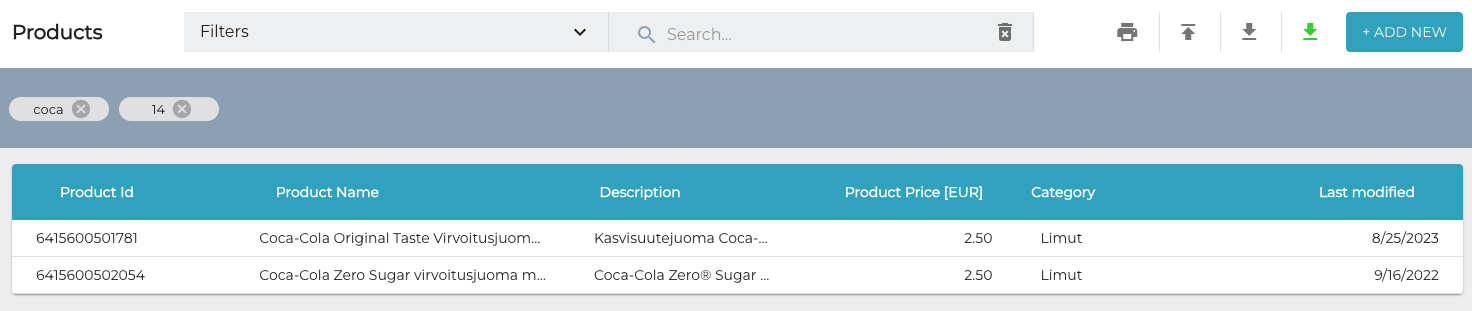
Filtered product list When the product list displays the products whose information you want to edit, click the green Export products

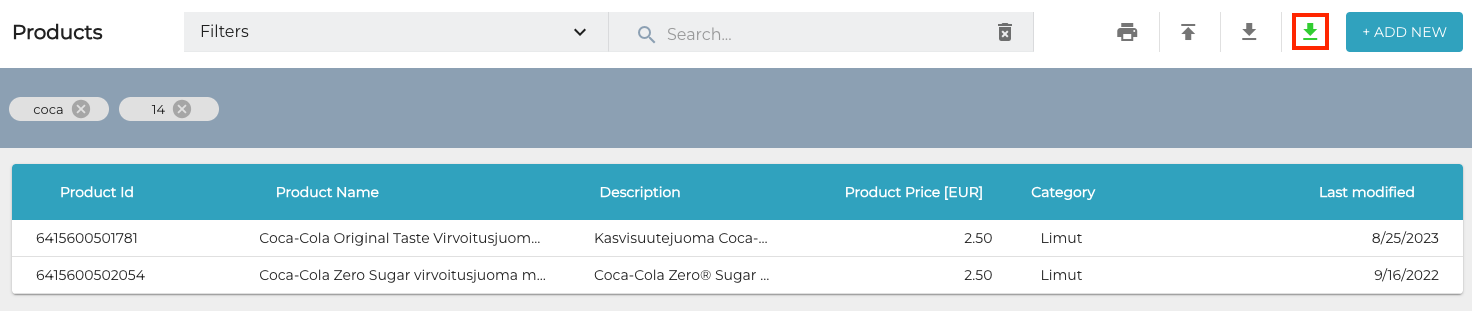
Export products icon -
Unzip the contents of the file by double-clicking it, and open the Excel file in the folder. In some cases there might be multiple files; the system will create separate files for variant products, custom products, service products and stock products automatically.
-
Next, open the file in a suitable program such as Excel and edit the information.
-
Do not change the the id field of the product, because that will result in system not being able to update the product information when it is imported.
-
Product information lists can be used for other purposes than importing them back to the Back Office; importing any files that have been exported from the Back Office is not mandatory.
-
-
Save your changes to the Excel file and click the Import from file icon from Back Office toolbar.
-
Excel files for different product types must be imported separately, one product type at a time.
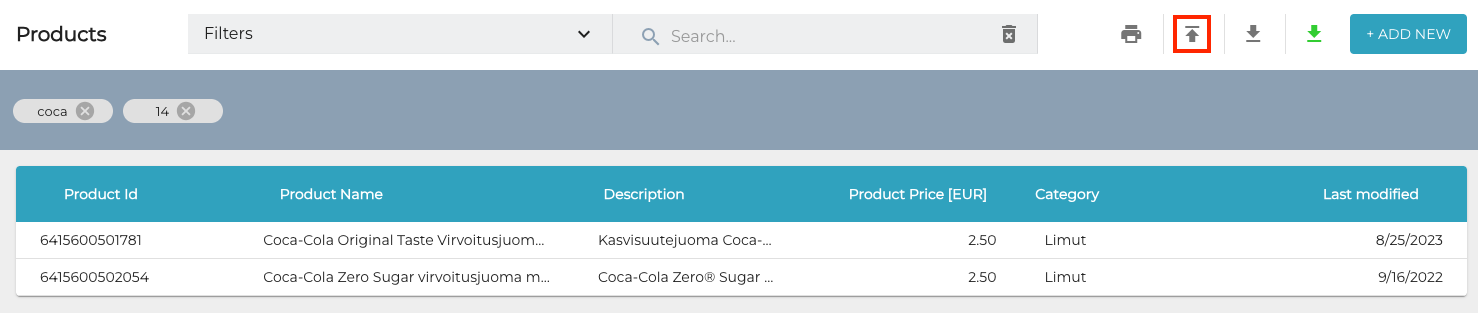
Import from file icon
-
-
Select the file you saved and click Open.
-
The notification File import processing queued, check your email for import results.is displayed in the Back Office.
-
You will receive a message in your e-mail when the processing is done. If importing the file was unsuccessful, the e-mail also contains information about the reason.
When product information has been updated in the Back Office you must also refresh data in the workstations.
-
If logged in the POS, press Menu and then Refresh.
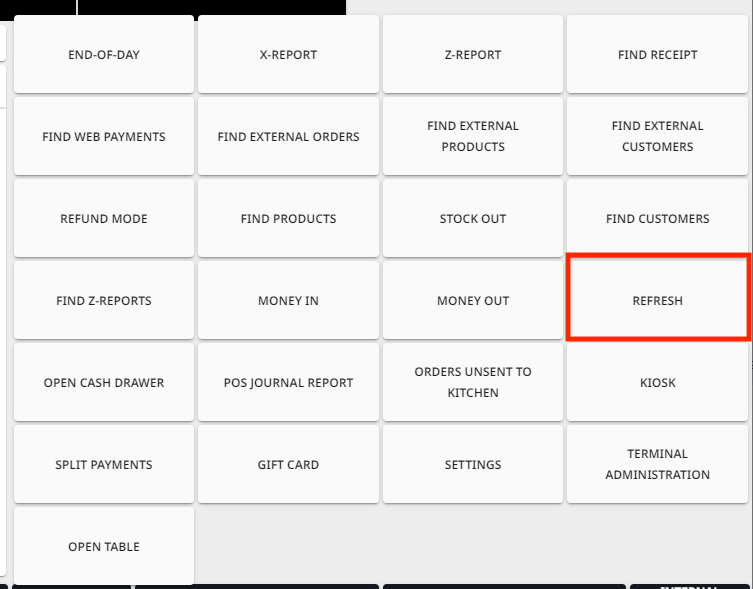
Refresh tile in POS menu -
If not logged in, press the Settings icon in the right lower-hand corner of the screen, and then Refresh.
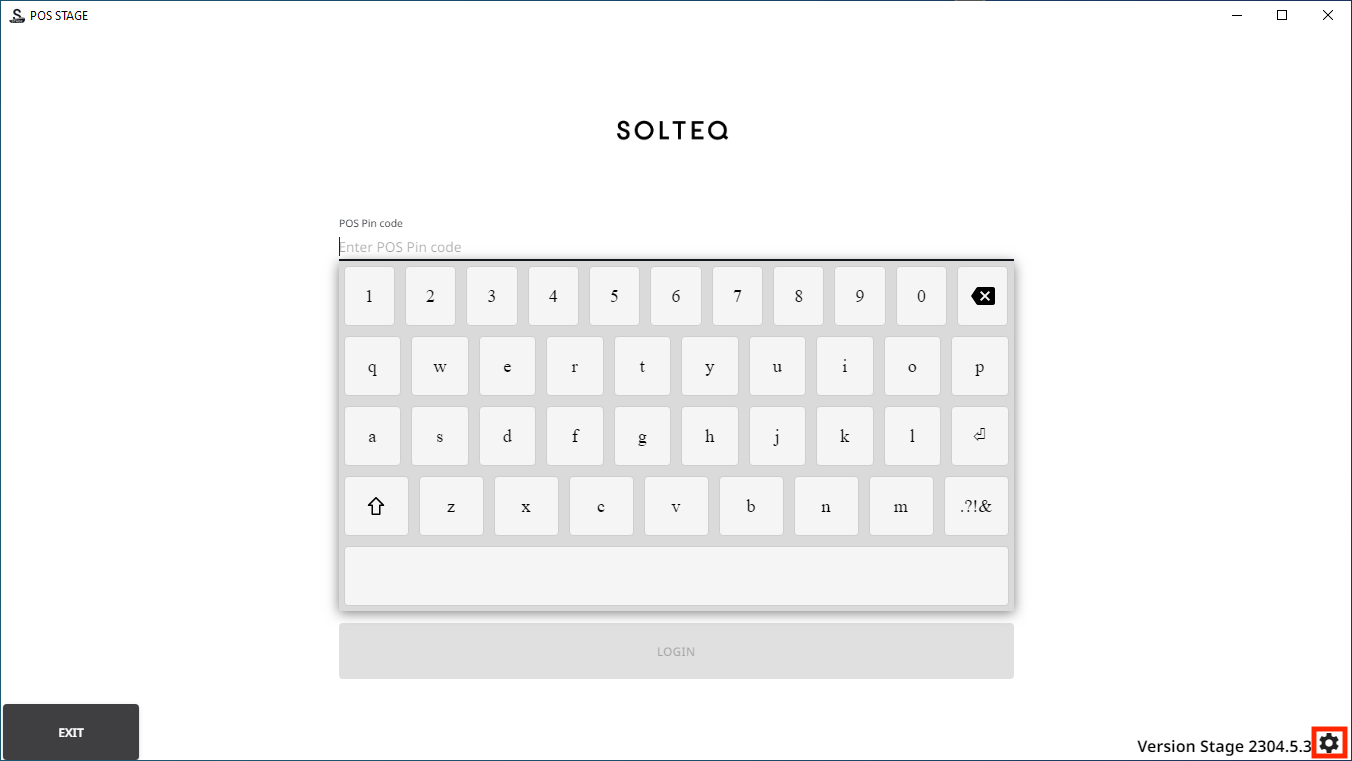
Settings icon 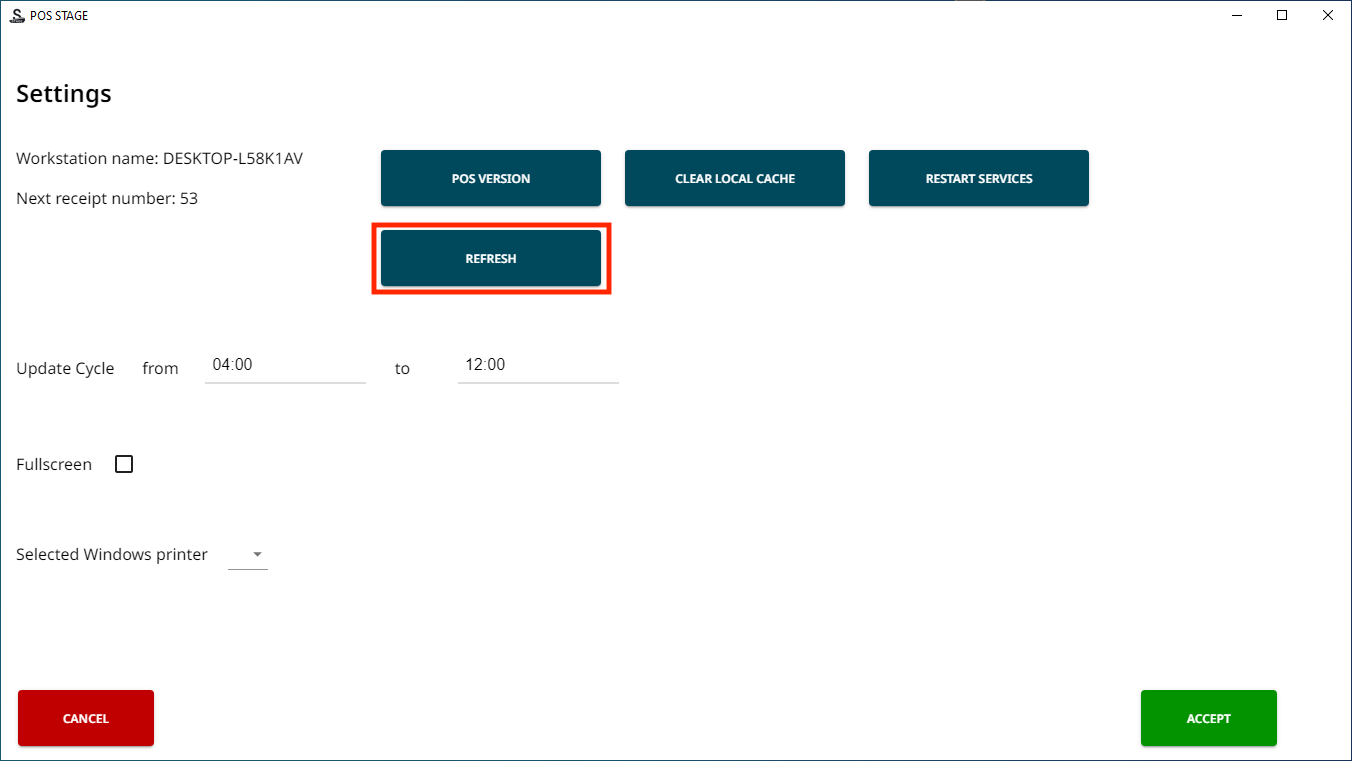
Refresh tile