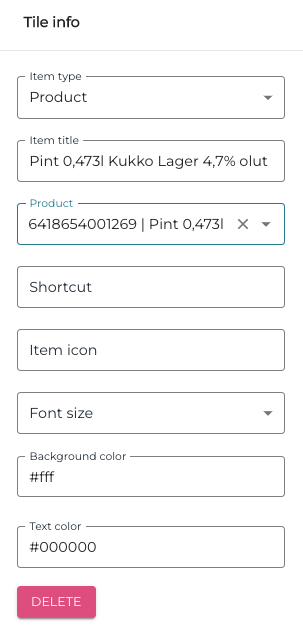
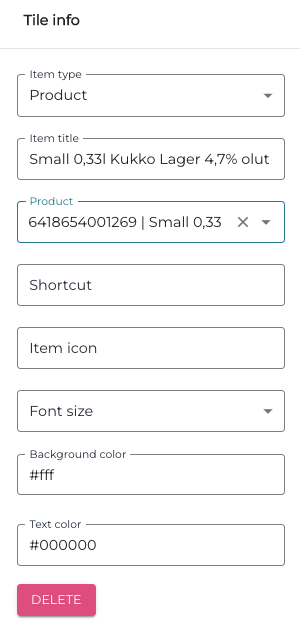
The example on this page describes how to create draft beverage products; whenever one of the created products is sold, the defined amount is deducted from the Stock.
-
Create a new stock item: a beer keg (using GTIN 6418654001269 in this example).
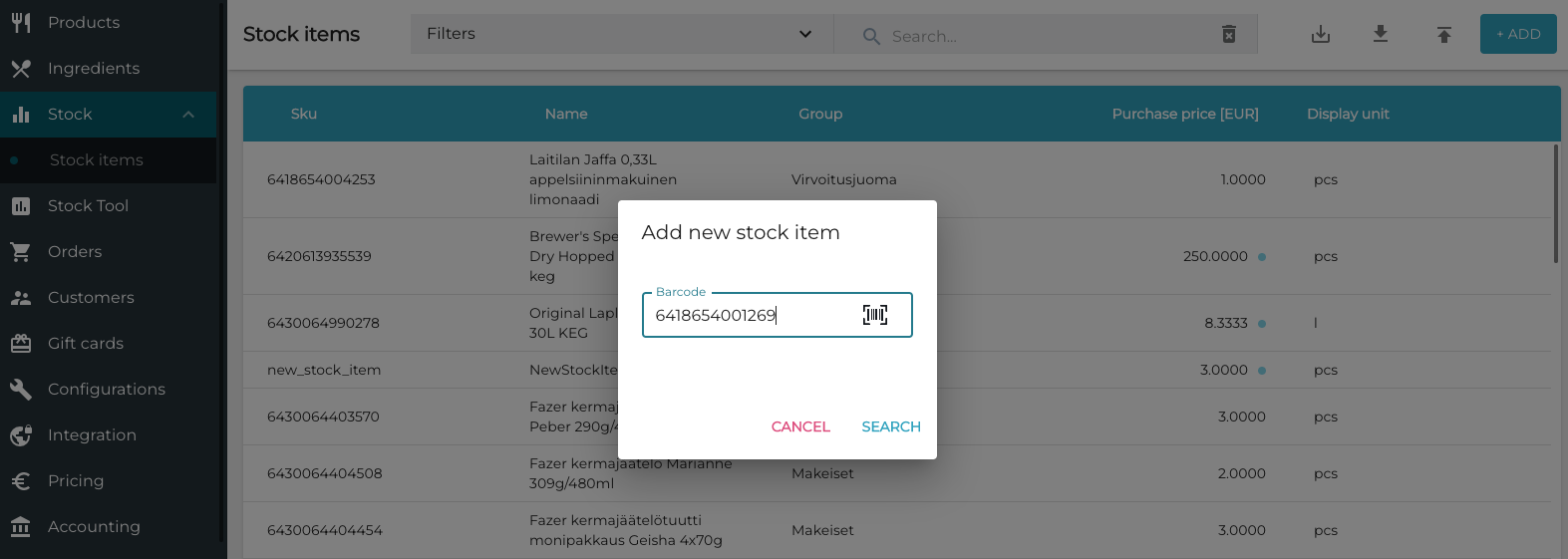
Adding a new stock item -
Enter the Purchase price (without taxes) for the beer keg, and add the stock item to the existing Beer category.
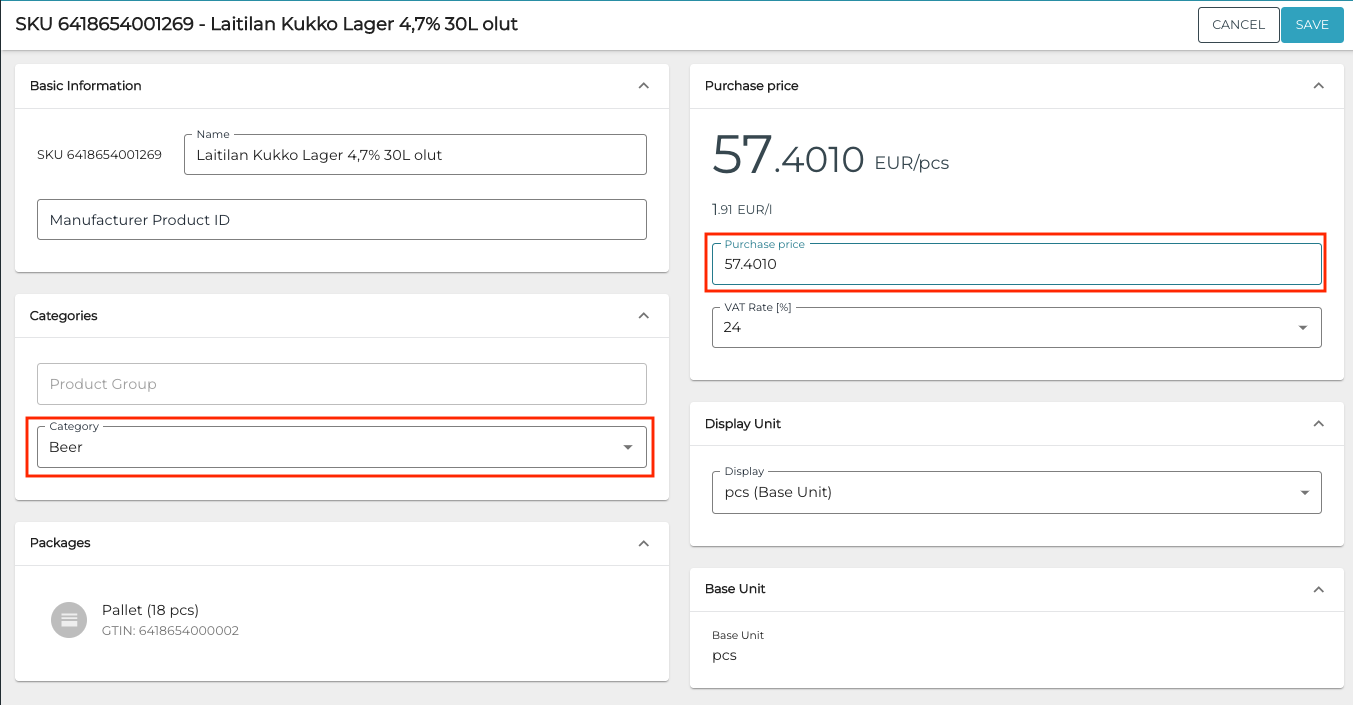
Stock item Purchase price and Category settings -
Click Save to create the new stock item.
-
Click Edit in the stock item information and create selling items for it:
-
Pint 0,473 l, price €8.00
-
Small pint 0,33 l, price €6.00

Creating selling items for the stock item
-
-
To make it easy to add the products to the Basket on POS, add product tiles to the POS layout for the products you created: