
To use PAR levels for a stock item, you need to first add the required information to the stock item settings, add the stock item to a stock, and then set up PAR level settings for the stock item in the stock.
Edit the Stock Item Settings
-
Select the default Order Unit for the stock item.
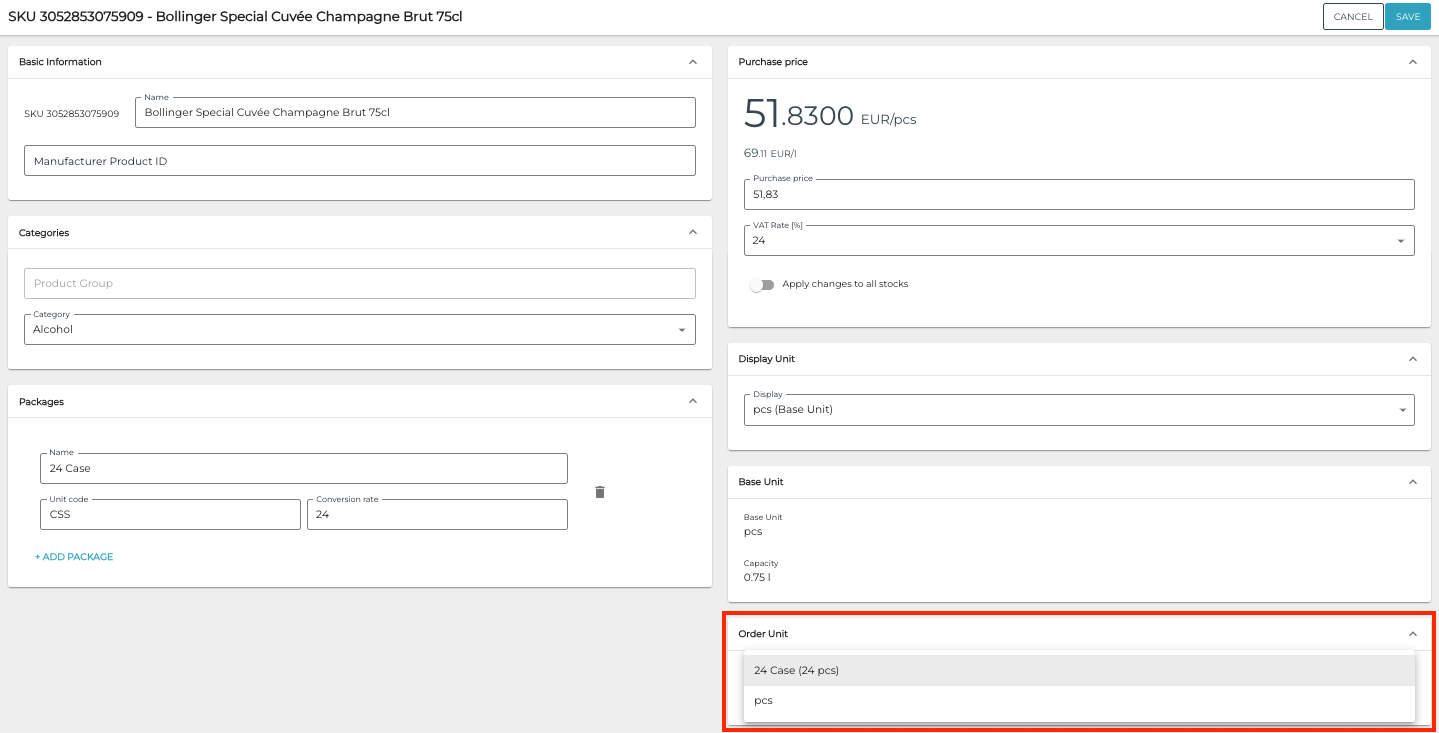
Selecting the Order Unit -
Click Save to save your changes.
Add a Stock Item to the Stock and Set Up PAR Level Settings
-
If the stock item/SKU is not yet in a Stock where you want to set up PAR levels for it, add the stock item to the Stock.
-
The stock item will be added with 0 quantity.
-
-
In the stock item’s Stock information, open the PAR level settings for specific stock by clicking on the Expand ⌃ icon on its row.
-
Set up minimum and maximum levels (always in base units).
-
The system will automatically calculate the preorder level based on the order unit.
-
It is also possible to override the default order unit here.
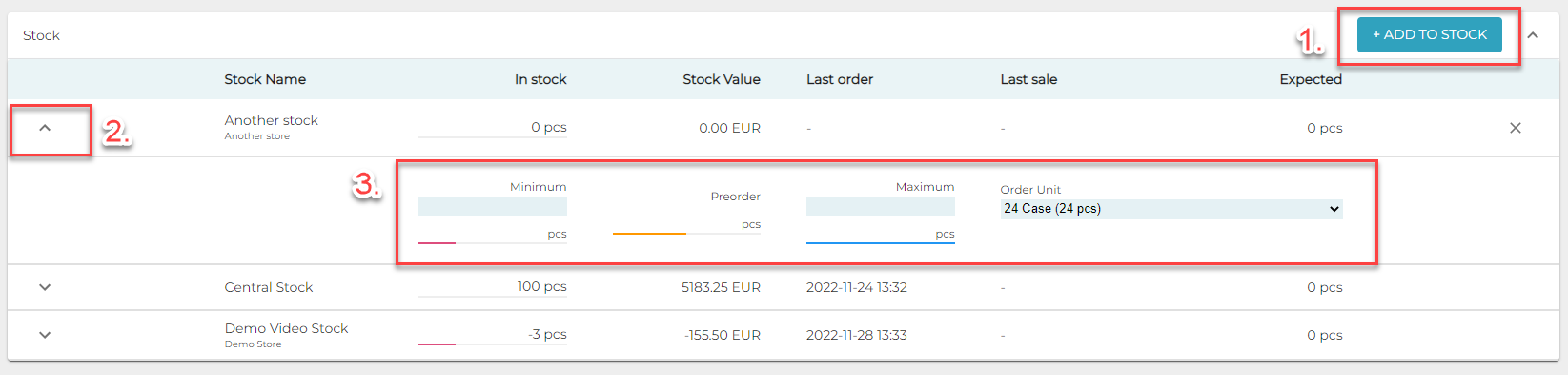
Setting PAR levels for a stock
-
-
Click Save to save your changes.