
Static IP addresses may be assigned to POS workstations and kitchen printers, for example.
This installation requires Administrator privileges on the POS workstation. If you do not have them, please contact your IT support or Solteq Support. Connect the terminal to an electrical outlet and to the POS workstation before contacting support.
If your devices are connected to a large administered network, you might want to consult your IT specialist before assigning a static IP address.
If you are operating in a smaller Store and only have one router, this configuration is sufficient.
Analyze Your current IP Address Configuration
-
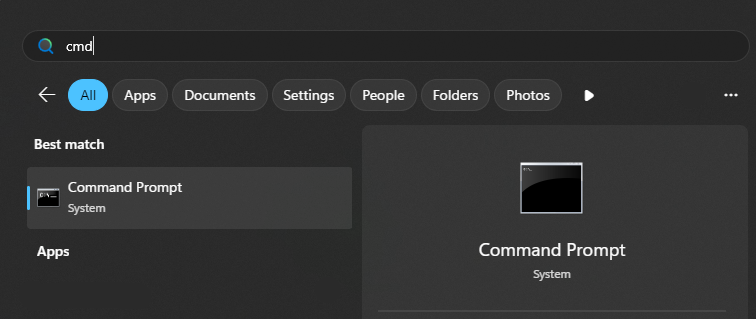
Open Command Prompt.
-
Type ipconfig /all and click Enter:
-
If the text DHCP Enabled. . . : No is displayed, then you already have a static IP address.
-
If the text DHCP Enabled. . . : Yes is displayed, you must assign a static IP by following the these steps:

-
On a new line in Command Prompt, write ipconfig and click Enter.
-
If you use Wi-Fi, see the Wireless LAN Adapter Wi-Fi settings.
-
If you use Ethernet, see the Ethernet adapter settings.
You can see you current connection symbol in the bottom right of your POS workstation display.
-
-
-
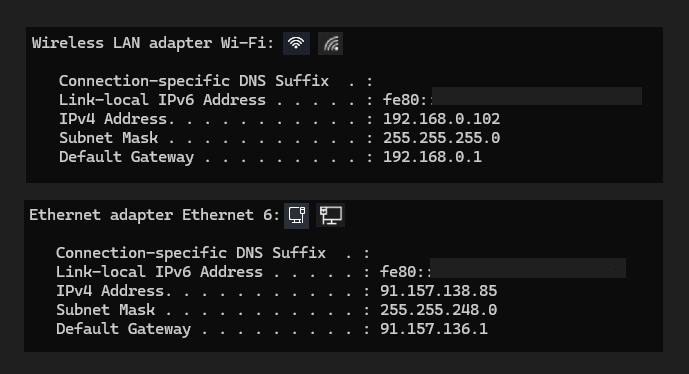
You need IPv4 Address and Default Gateway to proceed to the following phase.
Set Static IP Address
-
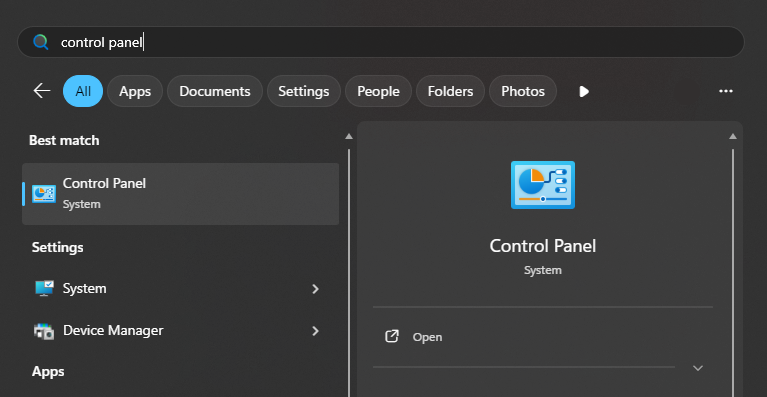
Open Control Panel.
-
Select Network and Internet.
-
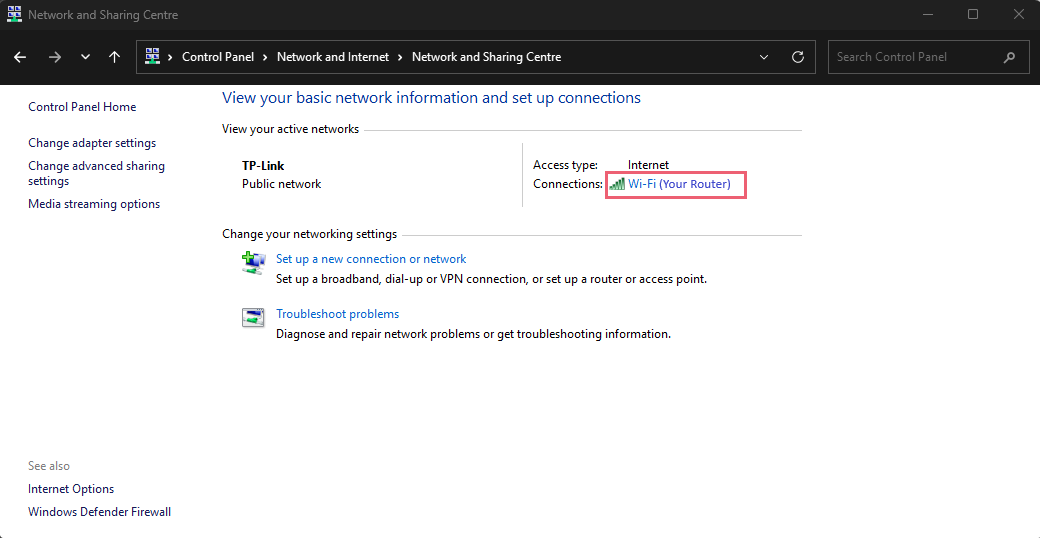
Select Network and Sharing Centre.
-
Select your connection marked in red.
-
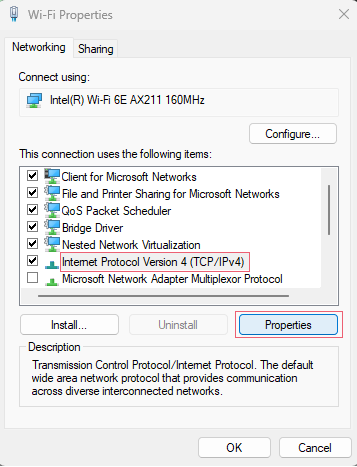
Open Properties.
-
Choose Internet Protocol Version 4 (TCP /IPv4) and click Properties.
-
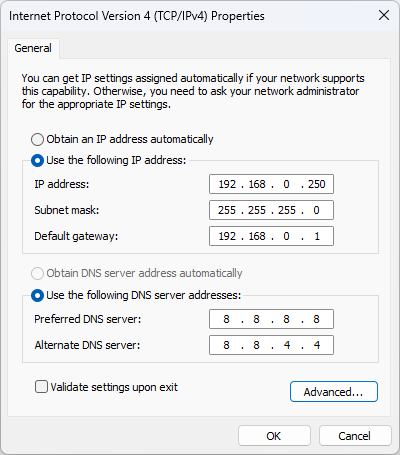
Here is an example of the Wi-Fi IPv4 address in this article:
-
Click on Use the following IP address:
-
|
Setting |
Description |
|---|---|
|
IP address |
Change only the last number of your current IP address to a number between 210–250. |
|
Subnet mask |
Click on the empty row; it will be filled out automatically. |
|
Default gateway |
See Default Gateway from Command Prompt. |
|
Prefferred DNS Server |
8.8.8.8 (Google). |
|
Alternative DNS Server |
8.8.4.4 (Google). |
When all the fields are correctly filled in, click OK.
Windows Troubleshooter may run when the new IP address is set. Close the Troubleshooter after it is done.