
This installation requires Administrator privileges on the POS workstation. If you do not have them, please contact your IT support or Solteq Support. Connect the terminal to an electrical outlet and to the POS workstation before contacting support.
You will also need the terminal's Nets Merchant Card (Kauppiaskortti).
Open Port 6001
-
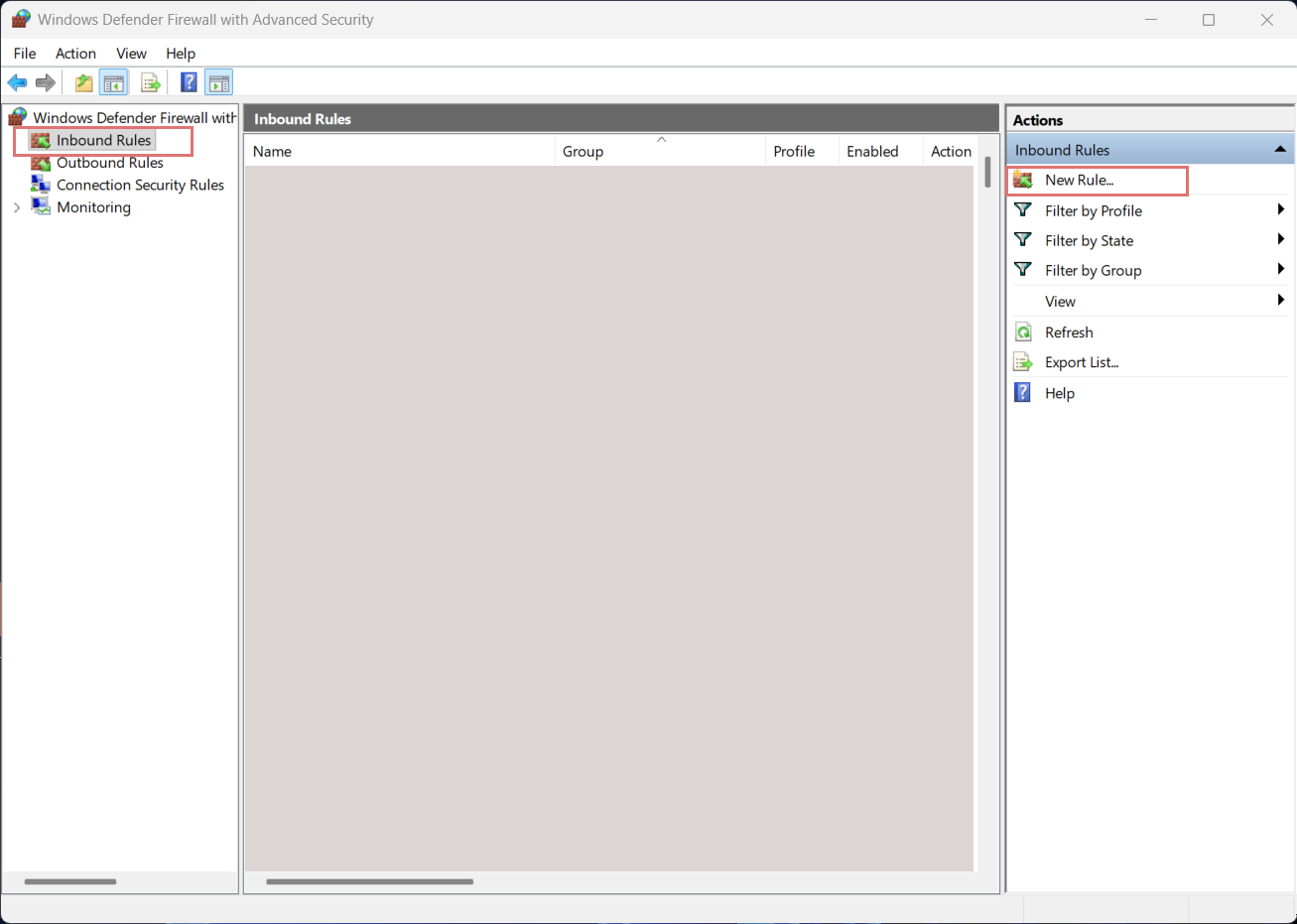
Open Windows Defender Firewall with Advanced Security as Administrator.
-
Click Inbound Rules on the left and New Rule on the right.
-
In the New Inbound Rule Wizard, add the following settings:
-
Rule Type: Select Port and click Next >.
-
Protocol and Ports: Select TCP and then Specific local ports. Enter 6001 into the field, and click Next >.
-
Action: Select Allow This Connection and click Next >.
-
Profile: Select the the following checkboxes:
-
[✓] Domain
-
[✓] Private
-
[✓] Public
Then click Next >.
-
-
Name: Enter the desired name, for example: Nets Payment Terminal.
-
-
Click Finish to finish the setup.
Assign Static IP Address to POS workstation
If your devices are connected to a large administered network, you might want to consult your IT specialist before assigning a static IP address.
If you are operating in a smaller Store and only have one router, this configuration is sufficient.
Analyze Your current IP Address Configuration
-
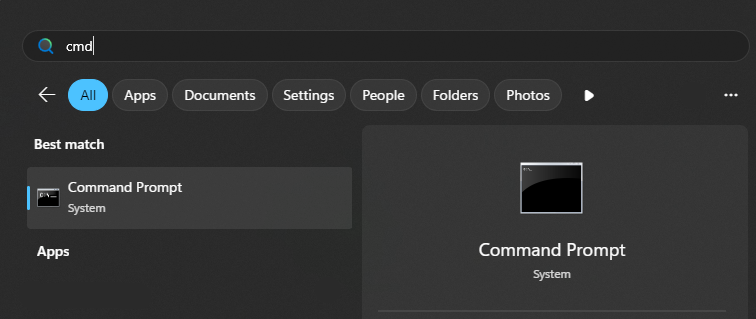
Open Command Prompt.
-
Type ipconfig /all and click Enter:
-
If you see DHCP Enabled. . . : No, then you already have a static IP address and can continue to Setting Up Ingenico Move/3500 Payment Terminal | Configure the Payment Terminal Settings.
-
If you see DHCP Enabled. . . : Yes, you must assign a static IP by following the these steps:

-
On a new line in Command prompt, write ipconfig and click Enter.
-
If you use Wi-Fi, see Wireless LAN Adapter Wi-Fi
-
If you use Ethernet, see Ethernet adapter.
You can see you current connection symbol in the bottom right of your POS Workstation view.
-
-
-
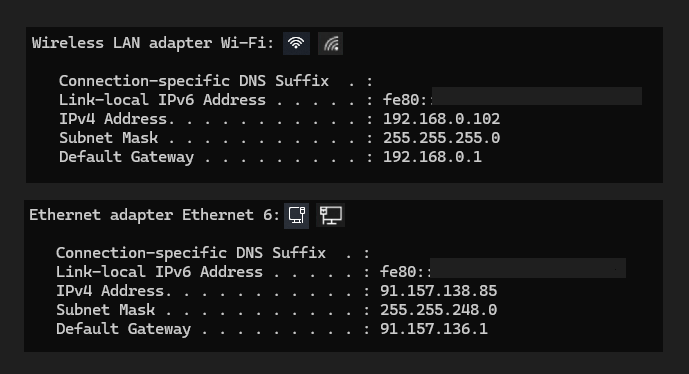
You need IPv4 Address and Default Gateway to proceed.
Set Static IP Address
-
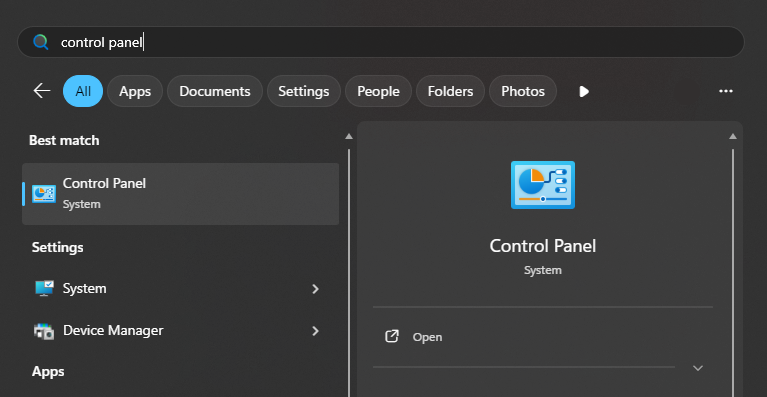
Open Control Panel.
-
Select Network and Internet.
-
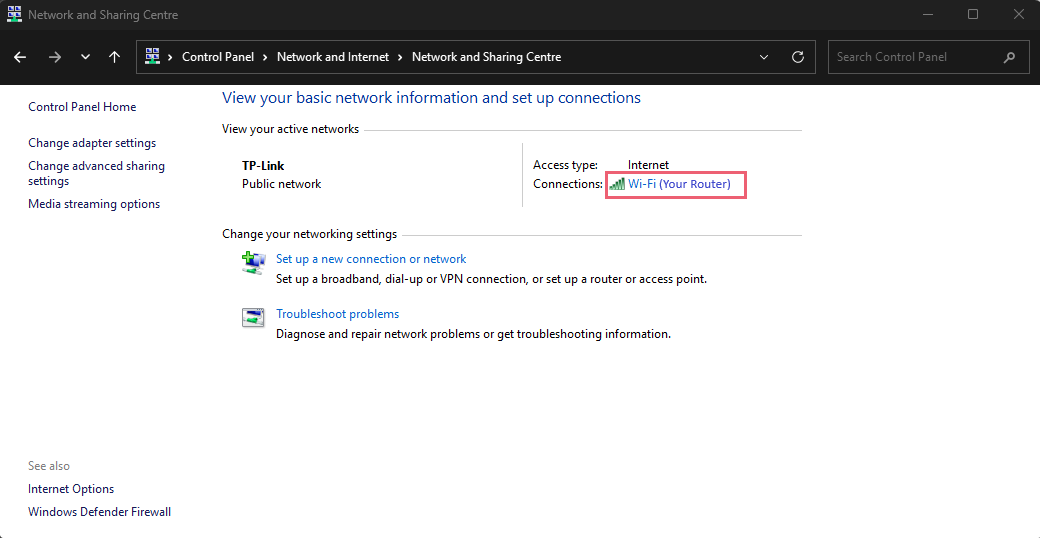
Select Network and Sharing Centre.
-
Select your connection marked in red.
-
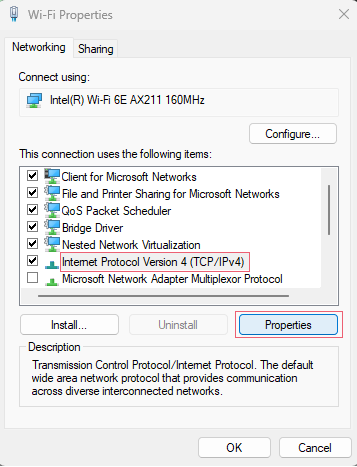
Open Properties.
-
Choose Internet Protocol Version 4 (TCP /IPv4) and click Properties.
-
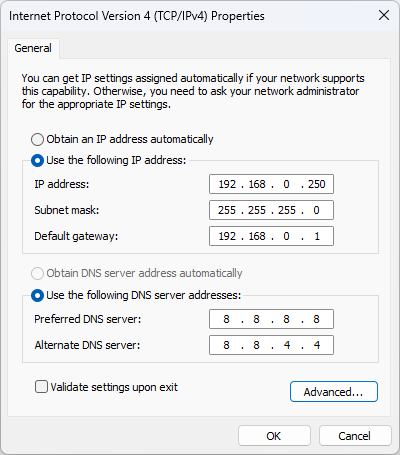
Here is an example of the Wi-Fi IPv4 address in this article:
-
Click on Use the following IP address:
-
|
Setting |
Description |
|---|---|
|
IP address |
Change only the last number of your current IP address to a number between 210–250. |
|
Subnet mask |
Click on the empty row; it will be filled out automatically. |
|
Default gateway |
See Default Gateway from Command Prompt. |
|
Prefferred DNS Server |
8.8.8.8 (Google). |
|
Alternative DNS Server |
8.8.4.4 (Google). |
When all the fields are correctly filled in, click OK.
Windows Troubleshooter may run when the new IP address is set. Close the Troubleshooter after it is done.
Configure the Payment Terminal Settings
Connect the Terminal to the Same Wi-Fi as the POS Workstation
-
Read the Merchant Card.
-
Select Control Panel.
-
Select Terminal Settings.
-
Select Comm. means.
-
Select Wi-Fi and Switch on.
-
Select Scan networks.
-
Select the correct Wi-Fi.
-
Enter the Wi-Fi password.
If the Wi-Fi is hidden, select 1. Other → 1. Hidden and insert the name of the Wi-Fi.
When done, click the green button on the terminal.
Assign Correct Settings to the Terminal
-
Read the Merchant Card.
-
Select Merchant Menu.
-
Select Parameters.
-
Select Change.
-
Select Communication.
-
Enter the following details:
-
Comm. Type: Wi-Fi
-
DHCP Use: DHCP
-
Host IP Address: 91.102.24.142
-
Host IP Port: 9681
-
-
Press the red button in the payment terminal to return to the Change option.
-
Select the POS: Merchant menu -> Parameters -> Change → ECR-
-
Select the following settings:
-
ECR: Yes
-
Comm. Type: IP Wifi
-
ECR/TLS: Yes
-
ECR: POS: <static IPv4-address of the POS>
-
ECR IP PORT: 6001
-
Card Info: Never
-
Header/Footer: No
-
Configure Back Office Settings
-
Go to Configurations and select the workstation you want to use with the payment terminal.
-
Go to the workstation’s Payment Service Settings. and click the +New icon.
-
Select/enter the following information for the terminal:
-
Name: Card
-
Type: NETSBaxi
-
Configuration: Copy and insert the [BAXI] text below.
HTML[BAXI] LogFilePrefix=baxilog LogFilePath=C:\baxi\logfiles # Tracelevel valid values: # 0 - LOG_NEVER, no logging whatsoever, logfile not created. # 1 - LOG_ERR, Only errors are logged # 2 - LOG_TRACE, errors and trace # 3 - LOG_DEBUG, errors, trace and debug # 4 - LOG_ALWAYS, all logging is enabled TraceLevel=4 LogAutoDeleteDays=14 SerialDriver=Nets #SerialDriver=Microsoft# File used to store reconcilliation data #ReconcilliationReportFile=C:\baxi\logfiles\baxireconcilliation.log [TERMINAL] BaudRate=57600 # If ComPort is set to 0, this means that only DeviceString will be # used to find a port. This means that if ComPort is 0, DeviceString # must be filled in, or you get an Open reject reason of 7416 (PROPERTY_DEVICE_STRING) ComPort=9 # If DeviceString is set, BAXI will first attempt a normal open on # the com port indicated. If BAXI fails to open this com port, it will # not indicate an error yet, but look for any COM port in the system # that contains the DeviceString in its name. If one or more of such # com ports are found, BAXI will attempt to open them one by one. # If open succeeds on one of them, it will assume that the terminal # is on that port and continue on that port. If none of the ports # succeed with an open, BAXI reports an error. After this, BAXI monitors # the com port for removal and insertion. One can insert into any usb # port and obtain a new com port number. BAXI will detect this and open # the corresponding port to keep communications towards the terminal without # having to restart BAXI. # If DeviceString is not set, BAXI only monitors the removal/insertion # of the com port number indicated in ComPort. #DeviceString="SAGEM MONETEL USB Telium" DeviceString="SAGEM Telium" #DeviceString="Ingenico iST1xx" # Checks if the attached terminal has rebooted and gives a warning PowerCycleCheck=0 # Checks if the attached terminal has changed terminal id. Locks Baxi if TID mismatch! TidSupervision=0 [HOST] HostPort=9670 #Production VPN #HostIpAddress=193.214.20.211 # Production Secure access #HostIpAddress=91.102.24.142 #Test host HostIpAddress=91.102.24.111 [MSGROUTER] MsgRouterOn=0 MsgRouterIpAddress=127.0.0.1 MsgRouterPort=6000 [DEVICEATTRIBUTES] # VendorInfoExtended can be max 32 characters long. All four delimiters are mandatory. VendorInfoExtended="BBS;Retail;02.13.01;57807343803;" # CutterSupport = 0 means no cutter support. # Any other value = cutter support # Nb length of this field is 1 byte, should be set from ECR CutterSupport=1 #printerwidth should be set from ECR PrinterWidth=24 #Displaywidth should be set from ECR DisplayWidth=20 #IndicateEotTransaction is used to send the flag OP3 in Device Attribute. # 1 = makes the Local Mode to set a flag for Offline Transactions IndicateEotTransaction=1 #autoGetCustomerInfo is used to enable automatic Customer Info retreival in the terminal. AutoGetCustomerInfo=0 #TerminalReady is used to signal that the terminal is reday for a new transaction TerminalReady=0 #DisplayTextID will enable the Display Text with Unique Text ID UseDisplayTextID=0 #UseExtendedLocalMode will enable ExtendedLocalMode UseExtendedLocalMode=1 AlwaysUseTotalAmountInExtendedLM=1 # UseJoinDisplayText will enable splitting Terminal lines into separate DisplayTexts UseSplitDisplayText=0 # Use2KBuffer will enable 2k receive buffer in Baxi. Use2KBuffer=0 # DisplayTextInLocalMode enables displaytext messages in localmode DisplayTextInLocalMode=0 [TCPIPSERVER] BluetoothTunnel=0 SocketListener=1 SocketListenerPort=6001
-
-
Enable the Is main and Payment in use settings.
For more information about Payment Service settings, see Payment Service.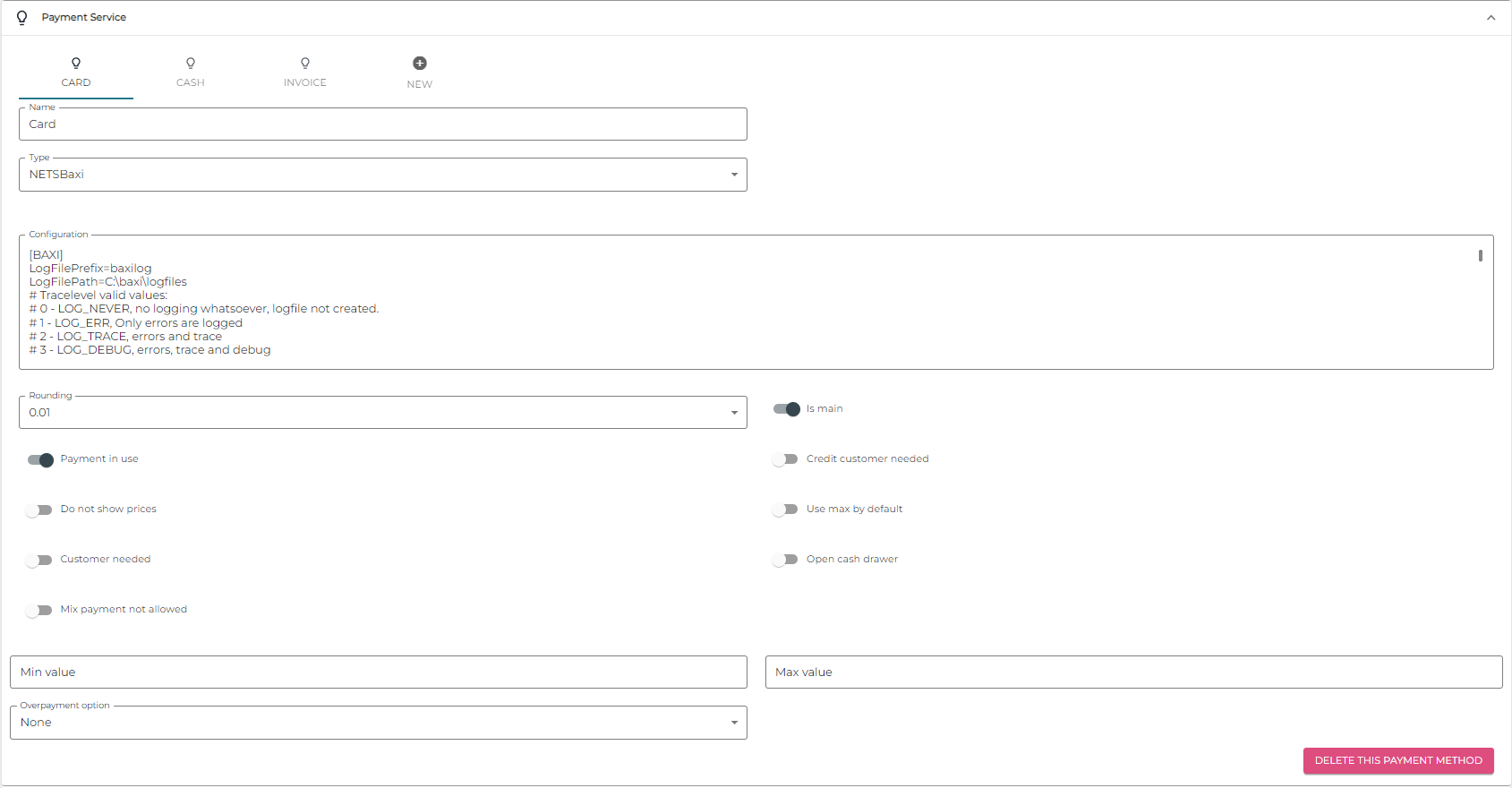
Example of Back Office Payment Service settings. -
Click Save to save your settings.