
You can create new stock items in the Back Office by copying the details of an existing stock item and the entering a new SKU for the cloned stock item:
-
Navigate to the stock item details of the stock item whose details you want to copy.
-
Click the Clone icon in the toolbar.
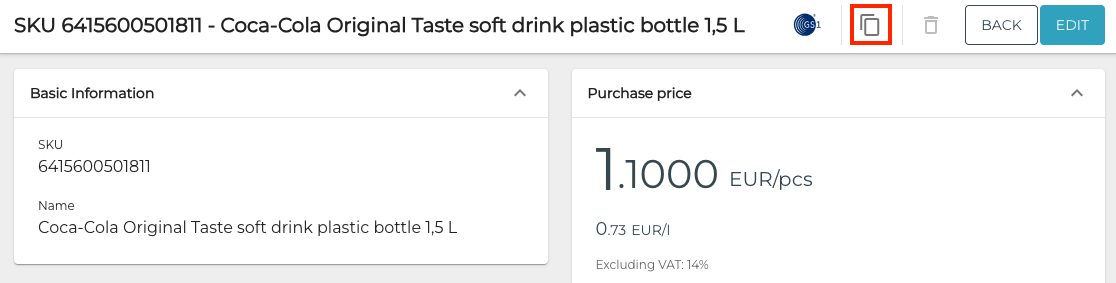
Clone tool icon -
Enter the SKU for the new item or scan its barcode.
-
If you want GS1 data to be fetched for the item, click the Get GS1 data for the product checkbox to active.
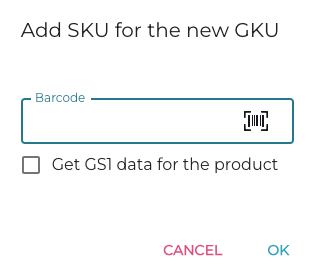
Add SKU for the new GKU window
-
-
Click OK to complete the creation of the new stock item. You can now edit its details as you see fit.