
You can create stock items individually in the Stock Items view of the Back Office.
This is the recommended way of creating stock items with net content (such as wine bottles).
The following is a video example of stock item creation.
Create a Stock Item
-
Select Stock Handling in the Back Office Menu.
-
Click Stock Items. The Stock Items view is displayed.
-
Click +Add. The Add new stock item window is displayed.
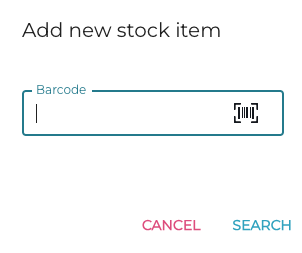
Add new stock item window -
Scan (or enter) the Barcode of the stock item, and click Search.
-
Enter the details for the stock item. The following details are mandatory:
-
Name
-
Purchase price
-
Display unit
-
Measurement and Measurement unit.
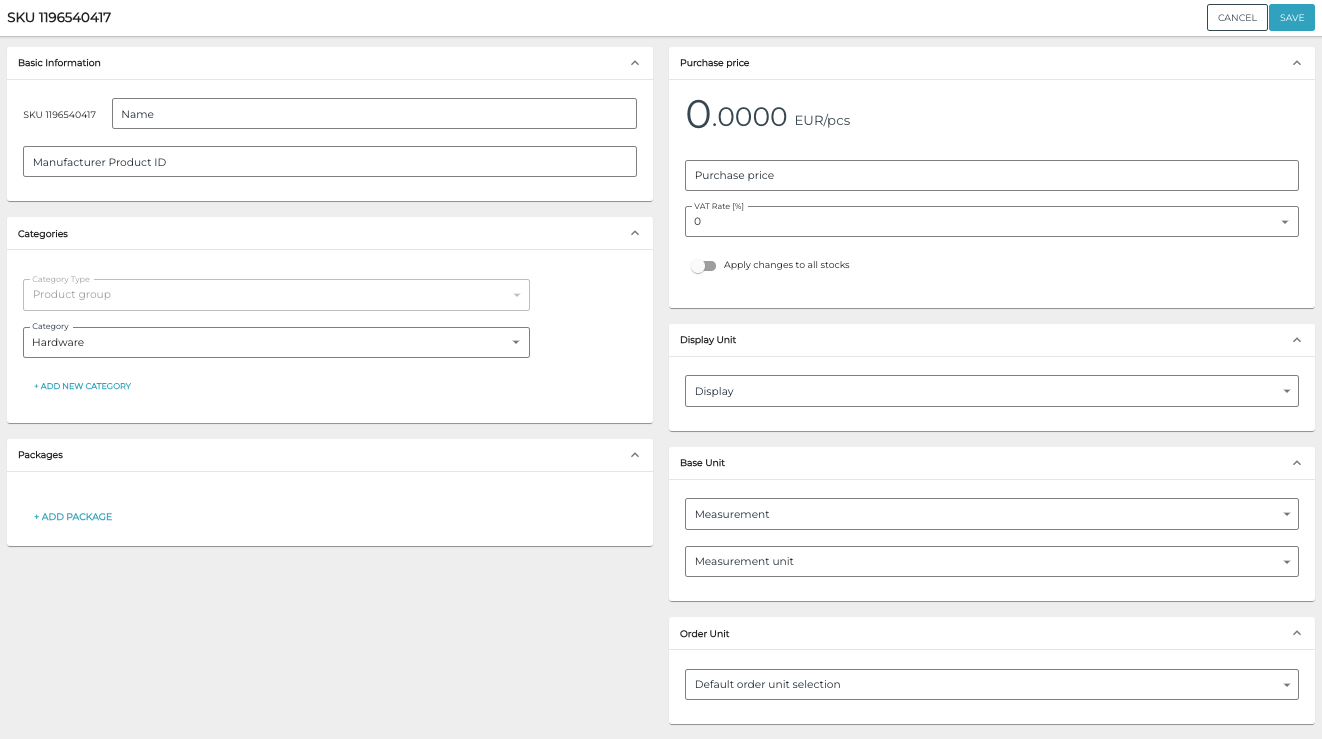
New stock item
-
-
Click Save to save your changes and create the new stock item.
After creating a stock item, you can create selling items (products and ingredients) for it by clicking +Create Selling Item or +Create New Ingredient, and entering the following information:
-
Name of the selling item
-
Category: Select a category for the selling item
-
Unit: Select the unit for the selling item.
-
Unit multiplier (only for products)
-
Price (only for products)

Margin will be calculated automatically, based on price of the selling item and purchase price of the stock item.