
You can add both private and company customers in the Back Office.
Add a New Private Customer
-
Click Customers in the Back Office menu. Customers view is displayed.
-
In the Customer view click +Add new. Add New Customer window is displayed
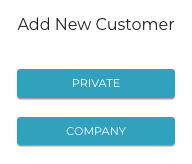
Add new customer window -
Select Private.
-
Customer Profile view is displayed. Enter customer's details.
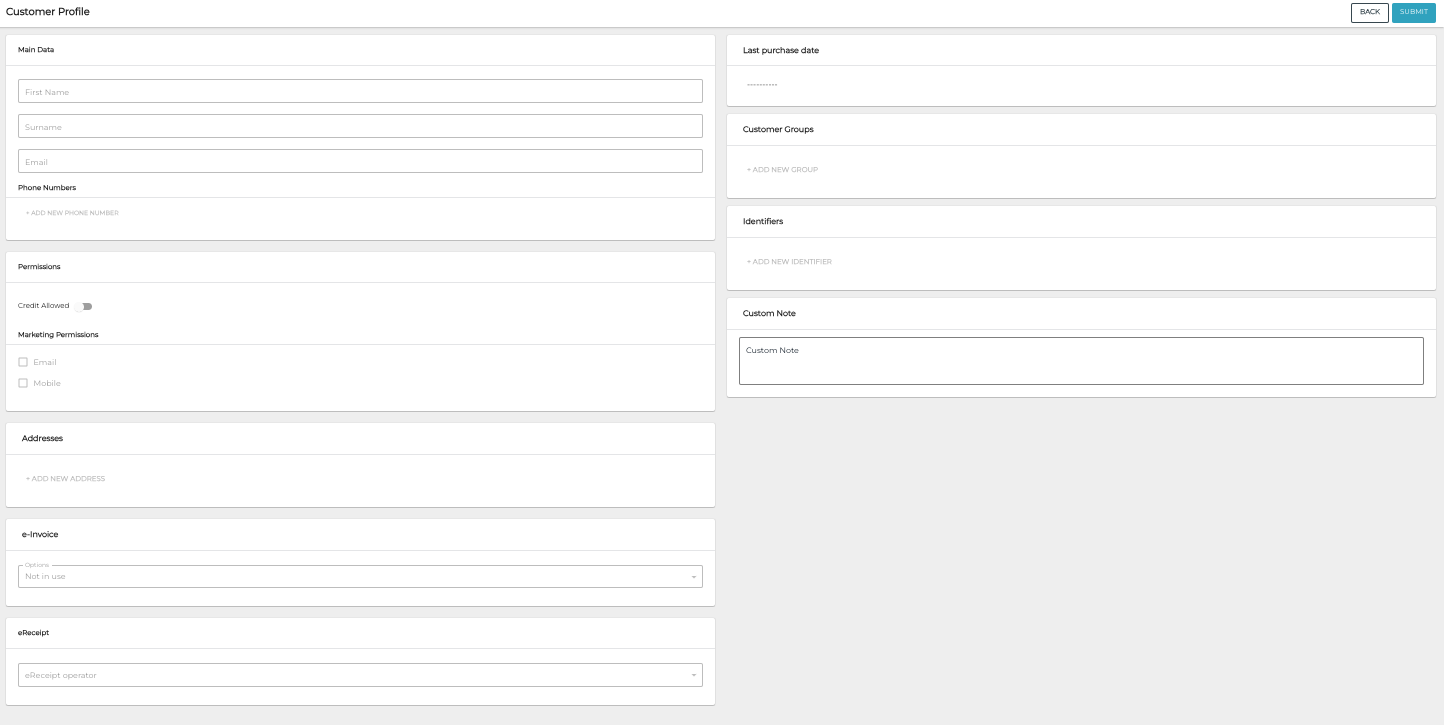
New private customer profile -
When you have filled out the details for the customer, save your changes and add the new customer to Solteq Commerce Cloud by clicking Submit.
Add a New Company Customer
When adding new company customers, you need to provide the tax code (VAT number) of the customer company in international format (including the country identifier, and omitting the dash -). Do not use spaces in the tax code.
The formats for different countries are the following:
-
Finland: FI99999999 (FI + 8 digits)
-
Sweden: SE999999999901 (SE + 12 digits). The last two characters are always the numbers 01.
-
Denmark: DK99999999 (DK + 8 digits)
For example: The tax code for Solteq Oyj (0490484-0) should be entered as FI04904840.
-
Click Customers in the Back Office menu. Customers view is displayed.
-
In the Customer view click +Add new. Add New Customer window is displayed
Add new customer window -
Select Company.
-
Enter the company tax code and click Next.
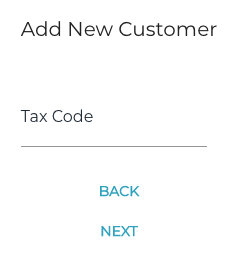
Entering the new company customer’s tax code -
Customer Profile view is displayed. Enter customer's details.
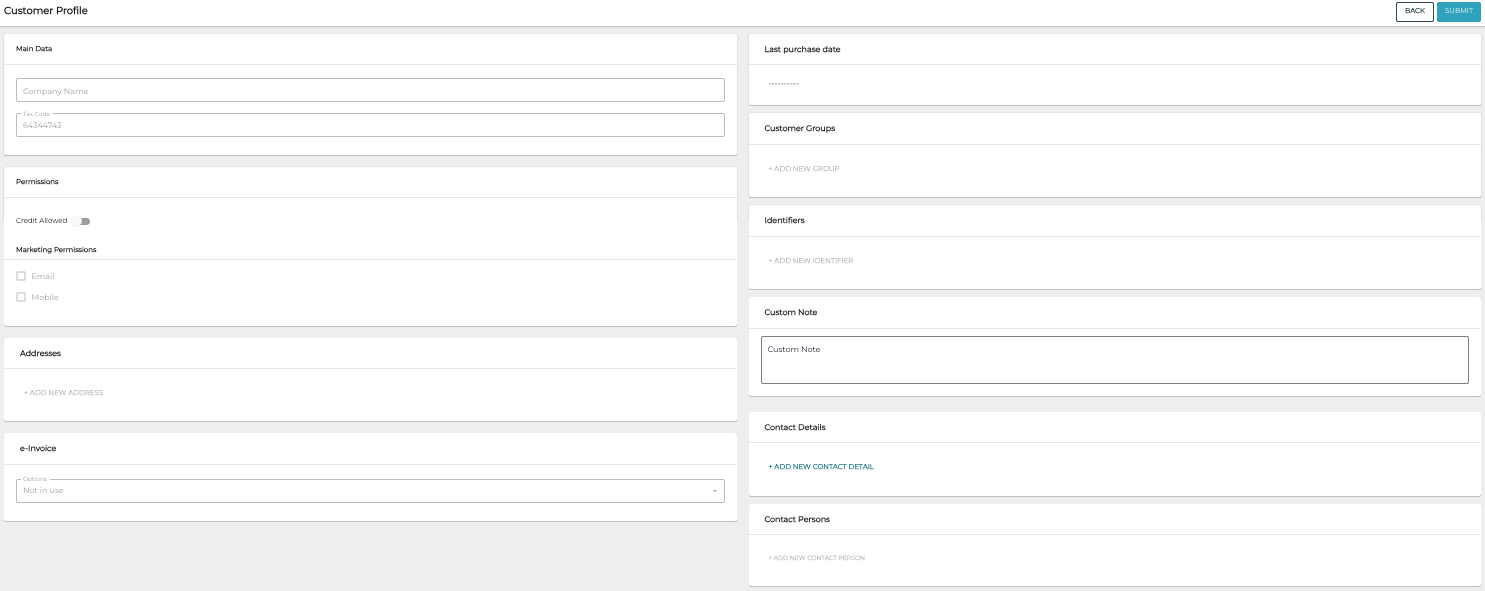
New company customer profile -
To save your changes and add the new customer to Solteq Commerce Cloud, click Submit.