
You can anonymize/restrict a number of customers at once, if needed. Both of these actions remove all GDPR Personal Data from the customer information.
-
Performing either one of these operations requires that you belong to an user group with Allow Customer Mass Restriction permission.
-
Anonymizing/restricting all customers at once is not possible; you need to first at least one of the following filters in the Customers view to filter the customers:
-
Updated
-
Group
-
Before last purchase date
-
After last purchase date
-
-
It is not possible to anonymize/restrict all private or company customers at once; you need to use more refined filtering.
-
If you have both private and company customers filtered, you can only use the Restrict option, as company customers cannot be anonymized.
-
Customers cannot be anonymized or restricted if they have been assigned to an open order; these customers will be skipped in the operation (see step 5 below)
If needed, you can retrieve anonymized customer’s data by using the Excel export/import function of the Back Office. Note that customer’s Id is required for this operation. See Retrieving Anonymized Customer Data.
Restricted customer data cannot be retrieved.
-
In the Customers view, select the filters you want to use, and click Apply Filters.
-
Next, click either
-
Anonymize icon to anonymize the filtered customers.
-
Restrict icon to restrict the filtered customers.
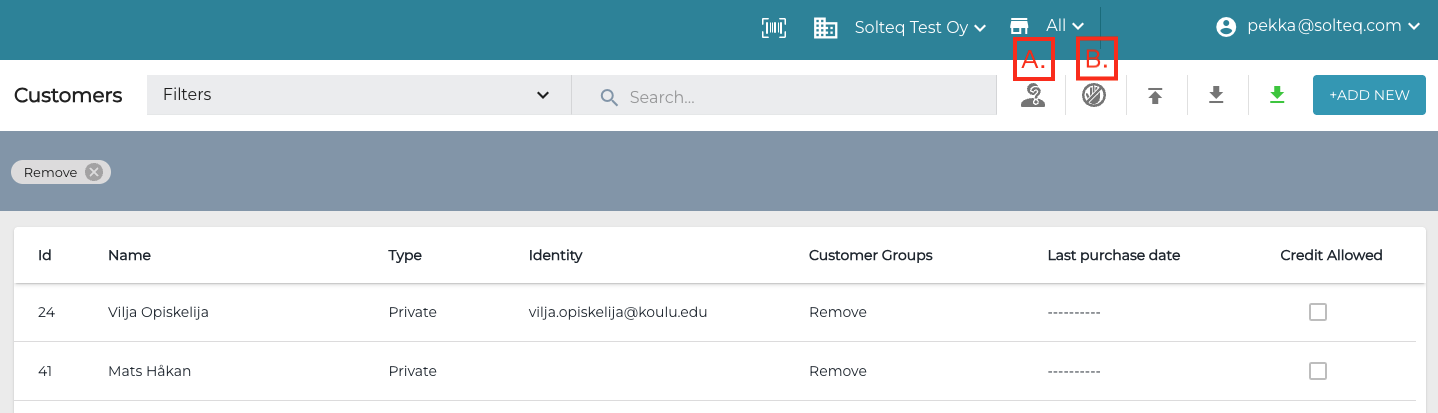
Anonymize (A.) and Restrict (B.) icons
-
-
A confirmation window is displayed. Click Anonymize/Restrict (or Back to cancel)
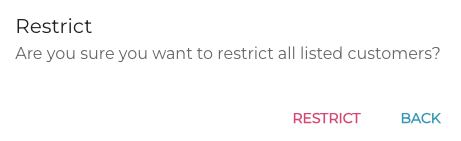
Confirmation window -
A separate information window is displayed. Click OK to proceed.
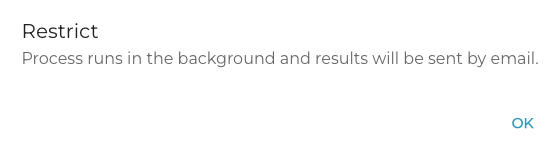
Confirmation window -
When the anonymize/restrict operation has been applied to all the selected customers, you will receive an e-mail notification about this. The notification contains information about updated and skipped customers; if any errors were encountered during the process, the e-mail will also include information about them.
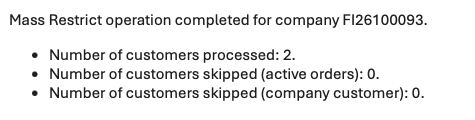
Example of the mass restrict operation e-mail notification