
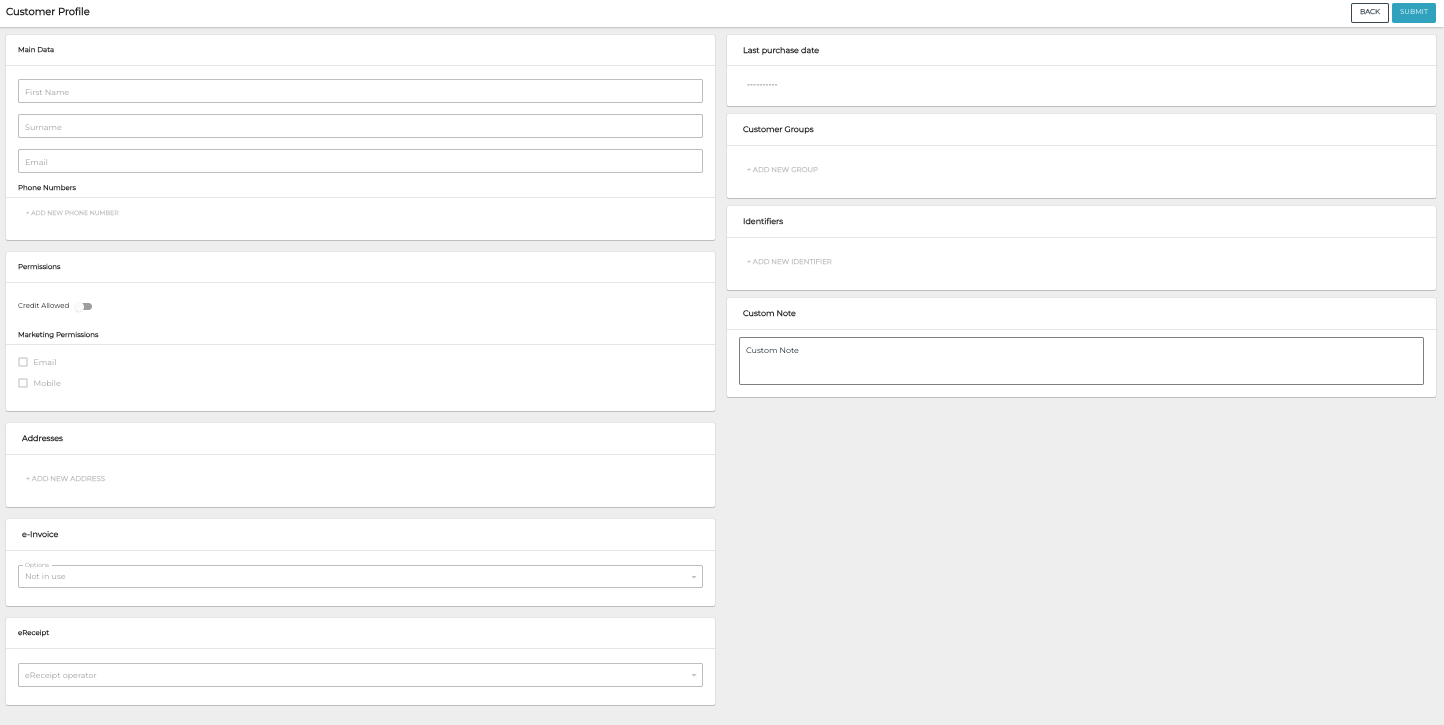
Customer Profile of a private customer contains the following information.
Main Data
-
Customer's First Name and Surname (mandatory)
-
Customer's e-mail address
-
Customer’s phone number
If the Use international phone numbers standard setting has been enabled in Company Configurations:
-
Phone numbers must start with +
-
After +, only digits (0–9) are allowed
-
No spaces, hyphens, parentheses, dots, slashes, extensions ("ext"), or any other characters
-
Total length (including +) must be 7–15 characters.
Permissions
Customer's permission information:
-
Credit allowed: Yes or No
-
Marketing permission: Email and/or Mobile
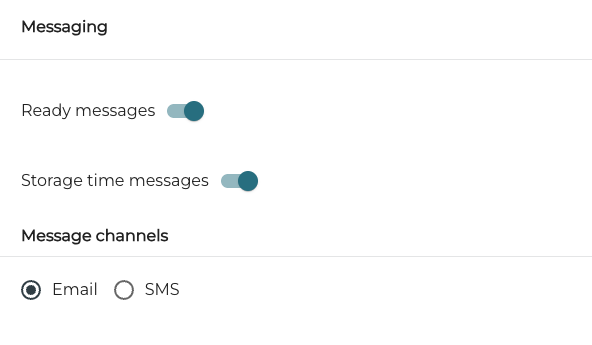
Messaging
Customer’s permissions for automatic Messaging regarding drop-off items:
-
Ready messages: Yes/No
-
Storage time messages: Yes/No
-
Message channels: Email and/or SMS
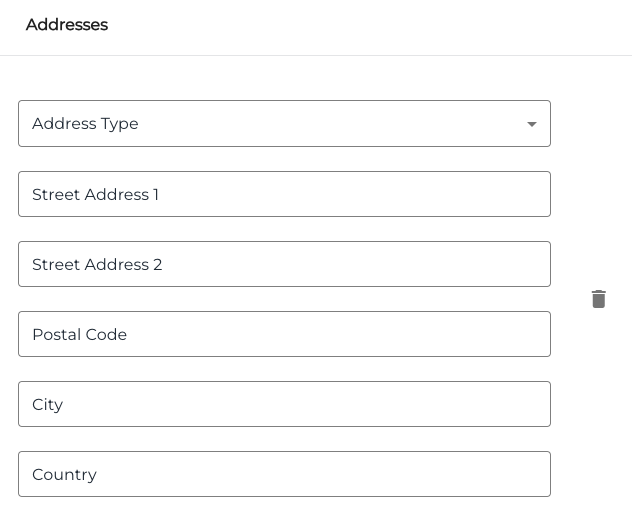
Addresses
Customer's address information.
Postal Code and City are mandatory information; the rest are optional.
e-Invoice
If Solteq Connector is in use, this data can be used for sending e-invoices.
Select one of the options:
-
Not in use (default)
-
In use (enter Broker Id and Address)
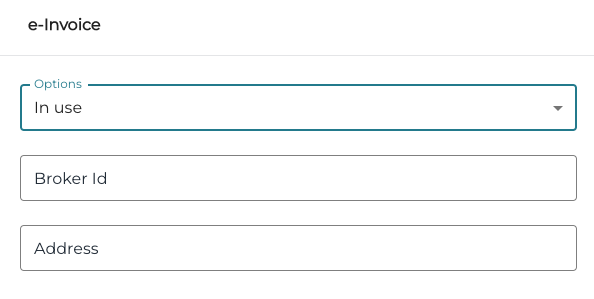
e-Invoice information for the In use option -
Send email (enter Email)
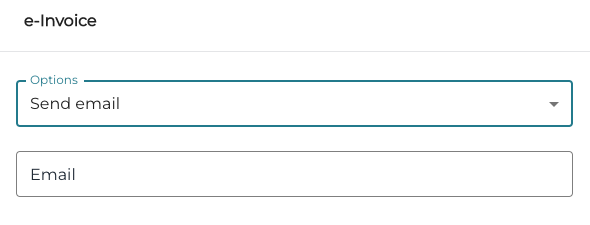
e-Invoice information for the Send email option
eReceipt
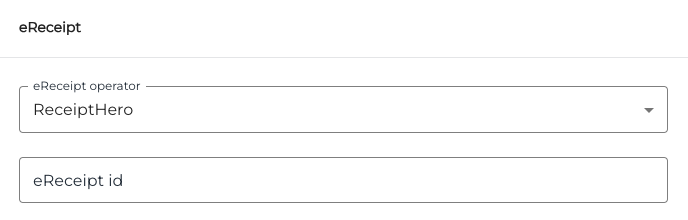
If eReceipt is in use for the customer, select the eReceipt operator and enter eReceipt ID.
Last Purchase Date
The latest date (YYYY-MM-DD) when the customer has made a purchase.
Customer Groups
You can add customers to customer groups or create new customer groups, if a suitable group does not yet exist.
To remove the customer from a customer group, click the Remove (trashcan) icon next to the group.
Add the Customer to an Existing Customer Group
-
Click Add new group for the customer
-
Select the group from the drop-down menu
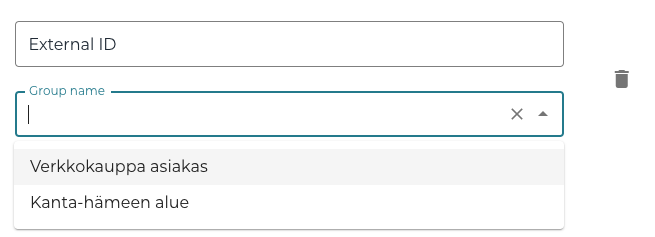
Selecting an existing customer group for a customer
Create a New Customer Group for the Customer
-
Click Add new group for the customer
-
Enter External ID and Group name for the new group, and then click Create [name of the new customer group].
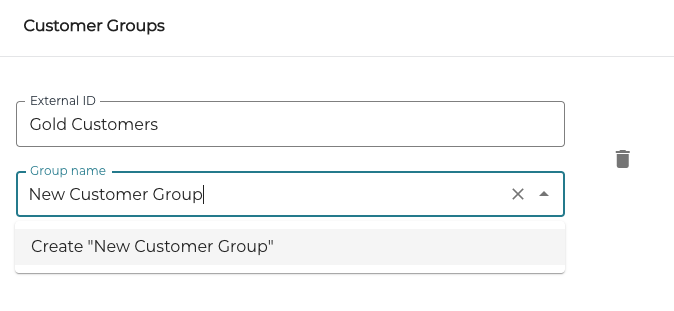
Creating a new customer group for a customer
You can remove the customer from a customer group by clicking the Remove (trashcan) icon next to the group.
Identifiers
You can add, modify or remove identifiers for a customer.
Add a New Identifier for the Customer
-
Click +Add new identifier.
-
Select Identifier Type from the drop-down list.
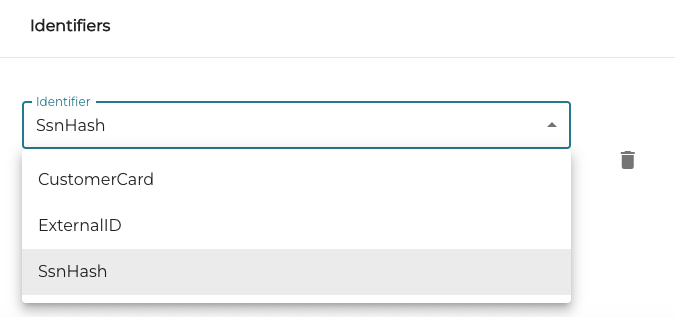
Selecting an identifier for the customer -
Enter the Identifier information.
Custom Note
You can add a free text note here (maximum length: 300 characters). The note will be displayed in the POS when the customer row is pressed.
Allowed Products
In this section you can define whether the customer is allowed to purchase only certain products or product categories, by searching and selecting the products and/or product categories.
