
Preprinted Gift cards
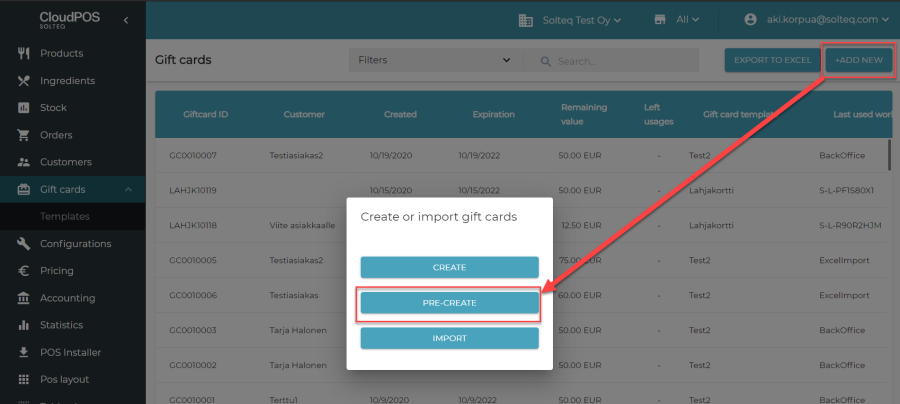
Preprinted gift card could be: Plastic card with magnetic stripe, QR-code, Barcode or even NFC-chip holding the ID of cards. To create preprinted gift cards for card manufacturer please create gift card template that is sellable from POS and use new feature "Pre-create" on BackOffice. Note that old features for Create and Import have been also split to different actions.
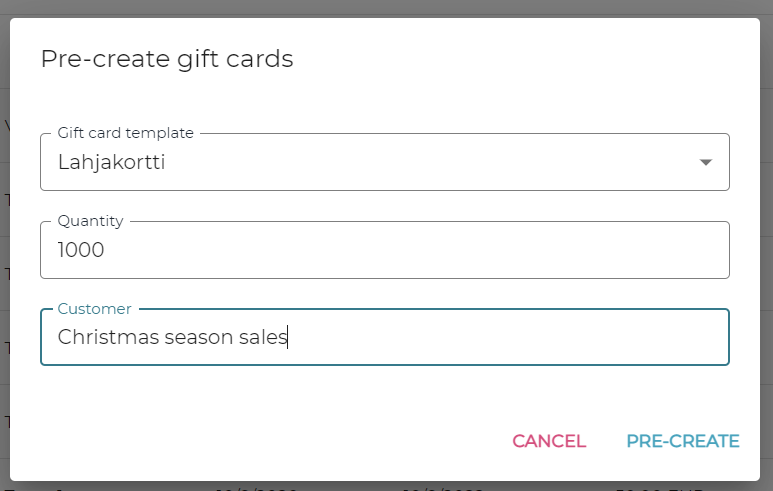
There are only three fields required: the first is Template, the second is how many gift cards are to be manufactured and then you can add free reference for the created patch on field Customer.

After creation system automatically downloads excel that can be send for manufacturer. Please note that ID needs to be exactly on that format on printed media. No LUHN calculations are yet supported.
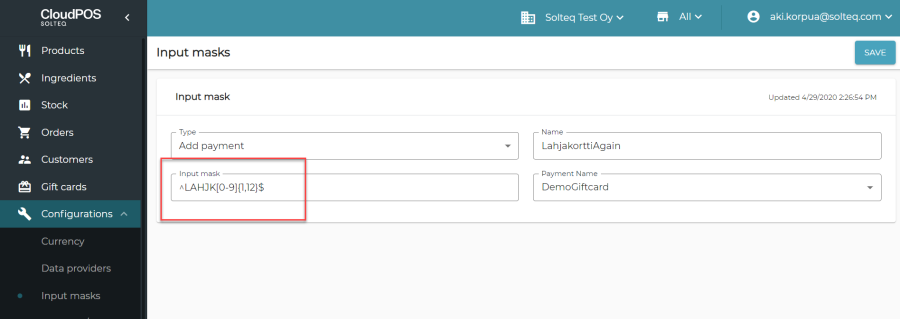
To finally charge new gift card make sure template prefix is created on BackOffice as Input Mask rule:
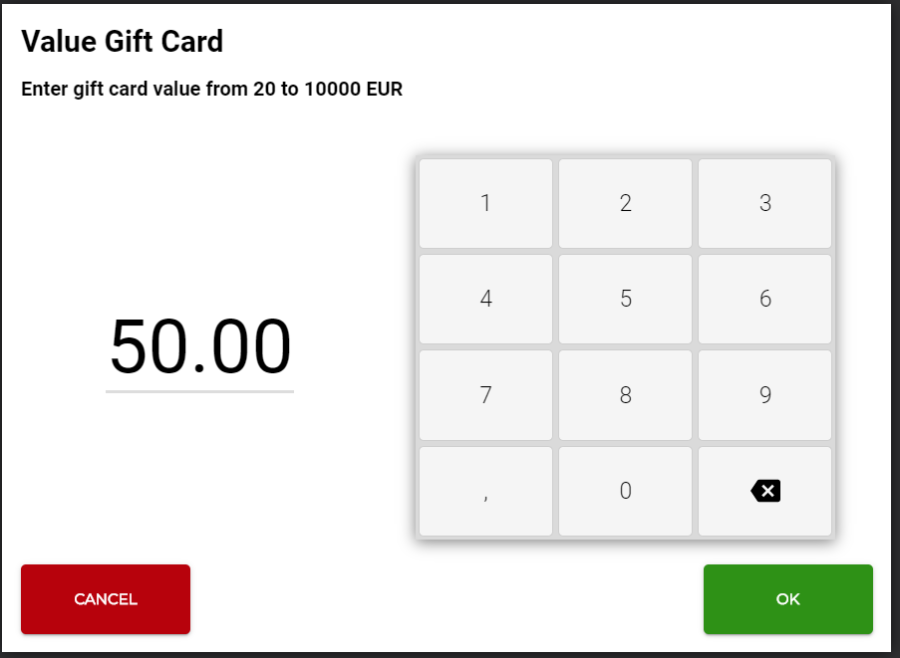
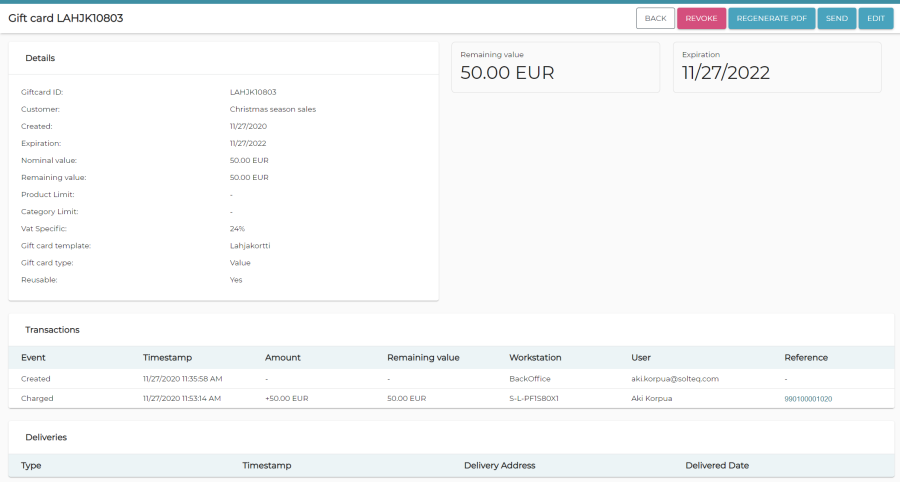
Then read on POS (in sales mode) the Preprinted gift card and charge action shall be triggered automatically and user can choose between template rules the amount to load on gift card. And there is no option to choose delivery type. New status can be found on BackOffice.
Maximum discount percentage on category
This new feature is needed to prevent any discounts from certain categories like Alcohol products. It can also be used to control that for example more than 50 % discount is never applied to certain products on POS.
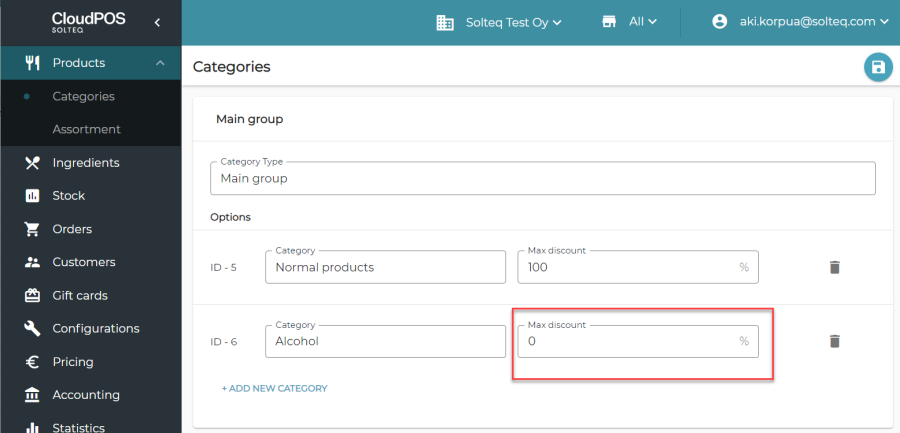
This will not prevent changing the price of a product on POS as that action is not considered as discount.
Last modified timestamp and user on all data

This is added on all data cards on BackOffice to have audit log, who has changed the document.
Improvements on Stock Handling
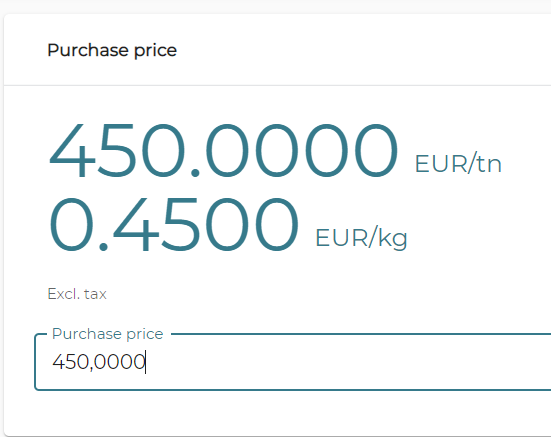
Purchase price on SKU page is given in Display Unit. For example, a bottle. Then basic unit price is calculated automatically from it.
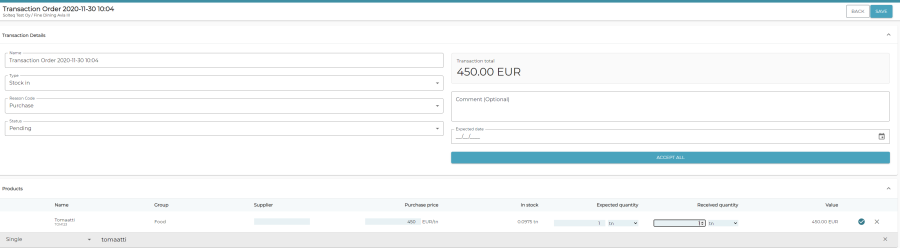
In Purchase Order we show Display Unit purchase price.
Fixed multiple places to use Display Unit for SKU.
Creating Stock Out (Loss/Waste) on POS
This new action on POS can be used to add loss/waste transactions on Stock Products and Ingredients and for Recipes.
To activate this new action, user needs to create new POS UI layout for adding loss/waste. Easiest way to create such layout is to copy your current selling layout and do modifications there as needed for example removing unnecessary actions and products.
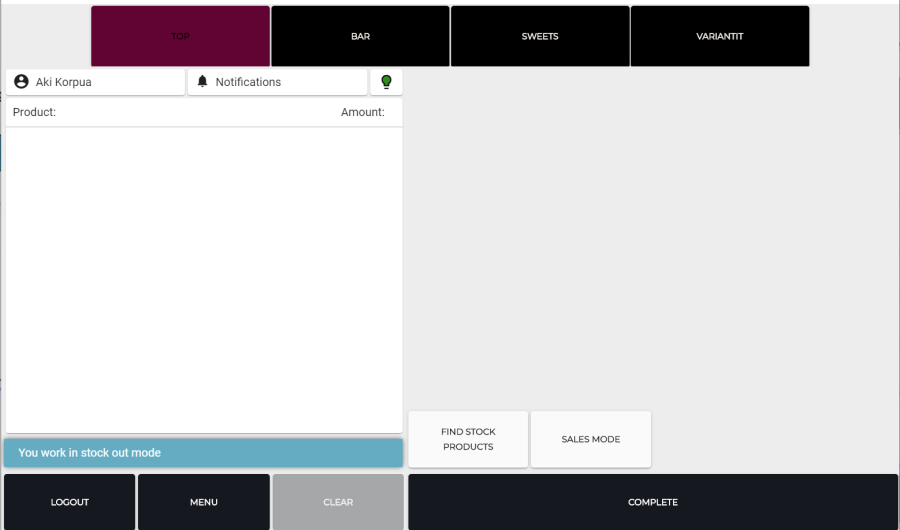
Stock mode can be activated from Menu on POS. After activating the mode user can perform only few actions: Find Stock Products (that do have SKU), Complete and possibility to go back on Sales Mode.
To add waste user can do it in 3 different ways:
-
Reading barcode of SKU product
-
Using Find Stock Products – action
-
Using POS Layout buttons.
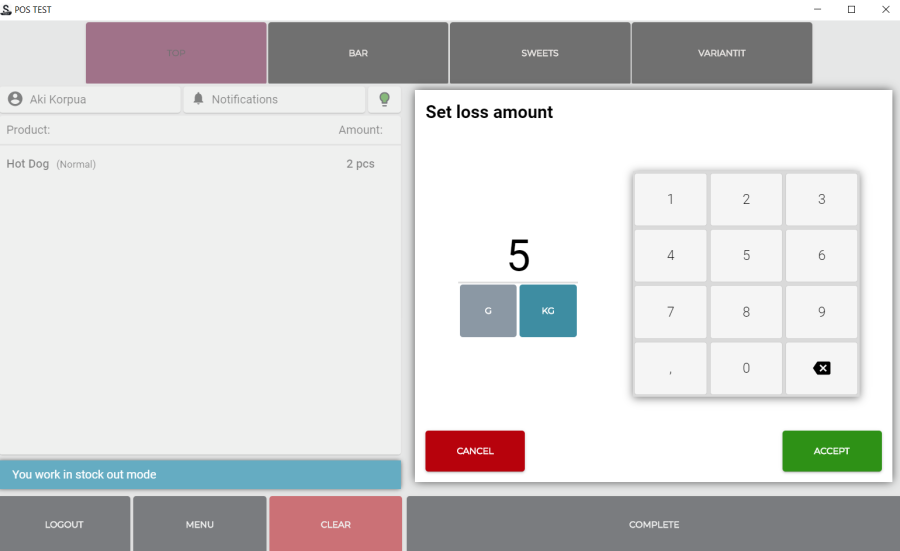
While adding loss to SKU user can choose different Measurement unit for transaction:
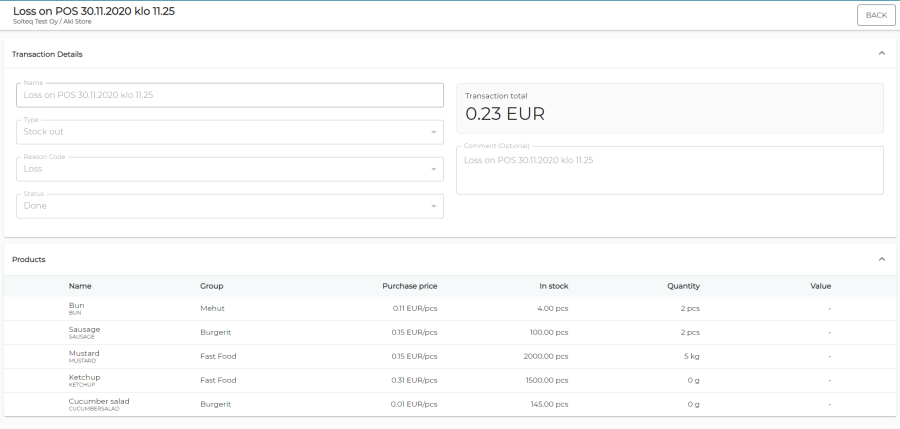
After Stock Transaction is completed on POS, we return to Sales Mode. POS Loss can be found and checked on BackOffice. Recipe is split into ingredients properly. Also, customizations are considered on recipe.
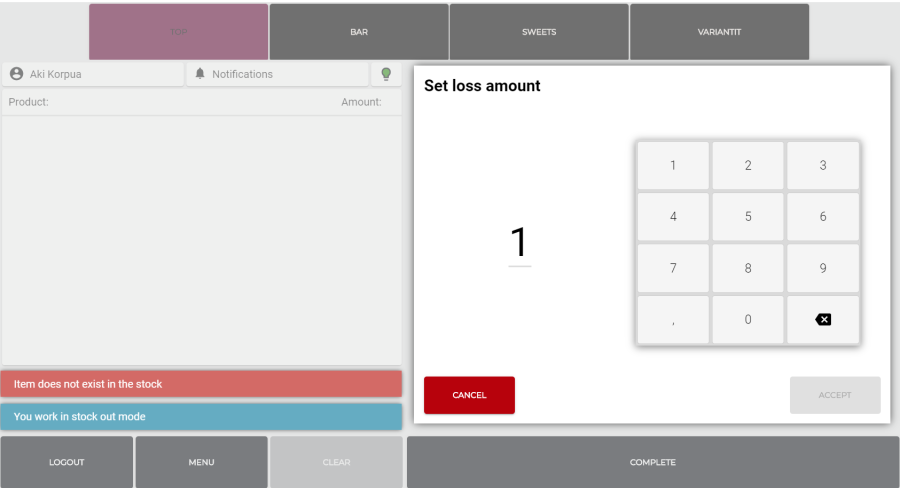
Please note that product / ingredient should have SKU and some stock quantity, before it can be deducted from the stock:
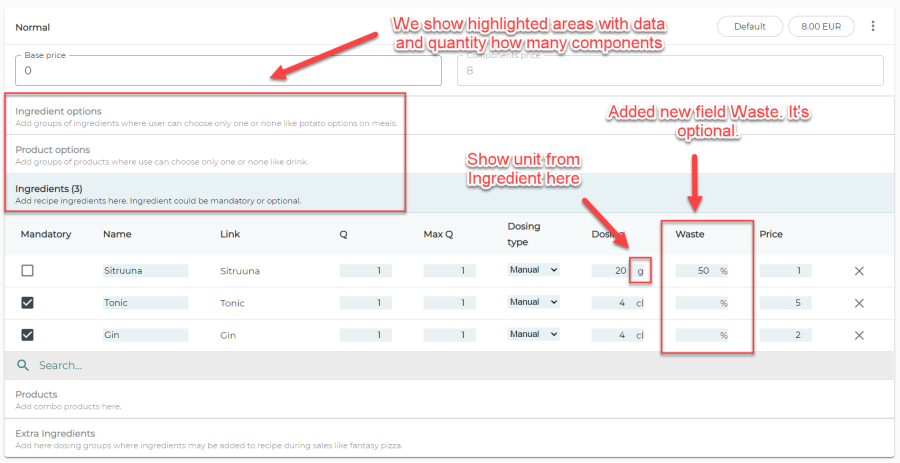
Waste percentage and other improvements on recipes
Waste can be added to ingredients in recipe. This shall change how ingredient is calculated back to stock. Used calculation in upper example is that on recipe we have product 20g but waste is 50% so stock is deducted with 20g/(1 – 0,5) = 40g
Cooking instruction on Recipes
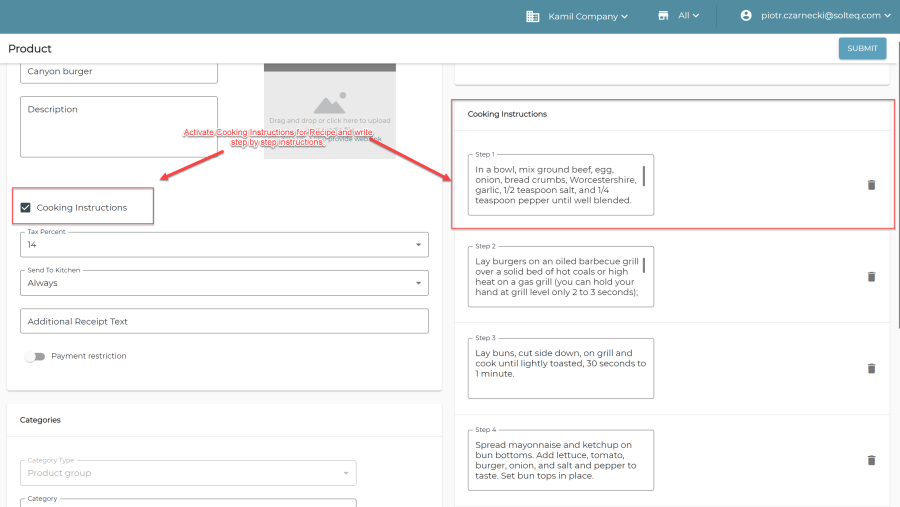
You can add new Cooking Instruction to recipes which can be later printout or checked on Cook application.
Note: Cook Application need to be reinstalled to apply new update on SDK.
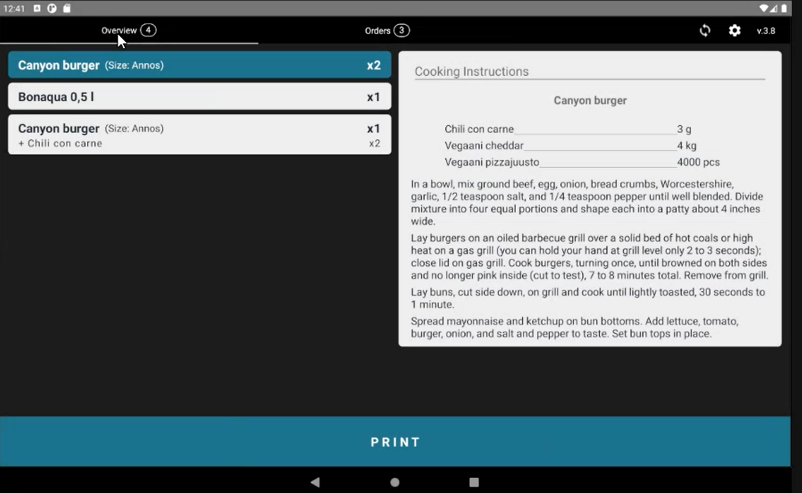
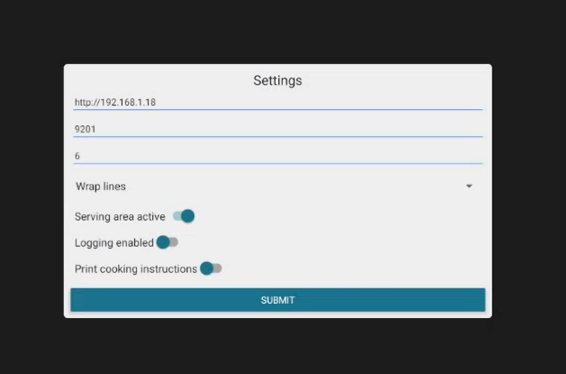
Instructions are not printed on Kitchen tablet by default, but they can be viewed from Overview tab. If on settings "Print cooking instructions" is selected, then on each kitchen printout also cooking instructions are printed. This is useful when you have new cook learning recipes.
Submenu action on POS
There is new action type that can be used to open "submenu" quickly from POS action grid.
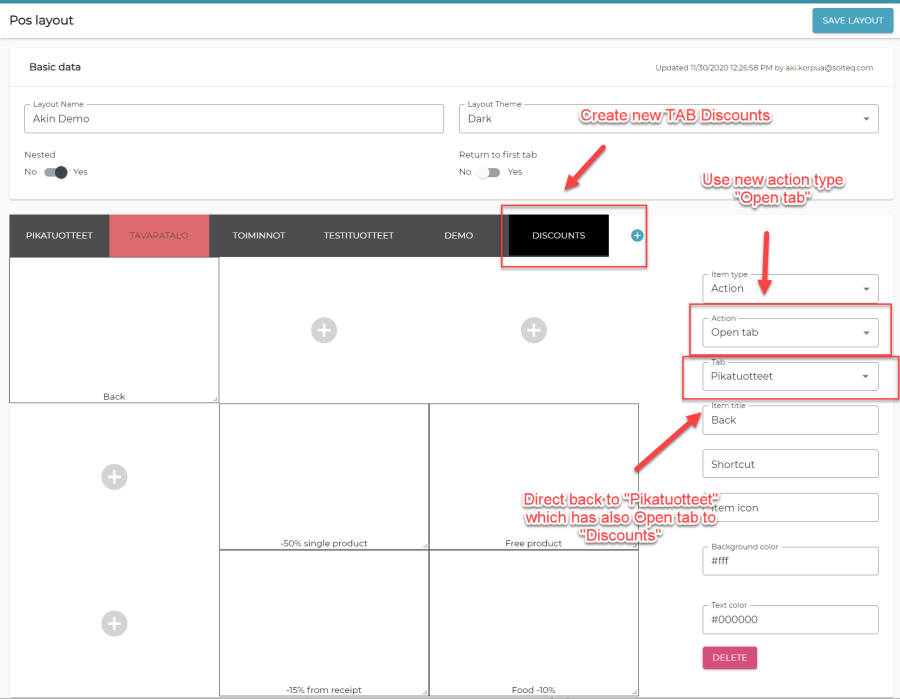
To create a submenu, select "Action" as a button type in POS layout configuration tool. Then select the action, which would be "Open tab" in this case. Then choose the tab, which you want the button to point to. Save the layout.
By clicking the button on POS UI you can now move to the tab the button points to.
New type on Send to Kitchen: Choose
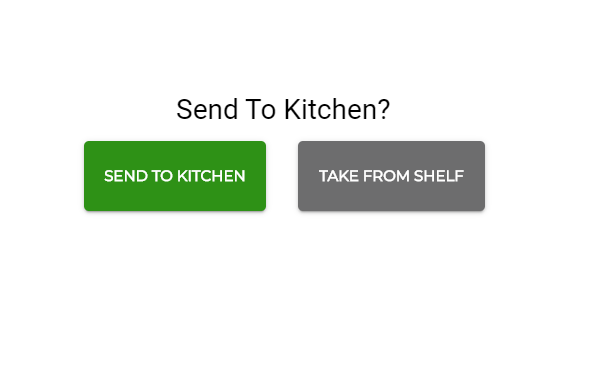
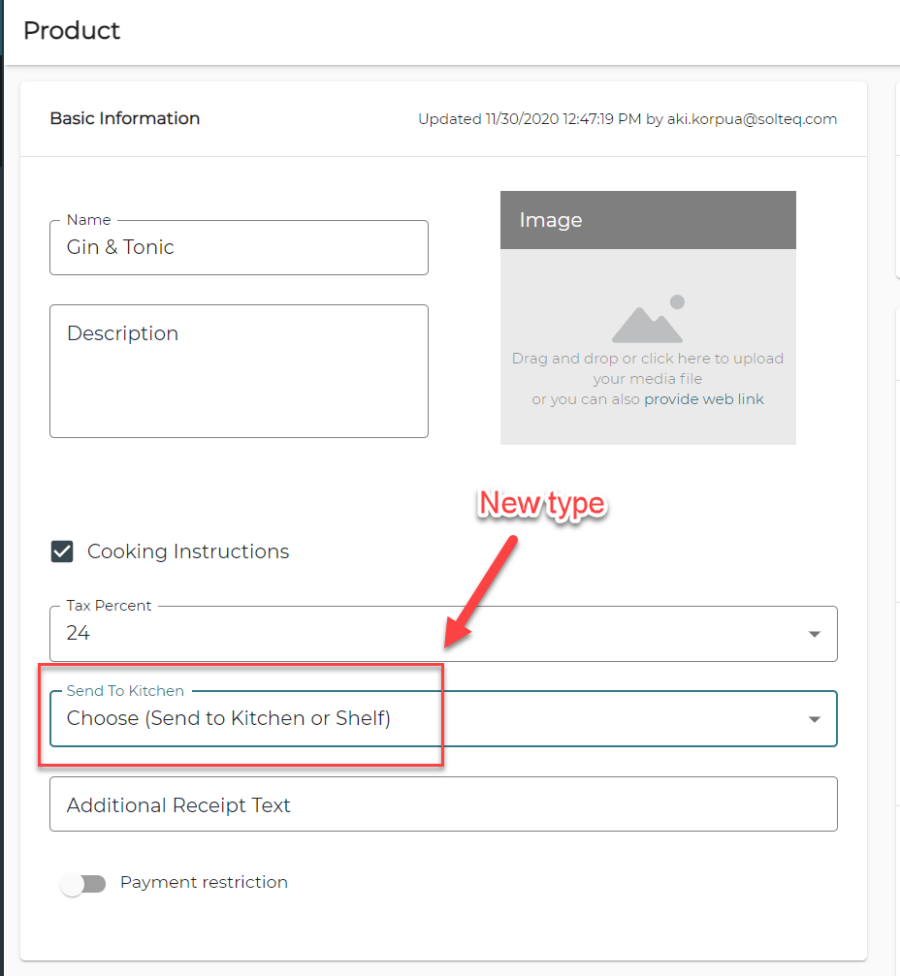
With this new option, kitchen can prepare recipes beforehand and place them on shelf. When selling product POS clerk can choose "Shelf" and product is not send to kitchen but rather sold directly from shelf.
Small updates and Fixes
-
In Stock Insight products have unit now "Inprice", for example "EUR/kg".
-
If a product does not have a measurement unit in catalog, it is now measured as pieces as default in inventory.
-
Users with read only -permissions to the section of "Users" are now able to change their own language.
-
Updated CosmosDB SKD to new version. This should lower risk of database connection problems on production.
-
Custom Product that has no possibility to be modified is added to basket directly like StockProducts.
-
Added company time zone settings on Backoffice. This is used by default on all transactions made on BackOffice e.g., marking an unfinished order ready. Default time zone is determined from company tax code.
-
New Filter "Last used timestamp" added to gift cards. With this user can filter by last used timestamp. Note that timestamp is not part of table though.
-
We show SKU or barcode of product instead of GUID on insert quantity on products.
-
We apply Refund Reason codes also to Void transactions.
-
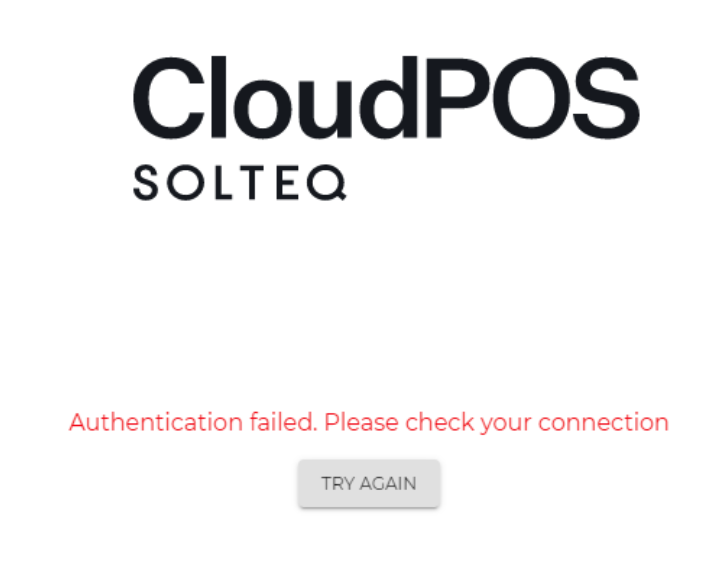
Better error message for user while installation or reauthorizing workstation and there is no connection to Identity Server.
-
Gift card delivery types and addresses are now displayed in gift card's details page.
-
Custom products with size that has ingredients without dosing or price can now also be exported to Excel.
-
From now on, rounding can be configured for every payment method. Default option is 0.01, other options are 0.05, 0.10 and 1.00.
-
Before, POS UI was stuck after restarting it for example because of new version release or some restart-requiring configuration changes. User could not log in after the restart. This bug is now fixed.
-
It is no longer possible to insert non-numerical values in POS UI's numeric fields, for example in end-of-day-report or when filtering receipt search with total sum.
-
On POS UI's receipt search "Show more" -button did not load more receipts. This bug is now fixed.
-
After POS UI was restarted, an unnecessary "Unexpected error" could appear in POS UI. This bug is now fixed.
-
Finding receipt with exact amount is now possible on POS UI.
-
Ingredient Options, Ingredients, Extra Ingredients are now listed in kitchen printout.
-
Regular expression rules can now be added to Invoice-payment method. The expressions can be configured in workstation settings.