
Reading Barcodes with Embedded Weight/Price in the Back Office
Barcodes which have embedded weight/price data can now be read in Back Office by using the scanner function. Barcodes with embedded weight/price (so-called variable length codes) can be identified from the barcode prefix, described in Handling Barcodes with Embedded Weight/Price.
You need to enable this functionality in Company Configurations first to use the features listed below.
Note that for this implementation to work, both the product and the stock item need to have the SKU identifier in the “plain” format, with the correct check digit.
Barcodes with embedded weight/price can be scanned in the following Back Office views.
Products
Products sold by weight should be created with an SKU identifier which is in plain format (including the check digit).
When you use the Quick Access Barcode Reader in the Back Office to scan a product whose barcode has embedded weight/price, its product details will be displayed.
Example:
|
SKU |
Barcode on Product |
Weight of the Product |
|---|---|---|
|
2323511100006 |
2323511101232 |
0,123 kg |
-
Scan a product’s barcode 2323511101232, which has weight data embedded in it.
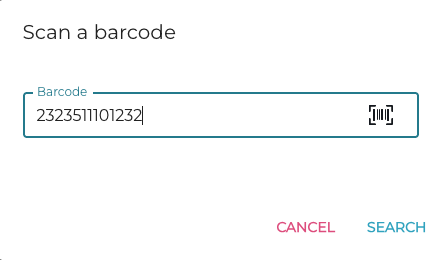
Scanning a product -
The product with the SKU identifier 2323511100006 is displayed.
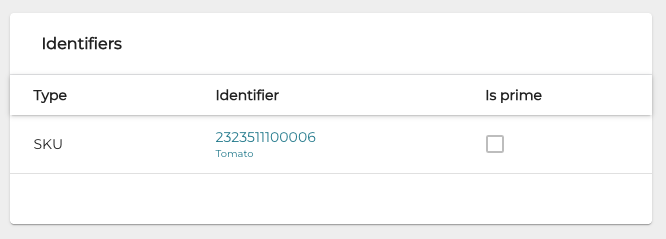
Found product with SKU identifier
In addition, in the Products view you can use the barcode/SKU with weight data embedded as search criteria.

Stock Handling
Stock Items
You can create a new stock item by scanning a barcode with embedded weight/price data.
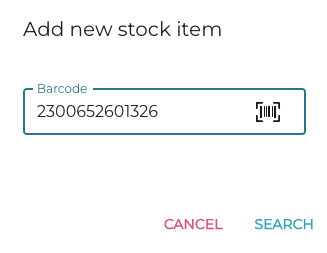
The new stock item will be created with an SKU with the correct check digit, derived from the barcode.
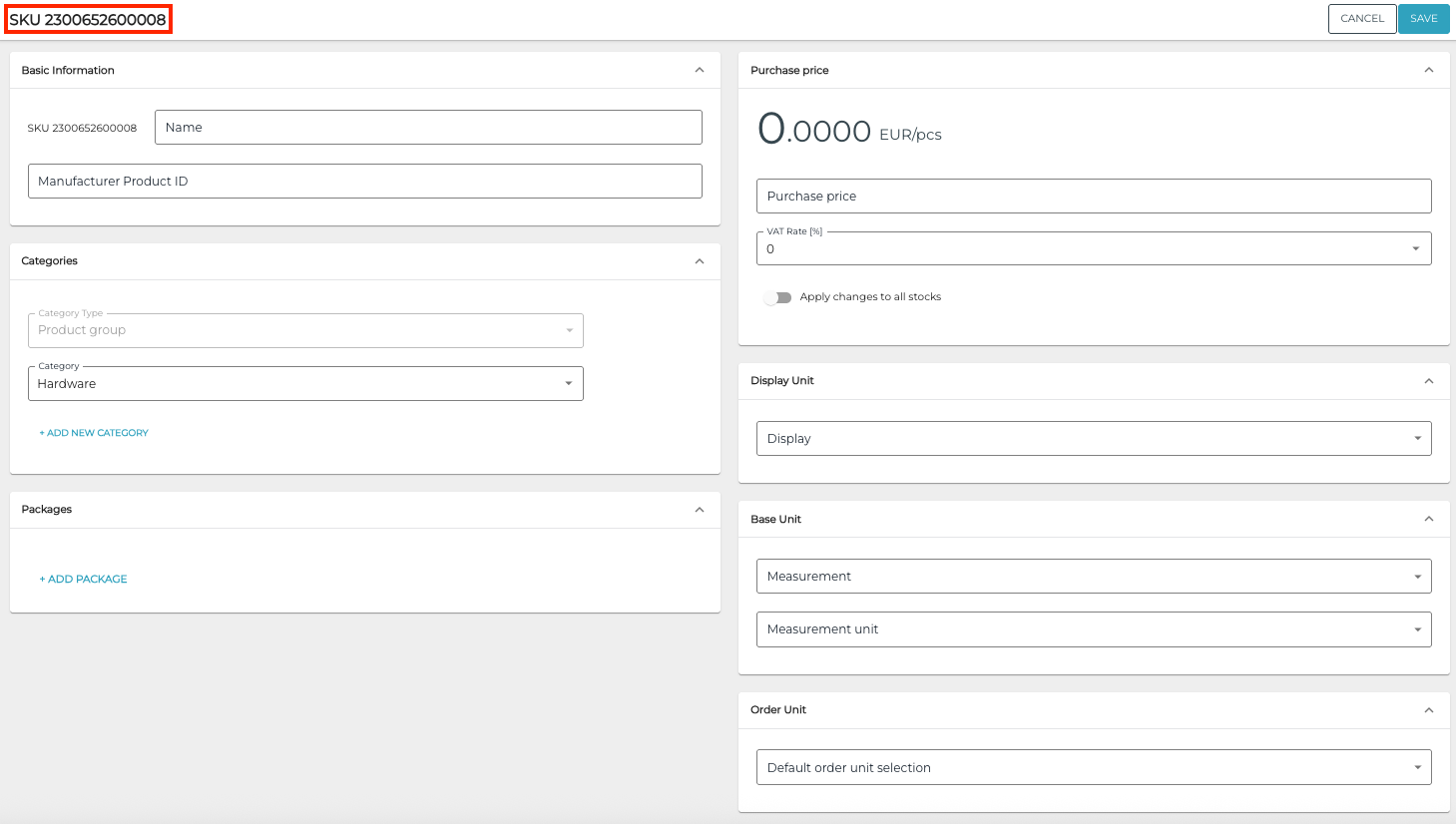
Inventory
You can add a product whose barcode has embedded weight data to the inventory list by scanning the barcode.
This procedure is useful mainly for checking whether the rows of an inventory are with correct amounts. If you have a scanner, using Stock Tool to add the products to the inventory is recommended instead.
-
Scan the barcode of the product in the Inventory view.
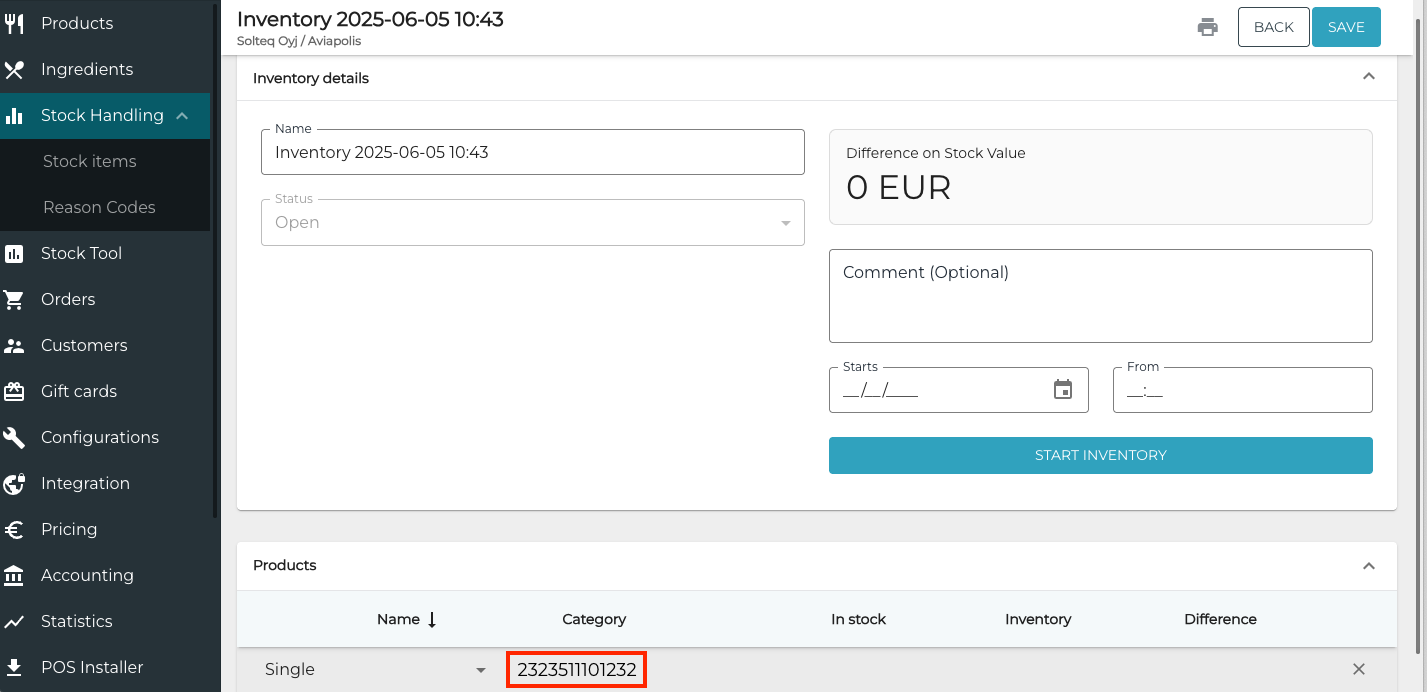
Product search with a weight-embedded barcode -
If the product is found, the SKU without weight data is displayed.

Product found -
When you add the product to inventory by selecting its checkbox, the weight is added to the Inventory column.
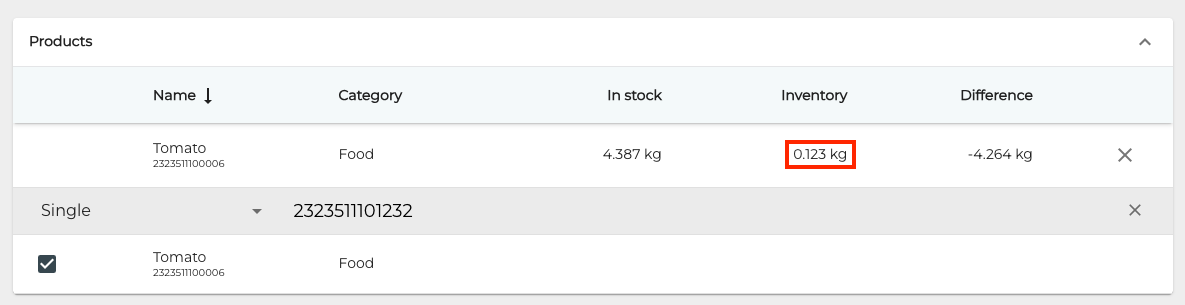
Product weight derived from the barcode
If the product has been already added to the inventory, and its barcode with weight embedded is scanned again, the weight is not added to the inventory; instead, only the row matching the search is displayed.
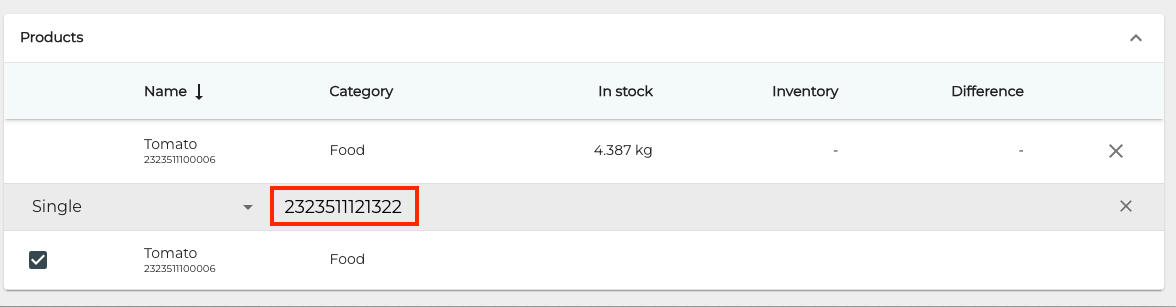
Transaction Orders
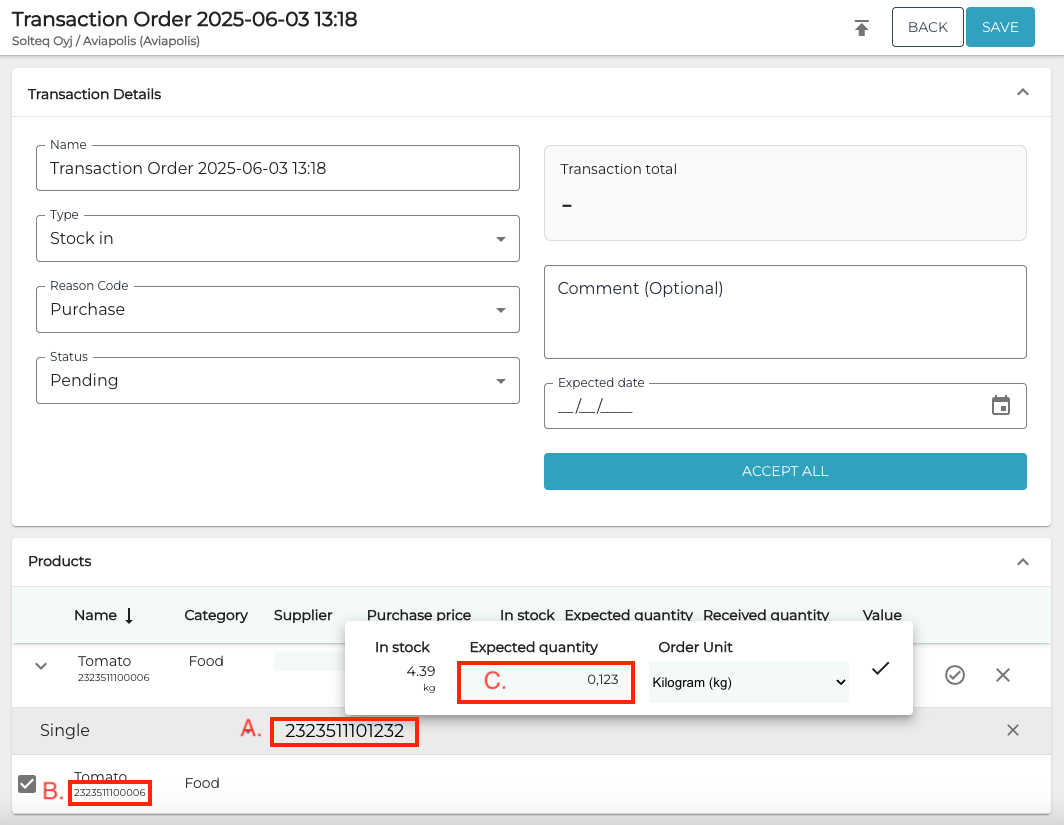
You can add products with embedded weight data in their barcodes to an transaction order by scanning the barcode (A.)
The product's SKU without the weight data is added to the transaction order (B.), and the weight data in the code is added to the Expected quantity field (C.)
This function can only be used for Stock In transaction orders with the Purchase reason code or a custom reason code whose type is Purchase.
If PAR levels have been defined for the SKU, the Expected quantity will be the calculated Preorder level instead of the weight embedded in the barcode.
The calculated Preorder level can also be 0, so you may need to change the Expected quantity when you add the product to the purchase order.
If the product has not yet been added to Solteq Commerce Cloud, it cannot be added to the transaction order.
Transactions
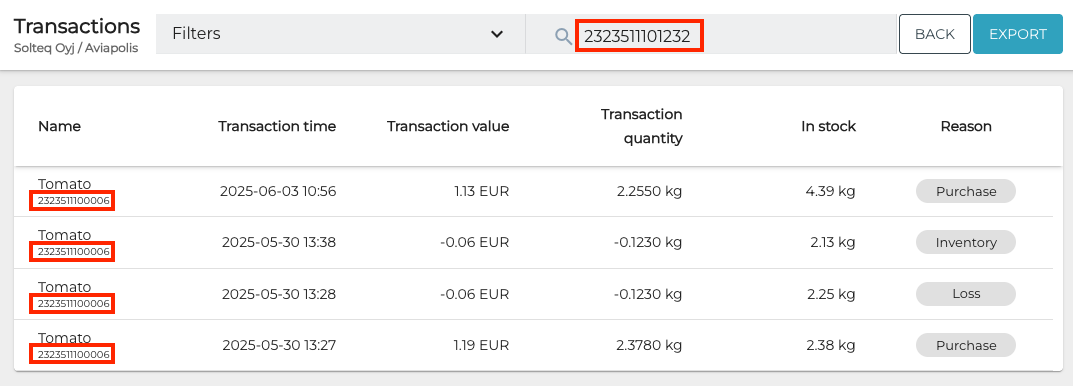
In the Transactions view of the Back Office you can search for stock transactions of products with weight embedded in their barcode: Scan the barcode in the Search field.
The search results will display all the transactions for the product, regardless of the weight (transaction quantity) of these individual products.
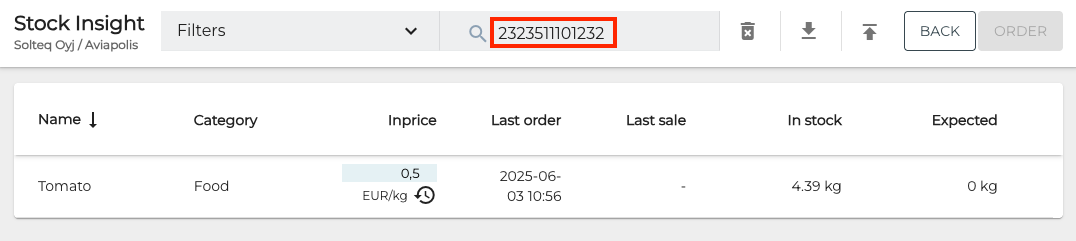
Stock Insight
You can search for stock item information using barcodes which include weight/price data. The search results will display the stock details for items which use the related GKU.
Stock Tool
In the Stock Tool you can use a barcode reader in various tabs to scan barcodes with embedded weight/price data.
The CORRECTION tab is an exemption; if you scan the barcode, the displayed Quantity will be the quantity already in the Stock, not the one derived from the barcode.
When you scan a barcode without embedded weight, the Stock Tool Default Quantity defined in Company Configurations will be added to the Quantity field.
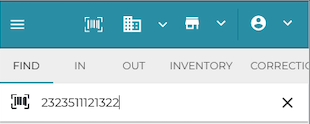
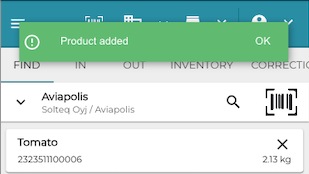
FIND Tab
In the FIND tab you can use the barcode reader to search for products that have barcodes with embedded weight/price data. The found product will have the SKU without the weight/price data, and its amount in the Stock displayed on its row.
IN, OUT and INVENTORY Tabs
You can use the barcode reader to search for products that have barcodes with embedded weight/price data. The found product information will display the SKU without the weight/price data, with weight information displayed in the Quantity field.
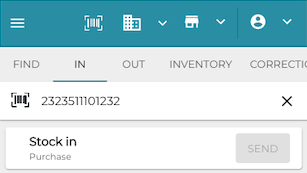
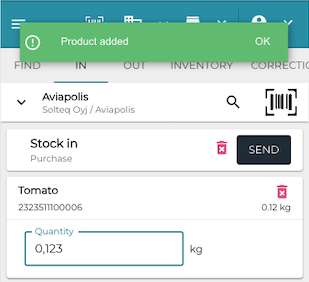
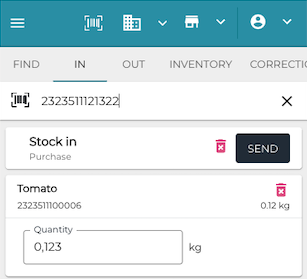
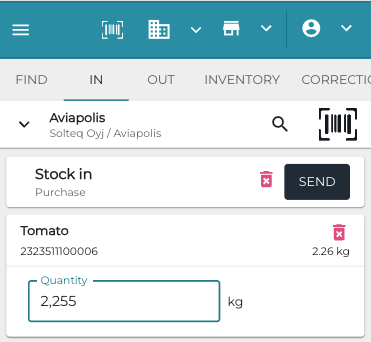
Scanning the same product again with embedded weight data in the barcode will update the quantity.
Scanning a barcode without embedded weight data will increase the Quantity by 1.
Batch Number in Transaction Orders
A new Batch Number field is now included in the Products section of Transaction Orders; you can use it to define the batch for the order. The field is only available in Stock In type transaction orders with Purchase reason code (including custom reason codes whose type is Purchase).

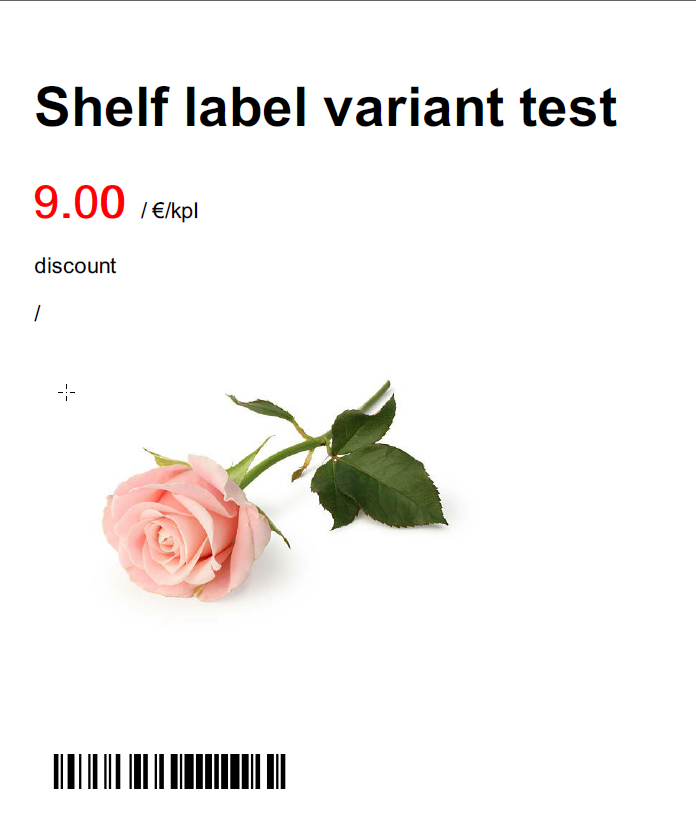
Product Images in Shelf Labels
Product images can now be included in printed shelf labels. Requirements for this are:
-
Product details must include the product image, and
-
the used shelf label template must contain a placeholder for the product image.
Changing the Product Price for One Shelf Label Set
You can change both the printable price and printable discounted price for one shelf label which contains one product.
-
Go to product details and click the Add to active print set icon in the toolbar.
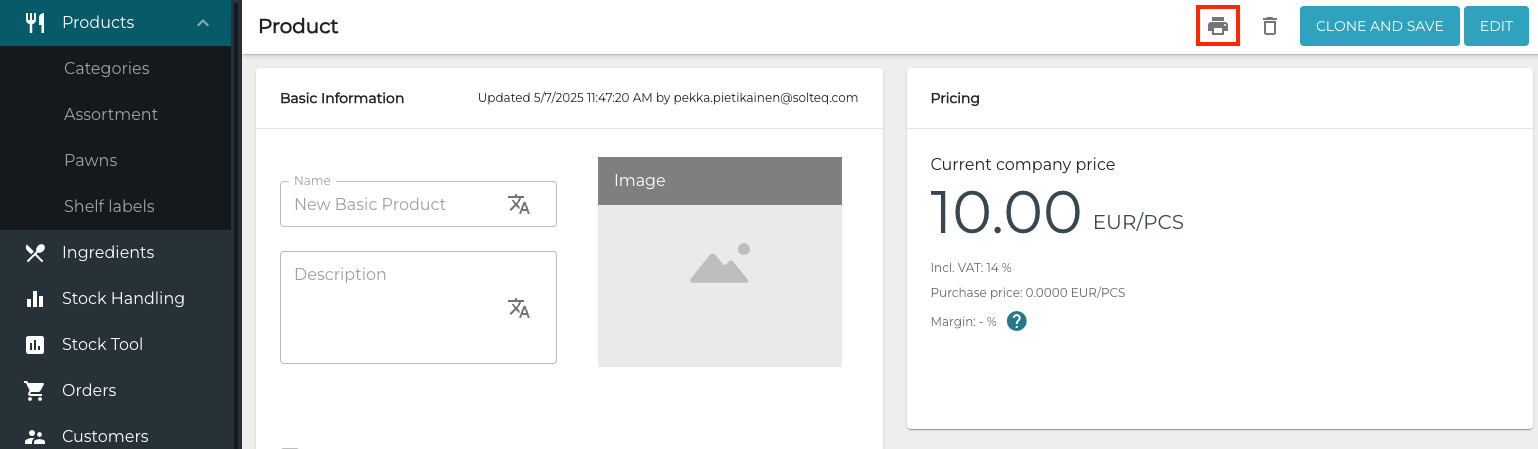
Add to active print set icon -
Next, click Shelf Labels in the Back Office menu.
-
Click the row of the shelf label set you just created.
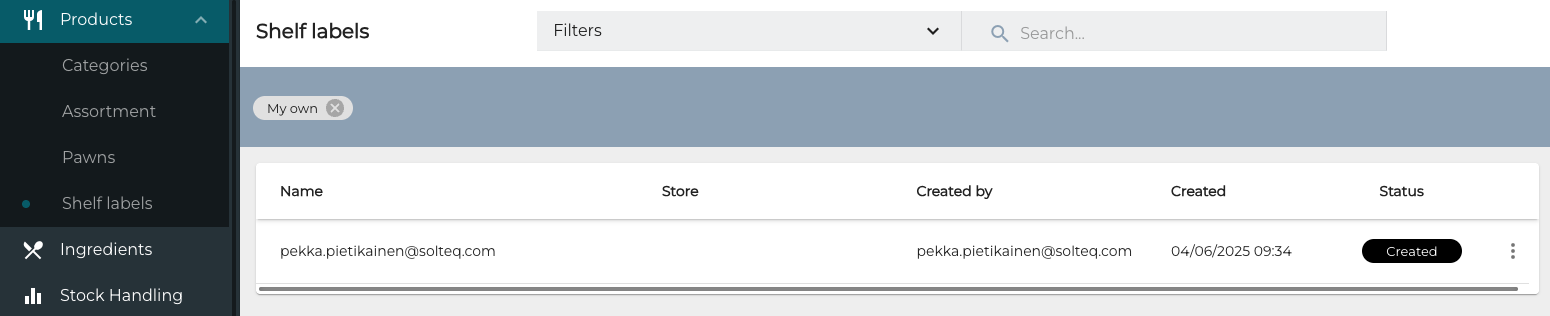
New shelf label set -
Collected shelf labels view is displayed. Now you can change both Printable price and Printable discounted price for the product.

Changing the Printable price and Printable discounted price -
Click Print.
-
Select the Shelf label print out template.
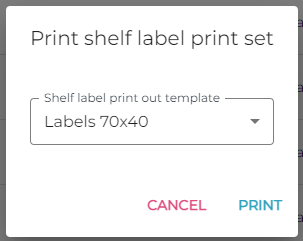
Selecting the shelf label print out template -
Click Print.
-
A PDF file with the shelf labels will be generated and downloaded to your computer (based on your browser configurations).