
Configuring Custom Self-Checkout Layouts
A number of new features are introduced in this release to help you create and manage visually striking and easy-to-use custom Self-Checkout layouts. The Designer view of the Back Office contains a new Self-Checkout tab, in which you can create and modify custom Self-Checkout layouts.
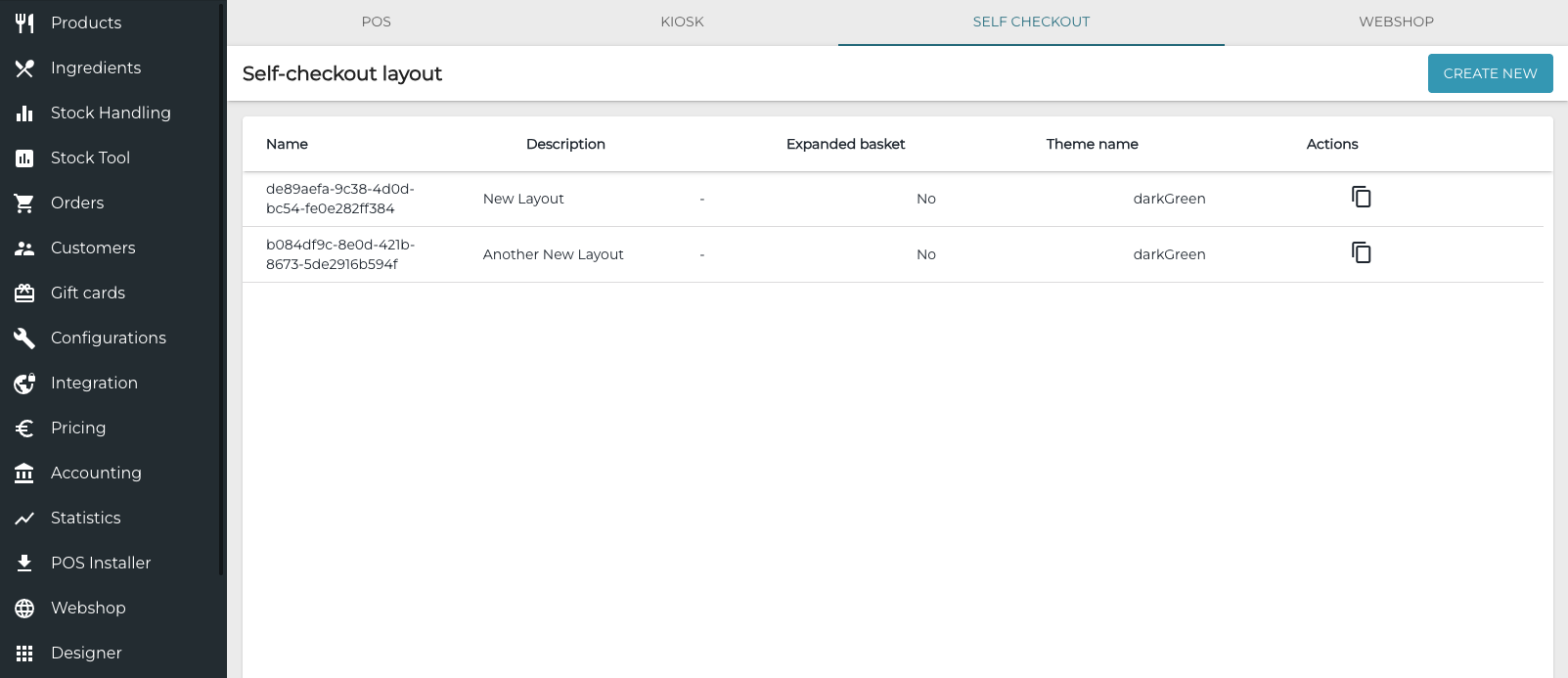
In the layout settings you can define custom
-
header texts and free texts
-
color scheme used in the layout
-
visual assets (images and video files) used in the screens.
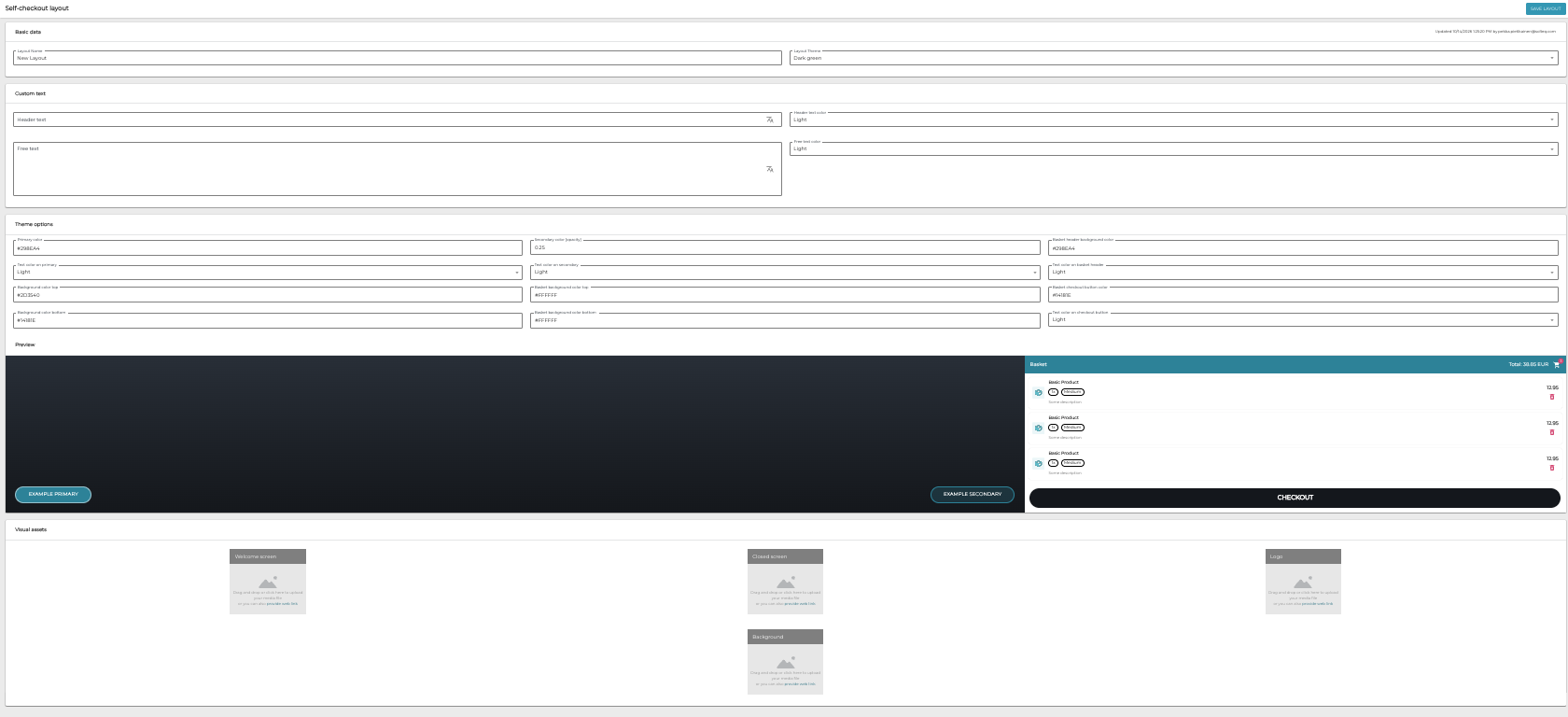
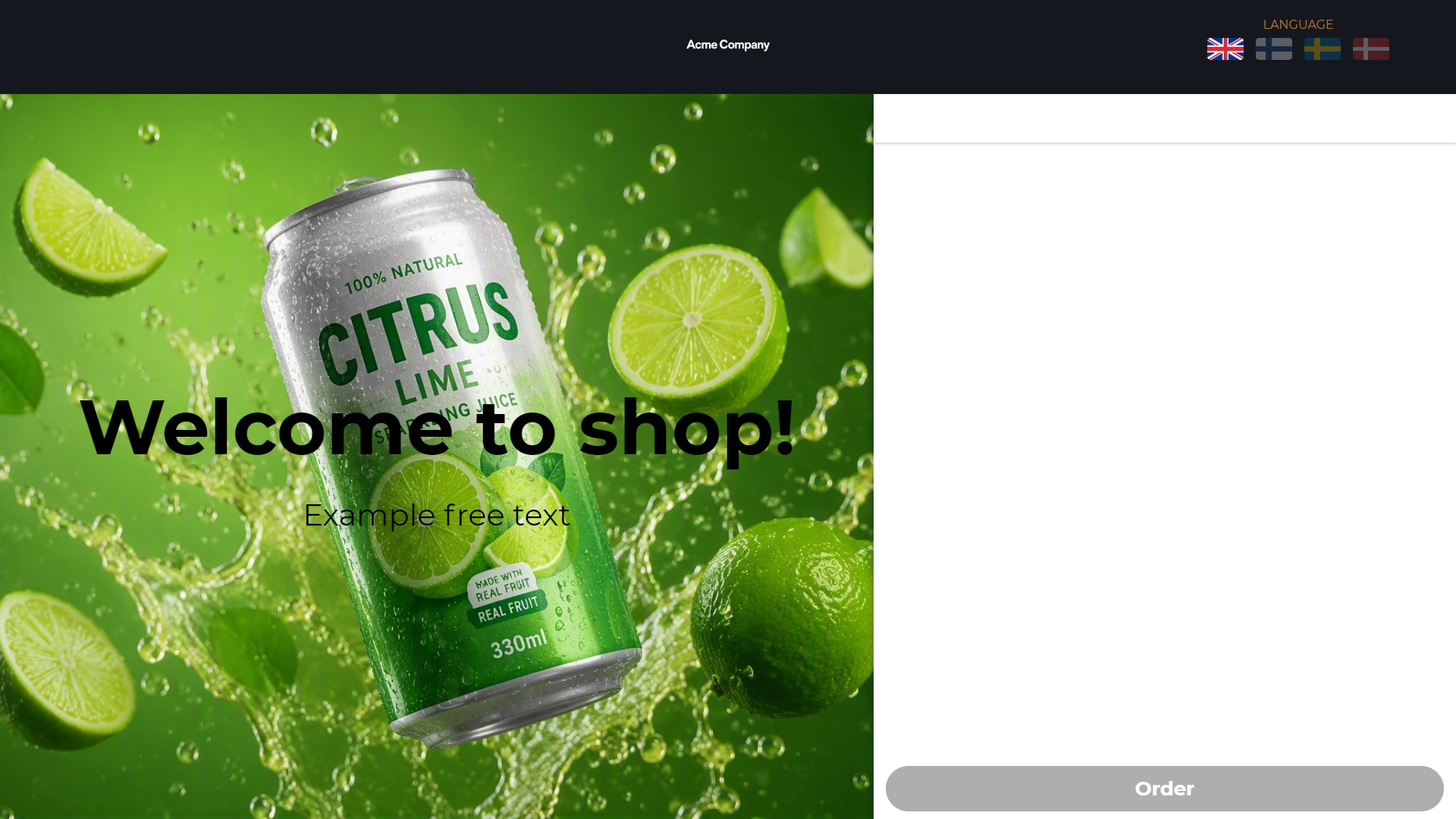
See Self-Checkout Layout for more information and detailed instructions.
Self-Service Kiosk Updates
Various general improvements and updates have been made to the UI elements in self-service Kiosk screens to enhance usability and visual clarity. In addition, a number of brand new features for self-service Kiosks are included in this release, detailed below.
Return to First Tab Setting
Custom Kiosk layout settings contain a new setting: Return to first tab. When this setting is enabled, the first tab defined in the Kiosk layout will always be displayed when an order is completed.
Infinite Scrolling
If Infinite Scroll has been enabled in the Kiosk Layout’s Basic Data, the Kiosk screens will continuously display product images in the Kiosk screens when the customer scrolls through the menu; the products of the next or previous tab will be automatically displayed when the customer reaches the end of the products menu in a single tab. See the video example below.
Featured Tabs
You can now add Featured Tabs to your kiosk screens to make visually distinct tabs for promotions, different product brands, and such.
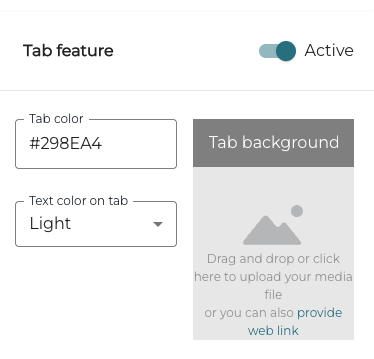
If Featured tabs has been enabled in the Kiosk layout’s Basic data, you can designate one or more tabs as a featured tabs with a separate tab color and text color from the default settings defined in Theme Options of the kiosk layout. In addition you can drag-and-drop, upload, or link an image file to be used as the background image for a tab.
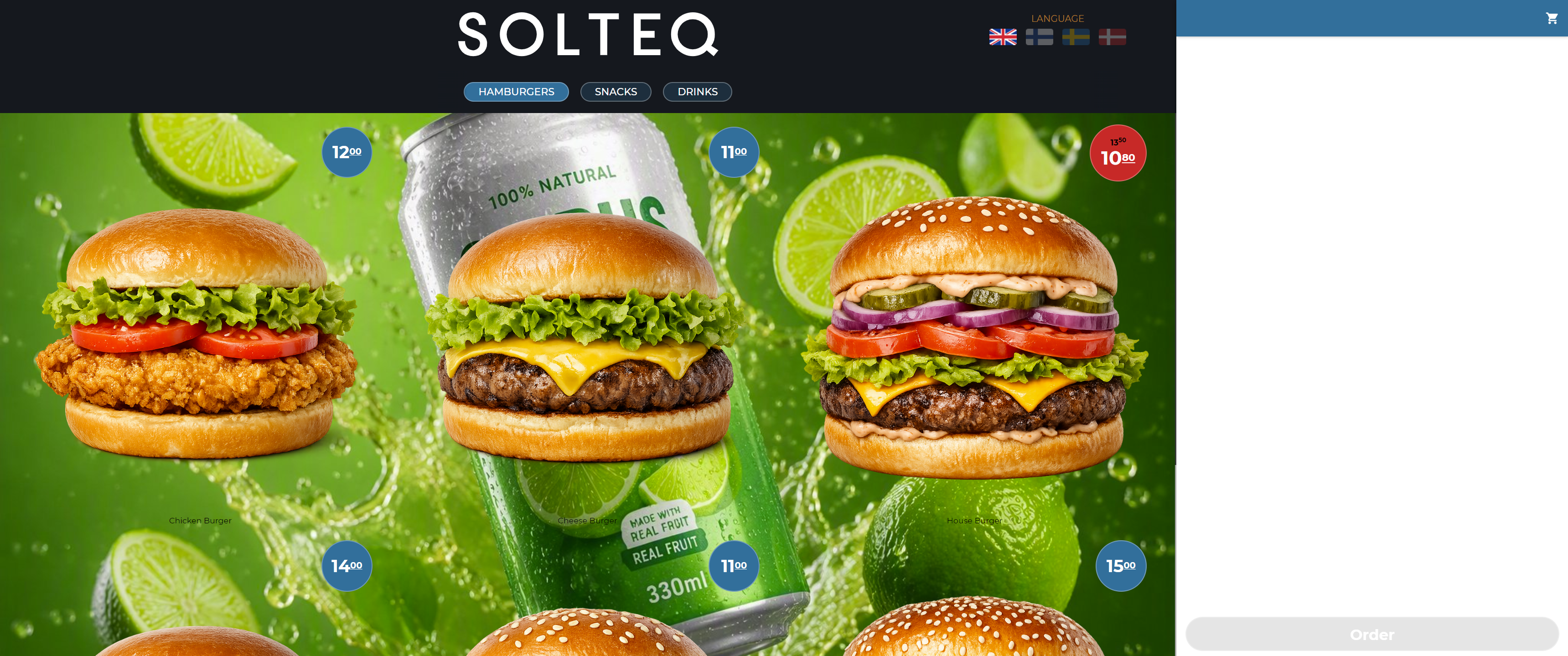
When Featured tabs has been enabled, tab settings contain a Tab feature switch; click it to Active position to define featured tab details.
Visual Assets
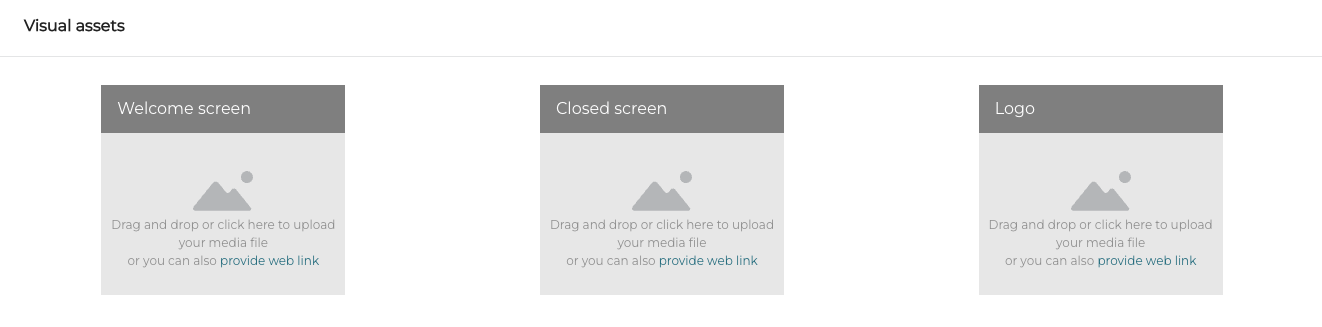
You can now define Visual Assets (image or video files) to be used in Kiosk’s Welcome and Closed screens, as well as add you company logo. Welcome screen media will be displayed on the Kiosk screen when the terminal is currently inactive, and Closed screen media will be displayed on screen when the terminal is closed. Logo will be displayed on top of the screen.
You can add images to be used in the Kiosk screens by dragging-and-dropping them directly to the Welcome screen, Closed Screen and/or Logo fields.
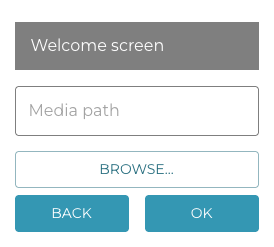
You can also click one of the fields and then either browse and select the image, or enter the web address of the image.
Translations for Kiosk Tabs and Tiles
Translations can also be added to Kiosk tiles in Tile options. These will override any translations defined in the product details.
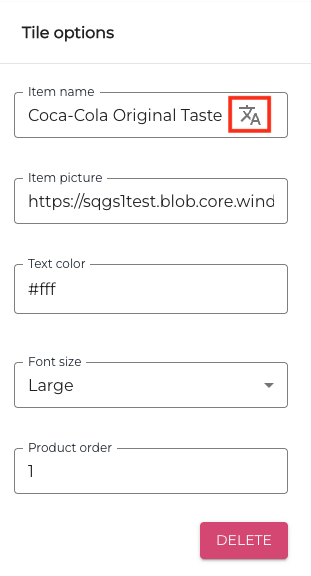
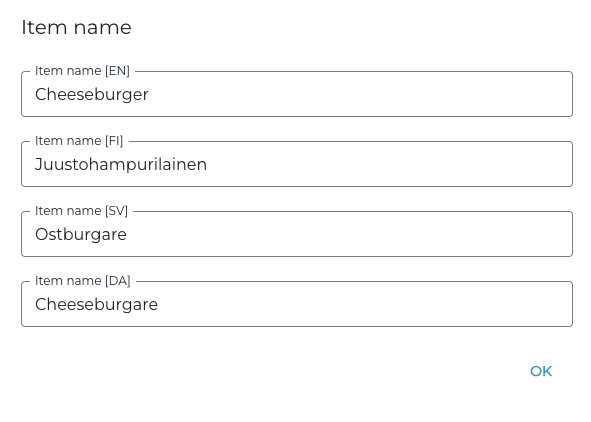
In addition, linked web images in a product tile’s Item Picture field are now displayed in Kiosk screens (product details and/or in Basket).
Storage Fee for Drop-Off Items
When using the Services functionality, you can now create a company-level storage fee for drop-off items which are not collected in due time. This is done in the Service Fee view of the Back Office.
To access the view, click Services in the Back Office menu, and select Storage Fee.
To access the view you need to belong to a user group with Services: Read/Modify permissions, and Show method and place codes enabled.
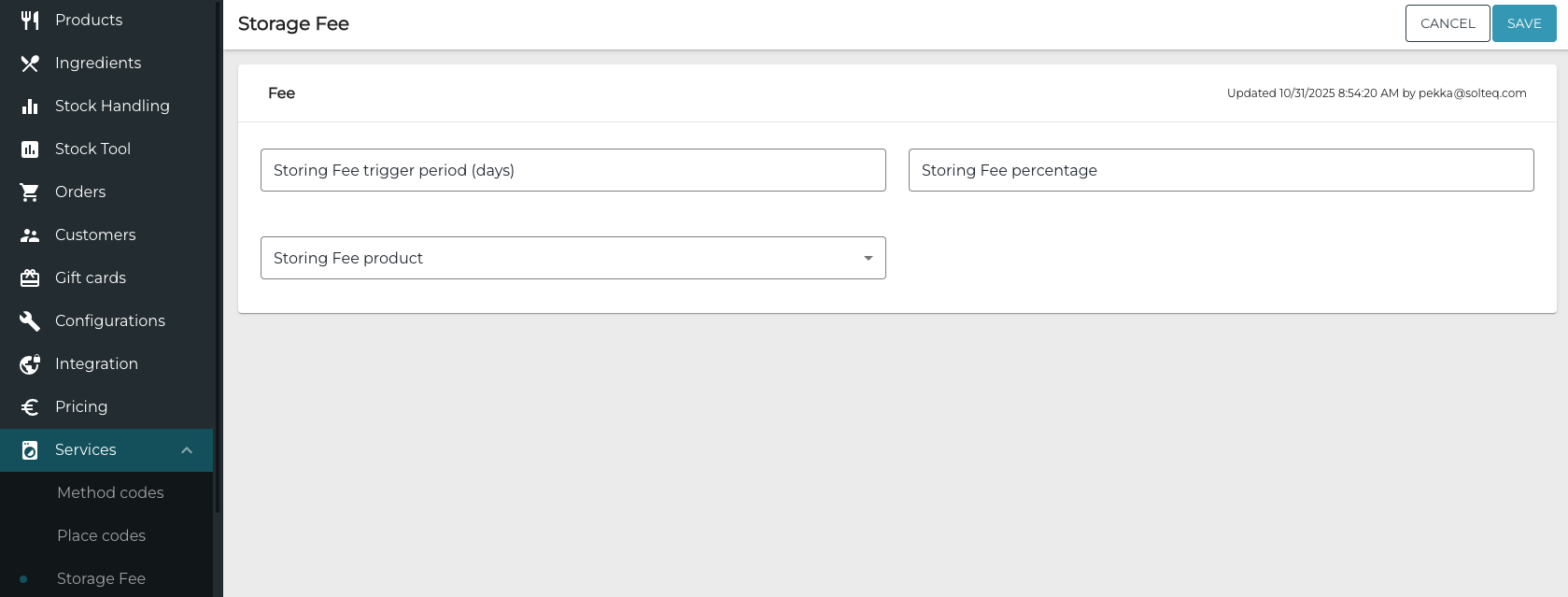
In the Storage Fee view you can define the following settings for the storage fee:
-
Storing Fee Trigger Period (Days)
-
The amount of time it will take after the delivery time defined in Place Codes has expired for a drop-off item, after which the storage fee will be applied.
-
If the order contains multiple rows, the row which exceeds the storing fee triggering period last is the deciding one.
-
For example: If the order contains three rows and only two of them have exceeded the triggering period when the order is picked up by the customer, the storing fee will not be charged from the customer.
-
-
Storing Fee Percentage
-
The storing fee is calculated as a percentage from the total price of the order rows which have exceeded the storing fee trigger period when the order is collected by the customer; the fee will be then added to the total price of the order.
-
-
Storing Fee Product
-
Create a separate Service Product which is then is added to the order if some or all the rows in the order exceed the storing fee trigger period.
-
-
You can also define automatic messages which will be sent to customers regarding their drop-off items:
-
Ready for Pickup
-
Free Storage Period Expiring
-
Storage Period Expiring
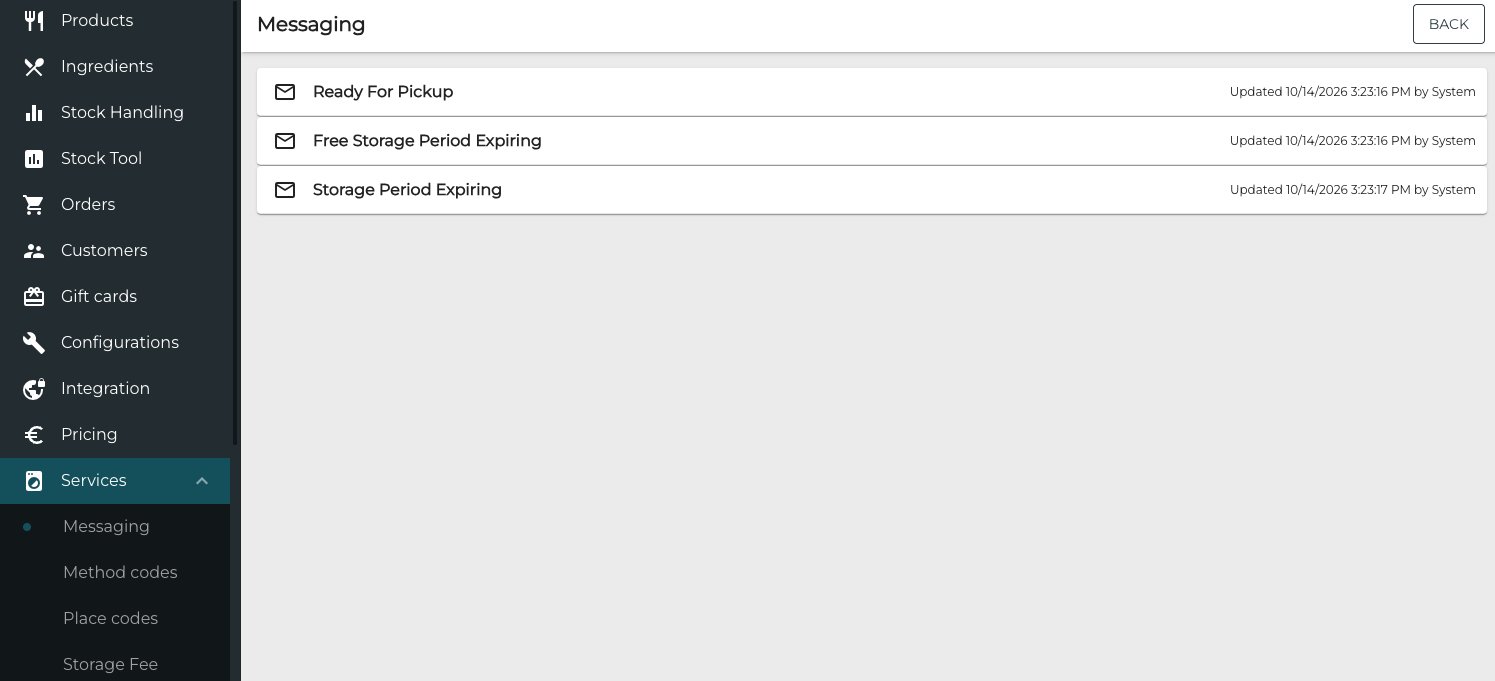
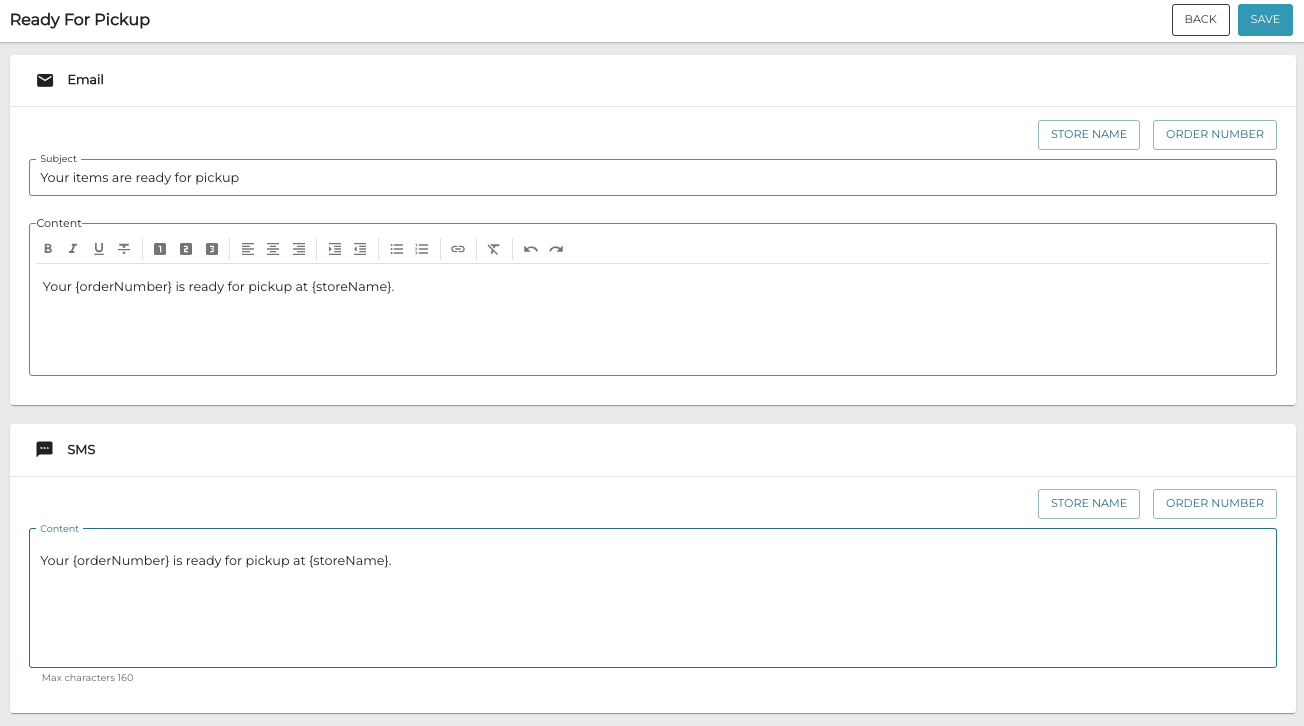
For more information and instructions, see Storage Fee and Messaging.
Other Improvements and Fixes
-
It is now possible to use commas instead of periods as decimal separator in POSs. The change applies only POSs; Self-Service Kiosks and Checkouts, Webshops and Back Office views remain unchanged. To use commas instead of periods in POSs, enable the Use comma as decimal separator on POS setting in Company Configurations.

-
Corrected the problem which appeared when navigating from product details to a stock item via the SKU Identifier link: When using the Back button or product link in the bottom of stock item details to return to the product details, the product's categories changed or were removed.
-
Corrected the problem in Sales Report download, which caused some fields in the SKU column to be empty, especially for variant product rows.