
Introducing CC Buddy: AI Assistant for Back Office Users
This release introduces CC Buddy - an AI-powered assistant for Solteq Commerce Cloud Back Office users.
With the help of CC Buddy you can you explore sales and business performance simply by asking questions: You can request information about sales, orders, discounts, taxes, average order values, products and product groups, or compare performance across stores, POS terminals, employees, and cost centers. You can freely define the time period to be viewed as well.
Can't remember how something works? Just ask Buddy. Ask how to perform a task, activate a function, or find a setting, and Buddy searches the current Solteq Commerce Cloud documentation for the answer – including the source, so you can explore the instructions further when needed.
CC Buddy has been implemented using Azure OpenAI. All data will be residing in the EU.
See the example video below.
The answers CC Buddy provides are based on your business data and Solteq Commerce Cloud User Manual. If the information is not available, CC Buddy will tell you this, rather than inventing an answer.
CC Buddy follows the same access rights as defined in the Solteq Commerce Cloud user group permissions; users receive answers based on the business information they already have permission to access.
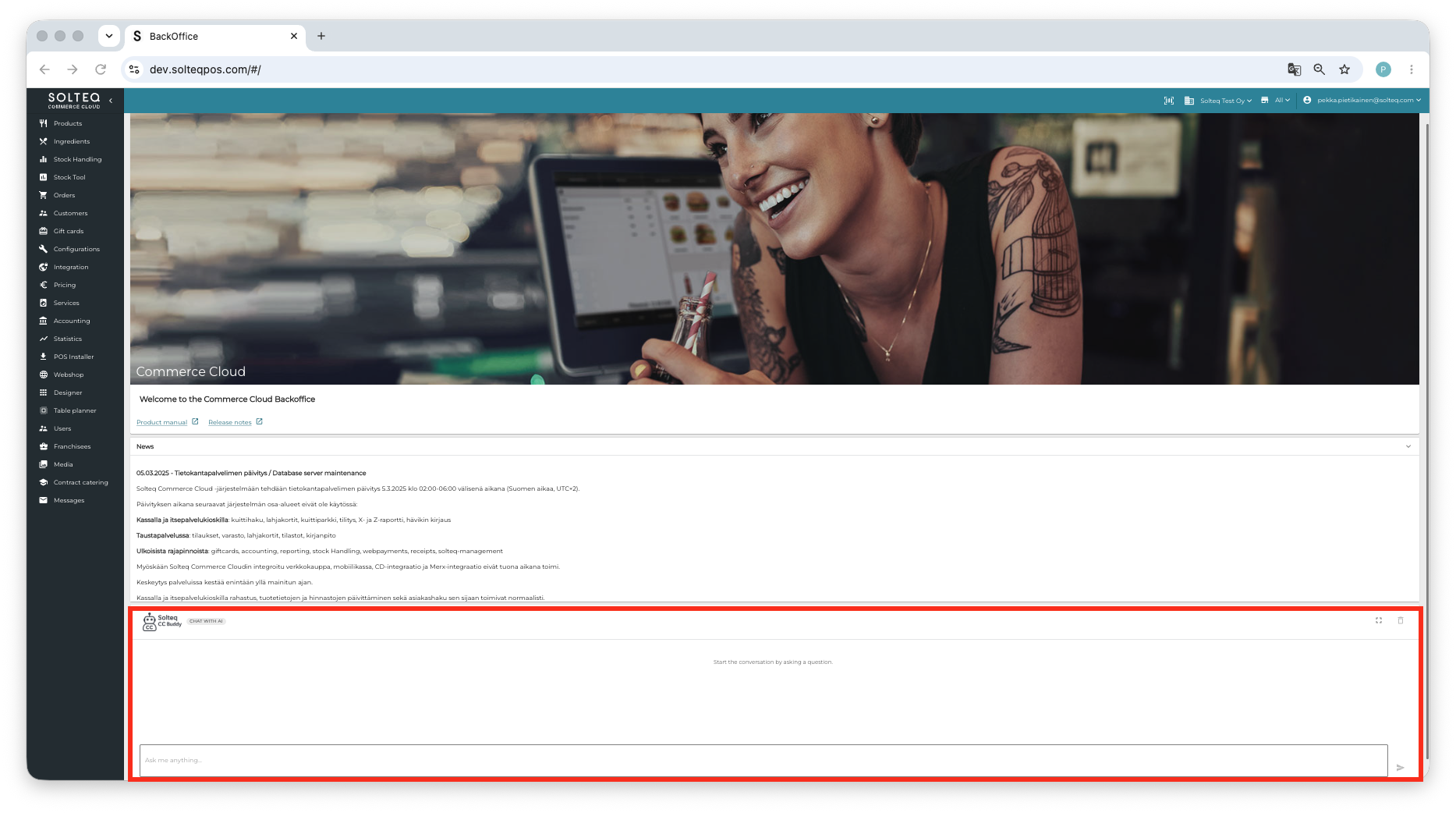
You can find CC Buddy in the bottom of the Solteq Commerce Cloud Back Office main page.
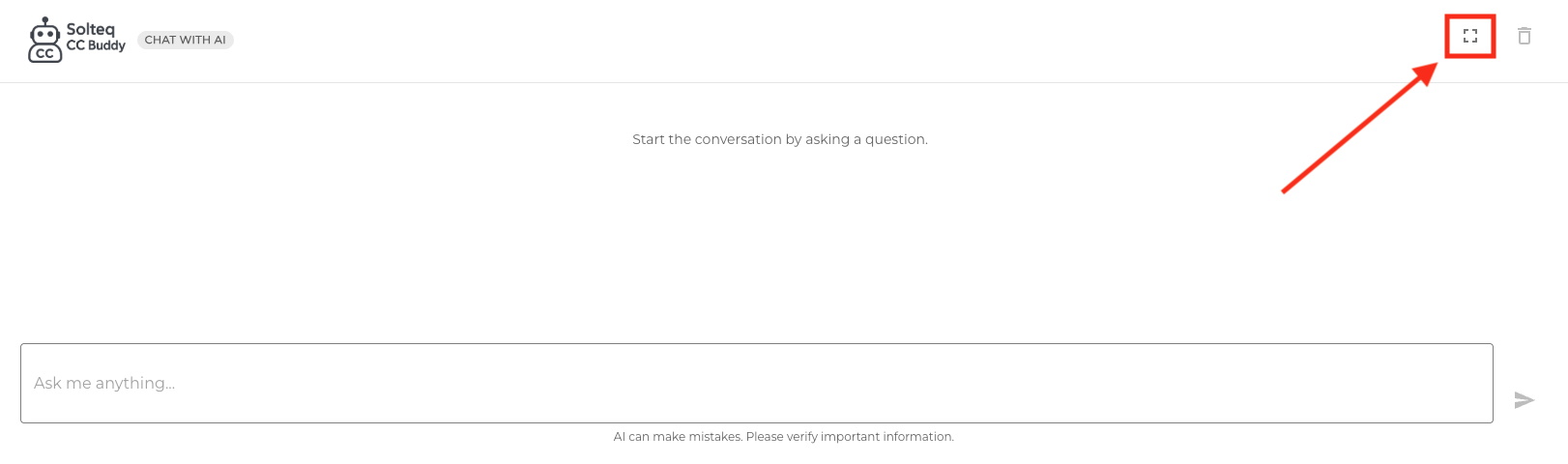
You can expand/collapse CC Buddy by clicking on the Expand/Collapse icon.
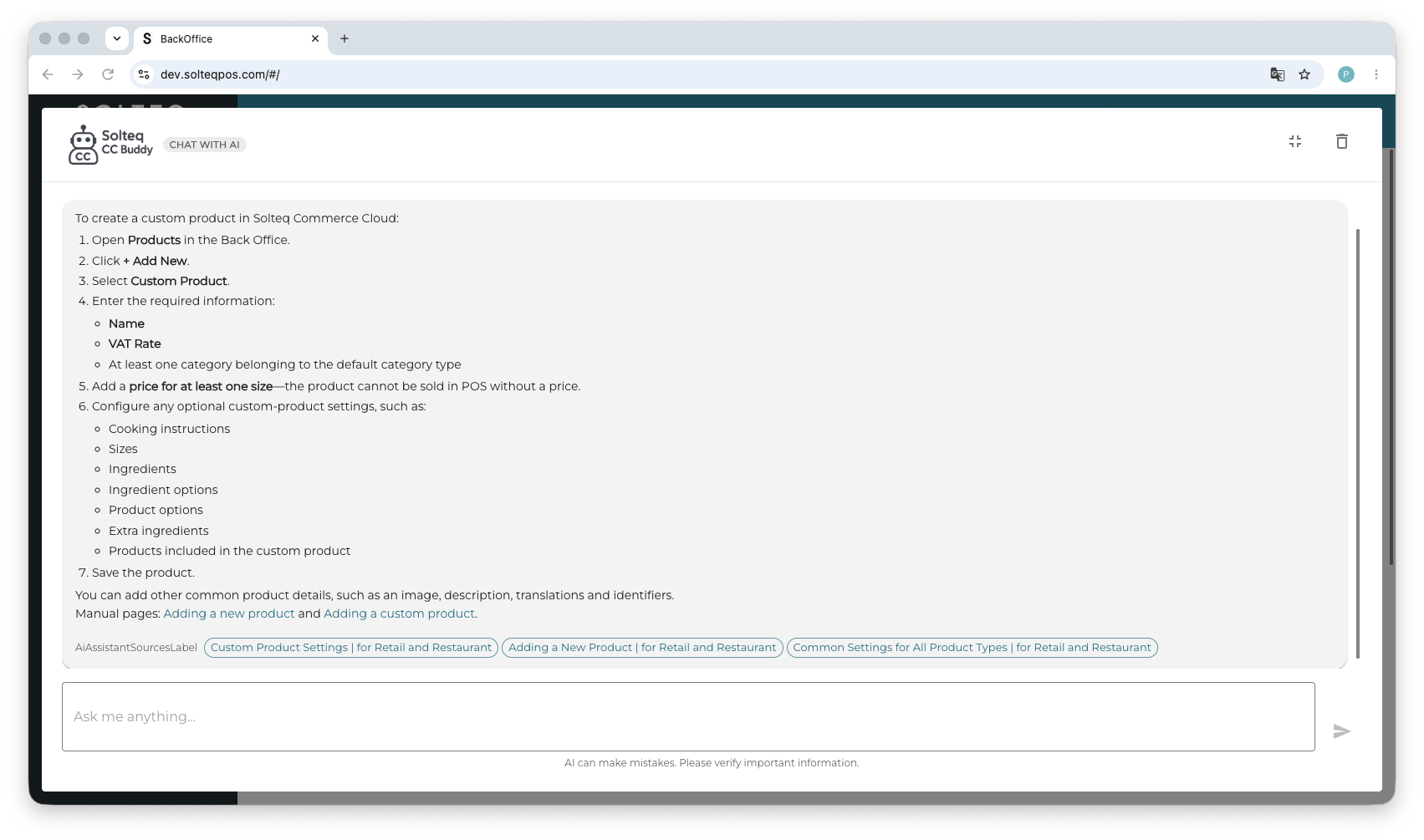
Let CC Buddy help you find solutions and answers!
Full Product Images in Kiosk
You can now enable Full Product Images for Kiosk screens.
If Full Product Images have been enabled in the Kiosk Layout’s Basic Data, the Kiosk screens will display full (not partially cropped/half-visible) product images in all Kiosk screens.
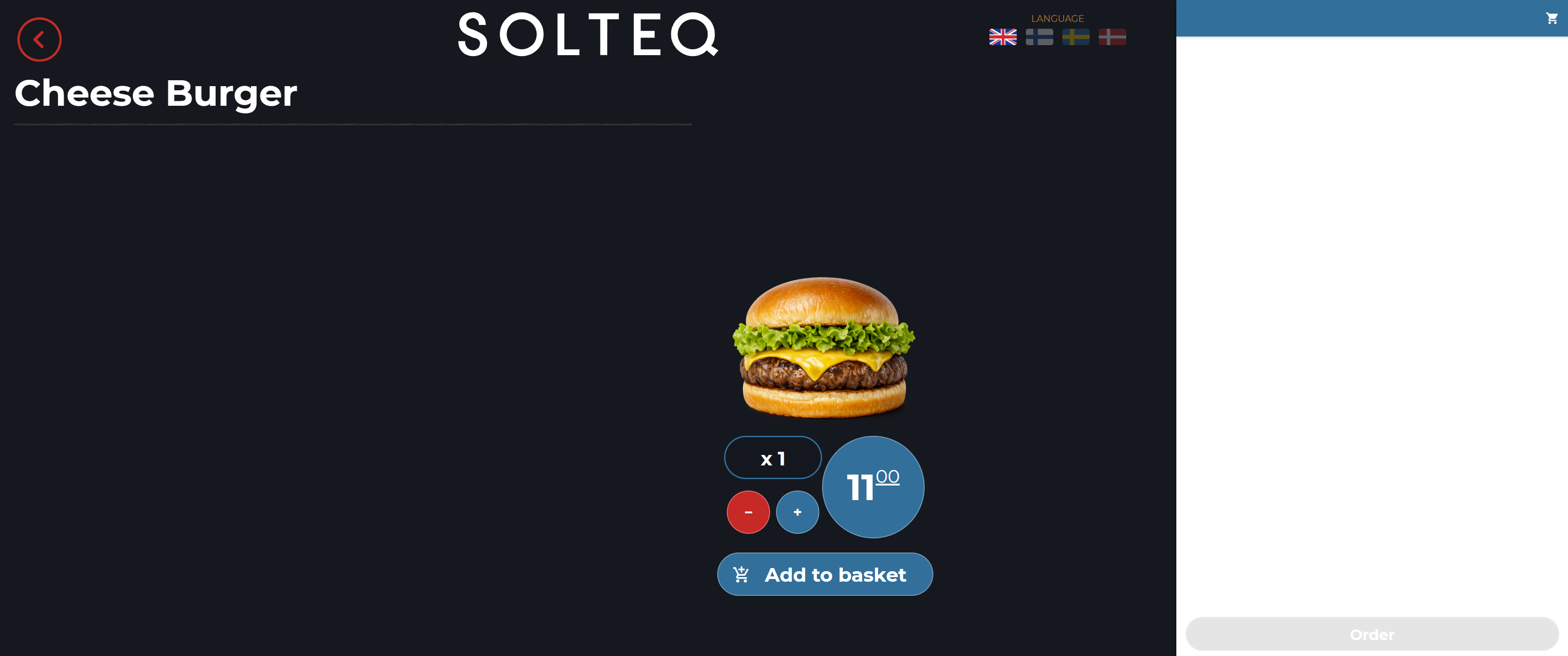
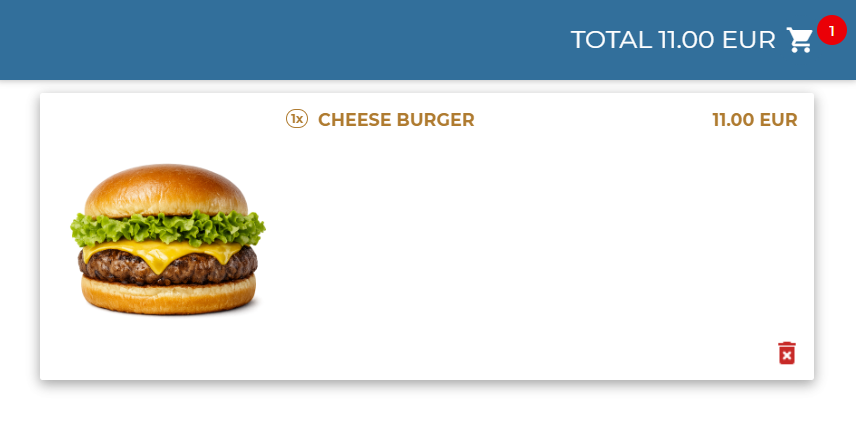
For more information, see Creating a Custom Kiosk Product Menu.
Displaying Table’s Orders by Scanning its QR Code
POS users can scan a printed QR code which contains a reference number (table number when Table Planner is enabled); the table’s open orders will the be displayed in the POS Basket. This cuts down the time spent for manual searching, and reduces possible errors.
When the scanned input (search term) begins with the prefix _ref, the system uses the value after _ref to search for open orders by table name/reference via the order park search functionality, and then proceeds to open the matching order to the Basket.
If no matching open order exists, POS will display the error message “Order not found”.
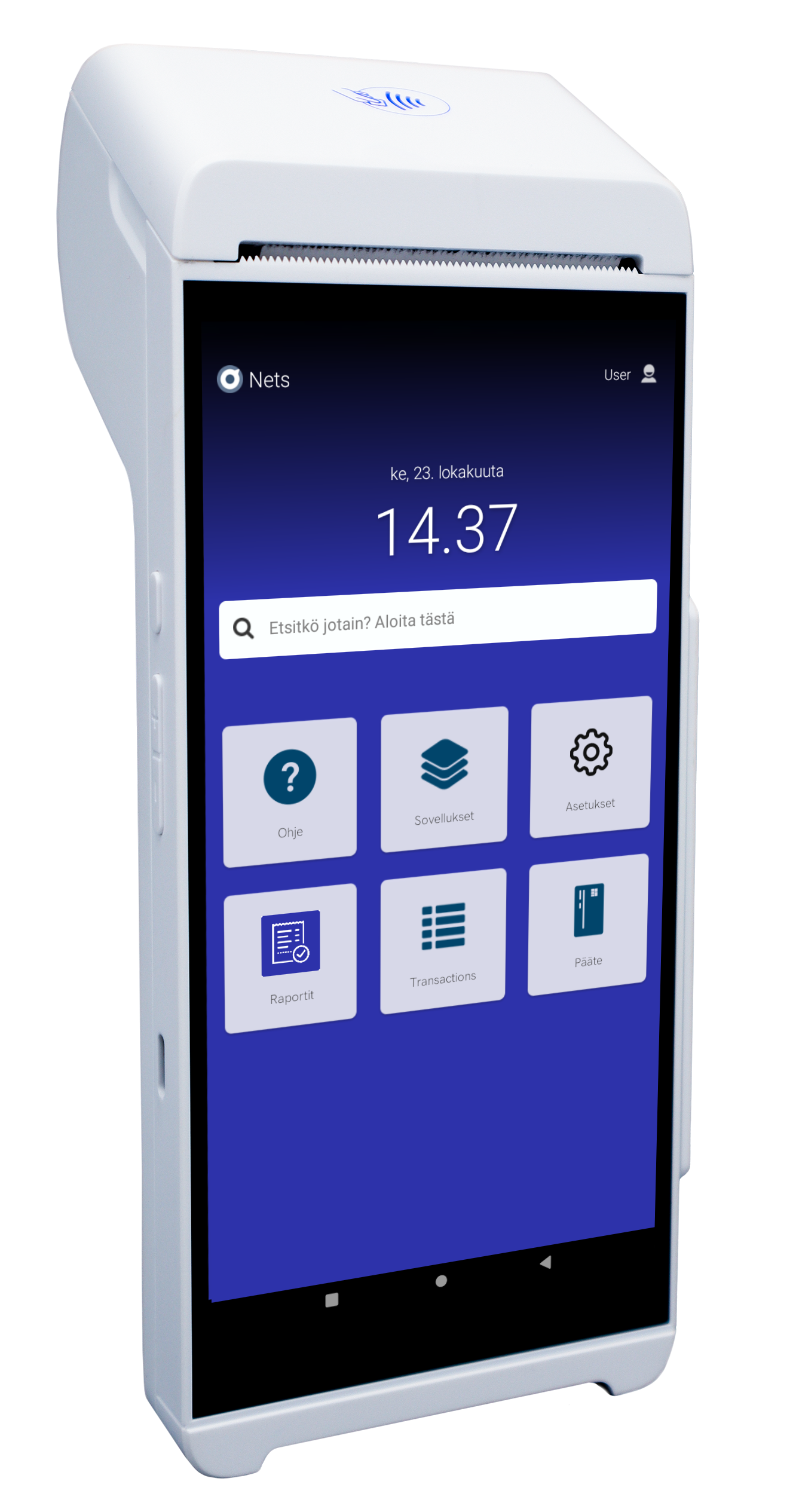
Support for Nets/Nexi SmartPOS Payment Terminals
Solteq Commerce Cloud POSs and Self-Service Checkouts/Kiosks now support payments using the following payment terminals:
-
Nets/Nexi SmartPOS P300
-
Nets/Nexi SmartPOS N950
The Nets/Nexi SmartPOS N950 is a portable, all-in-one mobile payment terminal with a built-in printer and battery, whereas the SmartPOS P300 is a multilane desktop payment terminal designed for fixed, high-volume checkout lanes.
|
|
SmartPOS N950 |
SmartPOS P300 |
|---|---|---|
|
Intended Use & Form Factor |
Portable and mobile. Includes an integrated battery and 4G connectivity, making it ideal for mobile sales, restaurants, or businesses where the terminal needs to be moved around. |
Stationary (multilane). Designed for fixed integration at high-volume cashier desks, retail checkout counters, or self-service checkouts with continuous, heavy usage. |
|
Design & Interface |
Large, single full touchscreen display for merchant/customer interactions. |
5-inch touchscreen combined with a dedicated, physical ergonomic PIN keypad for fast numerical input. |
|
Operating System |
Typically runs on Android 10 or Poynt/Android ecosystem variations. |
Runs on a newer Android 11 platform optimized for retail line integrations. |
|
App Ecosystem |
Supports the Android-based SmartPOS app ecosystem, including digital receipts, tipping, and loyalty programs. |
Supports the Android-based SmartPOS app ecosystem, including digital receipts, tipping, and loyalty programs. |
For more information, see the Nets/Nexi SmartPOS website. Please contact Solteq Customer Service if you would like to take SmartPOS payment terminals into use.
Customer Satisfaction Query in POS Customer Display
You can now use post-transaction customer satisfaction surveys in touchscreen customer displays to gauge customer satisfaction.
If you would like to take touchscreen customer displays in use in your company, please contact Solteq Customer Service.
When the Customer Satisfaction Query functionality has been taken into use, the customer can provide feedback on the purchase transaction by pressing one of the options below on the display’s touch screen.





The query is displayed only after successful payment, not for failed payments, voiding or other such transactions.

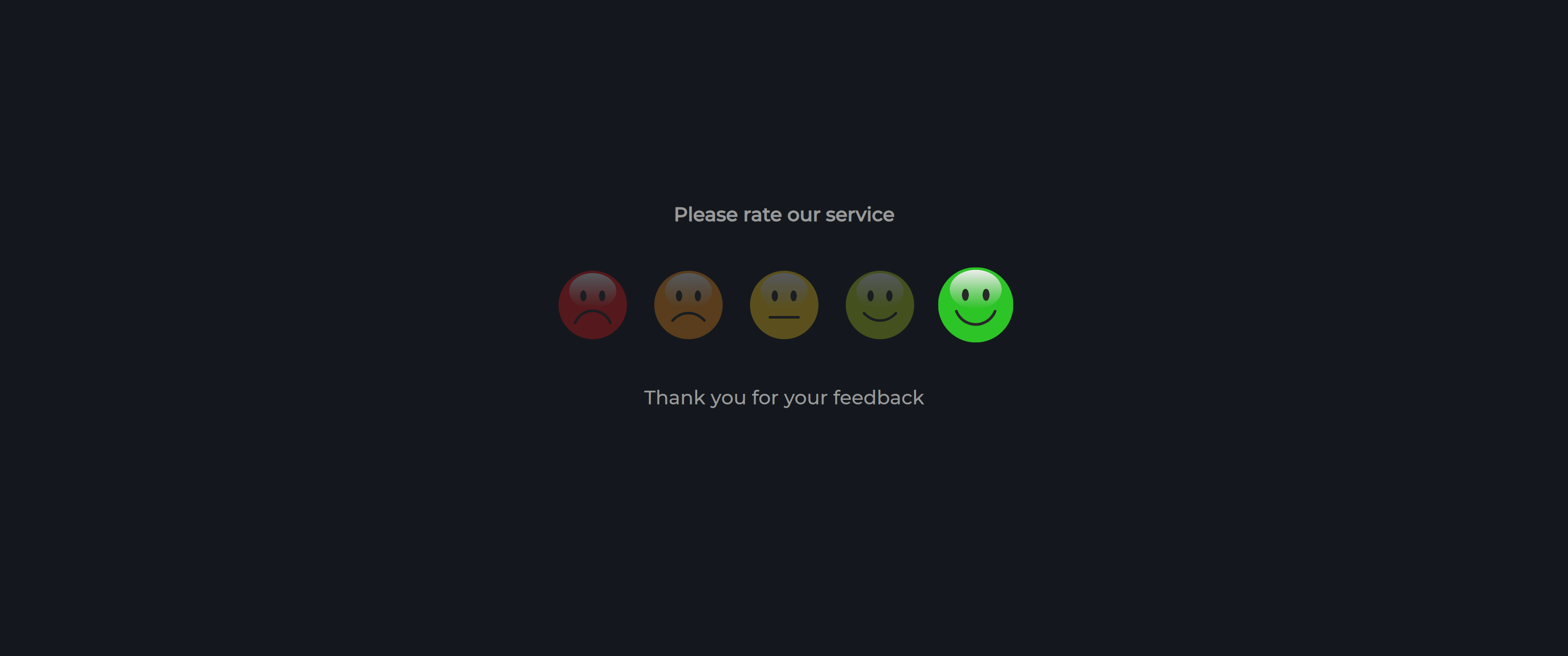
English, Finnish, Swedish, Danish and Polish translations are available for the texts displayed for the customer.
To enable the usage of Customer Satisfaction survey, you must have taken touchscreen Customer Display into use, and enabled the Customer Satisfaction Query settings in both Company Configurations and the workstation’s Interaction Service settings.
Customer Satisfaction query results can be viewed in Statistics.
You can view customer satisfaction statistics for the selected time period; you can also use additional criteria such as Company, Store, Cost Unit, Workstation and User to filter the data.
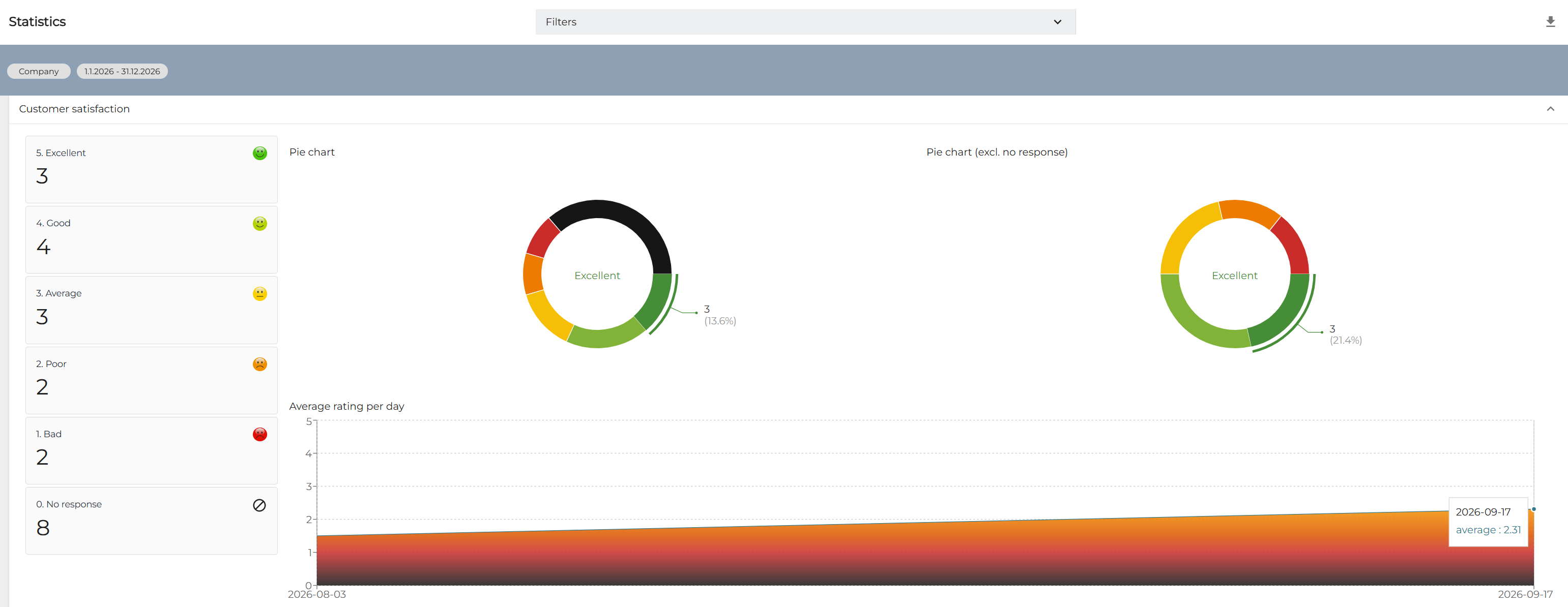
For more information, see Customer Satisfaction Query.
Franchisees
You can create, view and modify franchisee information in the Franchisees view of the Back Office. Frachisee data can then be fetched to external systems from the Solteq Commerce Cloud by using API.
When Franchisees has been enabled in Company Configurations, Franchisees is displayed in the Back Office menu; click it to display the view.
In order to access the Frachisees view, you also need to belong to a user group with Franchises: Read and/or Modify permissions.
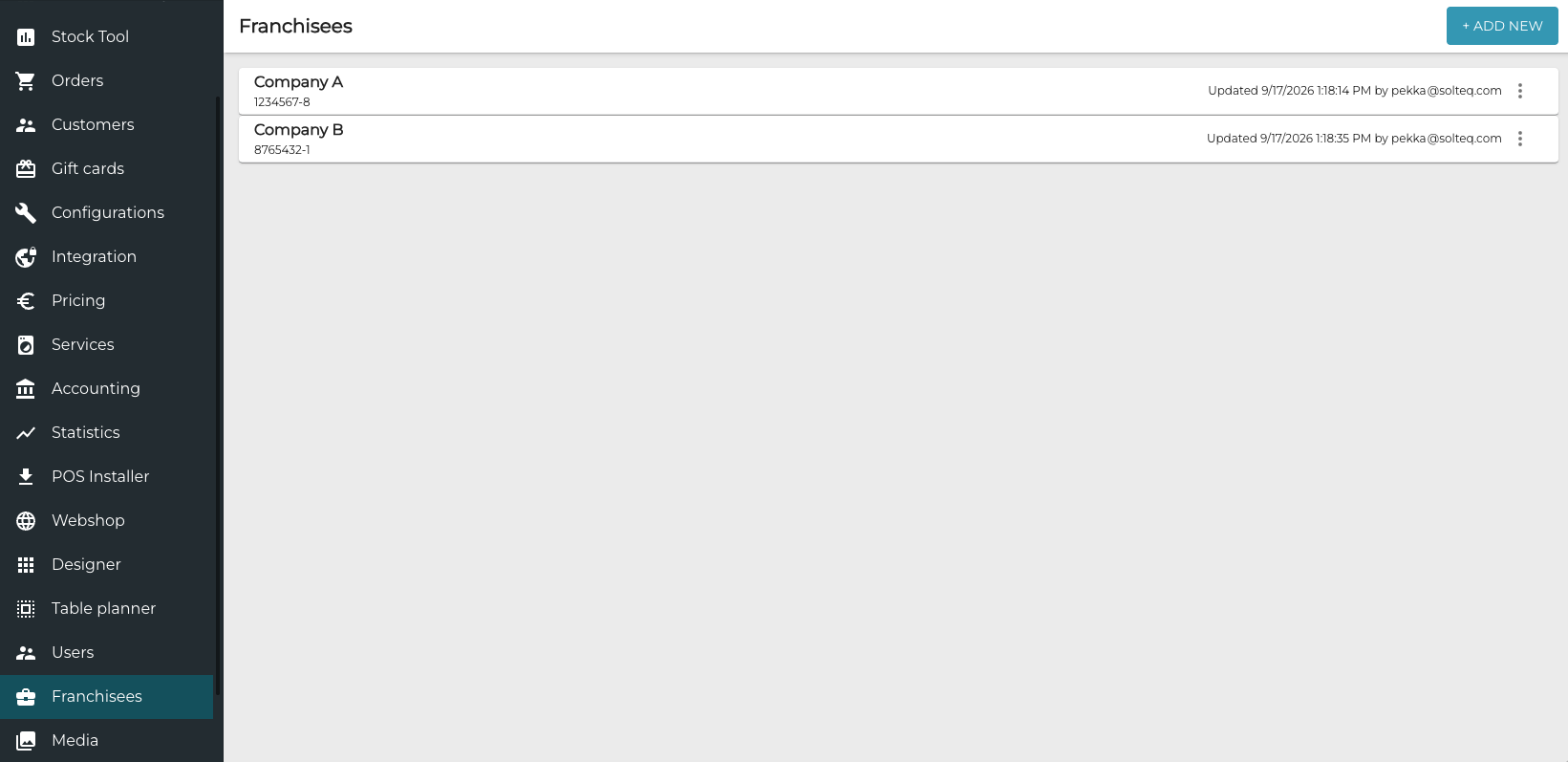
To view or modify details of a franchisee, click its row.
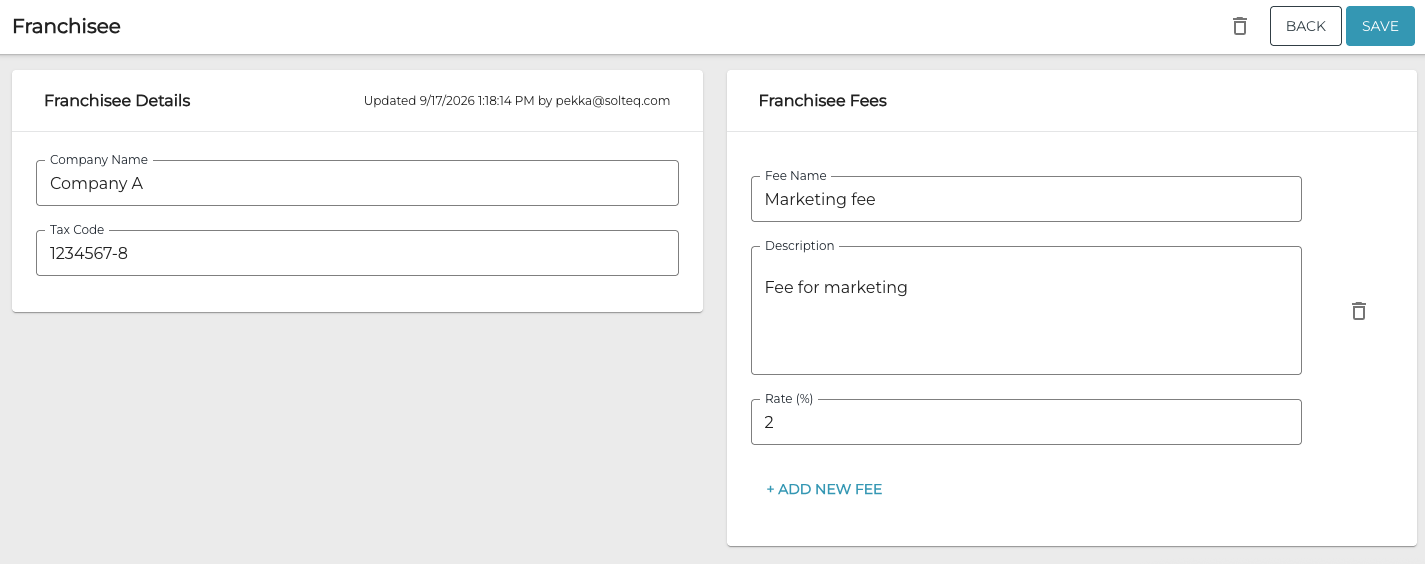
Franchisee Details can contain one or several franchisee fees, which is the percentage the franchisee pays the parent company.
For more information, see Franchisees.
Other Improvements and Fixes
-
Accounting account names are now included in order data coming from external APIs.
-
Improvements have been made to Microsoft Azure cloud service to improve performance.
-
Improvements have been made to the query response times in Stock Handling when SKU is used as the filtering or search criteria.