
You can take Customer Satisfaction Query into use in your touchscreen Customer Display.
If you would like to take touchscreen customer displays in use in your company, please contact Solteq Customer Service.
When the Customer Satisfaction Query functionality has been taken into use, the customer can provide feedback on the purchase transaction by pressing one of the options below on the display’s touch screen.





The query is displayed only after successful payment, not for failed payments, voiding or other such transactions.


English, Finnish, Swedish, Danish and Polish translations are available for the texts displayed for the customer.
If the customer does not make the selection any within the configured timeout period (see the instructions below) or before new items are added to the basket after an approved transaction, the query is closed.
Customer Satisfaction query results can be viewed in Statistics.
Enable Customer Satisfaction Query
-
Enable the the Customer Satisfaction Query setting in Company Configurations.
-
Next, go to the workstation settings and select Interaction Service.
-
In the Interaction Service settings of the graphic customer display, enter the Customer satisfaction query timeout (seconds)
-
Click the Customer satisfaction query switch to ON position
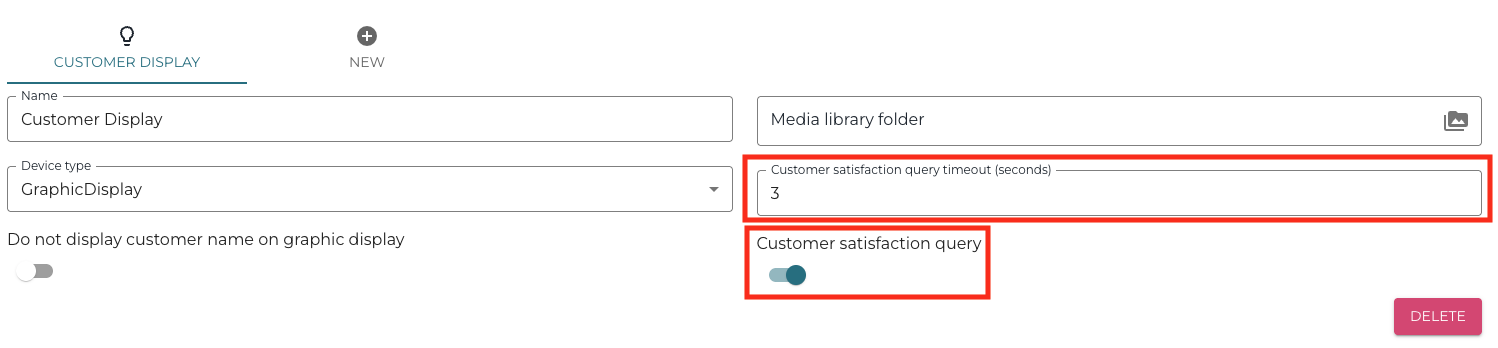
Customer satisfaction query settings -
Click Save to save your changes to the Interaction Service Settings.