
-
Before testing the new terminal with the workstation, refresh the data in the POS:
-
If logged in the POS, press Menu and then Refresh.
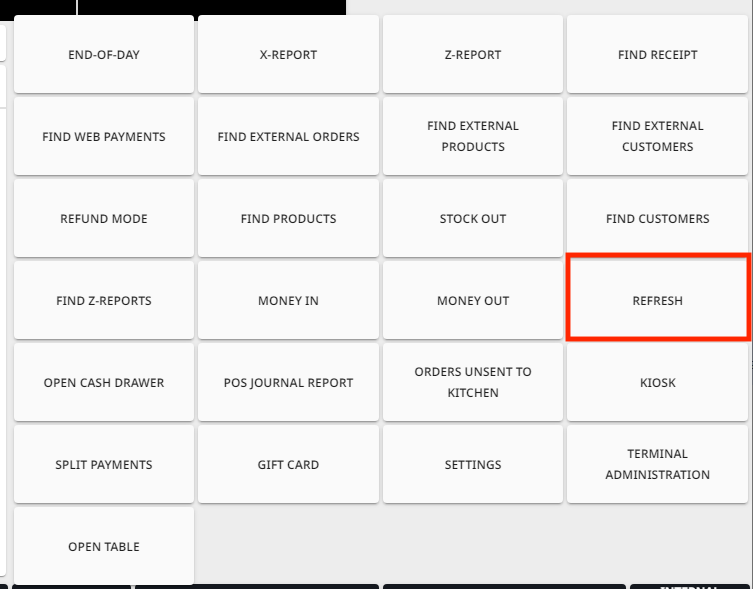
Refresh tile in POS menu -
If not logged in, press the Settings icon in the right lower-hand corner of the screen, and then Refresh.
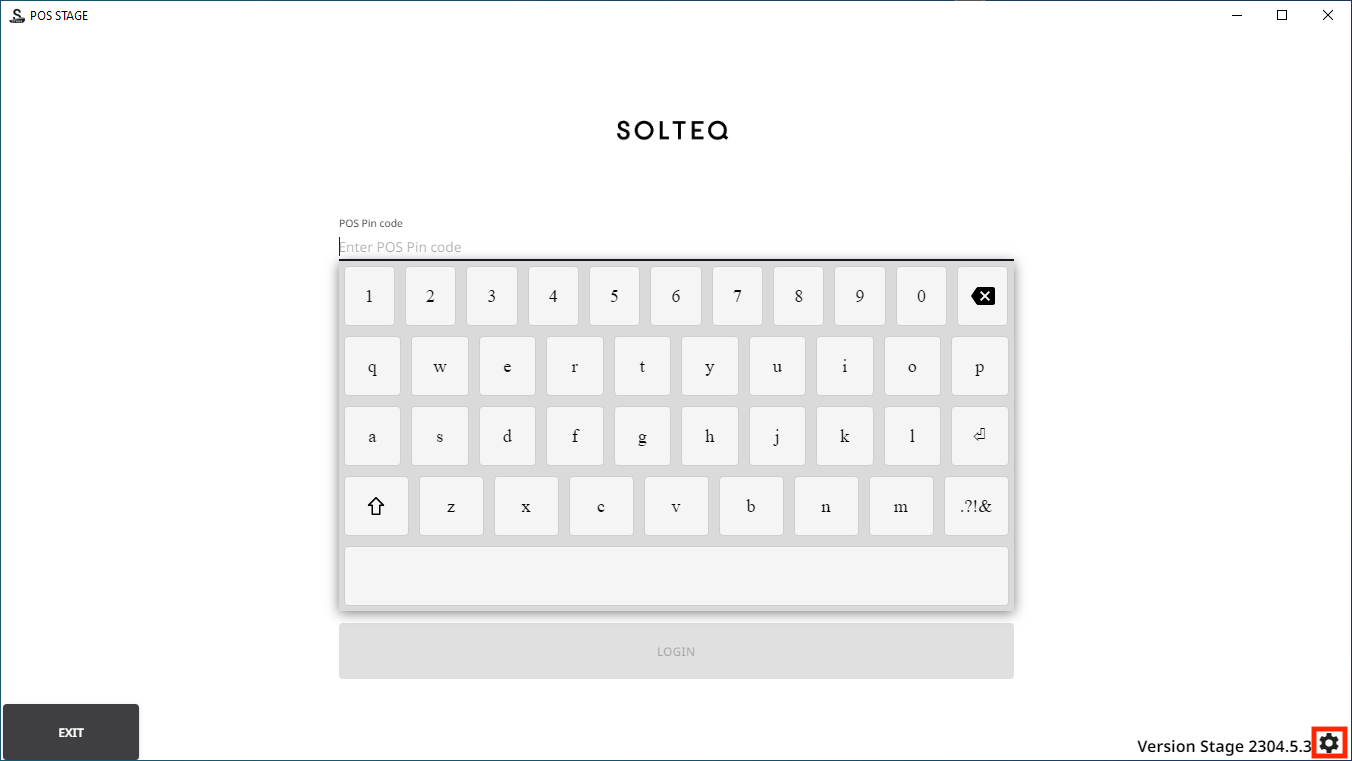
Settings icon 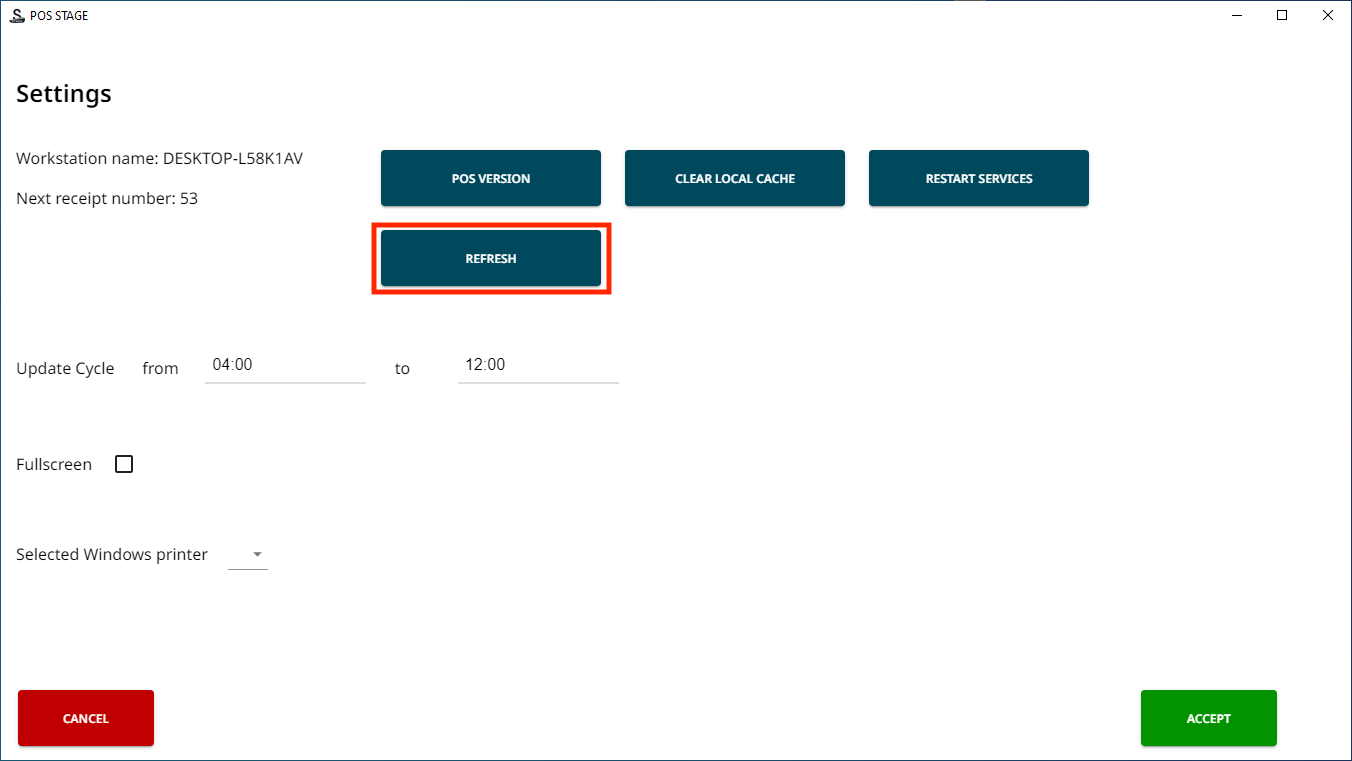
Refresh tile -
Wait for the workstation to restart.
-
Add any product to the Basket in the POS, and select Card payment.
-
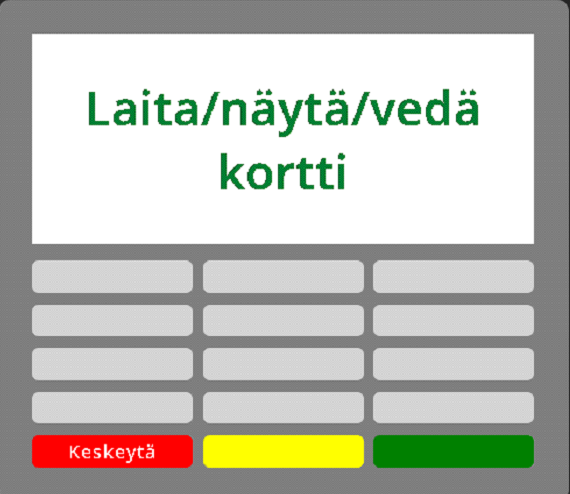
Both POS and the payment terminal should now display texts requesting the user to insert the card/use contactless payment/swipe the card.
Awaiting card payment text in the POS 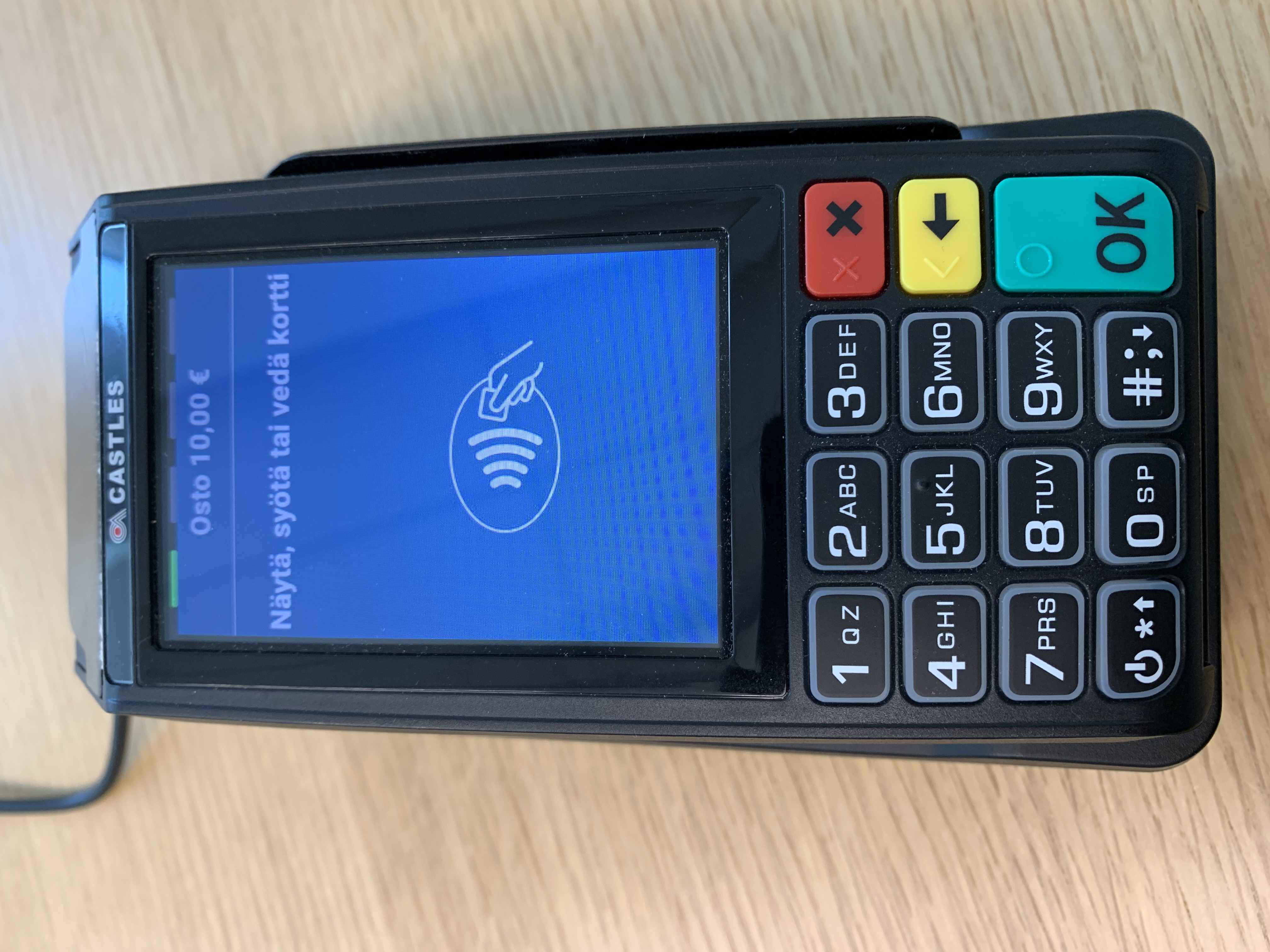
Awaiting card payment text in the terminal -
Press the red x button in the terminal to cancel the payment.
-
The device is now ready for use.