
-
Login to the portal and select Profile → Terminals.
-
Click Configurations in the Back Office menu.
-
In the Configurations view, select the workstation which is used with the payment terminal.
-
Go to the the Payment Service settings of the workstation and select Card payment method.
-
If you are replacing an existing payment terminal:
-
First, write down or take screencap of the Device address of the old device.
-
This is important so that you can restore the previous settings and revert to using the old device, if there are problems in taking the new device into use.
-
-
Enter the Terminal ID of the new device into the Device address field.
-
Click the Cloud terminal switch to ON position.
-
You do not need to change any other settings; click Save to save your changes.
-
-
If you are taking a new payment terminal into use without replacing an existing one:
-
Enter the Terminal ID of the device into the Device address field.
-
Click the Cloud terminal switch to ON position.
-
Enter the other required settings for the Card payment method; see Payment Service for instructions.
-
Click Save to save your changes.
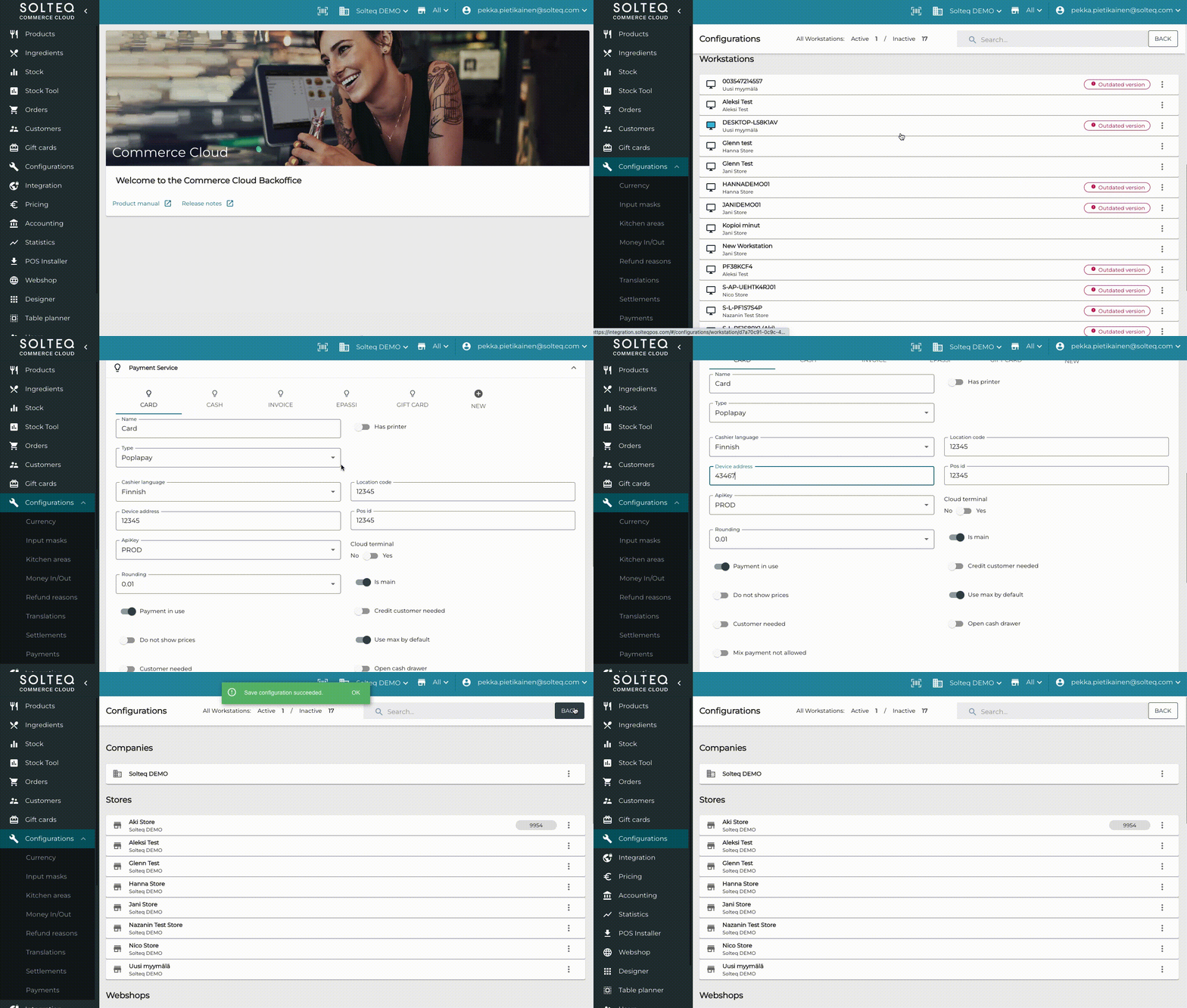
Entering the Terminal ID and activating Cloud terminal in the Back Office
-
-
-
Next Test the Castles Technology Payment Terminal to ensure that it works as planned.