
You can export the Stock Insight data of the selected Stock in Excel format from the Back Office. If the Stock you selected is a central Stock (not allocated to any Store), you can also export the Stock Insight data of all the Stocks in your company.
Export the Stock Insight Data of a Single Stock
-
Click Stock Handling in the Back Office menu.
-
Select a Stock from the list. Stock details are displayed.
-
Click View more in the Stock Insight section. The Stock Insight view is displayed.
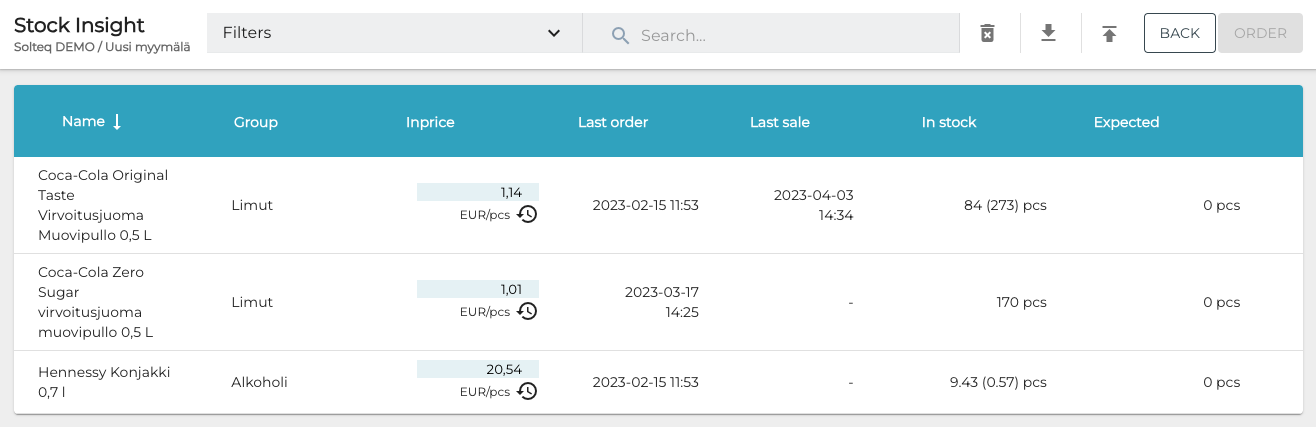
Stock Insight view -
(optional) Select and apply filters for exporting the data.
-
Click the Export icon in the toolbar.
-

Export icon The Excel file will be saved on your computer.
Example of the Stock Insight Excel file
Export the Stock Insight Data of All Stocks
-
Click Stock Handling in the Back Office menu.
-
Select a Stock used as a central Stock from the list. Stock details are displayed.
-
Click View more in the Stock Insight section. The Stock Insight view is displayed.
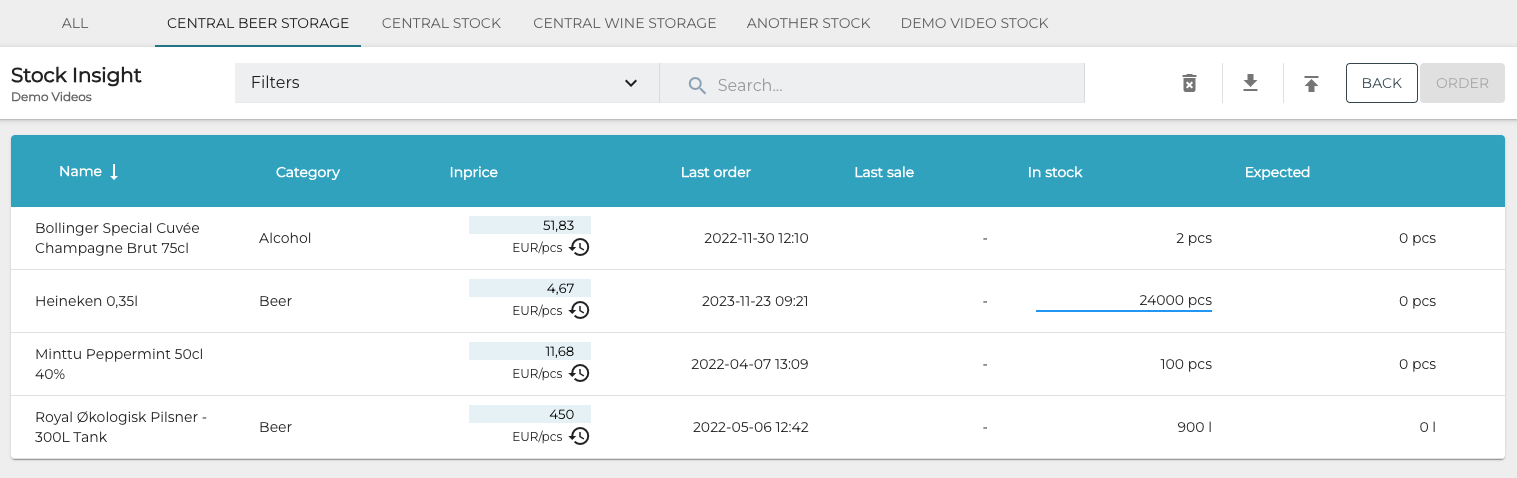
Stock Insight view for a central Stock -
Click the All tab. Stock Insight data for all Stocks is displayed.
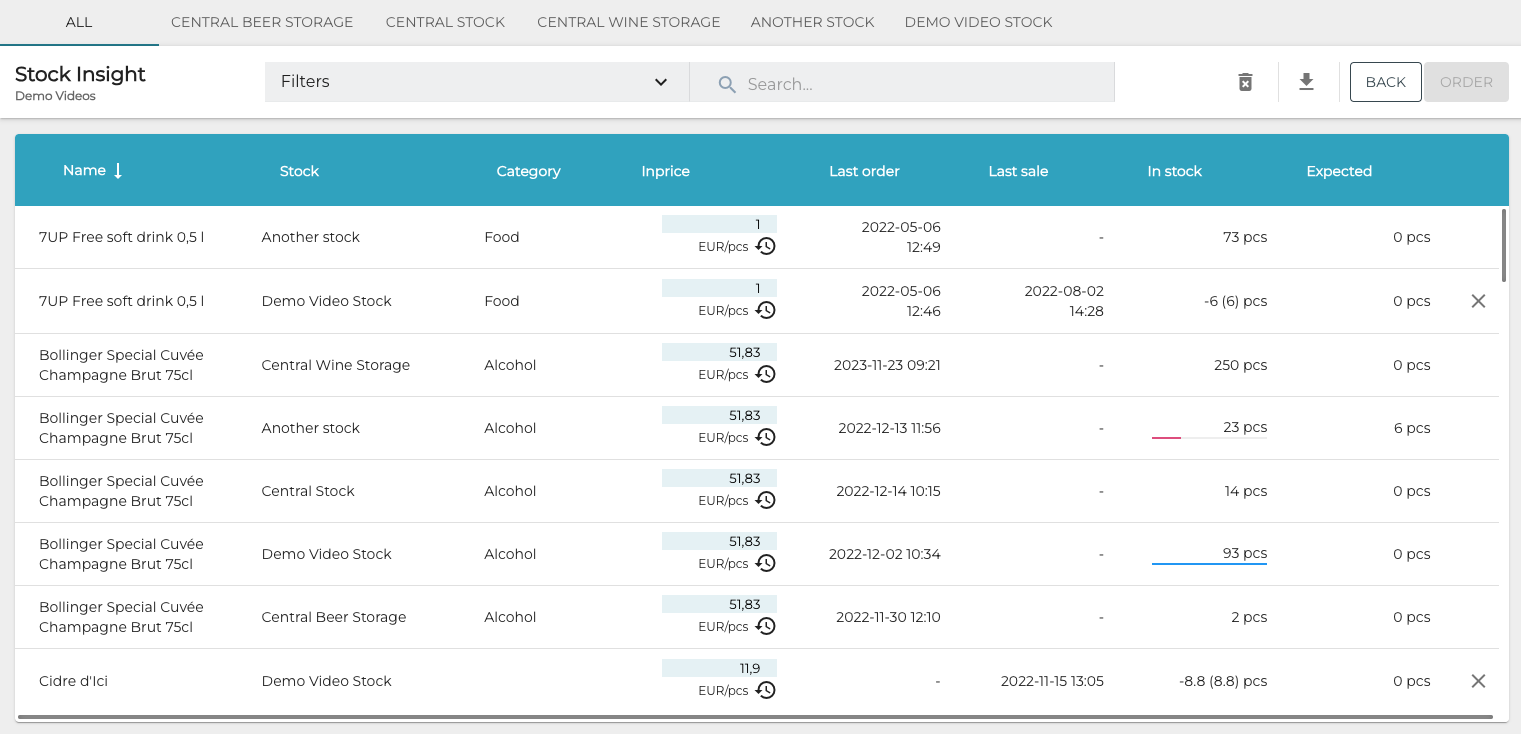
Stock insight data for All Stocks -
(optional) Select and apply filters for exporting the data.
-
Click the Export icon in the toolbar.

Export icon -
The Excel file will be saved on your computer.
Example of the Stock Insight Excel file.