
-
Enter a new inprice in the Inprice column on the row of the stock item.
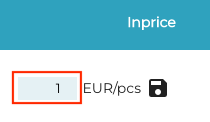
Entering the new inprice -
Click on on the Save icon.
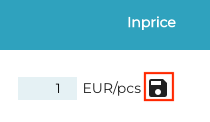
Saving the new inprice
-
Enter a Reason for the inprice change and click Save.
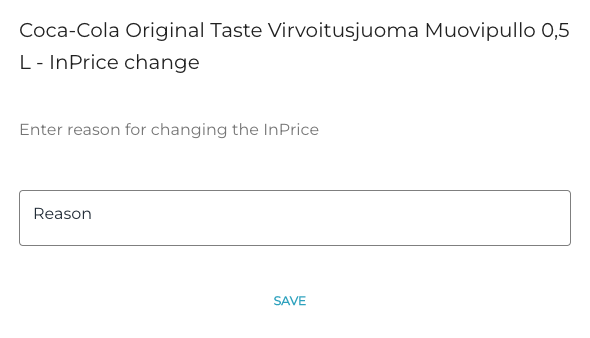
Entering a reason for the inprice change -
The inprice of the stock item has now been changed. The changes to the inprice can be viewed by clicking on the Inprice History icon on the row of the stock item.
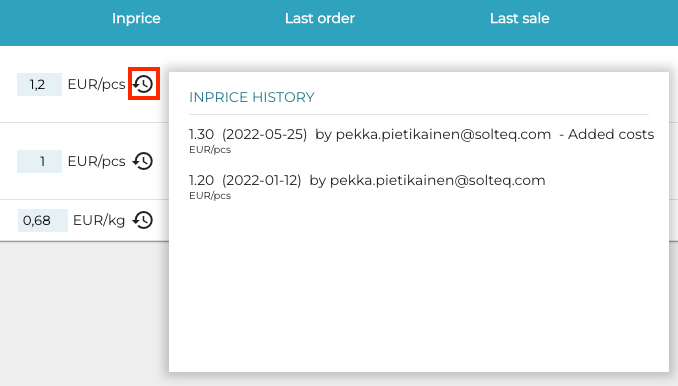
Viewing the inprice history