
In the following example you are shown how to set up Aures Yuno VFD 2-line display as customer display.
Install Aures Yuno Display
-
Unzip the package and run YUNO_VFD_Setup_v1.0n.exe.
-
Select the following settings:
-
ComPort: COM6
-
BaudRate: 9600
-
Format: N,8,1
-
Select the Read button.
-
If the error Port COM6 access denied is displayed, close POS Service before reading the settings.
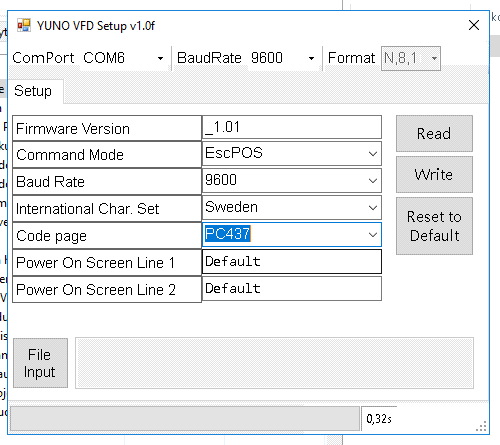
Settings for Aures Yono display
-
-
Select the following settings on the Setup tab:
-
Command Mode: EscPOS
-
BaudRate: 9600
-
International Char. Set: Sweden
-
Code page: PC437
-
-
Select the Write button and close the setup program window.
Configure the Display in the Back Office
-
Click Configurations and select the Workstation you want to use with the customer display.
-
In the Workstation Configurations, go to Interaction Service and click New.
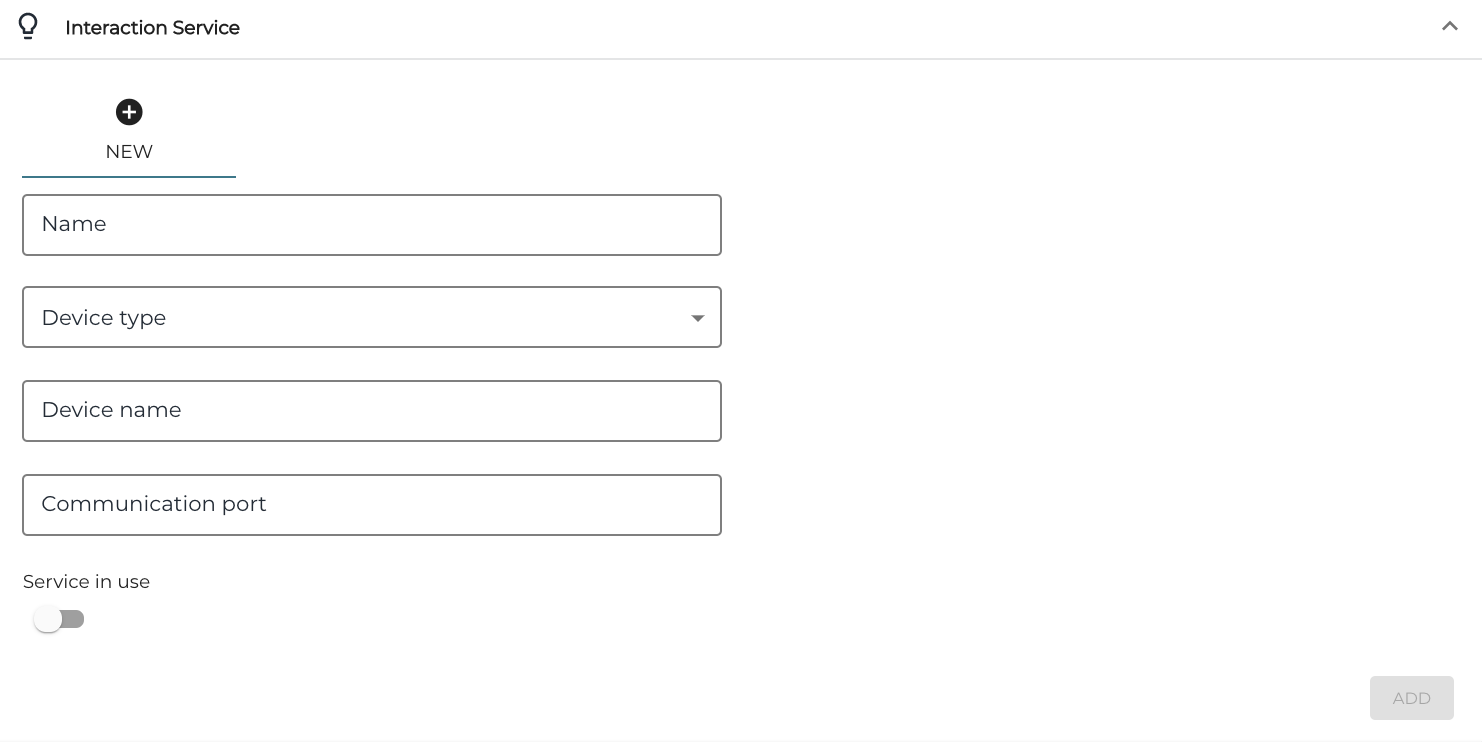
Interaction Service fields -
Enter the following information:
-
Name: Name of the display (for example, Customer Display)
-
Device type: EscPosLineDisplay
-
Device name: Leave this field empty
-
Communication Port: Enter COM6
-
-
Click the Service in use switch to ON position.
-
Click Add to add the new configuration to the workstation
-
Click Save to save your changes.