
The following types of reports can be generated directly in the POS:
-
Z-reports
-
X-reports
-
other reports that can be generated by pressing a tile, defined in the POS Layout Designer.
Z- and X-reports are always generated on workstation level.
Z-report
Z-report is an end-of-day report, usually generated when daily cash is settled. Generating the Z-report is not mandatory, because the data will also be transferred to Back Office without it.
When you generate a Z-report, the local statistics are reset: the Z-report will contain all the data starting from the time when a Z-report was previously generated.
A preview of the report is always displayed first, and you can select the dimensions displayed in the report:
-
Grand Totals
-
Sales
-
Transactions
-
Product Statistics
-
Taxes
-
Categories (select the product category)
-
Payment Methods
-
Hourly Statistics
Below is an example of Z-report contents.
           Z REPORT                     (or X-report)
         <WORKSTATION>
      SolteqHubDemoCompany
           DEV Store
         Karhumäentie 3
         01530 Vantaa
       TaxCode FI26100093

Store number      : 01
Terminal number   : 001
Sequence number   : 0000001             (only for Z-report)


Period      : 16.5.2018 04:00
            - 17.5.2018 03:59

Printed     : 18.5.2018 07:57
By          : aki.korpua@gmail.com
Person ID   : 1

Total POS sales from start
======================================
Total inc. tax              159 595,01
Total without tax           105 517,76
Total refunds                 - 144,11
======================================

Sales                           Amount
======================================
Gross sales                    1405,90  (Total before discounts been activated)
Returns                        - 40,90
Discount                        - 0,76
                 =====================
Total net sales                1364,24
--------------------------------------

Money In/Out                    Amount
======================================
Money in                         50,00  (This section also contains open cash base in/out data)
Money out                       -50,00
                 =====================
Total                             0.00
--------------------------------------

Transactions                       Qty
======================================
Sales                               67
Cancelled                            2
Refund                               1
Money in                             1
Money out                            1
Drawer openings                      5
Receipt copies                       0
Logins                              15
                   ===================
Total transactions                  92
--------------------------------------


Statistics                         Qty
======================================
Items sold                       167.00
Items returned                     1.00
--------------------------------------


Tender report        Qty        Amount
======================================
Cash                  45        564,70
 Sales                46        584,60
 Refunds               1        -19,90
Mastercard            15        149,57
 Sales                14        249,57
 Refunds               1       -100,00
Visa                  21        356,11
 Sales                21        356,11
 Refunds               0          0,00
Invoices               0          0,00
 Sales                 0          0,00
 Refunds               0          0,00
---------------------------------------

Product Group                            (Category chosen in Dimensions, by default group)
Category            Qty          Amount
=======================================
BEVERAGES          140          1555,60
FOOD                78           759,00
PACKAGES            16           560,00
SERVICES             4           156.05

Tax report
=======================================
Tax group       Tax    Taxless    Total
Tax 0            0     156.05   156.05
Tax 14       284,25   2030,35   2314,00
Tax 24       108,39    451,61    560,00
---------------------------------------
Total
---------------------------------------
                Tax   Taxless     Total
             392,64   2638,01   3030,65
---------------------------------------

Hour statistics
Time                Qty          Amount
=======================================
11:00                3            80,37
11:30                2            54,00
....
19:00               15           153,50
As an option, you can also define that the following information will be also included in Z-reports:
-
Receipt numbers of paid receipts
-
Amount (pcs) and sum (currency) of refunding receipts
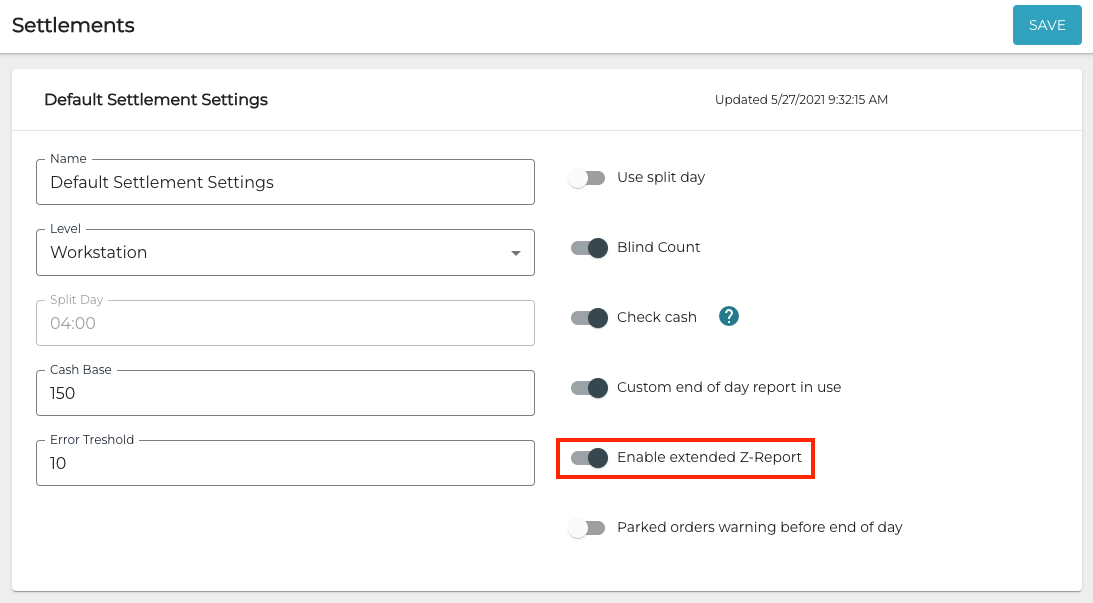
To enable this, click the Enable extended Z-report switch to ON position in Settlement Settings.
X-report
In some cases it is useful to generate an intermediate report – also known as X-report – to follow up on daily sales. In this case a Z-report must also have been generated first, so that the X-report will only display the sales for the ongoing day.
Generating an X-report does not reset the data in the same way as generating an Z-report does; it is possible to generate several X-reports in succession, and they will display all the data starting from the latest Z-report.
A preview of the report is always displayed first, and you can select the dimensions displayed in the report:
-
Grand Totals
-
Sales
-
Transactions
-
Product Statistics
-
Taxes
-
Categories (select the product category)
-
Payment Methods
-
Hourly Statistics
If there is no need for daily follow-up on the sales made in the POS, there is no need to generate Z- or X-reports.
Generate a Z-report or an X-report
-
Login to the POS.
-
Press Menu.
-
Press Z-report or X-Report.
-
Select what content will be included in the report with the Dimensions checkboxes. Press Preview to update the view according to the chosen Dimensions.
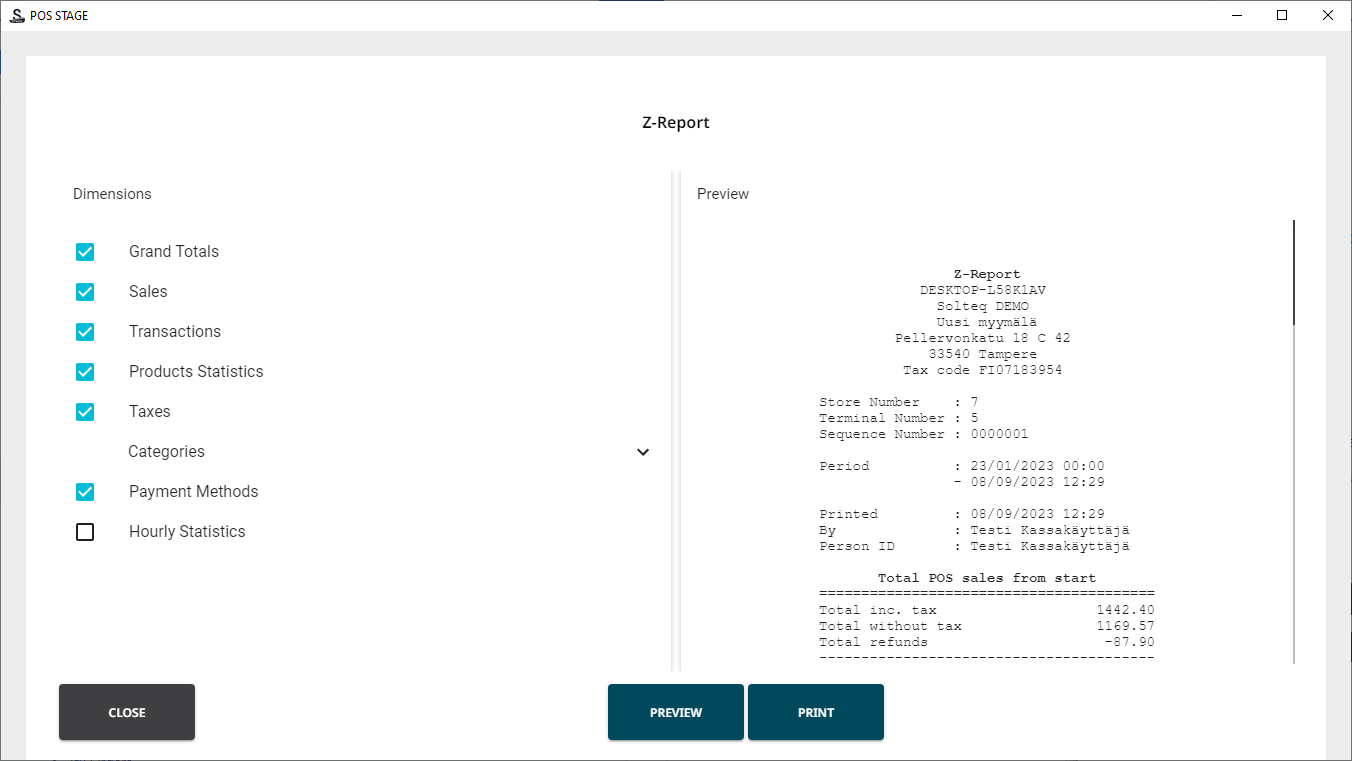
Z-report preview screen 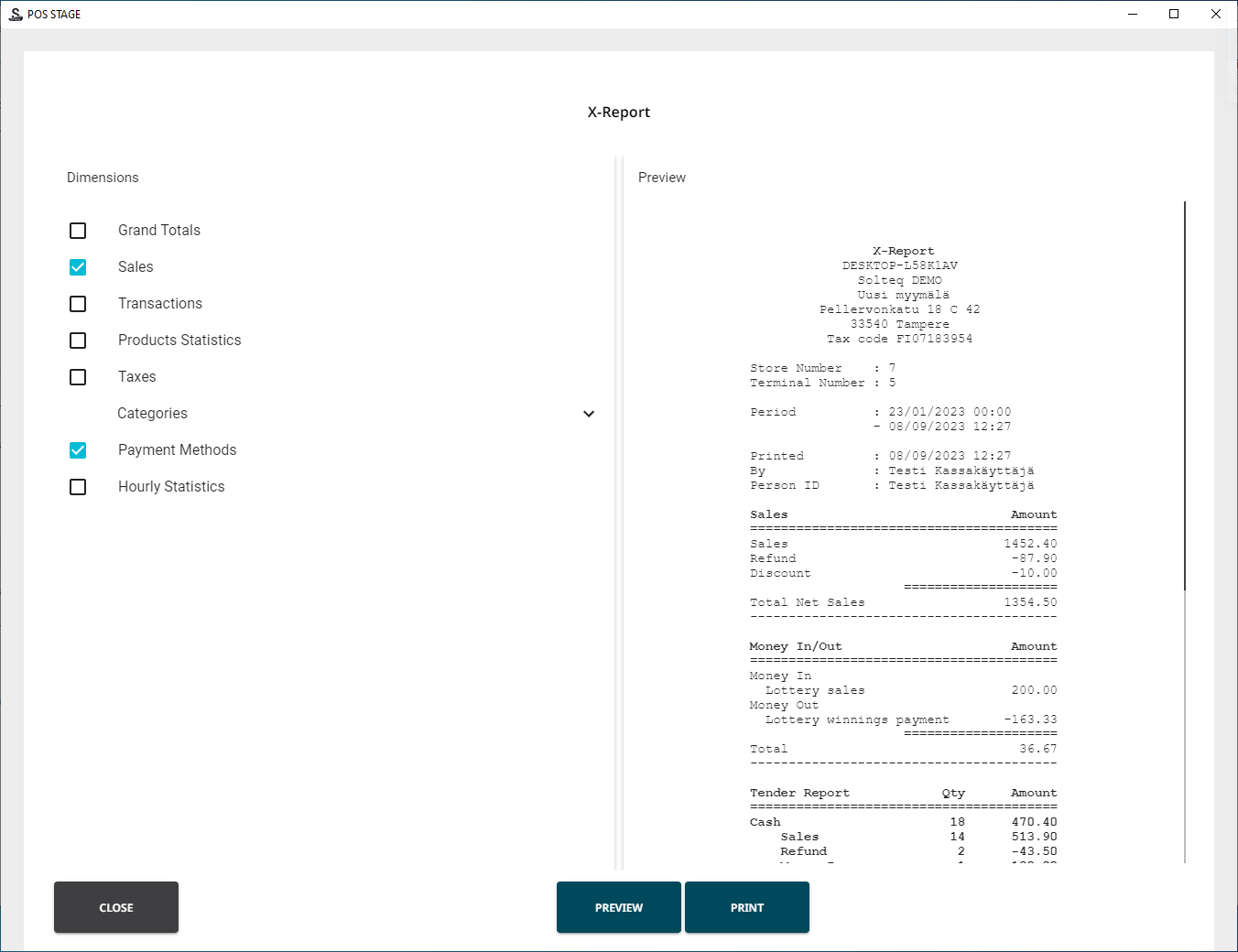
X-report preview screen -
Press Print to print the report.