
You can set the delivery status for a product row or multiple rows in the Basket.
Using this feature requires that Enable POS Product delivery statuses has been enabled in Company Configurations).
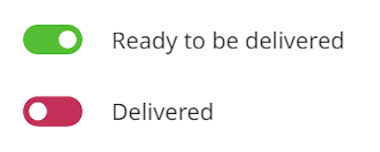
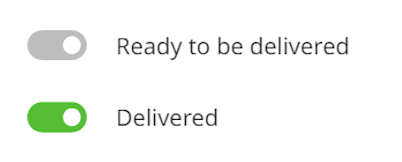
The two possible statuses and their corresponding icons are the following.
|
Icon |
Status |
|---|---|

|
Ready to be delivered |

|
Delivered |
If needed, you can also set a product row directly to Delivered status without setting it to Ready to Delivered first. The Ready to be delivered switch will be automatically set to ON in these cases.
Set a Product to Ready to Be Delivered Status
-
Add product(s) to the Basket.
-
Press the row of the product. Product details are displayed; Delivery section displays the current delivery status of the row.
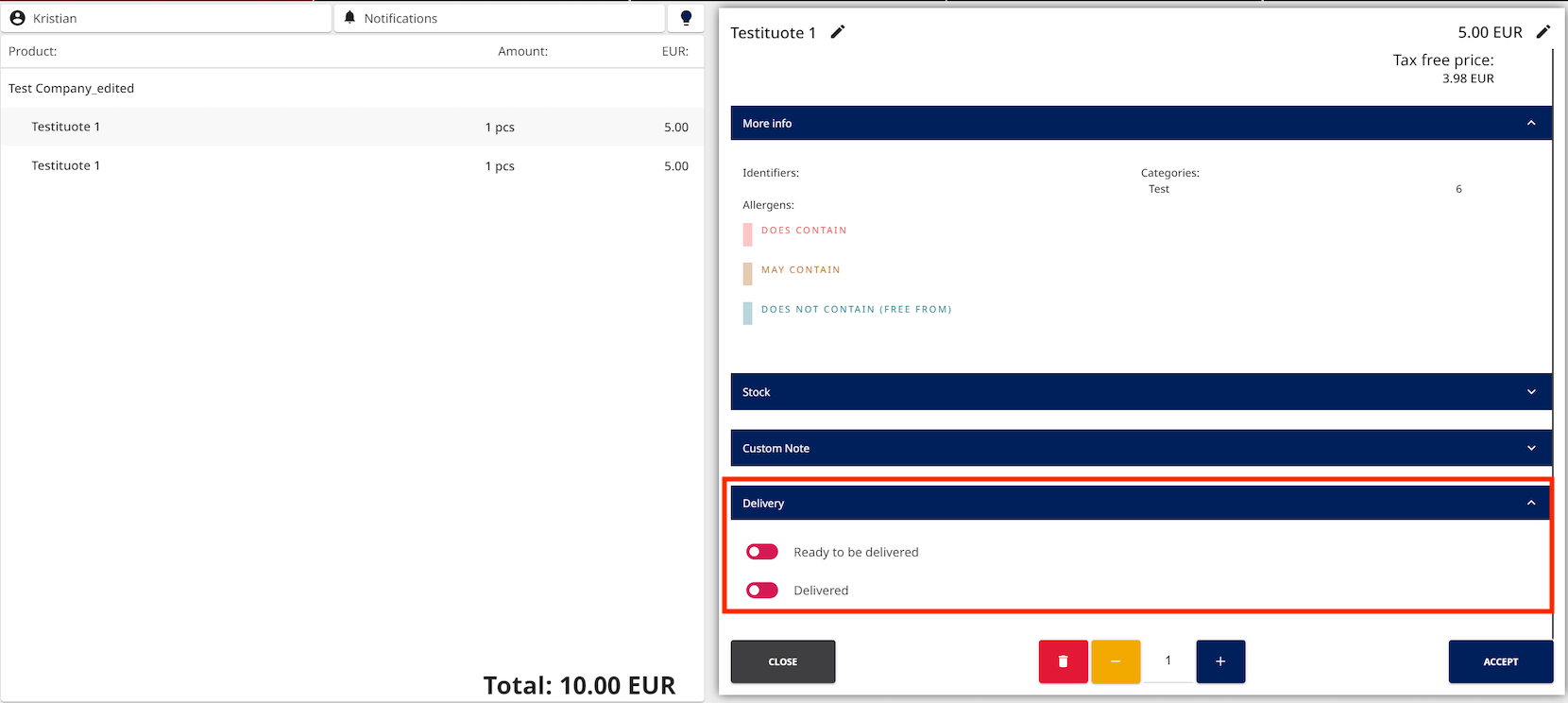
Delivery information in product details -
In the Delivery section of product details, select the product status: Ready to be Delivered. The Ready to be delivered icon (with green outline) is displayed on the product row.
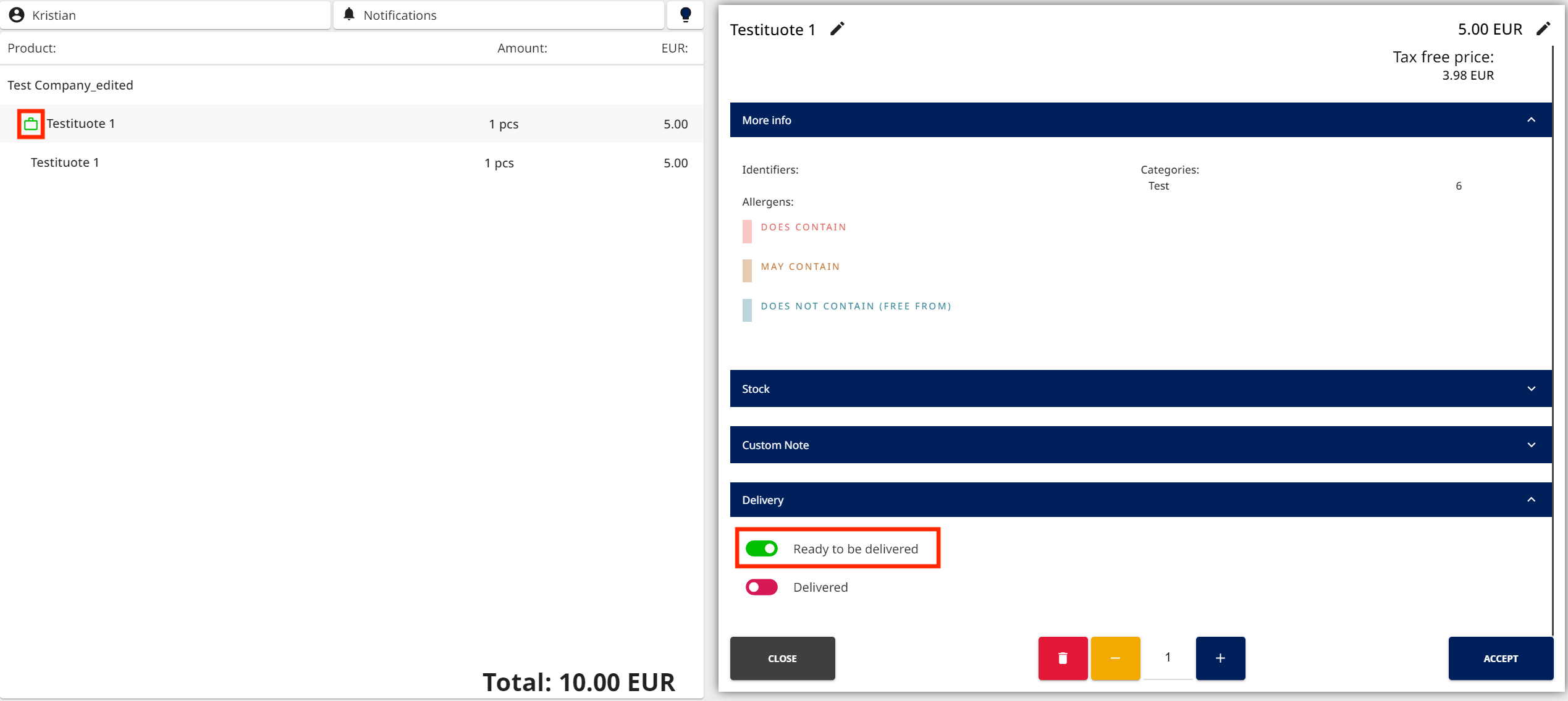
Setting a product to Ready to be delivered status -
Press Accept to finalize the status.
Set a Product to Delivered Status
-
When the product has been delivered, press the row of the product and select Delivered for its Delivery status. The icon on the row changes colour to green.
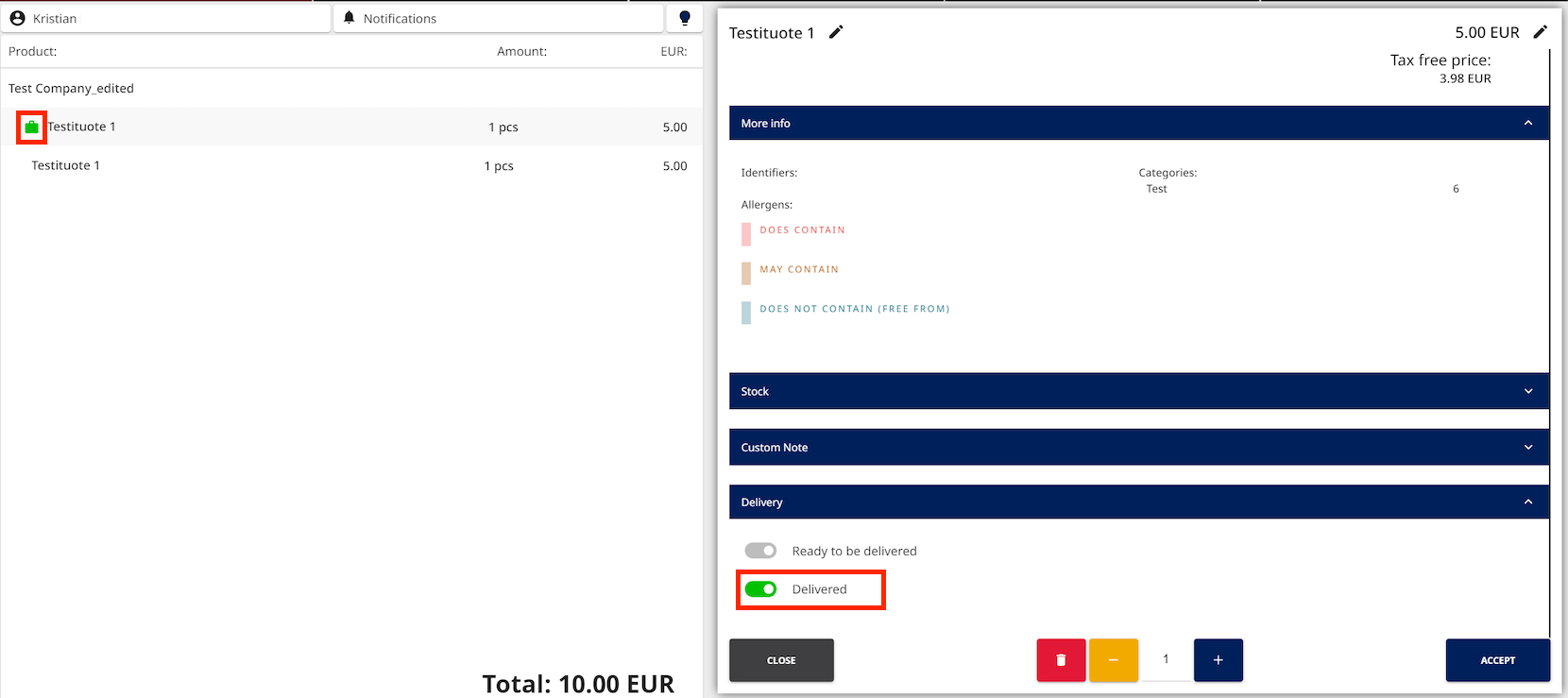
Setting a product to Delivered status -
Press Accept to finalize the status.
Changing the Delivery Status for Several Products at Once
In addition to selecting one product at a time, you can also select multiple Basket rows and change all of their statuses at once.
Using this function requires that a Multiselect tile has been added to the POS Layout.
Pressing the Multiselect tile or selecting the Products checkbox will automatically change the delivery status for all the product rows in the Basket at once, depending on the current Basket row statuses.
|
Basket Row Status |
Result, when POS User Presses Multiselect tile or Products checkbox |
|---|---|
|
None of the rows have delivery statuses set. |
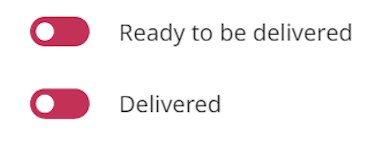
|
|
All the rows are in Ready to be delivered status. |
|
|
All the rows are in Delivered status. |
|
|
The rows have mixed statuses. |
|
-
Add product(s) to the Basket.
-
Press the Multiselect tile or select the Product checkbox. Multiselect options display the current delivery status of the rows.
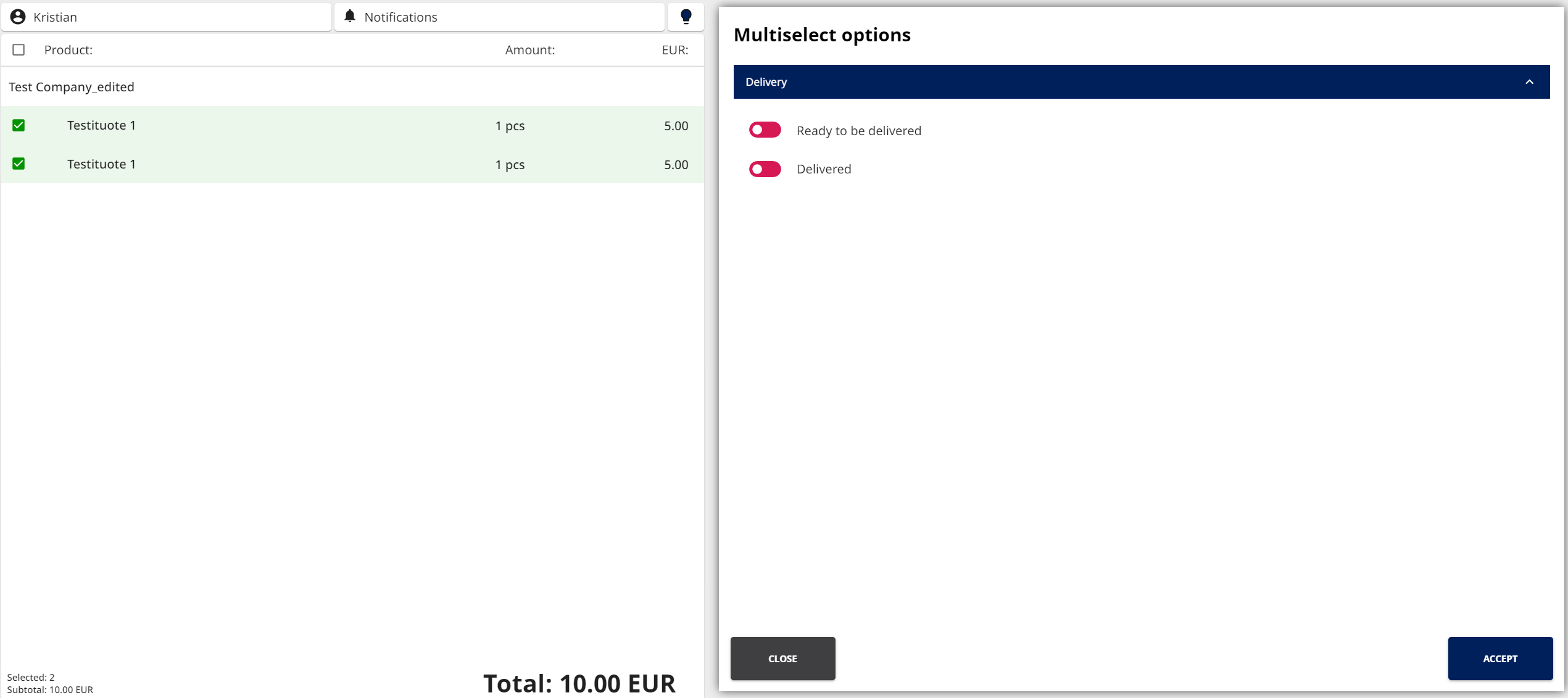
Product multiselect -
Set a new status for the selected products.
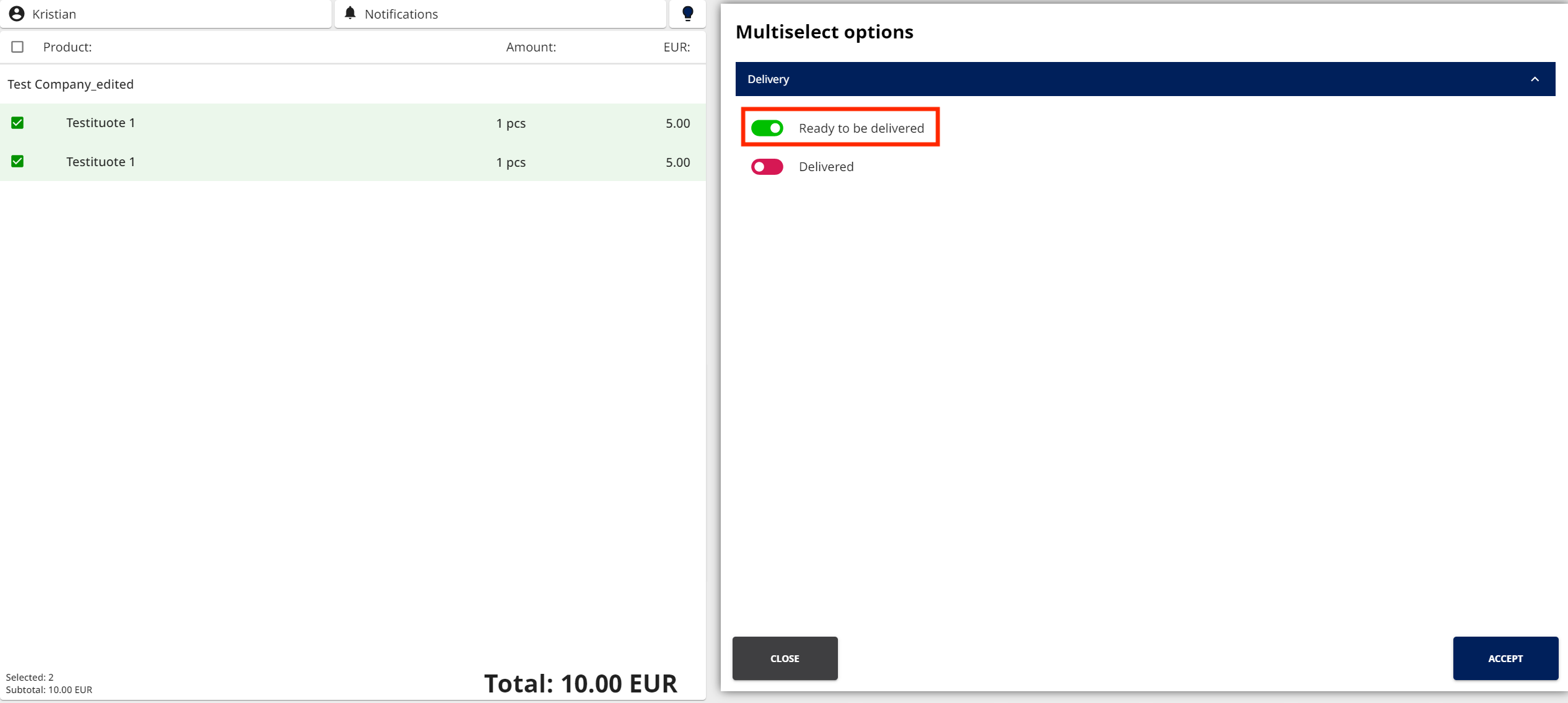
Changing the delivery status for multiple product rows -
Press Accept to finalize the status. The updated delivery statuses of the product rows are now displayed in the Basket.
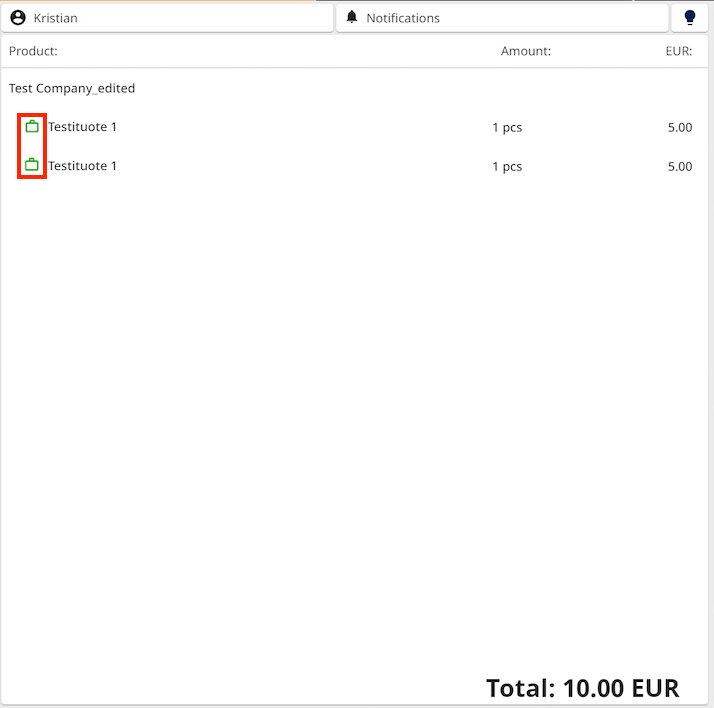
Updated delivery statuses