
You can use the Tagging feature to add tags to garments, shoes or other items in POS.
In order to use this feature, Tagging must be enabled in Company Configurations and a separate Add tag tile must have been added to the POS layout.
Tags can be added to Basket contents after you have added all the products into the Basket. It is also possible to add tags first, and then add the products to the Basket.
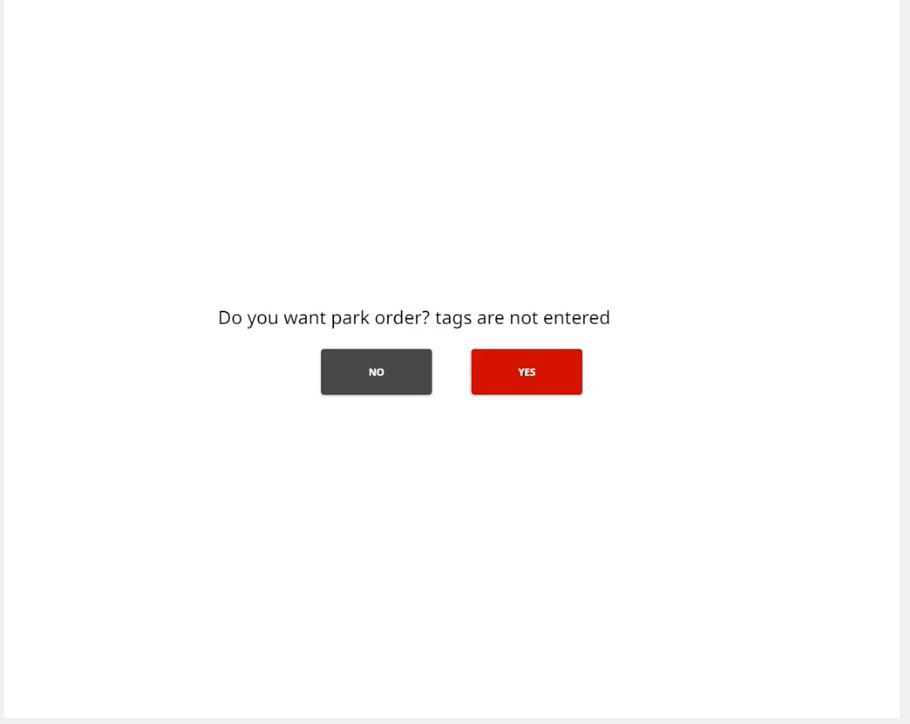
When tagging has been enabled, if you try to park an order without adding tags to the Basket contents, the system will display a notification.
When an order containing tags has been parked, the order can be found using tags as search criteria.
Create Tags
-
Add the products to the Basket.
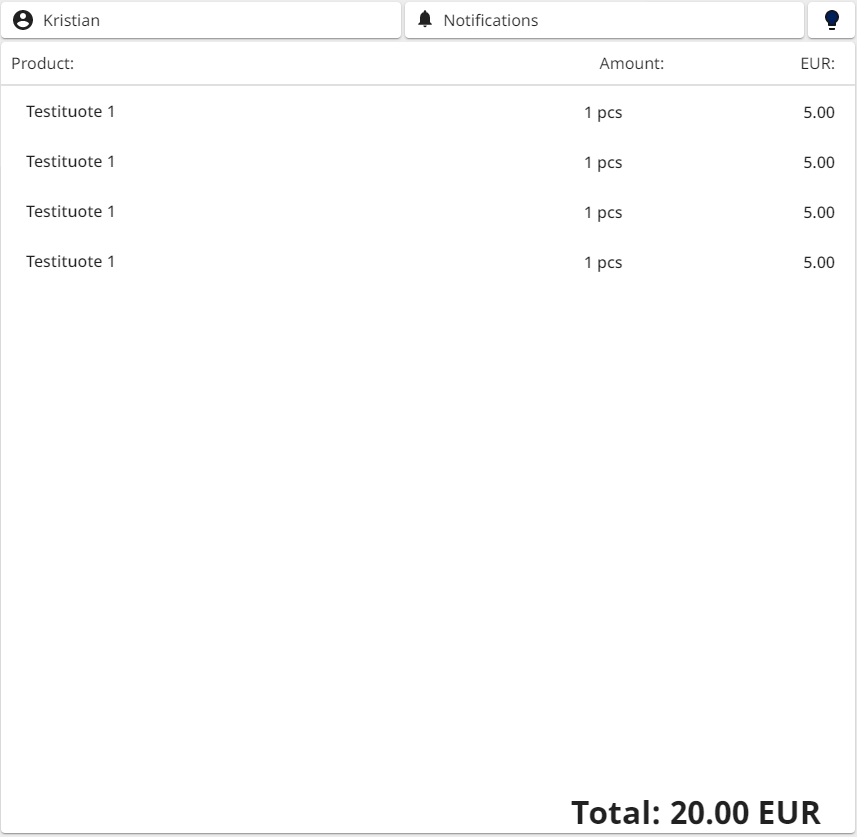
Products in the Basket -
Press the Add Tags tile.
-
Scan (or enter) the tag number for the first item and press OK.
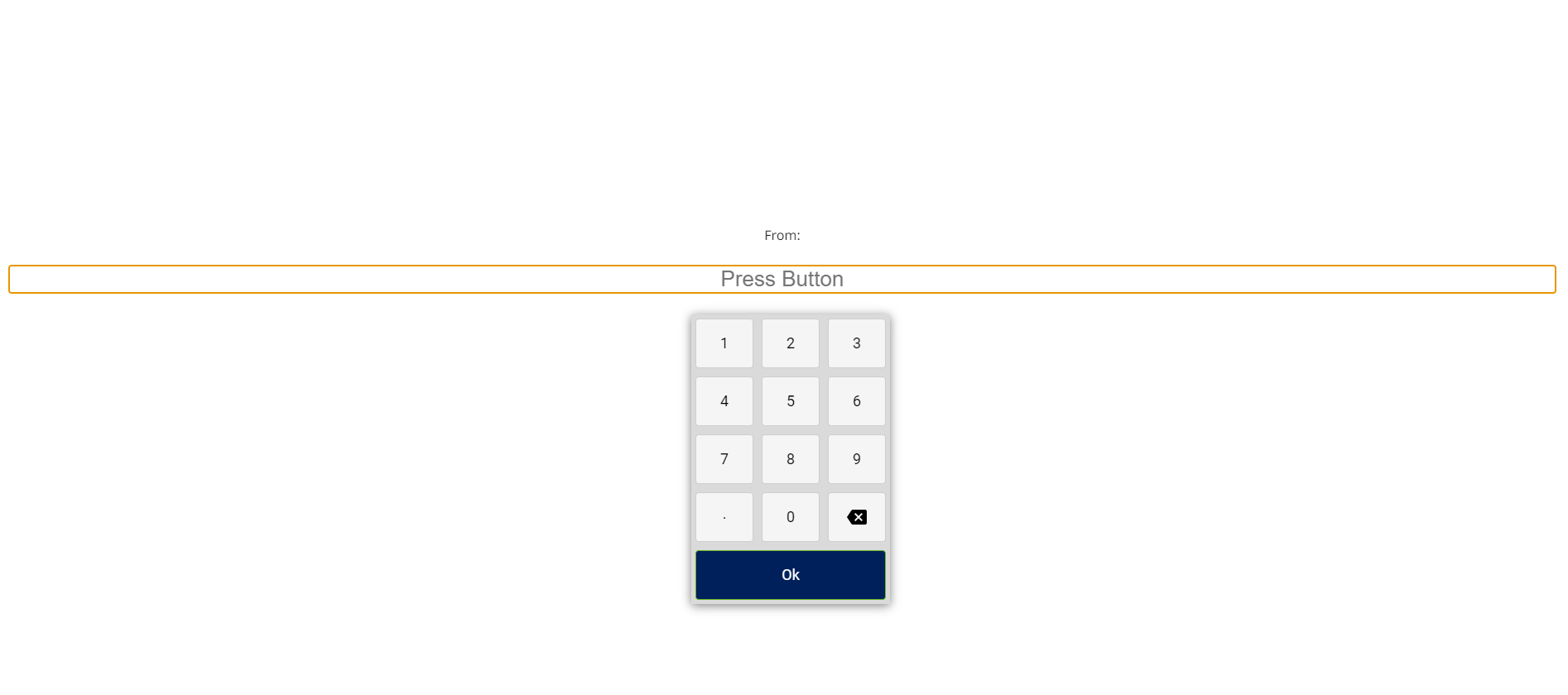
Scan/enter the first tag number -
If an existing tag number is entered again, the system will display the error message Tag already exists.
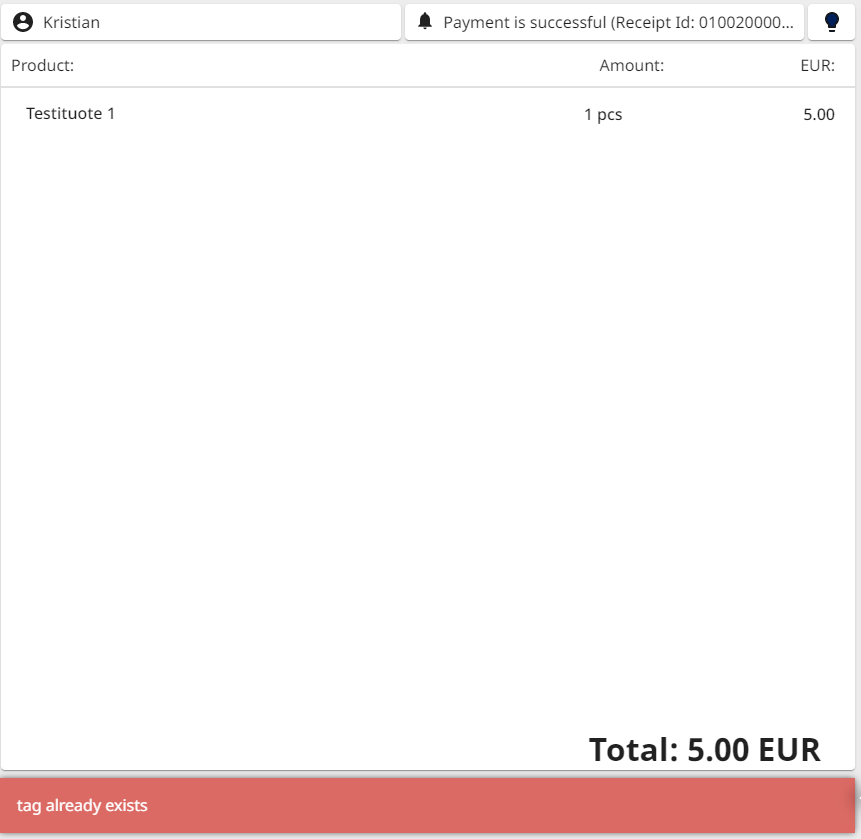
Error message for an existing tag
-
-
Scan (or enter) the tag number for the last item and press OK.
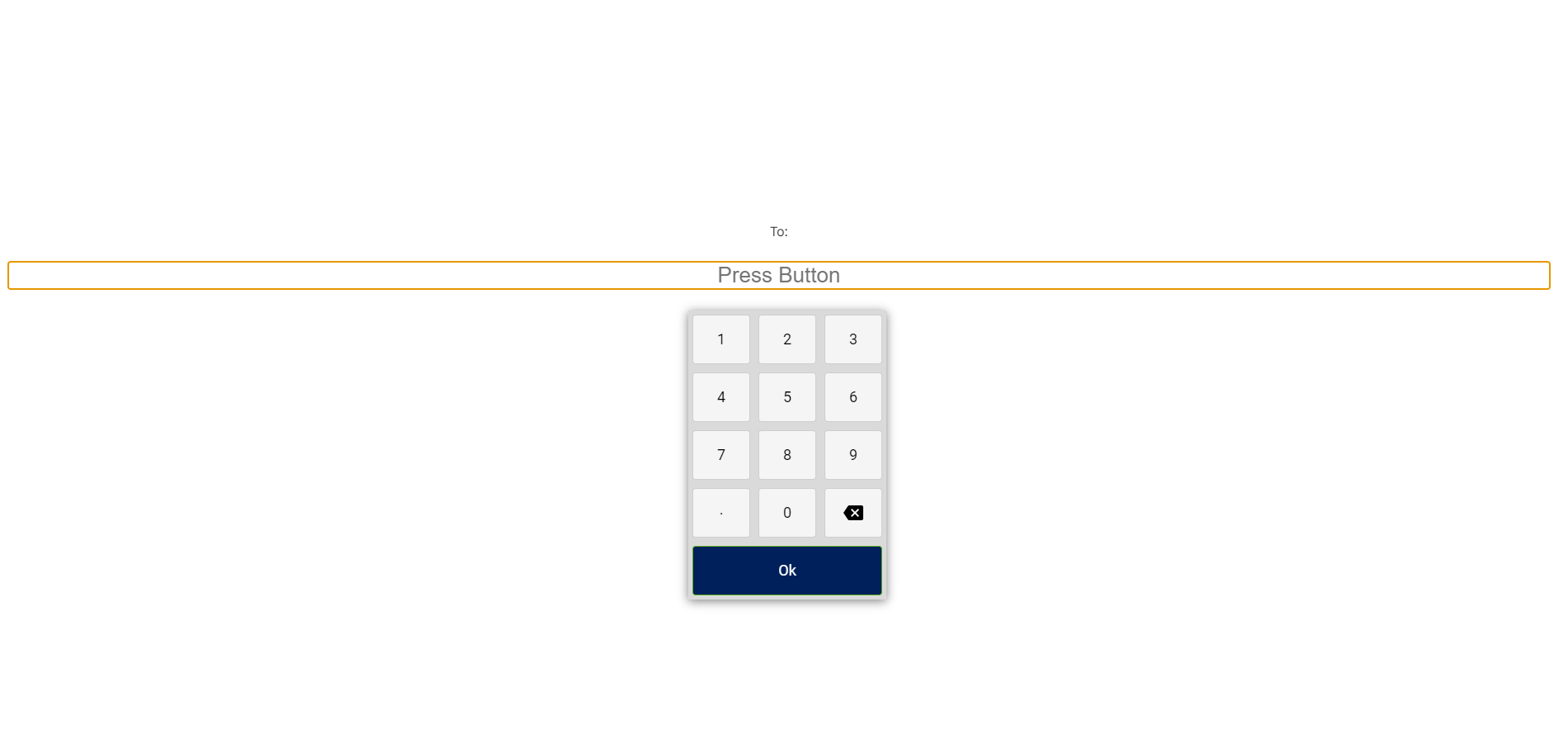
Scan/enter the last tag number -
When you have entered all the tag numbers, the complete list of numbers is displayed.
-
Select the Print on receipt checkbox, if you want the tag numbers to be included in the customer’s receipt.
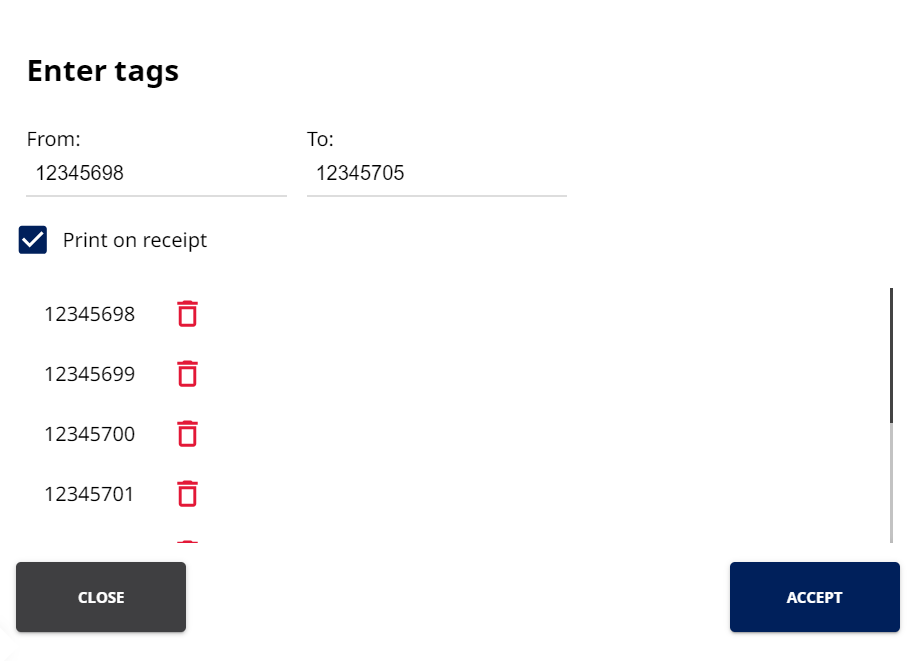
List of tag numbers entered for the Basket
-
-
Press Accept. The tag numbers are now visible in the Basket.
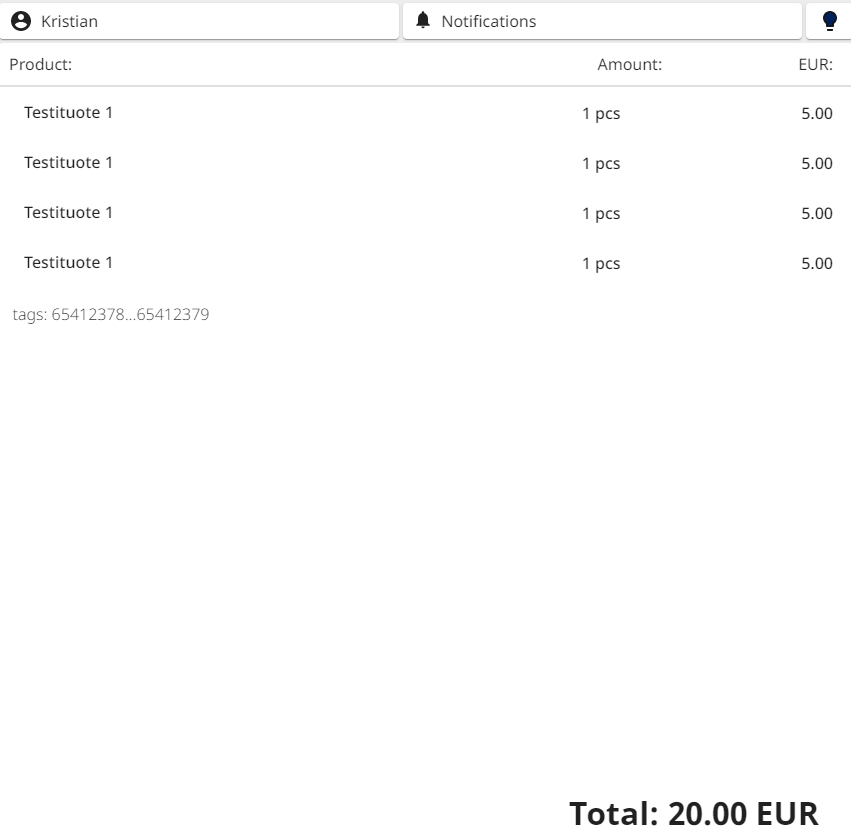
Tag numbers in the Basket -
Press Park Order to park the order.
You can also start by entering the tags first.
You can add more tags to an order after pressing Accept for the initial range: Just enter a new From/To tag number range, and the new tag numbers are added to the list.
Searching for Tagged items from Parked Orders
-
When you need to unpark an order with tags, you can use the tag as search criteria. Scan or enter it to the Tag field.
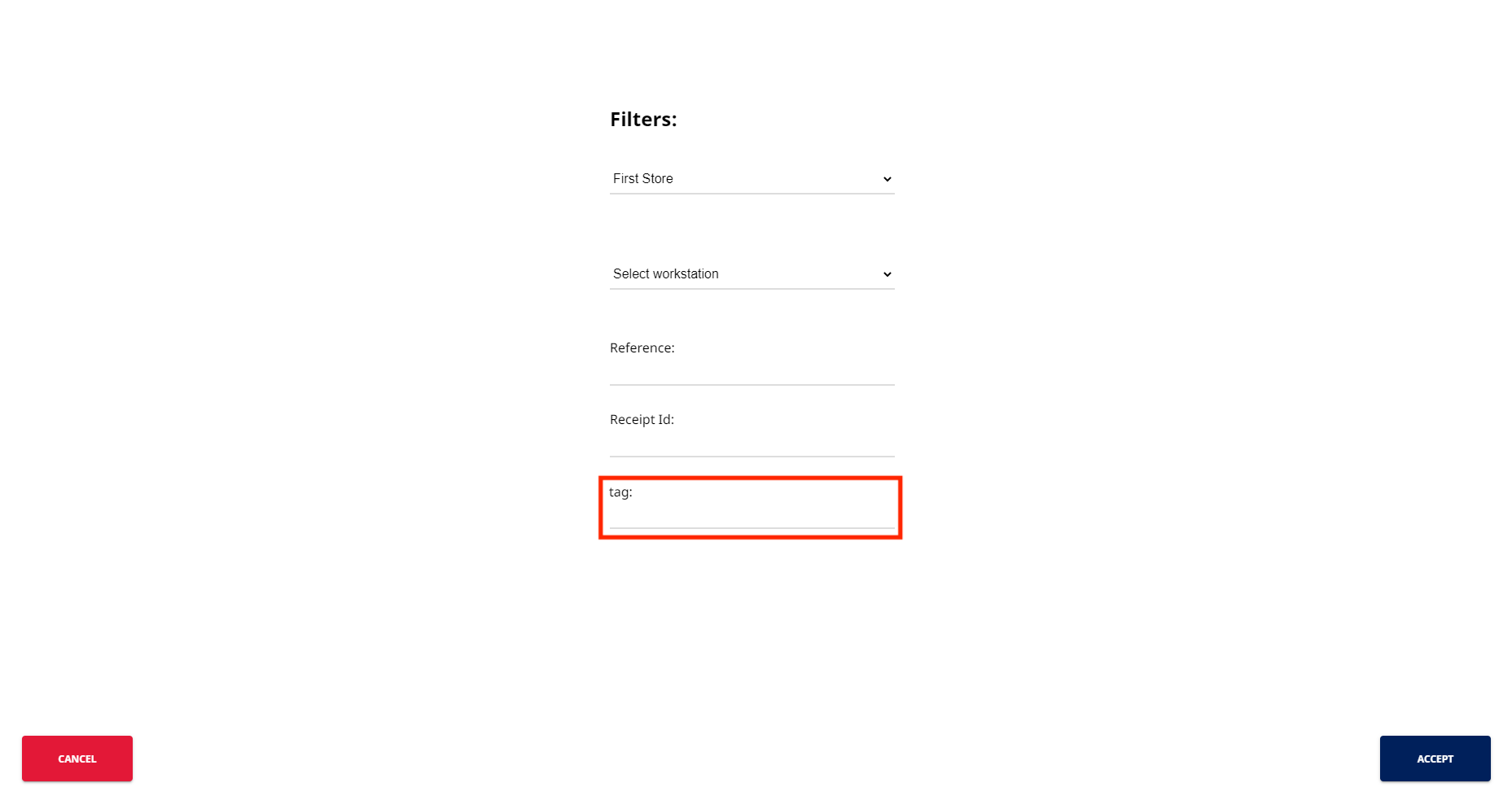
Parked order search -
Tag is visible in the search filters.
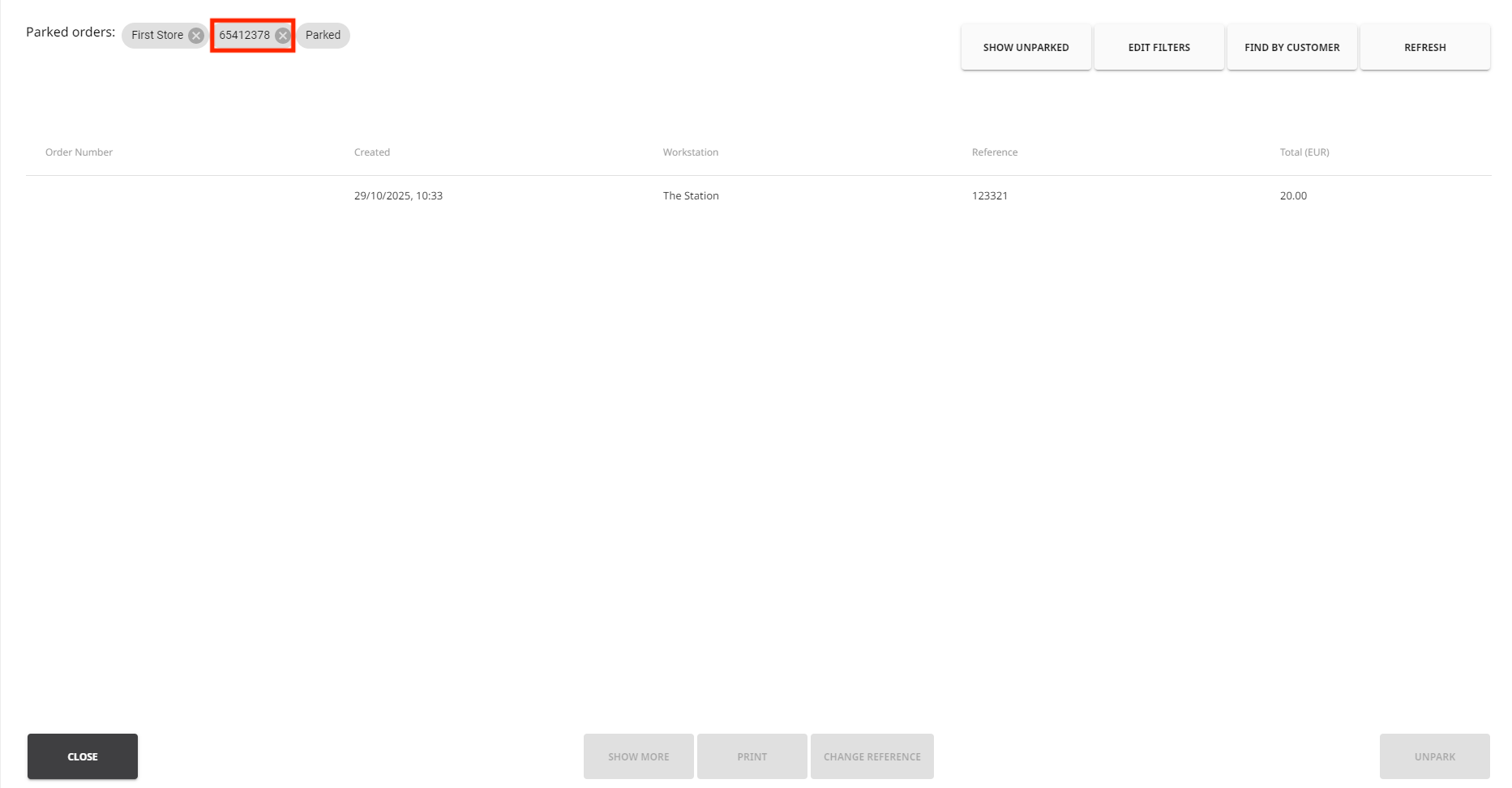
Tag in the Parked Orders search filters -
You can now unpark the order, add additional products to the Basket if needed, and proceed to payment.